
You’ve just unboxed your new Apple Watch or upgraded to a new iPhone—and now you need to sync the two devices. When done correctly, your Apple Watch and iPhone work seamlessly together, delivering notifications, health tracking, music control, and more right to your wrist. But if syncing fails, you could miss workouts, lose health data, or struggle to receive calls and messages. The good news? Syncing your Apple Watch to your iPhone is straightforward when you follow the right steps.
This guide walks you through every phase of the process: from checking compatibility and pairing your devices, to transferring data when upgrading phones, troubleshooting sync issues, and ensuring Apple Music and other apps stay in sync. Whether you’re setting up your first Apple Watch or moving to a new iPhone, you’ll learn how to sync your Apple Watch to your iPhone quickly, securely, and without losing your hard-earned fitness progress.
Confirm Device Compatibility Before Syncing
Before you begin, ensure your devices meet Apple’s requirements—otherwise, pairing will fail.
Verify iPhone and Apple Watch Models
Not all iPhones support all Apple Watch models. To sync successfully:
– iPhone: Must be iPhone 11 or later, running iOS 26 or later.
– Apple Watch: Compatible models include Apple Watch SE, Series 6, Ultra, or newer, all running watchOS 26 or later.
To check your iPhone model:
Go to Settings > General > About > Model Name.
For your Apple Watch: Open Settings > General > About > Model.
Using an older iPhone or outdated software will block pairing. Always update both devices before starting.
Sign In with the Same Apple ID
Your Apple Watch and iPhone must use the same Apple ID.
To confirm:
– On iPhone: Settings > [Your Name].
– On Apple Watch: Settings > Apple ID.
If different accounts are linked, syncing will fail. Sign in with the same Apple ID on both devices to avoid setup issues.
Understand Cellular Carrier Requirements
If you own a cellular Apple Watch, additional rules apply:
– It must use the same carrier as your iPhone—unless it’s set up for a Family Sharing member.
– Cellular service isn’t available in all countries.
– Activation occurs during setup or later via Watch app > Cellular.
Check with your carrier to confirm support before attempting to activate cellular features.
Prepare for Pairing: Essential Pre-Setup Steps

Skipping preparation can lead to failed syncs or interrupted setup. Follow this checklist to ensure success.
Charge Both Devices Fully
Low battery is a common cause of failed pairing.
Before starting:
– Charge your iPhone to at least 50%.
– Fully charge your Apple Watch using the magnetic charger.
This prevents unexpected shutdowns during the multi-step sync process.
Enable Bluetooth and Wi-Fi
Your devices connect using Bluetooth and Wi-Fi.
To verify:
– On iPhone, swipe down from the top-right to open Control Center.
– Tap the Bluetooth and Wi-Fi icons to ensure they’re active (highlighted).
Without Bluetooth enabled, your iPhone won’t detect the Apple Watch.
Update iOS and watchOS
Outdated software is one of the top reasons syncing fails.
To update:
– On iPhone: Settings > General > Software Update.
– On Apple Watch: If already paired, go to Settings > General > Software Update.
Install all updates and restart both devices if prompted. New OS versions often fix known sync bugs.
Adjust Accessibility Settings First
If you rely on accessibility features, set them up before pairing:
– Enable VoiceOver: Settings > Accessibility > VoiceOver.
– Turn on Zoom: Settings > Accessibility > Zoom.
– Increase text size: Settings > Display & Brightness > Text Size.
Once setup begins, these options become limited or unavailable on the watch.
Pair Your Apple Watch to Your iPhone
Now that everything’s ready, it’s time to sync.
Power On and Position the Watch
- Press and hold the side button on your Apple Watch until the Apple logo appears.
- If it doesn’t turn on, connect it to the charger for a few minutes.
- Wear the watch snugly—one finger width from the wrist bone—for accurate sensor readings.
Keep the watch within 6 inches (15 cm) of your iPhone during pairing.
Start Pairing via the Watch App
- On your iPhone, open the Watch app.
- Tap “Pair New Watch”.
- Hold your iPhone near the Apple Watch.
The watch face should appear in the iPhone’s camera viewfinder. Wait for the animation to complete.
If the camera doesn’t detect the watch:
– Tap “Pair Apple Watch Manually”.
– Enter the 6-digit code shown on the Apple Watch screen.
This bypasses camera detection and completes the connection.
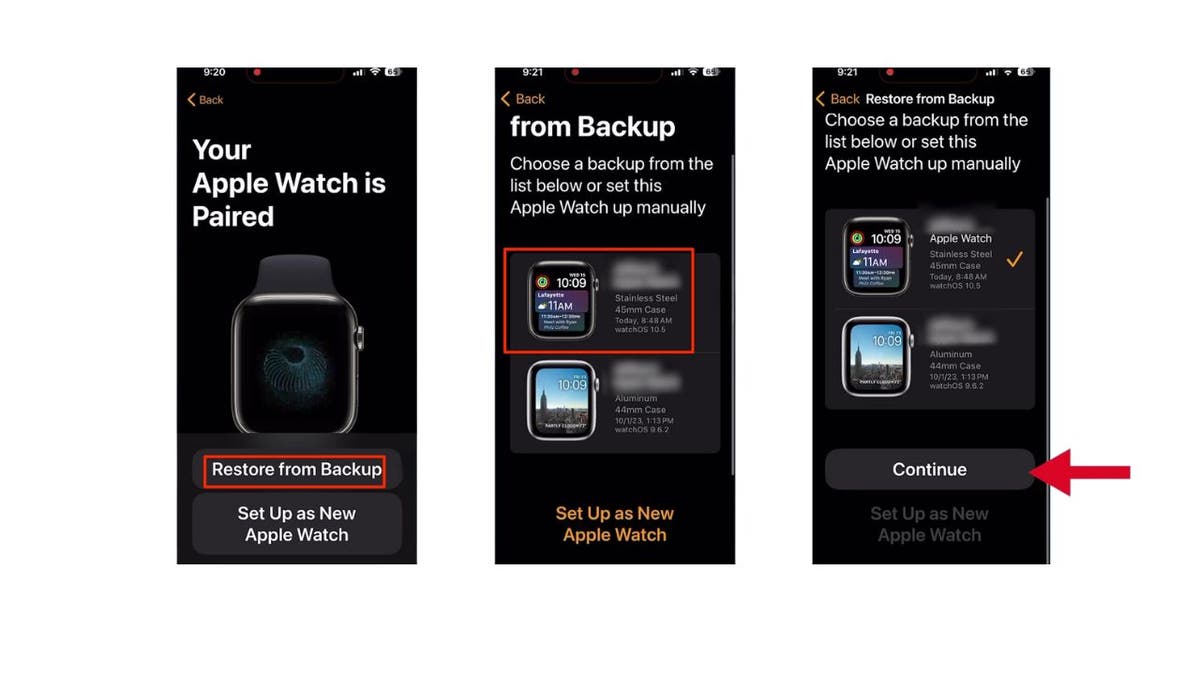
Choose Your Setup Option
After pairing, select how to configure your watch:
– Set Up for Myself: For personal use.
– Express Setup: Applies iPhone settings and previous watch preferences automatically.
– Restore from Backup: Migrates all data from a prior Apple Watch.
– Set Up as New Apple Watch: Starts fresh.
Choose Restore from Backup if replacing an old watch to keep health, app, and fitness data.
Configure Key Features After Syncing
Once paired, finalize essential settings.
Set a Passcode for Security
You’ll be prompted to create a 4-digit passcode. Enter it twice on your iPhone.
This enables:
– Apple Pay
– Wrist detection lock (locks when removed from wrist)
Keep your passcode secure but easy to remember.
Enable Health and Emergency SOS
During setup:
– Turn on Emergency SOS: Hold side button to call emergency services.
– Add Medical ID: Include allergies, conditions, and emergency contacts.
This data syncs instantly and can be accessed from your iPhone’s lock screen in an emergency.
Sync Activity and Fitness Data
Your Activity rings, workouts, and heart rate sync automatically when devices are near.
To verify:
– Open the Activity app on your iPhone.
– Check that today’s rings match your watch.
If data is missing, force a sync by opening the Watch app and navigating to Activity.
Activate Cellular (If Applicable)
For cellular models, activate service after pairing.
Begin Cellular Setup
- Open Watch app > My Watch tab > Cellular.
- Tap Set Up Cellular.
- Follow prompts to contact your carrier.
You’ll need a compatible carrier plan—some require in-store activation.
Know the Limitations
- Cellular service is not available everywhere.
- iPhone and Apple Watch must use the same carrier, except for Family Setup watches.
If your carrier isn’t supported, the cellular option will be grayed out.
Transfer Your Watch to a New iPhone
Upgrading your phone? Follow these steps to keep your data.
Proper Transfer with Old iPhone
- On the old iPhone, open the Watch app.
- Go to My Watch > All Watches.
- Tap the info button (i) next to your watch.
- Tap Unpair Apple Watch.
This creates a full backup in iCloud or on your iPhone.
Then:
– Set up your new iPhone using iCloud or Quick Start.
– Open the Watch app and follow pairing prompts.
– Choose to restore from backup.
Your apps, settings, and health data will return automatically.
No Old iPhone? Reset and Re-Pair
If your old iPhone is broken or lost:
1. On Apple Watch: Settings > General > Reset > Erase All Content and Settings.
2. Confirm the erase—this unbinds the watch.
3. Pair with your new iPhone from scratch.
⚠️ Warning: Without prior unpairing, no backup exists. You’ll lose all health and app data.
Fix Common Syncing Issues
Even with perfect setup, sync problems can occur.
Watch Won’t Pair or Connect
Camera Pairing Fails
Tap “Pair Manually” and enter the code shown on the watch.
iPhone Doesn’t Detect Watch
- Restart both devices.
- Toggle Bluetooth off and on.
- Move away from Wi-Fi interference.
Watch Shows Watch Face Instead of Pairing Screen
It’s already paired. Unpair via iPhone or erase all content on the watch.
Sync Stops After Setup
If data stops syncing:
– Restart both devices.
– Keep them within 30 feet (9 meters).
– Open Watch app > My Watch > General > Reset > Reset Network Settings.
This clears Bluetooth and Wi-Fi glitches.
Re-Pair as Last Resort
If nothing works:
1. Erase the watch: Settings > General > Reset > Erase All Content and Settings.
2. Re-pair using your iPhone.
3. Restore from backup if available.
This resolves most persistent sync issues.
Sync Apple Music and Media
Keep your music in sync across devices.
Control iPhone Music from Watch
Even if syncing fails, you can still control playback:
Use AirPlay in Music App
- Open Apple Music on Apple Watch.
- Tap the AirPlay icon (top-right).
- Select “iPhone” under “Control Other Devices”.
Now play, pause, and adjust volume from your wrist.
Use Now Playing in Control Center
- Swipe up from the watch face.
- Tap the Now Playing module.
- Select iPhone as output.
- Use controls to skip or adjust volume.
Fix Missing Playback Status
If the watch doesn’t show what’s playing:
– Force close Music app: Double-press side button > swipe up on Apple Music.
– Restart both devices.
– Update iOS and watchOS—some users report iOS 26 removed certain controls.
Check for updates—Apple may restore features in future releases.
Sync Playlists Manually
To push music to your watch:
1. Open Watch app > Music.
2. Under Synced playlists, choose playlists to sync.
3. Tap Sync.
This forces a manual update of your music library.
Maintain Sync Performance
Ensure long-term reliability with these habits.
Keep Software Updated
Apple frequently releases fixes for sync bugs.
Always:
– Install iOS and watchOS updates promptly.
– Check Settings > General > Software Update on both devices.
Restart Weekly
A weekly restart clears background glitches:
– iPhone: Press and hold side + volume button > slide to power off.
– Apple Watch: Press and hold side button > slide to power off.
Turn both back on and check sync status.
Monitor Battery Levels
Low battery pauses syncing.
Keep both devices above 20% during critical sync periods (e.g., overnight health data transfer).
Charge them together at night for consistent sync.
Final Tips for Seamless Syncing
Syncing your Apple Watch to your iPhone is simple when you follow the right steps. Ensure both devices meet compatibility requirements, update software, and use the Watch app for pairing. Always unpair via iPhone before switching phones to back up your data. For ongoing performance, restart devices weekly, keep software current, and wear the watch properly. If sync issues arise, use manual pairing, reset network settings, or erase and re-pair. With these steps, your Apple Watch and iPhone will stay perfectly in sync—keeping your health, music, and notifications at your fingertips.





