
You unbox your new Apple Watch or pick it up after leaving it idle for weeks—only to find a black, unresponsive screen. Don’t panic. This is normal, especially if the battery has fully drained. Unlike smartphones, the Apple Watch won’t magically wake up with a tap when it’s out of power. The answer to how to turn on Apple Watch isn’t always obvious, but it’s straightforward once you know the right steps.
The process hinges on two things: charge and the side button. If your watch is dead, charging comes first. If it has power, a simple button press does the trick. But if you’ve tried pressing the side button and nothing happens, you’re likely dealing with a drained battery or a charging issue. This guide walks you through every scenario—how to power on your Apple Watch whether it’s brand new, completely dead, or stubbornly unresponsive. You’ll learn exactly what to do, how long to wait, and when to seek help.
Power On With Side Button
The only way to turn on an Apple Watch is by using the physical side button. There’s no automatic power-up from zero battery, and no software toggle to wake it remotely.
Press and Hold Until Apple Logo Appears
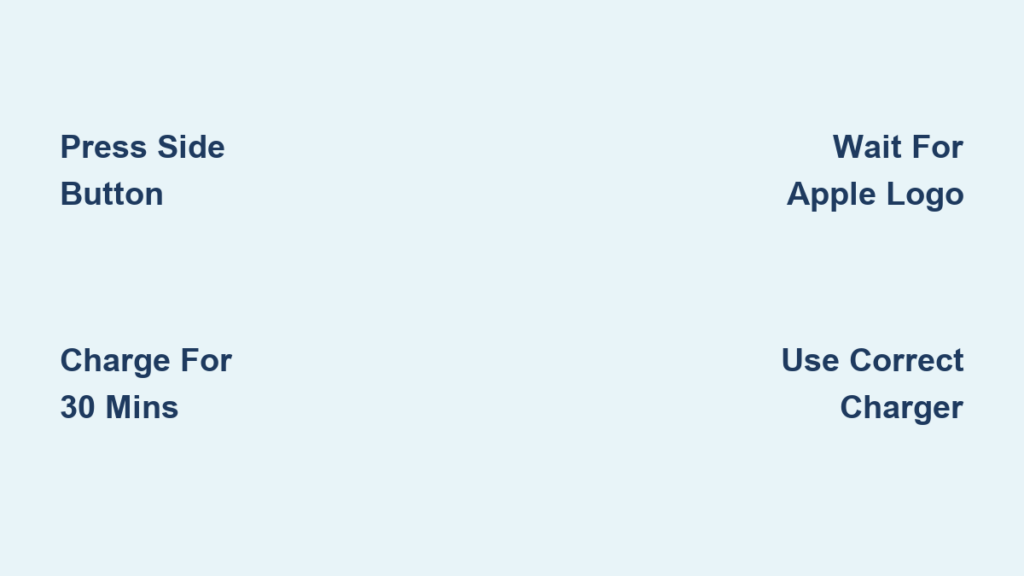
Locate the side button—the small button below the Digital Crown on the right edge of the watch. Press and hold it for 10 to 15 seconds, even if the screen stays black. Don’t let go too soon. Eventually, a bright white Apple logo will appear, signaling the boot process has started.
Once the logo shows, release the button. The watch will continue starting up. If it’s a new or reset device, you’ll be guided through setup. If previously used, it will return to your home screen or clock face.
Pro Tip: Avoid pressing the Digital Crown or tapping the screen during startup. Wait for the device to fully boot before interacting.
No Response? Charge Before Trying Again
If nothing happens when you press the side button, the battery is likely dead. A completely drained Apple Watch won’t respond—even to long button presses. In this case, charging is required before you can turn it on.
Charge Before Turning On

A dead battery is the most common reason an Apple Watch won’t power on. Even new devices can arrive with little to no charge due to storage time.
Connect to Magnetic Charger
Use the magnetic charging cable that came with your Apple Watch. Plug it into a 5W or higher USB power adapter (preferably USB-C) or a powered USB port. Align the back of the watch with the charger—magnets will snap it into place.
Within 10 to 20 seconds, one of these symbols should appear:
– Green lightning bolt: Charging normally
– Red lightning bolt: Battery is critically low but charging
– Empty red battery icon: No charge—requires immediate charging
Visual Cue: If no symbol appears, reposition the watch on the charger. Ensure the charging contacts are clean and fully connected.
Wait Before Attempting to Power On
Don’t try turning on the watch the moment you plug it in. A deeply discharged battery needs time to reach the minimum voltage required to boot.
- Minimum charge time: 30 minutes
- Recommended charge time: 3 to 4 hours
- Full charge time: Up to 8 hours, depending on model and charger
Expert Tip: If the watch shows a charging symbol but still won’t turn on, leave it connected for several hours—or even overnight—before retrying the power-on process.
Troubleshoot Unresponsive Watch
If your Apple Watch still won’t turn on after charging, try these proven fixes.
Test Charging Setup
Faulty cables, weak adapters, or low-power USB ports can prevent proper charging.
Try a Different Cable or Adapter
- Switch from a USB-A to a USB-C magnetic charger if possible
- Use a known-working charger from another Apple Watch
- Plug into a wall outlet, not a laptop or low-power USB hub
User Experience: “Switched to a USB-C charger and it started charging properly.” — ShallowTal
Check for Flickering Charging Symbols
If the charging icon appears and disappears:
– Clean the back of the watch and charger contacts with a dry, lint-free cloth
– Ensure the watch is centered on the charger
– Try a different power source
Force Startup While Charging
For watches with critically low batteries, press and hold the side button while the watch is still on the charger. This can sometimes trigger the boot process even with minimal charge.
Verified Fix: “Left it charging for hours, then held the power button while still connected—worked fine.” — kalnel
Diagnose Battery or Hardware Failure
If you’ve tried multiple chargers, waited 8+ hours, and still see no response, the issue may be hardware-related.
Signs of Serious Problems
- No charging symbol after extended connection
- Watch gets hot during charging
- No signs of life despite correct setup
Recommendation: If none of the above steps work, contact Apple Support or return to the retailer. New devices should power on after proper charging.
Model-Specific Startup Tips
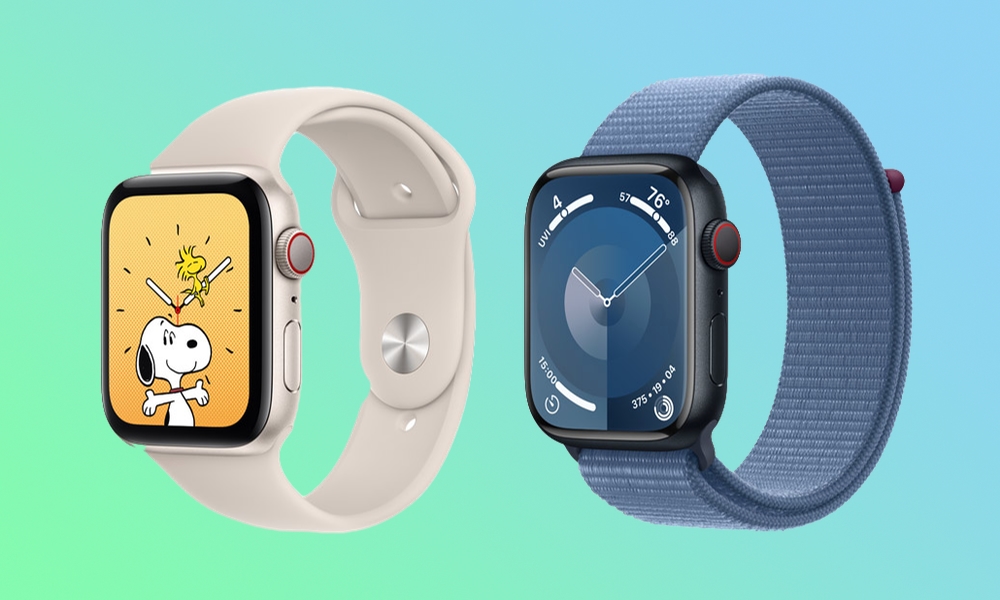
While the core startup process is consistent, newer models have unique behaviors.
Apple Watch SE (2nd Gen)
- No Always On Display: The screen turns off completely when your wrist is down
- To wake: raise wrist, tap screen, or press Digital Crown
- Startup process is otherwise identical to other models
Apple Watch Series 9 and Watch 10
- May arrive in low-power shipping mode
- Initial charge can take longer than expected
- Some users report needing overnight charging before first boot
Customer Report: “Got my Watch yesterday, charged it overnight, but still won’t turn on.” — Support thread user
Expert Response: “Take it back to the store. New devices should have enough charge to start. If it shows a ‘no charge’ message, it wasn’t prepared properly.”
Wake and Display Settings After Startup
Once your Apple Watch is on, customize how it wakes and stays active.
Choose Your Wake Method
By default, the watch wakes when you:
– Raise your wrist
– Tap the screen
– Press or turn the Digital Crown
If tapping doesn’t wake the screen, check battery level or disable Theater Mode.
Adjust Wake Duration
Need more time to read messages or track workouts? Extend the screen-on time:
1. Open Settings > Display & Brightness
2. Tap Wake Duration
3. Choose: Default or Wake for 70 Seconds
Use Case: Ideal for reading long notifications or checking maps.
Disable Auto-Wake
To avoid accidental activation:
– Go to Settings > Display & Brightness
– Toggle off Wake on Wrist Raise
Shortcut: Enable Theater Mode to disable auto-wake temporarily—perfect for meetings or movies.
Enable Always On Display
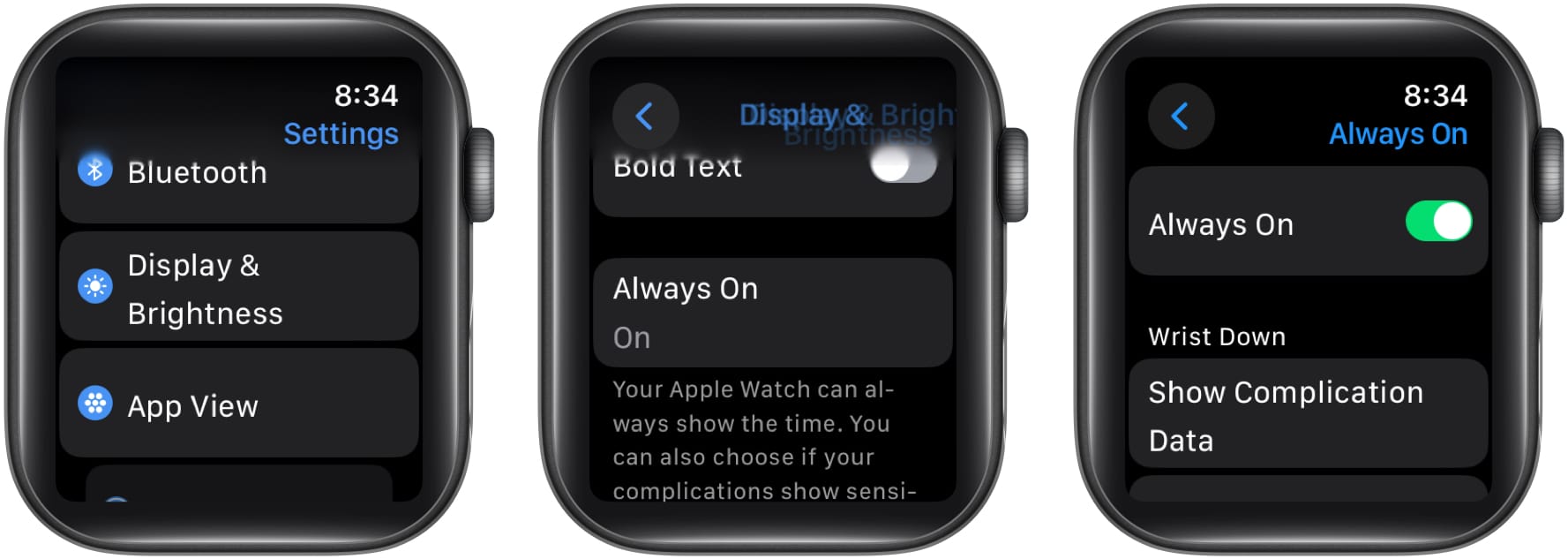
Available on Series 5 and later (excluding SE 2nd Gen), Always On keeps the time visible even when your wrist is down.
Turn On Always On
- Open Settings > Display & Brightness > Always On
- Toggle on
- Customize:
– Show full screen when waking
– Dim appearance when wrist is down
Note: Always On turns off in Low Power Mode. Tap the screen to view the full display.
Control App and Screen Timeout
Customize how long your Apple Watch stays in apps before returning to the clock.
Set Global Return Time
- Open Settings > General > Return to Clock
- Choose:
– Always (returns immediately)
– After 2 minutes
– After 1 hour
Customize Per-App Timeout
For apps like Workout or Timers:
1. Tap the app in Return to Clock menu
2. Select Custom
3. Choose your preferred timeout
Quick Exit: Press the Digital Crown anytime to return to the home screen.
Apps That Support Return to Last Screen
- Audiobooks
- Maps
- Music / Now Playing
- Podcasts
- Stopwatch
- Timers
- Voice Memos
- Walkie-Talkie
- Workout
Important: To return to the clock, exit the app function (e.g., stop a timer or end a route).
How to Power Off Apple Watch
You can’t turn off the watch while charging. To shut it down:
- Press and hold the side button until sliders appear
- Tap the power icon (⚡) in the upper-right corner
- Drag the Power Off slider to the right
Pro Tip: When powered off, pressing and holding the Digital Crown will briefly show the time.
Summary: Key Steps to Turn On Apple Watch
✅ To Power On
- Press and hold the side button for 10–15 seconds
- Wait for the Apple logo to appear
- Ensure the watch is charged (look for green/red lightning)
- Charge for 30+ minutes if battery is dead
- For stubborn cases, leave on charger overnight
🛠️ If It Won’t Turn On
- Try a different cable and charger (preferably USB-C)
- Test with a known-working setup
- Hold the side button while charging
- Contact Apple Support if no response after 8 hours
⚙️ After Startup
- Pair with iPhone via Bluetooth
- Adjust wake duration and wrist raise settings
- Enable Always On (if supported)
- Set app return timers for convenience
📱 Model Notes
- Apple Watch SE (2nd Gen): No Always On display
- Series 9 / Watch 10: May need extended initial charge due to shipping mode
Final Note: Turning on an Apple Watch is simple once it has power. The most common issue—a dead battery—is often mistaken for a broken device. Always charge first, wait patiently, and use verified equipment. If problems persist, seek official support. With the right steps, your Apple Watch will be up and running in no time.




