
Is your Apple Watch screen suddenly zoomed in, making it hard to tap apps or read notifications? You’re not imagining things—Zoom, an accessibility feature designed to magnify the display, may have been turned on by accident. Many users unknowingly activate it with a simple double-tap, only to find themselves stuck navigating a magnified screen using awkward two-finger gestures. Worse, some see a persistent green or red icon at the top of their watch face, thinking Zoom is still running—even after ending a meeting.
The good news: whether you’re battling a zoomed-in display or a stubborn Zoom app indicator, there are fast, reliable ways to fix both. This guide walks you through how to turn off Zoom on Apple Watch—covering the accessibility feature, the Zoom video app, and everything in between. You’ll learn how to disable Zoom from your iPhone, use gestures to unzoom instantly, and eliminate lingering icons for good.
Let’s restore your Apple Watch to normal.
Disable Zoom via iPhone
If your Apple Watch screen is too magnified to navigate comfortably, the easiest fix is using your paired iPhone.
Use Paired iPhone to Turn Off Zoom
- Open the Watch app on your iPhone.
- Tap the Accessibility tab at the bottom.
- Scroll down and select Zoom.
- Tap the toggle to turn Zoom off (it will turn gray).
Your Apple Watch screen returns to its standard size immediately. This method is ideal when the zoomed view makes it difficult to interact with the watch.
Pro Tip: If you can’t find Zoom in the Accessibility menu, use the search bar at the top of the Watch app and type “zoom.” This jumps you directly to the setting—no scrolling required.
This remote control approach is especially helpful if you’re mid-workout and can’t decipher the magnified screen. It’s the most foolproof way to disable Zoom when touch input feels unreliable.
Turn Off Zoom on Apple Watch
If you can still interact with your watch, you can disable Zoom directly from the device.
Navigate Settings on Watch
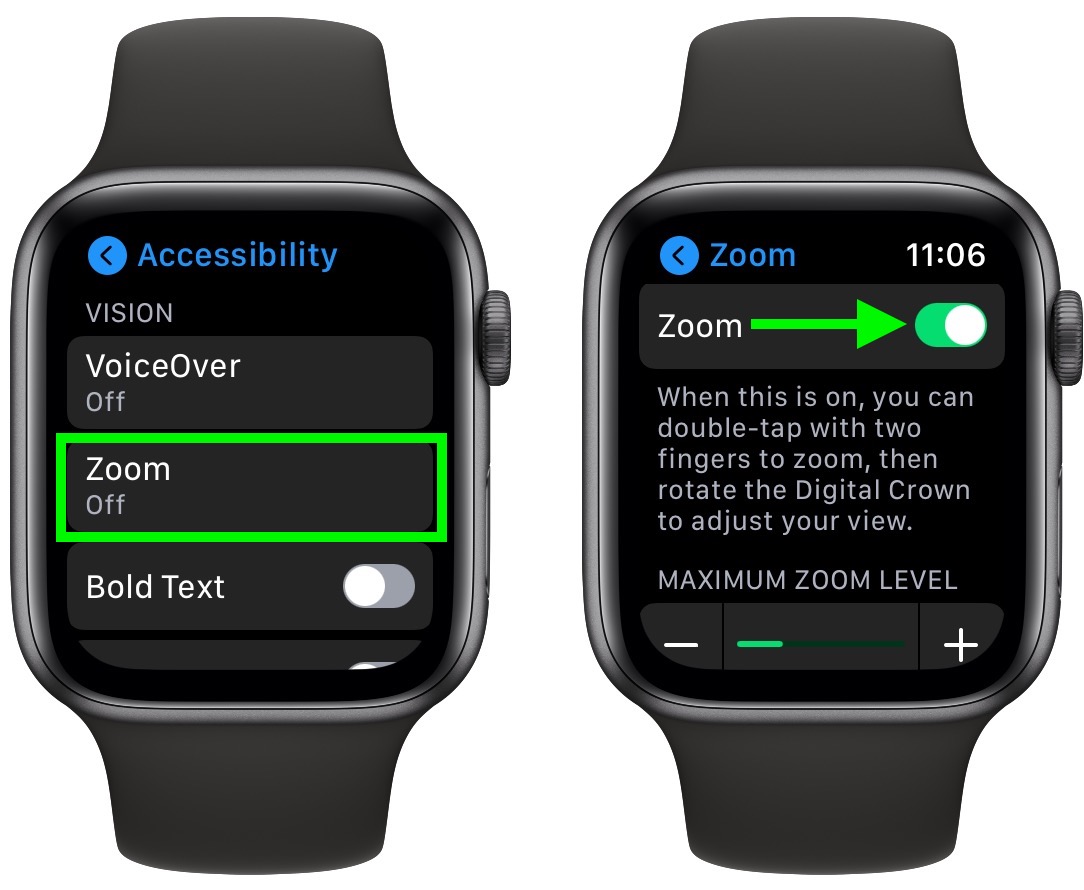
- Open the Settings app (gray gear icon).
- Tap Accessibility.
- Tap Zoom.
- Toggle Zoom to off.
The screen instantly reverts to normal size. No restart needed.
Two-Finger Navigation When Zoom Is On
While Zoom is active, one-finger taps and swipes won’t work. Instead:
– Use two fingers to scroll through menus.
– Use two fingers to select settings or toggle switches.
This two-handed navigation lets you reach the Settings > Accessibility > Zoom menu even when the screen is magnified.
Visual Cue: When Zoom is on, a small inset window appears in the top-right corner of the screen, showing which section of the interface is currently in view. It acts like a “mini map” of your display.
This feature is essential for users with visual impairments—but frustrating when activated by accident.
Use Gestures to Exit Zoom Instantly
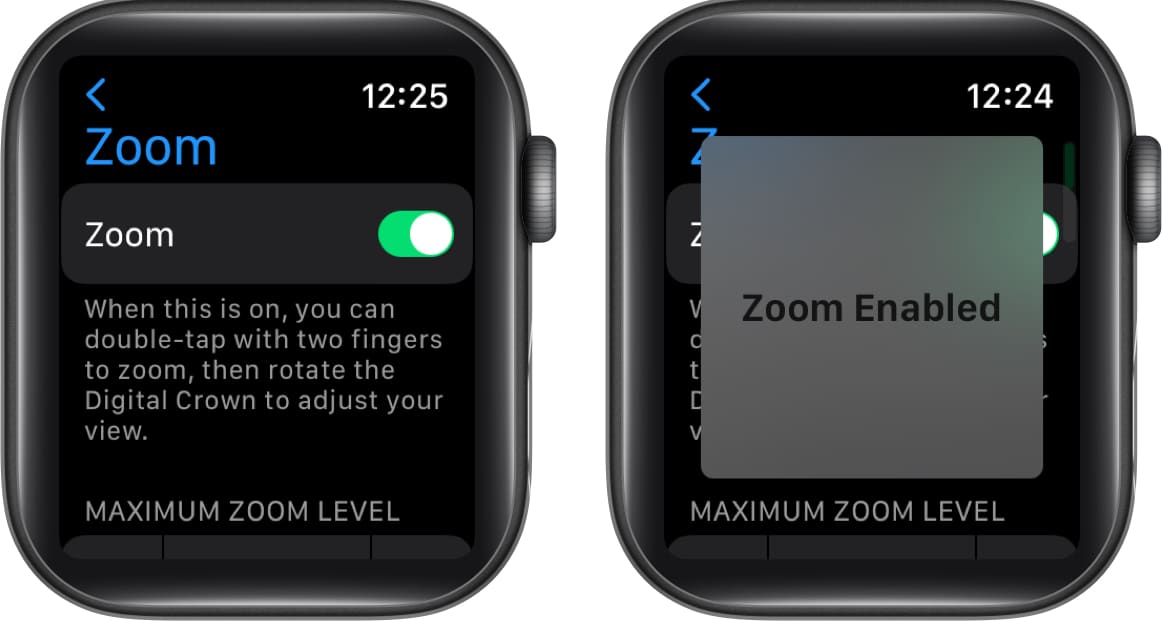
You don’t need to dig through menus to escape Zoom mode. Use touch gestures to unzoom in seconds.
One-Finger Double-Tap to Unzoom
- Double-tap the screen with one finger to toggle between zoomed and normal view.
This is the fastest way to exit Zoom during daily use. It works even if Zoom is enabled in settings—giving you temporary relief without disabling the feature.
“Double-tap with one finger to unzoom.” – Verified user fix
This gesture is a lifesaver during workouts when you just want to check your heart rate without wrestling with a magnified screen.
Two-Finger Pinch to Adjust Zoom Level
- Double-tap and hold with two fingers, then drag them apart or together to increase or decrease magnification.
This gesture fine-tunes the zoom level without turning it off—ideal if you occasionally use Zoom for reading small text.
Note: This gesture only works when Zoom is enabled. If the toggle is off, the gesture has no effect.
Why Zoom Turns On Accidentally
Many users report entering Zoom mode without knowing how it happened.
Common Causes
- Accidental double-tap during exercise or when adjusting your watch strap.
- Sweat or pressure triggering the screen during runs or gym sessions.
- Pocket presses activating the display and gestures.
- Enabling Zoom in Settings without realizing its function.
“When I’m running, my watch often zooms in for no reason.” – Common user complaint
Because the double-tap gesture is sensitive, it’s easy to trigger Zoom unintentionally—especially if you’re not aware the feature is enabled.
Prevent Zoom From Turning On
Stop accidental activation before it happens.
Disable Zoom Permanently
If you don’t need screen magnification:
– Turn off Zoom in both iPhone and Apple Watch settings.
– Keep it off unless you or someone in your household requires accessibility support.
This eliminates the risk of accidental activation entirely.
Reduce Accidental Touches
While Apple doesn’t allow you to lock Zoom gestures specifically:
– Raise your wrist to wake the screen instead of tapping.
– Avoid resting your palm on the screen during workouts.
– Keep the screen clean and dry to reduce false touch inputs.
Best Practice: Review Accessibility settings monthly to ensure no features are enabled by mistake.
Fix Persistent Zoom App Icon

Seeing a green or red dot at the top of your watch face? This isn’t the accessibility Zoom—it’s a leftover from a Zoom meeting that didn’t end properly.
Close Zoom from Widget Stack
- From the watch face, swipe down to open Notifications & Widgets.
- Find the Zoom widget.
- Swipe left on it and tap the × to close.
“I fixed it by closing Zoom from the widget stack. Swipe down and tap the ×.” – jessraeberry
This removes the active call indicator and stops battery drain from a phantom meeting.
End Meeting Properly to Clear Icon
Sometimes, ending a Zoom call on your iPhone doesn’t fully close it on the watch.
Workaround:
- Reinstall Zoom on your iPhone (if deleted).
- Open Zoom and start a solo meeting.
- Tap End Meeting (not just “Leave”).
- Confirm the icon disappears from the Apple Watch.
This forces the system to register the meeting as fully ended.
Many users report this workaround clears stubborn icons that persist for days.
Delete Zoom App and Calendar Invites
If the icon won’t go away:
Remove App and Data
- Delete Zoom from your iPhone.
- Uninstall it from your Apple Watch (long-press app → Remove).
- Restart your Apple Watch.
- Reinstall Zoom only if needed.
Clear Lingering Calendar Events
- Open Calendar on iPhone.
- Delete any old Zoom meeting invites.
- Sync with Apple Watch.
Some users report the icon persists only when a Zoom event remains in the calendar.
Apple Watch pulls meeting status from calendar events—so an old invite can trick the system into thinking a call is still active.
Zoom Accessibility vs. Zoom App: Key Differences
Don’t confuse the two—each requires a different fix.
| Feature | Purpose | How to Turn Off |
|---|---|---|
| Zoom (Accessibility) | Magnifies screen | Settings > Accessibility > Zoom > Off |
| Zoom (App/Widget) | Meeting indicator | Close from widget stack or end meeting |
How to Tell Which One Is On
- Zoomed screen? → Accessibility Zoom is active.
- Small red/green dot at top? → Zoom app is still running.
- Can’t tap normally? → You’re in accessibility Zoom mode.
Knowing the difference saves time and frustration.
Troubleshoot Still-Zoomed Screen
If Zoom stays on after toggling it off:
Verify on Both Devices
- Check Zoom is off in:
- iPhone Watch app > Accessibility > Zoom
- Apple Watch > Settings > Accessibility > Zoom
Settings don’t always sync instantly—double-check both.
Restart Apple Watch
- Press and hold the side button until the power slider appears.
- Swipe Power Off.
- Wait 30 seconds, then press the side button to restart.
A restart clears glitches and resets display settings.
Warning: Never force-restart (side + Digital Crown) unless unresponsive—use standard restart first.
Summary: Fast Ways to Turn Off Zoom
For Zoomed Screen (Accessibility)
✅ Best method:
iPhone → Watch app → Accessibility → Zoom → Off
✅ On watch:
Settings → Accessibility → Zoom → Off
✅ Quick gesture:
Double-tap with one finger to unzoom
For Lingering Zoom Icon (App)
✅ Close widget:
Swipe down → Find Zoom → Swipe left → ×
✅ End meeting properly:
Reopen Zoom on iPhone → Start meeting → Tap End Meeting
✅ Delete and restart:
Uninstall Zoom → Restart watch → Clear calendar invites
Final Tips to Avoid Future Issues
- Turn off Zoom if you don’t use it.
- Learn the double-tap gesture—it’s your fastest escape.
- Always end Zoom meetings manually on iPhone.
- Check widgets after calls to ensure cleanup.
- Educate household members—kids or others may enable accessibility features accidentally.
With these steps, you can confidently disable Zoom—whether it’s magnifying your screen or leaving behind a stubborn icon. Your Apple Watch should now work smoothly, without unexpected zooms or ghostly meeting indicators.
Got it fixed? Share this guide with anyone who’s ever double-tapped their way into confusion.





