
You’ve got a Tesla and wear your Apple Watch every day—so why still carry your phone just to unlock the car? The good news is, you can use your Apple Watch as a Tesla key, turning your wrist into a digital fob. But here’s the catch: it doesn’t always work the way you’d expect. Unlike the iPhone, which can unlock your Tesla hands-free using Ultra Wideband (UWB), the Apple Watch relies on Bluetooth and requires the Tesla app to be active—making it far less reliable.
Many Tesla owners assume their watch should work seamlessly, only to find the key grayed out, unresponsive, or missing entirely. But with the right setup, troubleshooting, and daily habits, your Apple Watch can become a dependable access tool. This guide walks you through everything you need to know: how to set it up correctly, why it fails, and what you can do to improve performance. Whether you’re using a Series 4 or the latest Ultra 2, we’ll help you get the most out of this feature—based on real user experiences, Tesla’s official specs, and technical insights into watchOS limitations.
By the end, you’ll understand how to make your Apple Watch unlock your Tesla consistently—and when it’s safer to keep your phone or key card within reach.
Meet System Requirements First
Before attempting to pair your Apple Watch as a Tesla key, confirm your devices meet the minimum software and hardware requirements. Skipping this step is the #1 reason for failed setups.
Required Software Versions
To ensure compatibility:
– Tesla app: Must be version 4.39.5 or later
– Vehicle software: Your Tesla must run 2024.44.25 or newer
– Apple WatchOS: Requires watchOS 11 or higher
– iPhone iOS: Must support watchOS 11 (typically iOS 17+)
Older versions may allow pairing but often result in an inactive or grayed-out key. Update all devices via their respective app stores before proceeding.
Hardware and Connectivity Needs
Your hardware must also meet specific criteria:
– Apple Watch Series 4 or newer (these models have 1GB RAM, required for stable performance)
– iPhone paired to the watch via Bluetooth
– Bluetooth enabled on both devices
– Wi-Fi or cellular connection for initial sync
Ensure your Apple Watch isn’t in Power Reserve mode and has at least 20% battery. A low-power state can prevent Bluetooth handshakes and disrupt registration.
Setup Location Matters
You must be within 3 feet of your Tesla during setup. Being too far away can cause the vehicle to fail to detect your device. Additionally, if other phones with active keys are nearby, they can interfere with the pairing process. To reduce conflicts, temporarily disable Bluetooth on secondary devices while adding your watch.
⚠️ Warning: Missing any of these requirements often results in a registered but inactive key—visible in the app but grayed out and unusable.
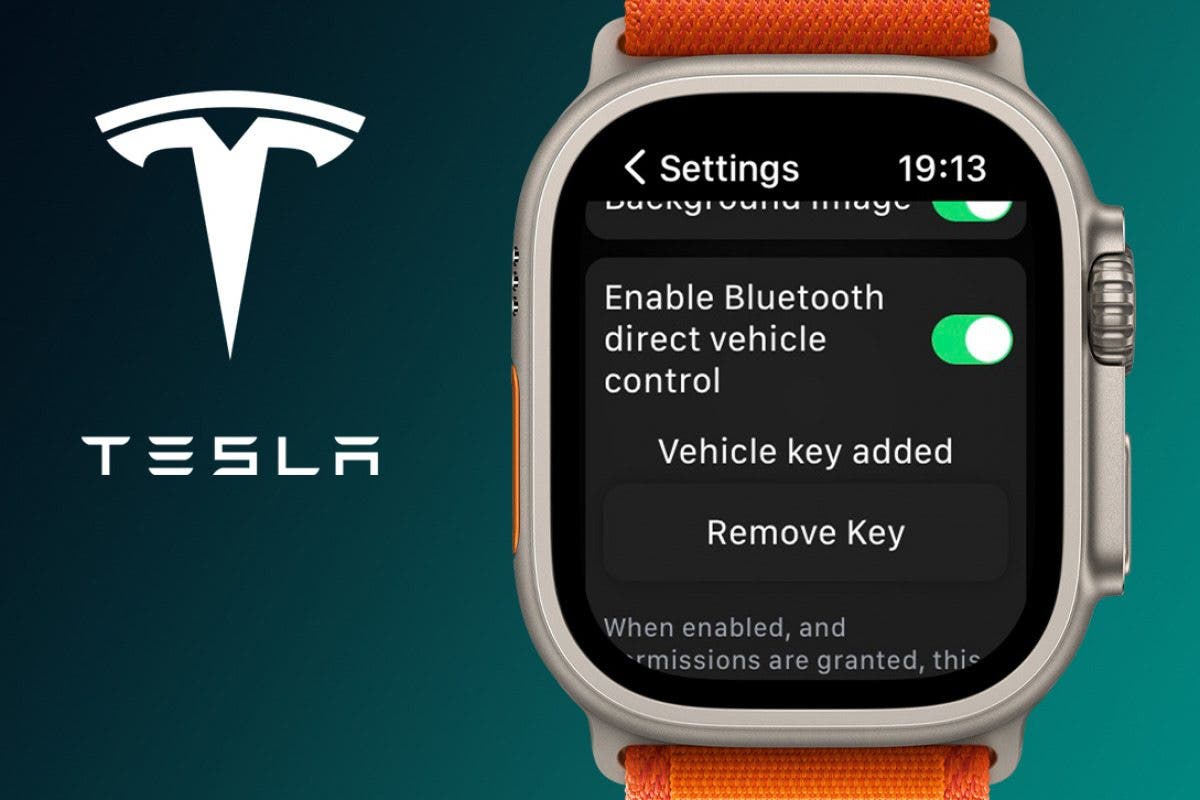
Add Apple Watch as Tesla Key

Follow these exact steps to register your watch successfully.
Pair the Watch via iPhone
- Open the Tesla app on your iPhone.
- Tap the Controls icon (bottom right).
- Go to Locks > Phone Key.
- Select Add New Key > Apple Watch.
- Keep your Apple Watch close to your iPhone during pairing.
- Confirm the prompt on both devices when it appears.
The process takes 10–30 seconds. Once complete, your Apple Watch will appear in the Phone Key list with a watch icon.
Verify Key Activation in Car
- Enter your Tesla and wake the touchscreen.
- Navigate to Settings > Phone Key.
- Look for your Apple Watch in the list.
- If the name appears bold, the key is active and ready to use.
- If it’s grayed out, the key is registered but not connected.
A grayed-out key is the most common issue—and it usually means the Tesla app isn’t running properly on the watch.
Fix Grayed-Out Watch Key
A grayed-out Apple Watch key means your car sees it but can’t authenticate. This happens frequently and has specific causes—and fixes.
Why the Key Turns Gray
The Tesla app on Apple Watch loses connection when:
– It’s been swiped away or force-closed
– watchOS terminates it due to memory pressure (common on 1GB RAM watches)
– It hits the ~5 background Bluetooth call limit per app launch
– The watch display sleeps and the app isn’t kept active
Unlike the iPhone, the Apple Watch doesn’t maintain a passive background session. The key only works when the Tesla app is actively running—even if the screen is dimmed.
✅ Pro Tip: Simply opening the Tesla app once after a restart can restore walk-up unlock for hours—until the system kills the app again.
Restart the Apple Watch
This is the most effective fix for a grayed-out key.
- Press and hold the side button until the power slider appears.
- Swipe to power off.
- Wait 30 seconds.
- Press and hold the side button to restart.
After reboot:
– Open the Tesla app on your watch.
– Walk toward your car—the doors should unlock automatically.
Many users report this restores full functionality until the next app termination.
Improve Key Reliability Daily
Since the Apple Watch can’t run apps indefinitely in the background, use these daily habits to keep the key active.
Add a Tesla Complication
Add a Tesla widget to your watch face for better app persistence:
- Long-press your watch face.
- Tap Edit.
- Select a complication slot.
- Choose Tesla.
- Pick a useful metric like battery level or cabin temperature.
Tapping the complication opens the app, which helps maintain the key session. It also gives quick access to climate controls and charging status.
Keep the App in Foreground Before Use
Before approaching your car:
1. Press the Digital Crown.
2. Open the Tesla app.
3. Let it run for 5–10 seconds.
4. Approach the vehicle with the app still visible.
Even if the screen dims, as long as you don’t close the app, the key usually stays active.
❌ Avoid: Pressing the side button to lock the watch—it may terminate the app.
Don’t Swipe Away the App
Never force-close the Tesla app from the app switcher. Instead:
– Leave it open in the background.
– Use it occasionally to signal activity to watchOS.
This reduces the chance of memory cleanup killing the key process.
Understand Technical Limitations

The Apple Watch isn’t failing you—platform constraints are. Here’s what’s really happening under the hood.
1GB RAM Limits Background Apps
Apple Watch Series 4 and newer have only 1GB of RAM. watchOS aggressively closes background apps to free memory. The Tesla app is often terminated silently, breaking the key connection.
watchOS Restricts Bluetooth Calls
Third-party apps on watchOS get only ~5 background Bluetooth calls per launch. Once used up, the app must be reopened to restore communication. This prevents continuous key handshake with the car.
No Ultra Wideband (UWB) Support
iPhones (11 and later) use UWB for precise, secure hands-free unlocking. The Apple Watch lacks UWB, so it relies solely on Bluetooth Low Energy (BLE), which is less reliable and more prone to dropouts.
App-Based, Not System-Level
Tesla’s implementation runs inside an app, not the secure element (SE) like Apple CarKey. This means:
– No always-on proximity detection
– No integration with wrist detection or unlock gestures
– No passive background operation
Until Tesla adopts Wallet-based CarKey, the watch will remain a secondary key option.
Troubleshoot Common Failures
When your Apple Watch won’t unlock the car, try these targeted fixes.
No Unlock on Approach
Symptoms: Watch is on, but doors don’t unlock.
Fixes:
– Open the Tesla app manually.
– Restart the Apple Watch.
– Check if the key is grayed out in the car’s settings.
– Ensure your iPhone is nearby (the system may fall back to phone key).
Key Disappears After Update
Cause: Software updates (watchOS, Tesla app, or vehicle) can reset key registration.
Solution:
1. Remove the Apple Watch from Phone Key list.
2. Restart both iPhone and Apple Watch.
3. Re-pair the watch as a new key.
Do this near the car with Bluetooth off on other devices.
Inconsistent Behavior Between Users
Two people with identical setups may have opposite results. This suggests Tesla may use backend flags or regional settings that affect key behavior.
If one user’s watch works passively and another’s doesn’t:
– Compare Tesla account roles (primary vs shared).
– Check if both have the same vehicle access level.
– Try removing and re-adding both keys.
iPhone vs Apple Watch: Key Differences
| Feature | iPhone Key | Apple Watch Key |
|---|---|---|
| Hands-Free Unlock | Yes | Only if app is active |
| UWB Support | Yes (iPhone 11+) | No |
| Background Operation | Reliable | Unreliable |
| App on Screen Required? | No | Yes, usually |
| Walk-Up Success Rate | High | Medium to low |
| Driving Readiness | Immediate | Depends on app state |
The iPhone wins on every technical front. The Apple Watch can work—but it’s not a true passive key.
Best Practices for Daily Use
Maximize reliability with these habits.
During Setup
- Update all software first.
- Stand close to the car.
- Disable Bluetooth on other phones.
- Pair during daylight (better GPS/Bluetooth stability).
For Daily Driving
- Restart your watch weekly.
- Use a Tesla complication.
- Open the app before walking to the car.
- Avoid closing the app manually.
For Long-Term Maintenance
- Watch for Tesla app updates—patch often improves key behavior.
- Re-pair the key every few months.
- Check vehicle software: stay on 2024.44.25 or newer.
Future Improvements Users Want
Tesla can fix most issues with deeper integration. Here’s what the community is asking for:
Wallet Integration (Apple CarKey)
Move from app-based to Wallet-based key like BMW or Genesis. Benefits:
– Always-on availability
– Works with wrist detection
– No app to open
– Supports secure element (SE) and future UWB-like features
Background Bluetooth Exception
Request a watchOS exception for unlimited Bluetooth calls—critical for safety and convenience apps.
Persistent Key Daemon
Add a lightweight background service that maintains the key session even if the main app is suspended.
Firmware-Level Handshake
Allow the watch to authenticate using low-power signals, similar to how it unlocks your Mac.
Until then, the Apple Watch remains a supplementary key, not a full replacement.
Final Summary: Can You Rely on It?
Yes, you can use your Apple Watch as a Tesla key—but with caveats.
It Works When:
- The Tesla app is running (foreground or recent background)
- The watch has been restarted recently
- You’re using watchOS 11+, Tesla app 4.39.5+, and vehicle software 2024.44.25+
- You avoid force-closing the app
It Fails When:
- The app is terminated by watchOS
- Too much time has passed since last use
- Bluetooth is congested or disabled
- The watch is in Power Reserve or low power mode
Bottom Line
Treat the Apple Watch as a convenient backup, not your primary key. It’s great for quick trips when you don’t want to carry your phone—but keep your iPhone or key card nearby just in case.
With smart habits and realistic expectations, your wrist can unlock your Tesla. Just don’t expect iPhone-level reliability—yet.





