
Paying with your Apple Watch has never been easier—just double-click and tap. Apple Pay on Apple Watch turns your wrist into a secure, contactless wallet that works almost everywhere tap-to-pay is accepted. Whether you’re grabbing coffee, hopping on the subway, or checking out at the pharmacy, you don’t need your phone, wallet, or even a signal. Millions use it daily, yet many Apple Watch owners still don’t realize how fast, secure, and versatile this feature is.
In this guide, you’ll learn exactly how to set up Apple Pay on your Apple Watch, make payments in stores and apps, enable Express Transit for faster commutes, troubleshoot common issues, and unlock pro tips most users miss. By the end, you’ll be using your watch like a digital keycard, wallet, and boarding pass—all in one.
Add and Set Up Your Card on Apple Watch
Before you can pay with your Apple Watch, you need to add a supported payment card. The setup starts on your iPhone but syncs instantly to your watch.
Add a Card Using the iPhone Watch App
- Open the Watch app on your iPhone.
- Tap Wallet & Apple Pay, then select Add Card.
- Use your iPhone’s camera to scan your credit, debit, or prepaid card.
- Follow the prompts to verify the card—your bank may confirm via text, email, or in-app approval.
Once verified, your card appears in the Wallet app on your Apple Watch within seconds.
Important: You must have a passcode enabled on your Apple Watch for Apple Pay to work. If not, the setup will prompt you to create one.
Confirm Your Card Is Supported
Not all cards work with Apple Pay. Supported types include:
– Major credit cards (Visa, Mastercard, American Express)
– Debit cards from top U.S. and international banks
– Prepaid and virtual cards (if your issuer supports Apple Pay)
If you get an error, visit Apple’s official support page to check if your bank or card is compatible.
Make In-Store Payments in Seconds
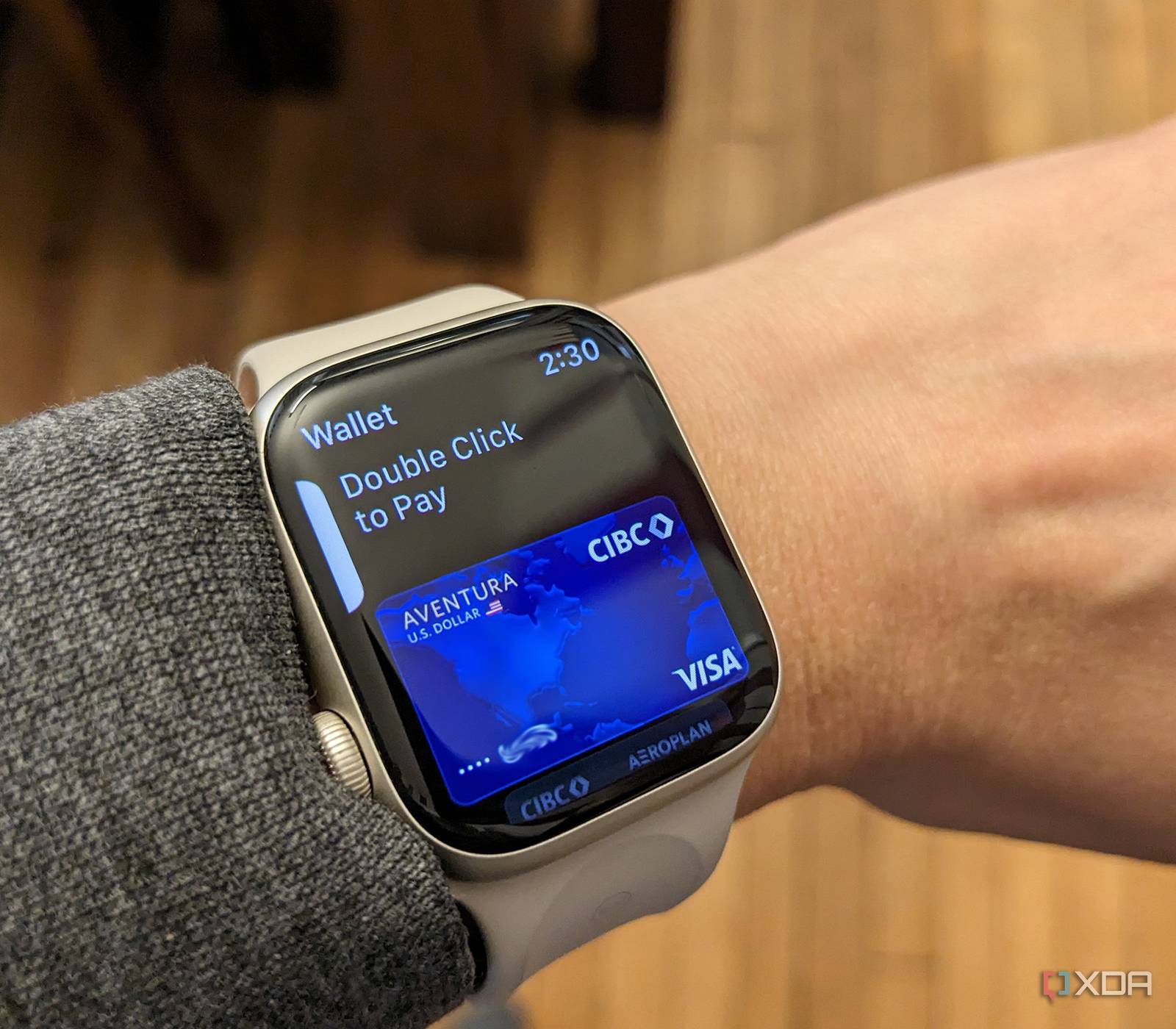
Apple Pay on Apple Watch is designed for speed—faster than pulling out cash, unlocking your phone, or swiping a card.
How to Pay at a Contactless Terminal
- Double-click the side button (the one below the Digital Crown).
- The last-used card appears. Scroll with the Digital Crown to switch cards if needed.
- Hold the display side of your watch near the payment terminal—about 1–2 inches away.
When the payment goes through:
– You’ll feel a gentle tap on your wrist.
– Hear a soft chime.
– See a checkmark on the screen.
No need to wake the screen or unlock your watch. As long as it’s on your wrist and has a passcode set, Apple Pay works—even if your iPhone is at home.
Myth: You must touch the terminal. False—Apple Pay works from up to 2 cm away. Just hold it close and steady.
Use Apple Pay in Watch Apps Without Typing
Many third-party apps on Apple Watch support Apple Pay, letting you buy things without opening your phone.
Buy in Starbucks, Uber, or Other Apps
- In a supported app, tap Pay or Buy.
- Confirm your order, shipping, and payment details.
- Double-click the side button to complete the purchase.
The transaction uses your default card in Wallet unless you change it beforehand.
Look for the Apple Pay button at checkout. Most apps that support Apple Pay on iPhone also support it on Apple Watch.
Enable Express Transit for Faster Commutes
If you ride the subway, bus, or train, Express Transit Mode is a game-changer. It lets you tap in and out without double-clicking—just like a physical transit card.
Set Up Express Transit
- Open the Wallet app on your iPhone.
- Tap your transit card (e.g., OMNY in NYC, Clipper in SF, Oyster in London).
- Tap Set as Express Transit Card.
Now, simply raise your wrist and tap the reader—no buttons, no delays.
Note: When Express Transit is active, it overrides your default payment card. To pay normally, double-click first.
Real Transit Success Stories
- New York City (OMNY): Users report smoother entry than with physical cards—especially when carrying bags.
- London Underground: Works flawlessly for tapping in and out. Some users note better results using their right hand at turnstiles.
- San Francisco (Clipper): No need to wake the screen or enter a passcode—just tap and go.
Many riders say they board faster than people using phones or wallets.
Common Real-World Uses You Might Not Expect
Apple Pay on Apple Watch shines in everyday situations where convenience matters most.
Grocery and Pharmacy Checkout
At Target, CVS, or Walgreens:
– Your loyalty card often pops up automatically before payment.
– Just double-click and tap—no need to open an app or scan a barcode.
Cashiers sometimes react with surprise: “I didn’t know watches could do that!”
Post-Swim or Post-Workout Payments
After a swim or gym session:
– Pay for a drink or snack without retrieving your wallet.
– One user paid at a beachside bar using only their Apple Watch—no phone, no cash, no towel-drying hassle.
Boarding Flights and Entering Events
- Airports: Store your boarding pass in Wallet. Tap your watch at security and boarding gates.
- Concerts and movies: Show digital tickets by raising your wrist. Staff often react with disbelief—then amazement.
At Disney World, guests scan their watch at ride entrances instead of using a phone or MagicBand.
Why Apple Pay on Watch Is More Secure Than a Physical Card

Apple Pay isn’t just convenient—it’s one of the most secure ways to pay.
Your Card Number Is Never Shared
- Your actual card number is not stored on the watch or Apple’s servers.
- Instead, a unique Device Account Number is encrypted and stored in the Secure Element chip.
Every Payment Is One-Time Only
- Each transaction uses a dynamic security code, so even if someone intercepts the signal, they can’t reuse it.
Automatic Lock When Removed
- If you take off your watch, it locks instantly.
- To use Apple Pay again, you must re-enter your passcode.
Lost Your Watch? Suspend Apple Pay Remotely
Use Find My on iCloud.com or the Find My app to:
– Suspend Apple Pay.
– Remove all cards from the device.
This stops unauthorized use—even if someone finds your watch.
Fix Common Apple Pay Issues Fast
Even reliable tech can glitch. Here’s how to solve the most frequent problems.
Can’t Add a Card?
Possible causes:
– Unsupported bank or card
– Outdated watchOS
– Weak internet during setup
Solutions:
– Update your Apple Watch: Watch app > General > Software Update
– Confirm your card is supported
– Try again on strong Wi-Fi or cellular
Apple Pay Not Working at the Terminal?
Try these:
– Remove thick cases or metal screen protectors—they can block NFC.
– Hold the watch closer (1–2 inches from reader).
– Rotate your wrist to align the display with the terminal.
– Restart your Apple Watch if it’s unresponsive.
Pro tip: Don’t press hard—Apple Pay uses NFC, not physical contact.
Forgot How to Activate?
Many users try tapping the screen or pressing the Digital Crown. The correct way:
– Double-click the side button, then hold near the reader.
– Set a default card to skip scrolling.
Apple Watch vs. iPhone: Which Is Better for Apple Pay?

| Feature | Apple Watch | iPhone |
|---|---|---|
| Activation | Double-click side button | Double-click or use Face ID |
| Phone Required? | No | No (but must be nearby for older models) |
| Ease of Use | Always on wrist—no digging | Requires pulling phone out |
| Precision | Smaller NFC zone = consistent tap | May need repositioning |
| Best For | Quick, hands-free payments | Users who prefer phone control |
Most users prefer the watch for errands: “It’s just a flick of the wrist.”
Know the Limitations Before You Rely on It
While Apple Pay is widely accepted, it’s not universal.
Stores That Don’t Accept Apple Pay
- Walmart: Uses its own Walmart Pay—Apple Pay not accepted.
- Some gas stations: Older pumps may not support contactless payments.
Always carry a backup card.
Regional Differences
- Canada: Many stores accept Interac Flash but not Apple Pay.
- Europe: Widely adopted—especially in the UK, Germany, and Spain.
- Australia and Japan: High adoption in transit and retail.
Check local support before traveling.
Pro Tips to Maximize Your Apple Watch Payments
Get the most from your Apple Watch with these expert moves.
Set a Default Payment Card
- Open the Wallet app on iPhone.
- Press and hold your preferred card.
- Tap Set as Default Card.
This card appears first when you double-click—no scrolling needed.
Store Loyalty and Rewards Cards
Add cards like:
– Walgreens Balance Rewards
– Starbucks
– Target Circle
They often appear automatically at checkout—just double-click to pay.
Update watchOS Regularly
Apple improves Apple Pay with every update. To install:
1. Open Watch app on iPhone.
2. Go to General > Software Update.
Final Thoughts: Why You Should Use Apple Pay on Apple Watch
Apple Pay turns your Apple Watch into a full digital wallet. You can:
– Pay without your phone or wallet
– Ride transit with a wrist tap
– Board flights and enter events
– Use loyalty cards automatically
– Stay secure with encryption
Despite its power, 60–75% of Apple Watch users don’t use Apple Pay—often due to lack of awareness. Now that you know how, you can be ahead of the curve.
With just a double-click and a tap, you’re not just paying—you’re future-proofing your daily routine.





