
If your Apple Watch battery dies by midday—despite charging overnight—you’re not imagining things. Thousands of users report fast battery drain, especially after recent watchOS updates like 10.4 and 11.0. Some see their battery drop 30% overnight, while others struggle to make it through the workday. The good news? In most cases, the problem isn’t a faulty battery—it’s fixable with the right settings and troubleshooting. Whether you own a Series 9, Ultra 2, or SE (2nd gen), this guide will show you how to diagnose and stop the drain—step by step. From disabling power-hogging features to performing deep system resets, you’ll learn exactly what works, based on real user results and Apple’s own technical data.
Decode the Real Causes of Fast Drain
Check What’s Normal vs. What’s Not
Apple promises up to 18 hours of battery life for most models under standard use:
– 90 time checks
– 90 notifications
– 45 minutes of app use
– One 60-minute GPS workout
The Ultra 2 goes further—up to 36 hours, or 72 hours with Low Power Mode. But real-world usage varies. Heavy GPS tracking, streaming, or constant alerts can reduce runtime to 8–12 hours. If you’re getting less than 12 hours with light use, something’s wrong.
Spot Problematic Overnight Drain
Losing 10–15% overnight is normal—your watch syncs health data, checks for updates, and monitors sleep. But if it drops 30–40% while idle, that’s a red flag. This kind of drain usually points to a software glitch, rogue app, or failing battery, not just settings.
Shut Down Power-Hungry Display Settings
Turn Off Always-On Display
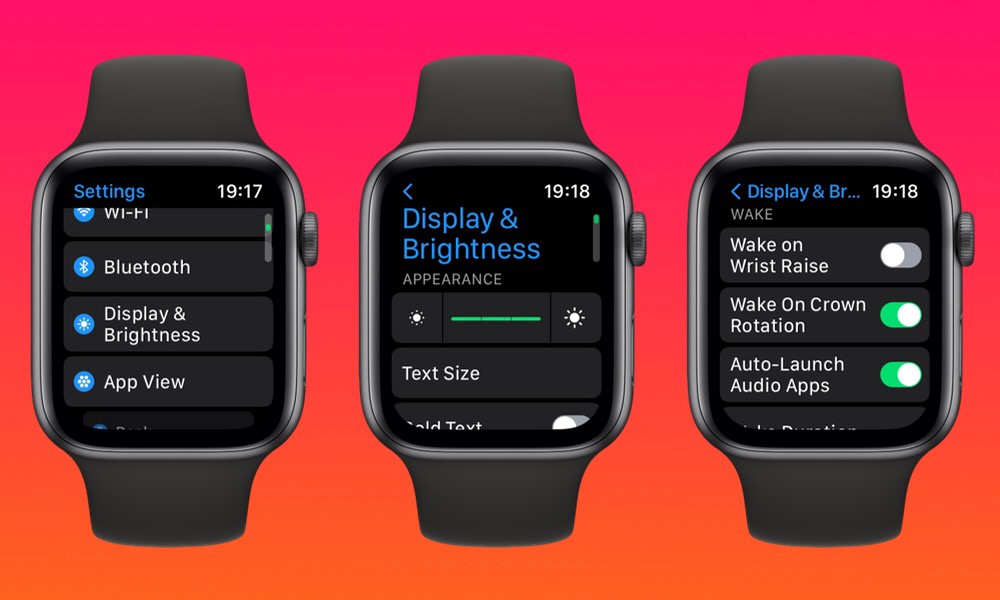
The #1 battery killer? Always-On Display (available on Series 5 and later). It keeps your screen lit even when your wrist is down. On bright OLED models (Series 6+), this can cost 3–5 hours of battery life.
Fix it:
1. Open Settings > Display & Brightness > Always On
2. Toggle it Off
You’ll immediately notice longer battery life—especially if you’re not constantly checking the time.
Cut Screen Wake Time in Half
Every time your screen wakes, it uses power. Two features cause the most unnecessary activations:
– Raise to Wake
– Long wake duration (70 seconds)
If you glance at your watch 100+ times a day, these add up fast.
Fix it:
1. On your iPhone: Open Watch app > Display & Brightness
2. Turn off Raise to Wake
3. Set Wake Duration to 15 seconds
Now, your screen only wakes when you tap it or press the Digital Crown—saving significant battery.
Switch to a Dark, Simple Watch Face
Complicated faces with live updates or animations (like Infograph Modular) drain power. Each complication pulls data, wakes the CPU, and lights up the screen.
Best choices:
– X-Large with 1–2 complications
– Activity Analog with minimal extras
– Flat black faces (on OLED models)
On OLED screens, black pixels use zero power. A dark-themed face reduces energy use every second it’s on.
Optimize Connectivity to Save Power
Stay Close to Your iPhone
Your Apple Watch uses Bluetooth to connect to your iPhone—the most power-efficient method. When your phone is out of range, it switches to Wi-Fi or cellular, which use far more energy.
Tip: Keep your iPhone nearby when possible. If you’re out of range, consider Airplane Mode with Wi-Fi enabled for specific tasks.
Avoid Weak Signal Zones
Poor Wi-Fi or cellular signal forces your watch to constantly search for a connection. This background task burns battery even when idle.
Signs of weak signal:
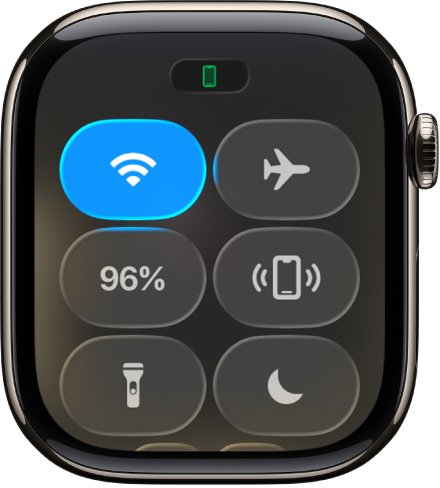
– Blue Wi-Fi or green cellular bars show 1–2 bars in Control Center
– Battery drops rapidly with no user activity
Fix:
– Use Airplane Mode in elevators, basements, or remote areas
– Re-enable Wi-Fi or Bluetooth only when needed
Disable Background App Refresh
Apps like weather, news, or fitness trackers refresh in the background, syncing data and waking the screen.
Fix it:
1. On iPhone: Watch app > General > Background App Refresh
2. Turn it Off
This stops unnecessary updates and cuts idle battery drain.
Reduce GPS and Sensor Load
Enable Workout Power Saving Mode
GPS and heart rate sensors are major power users. A 60-minute outdoor run can use 15–20% of your battery just for GPS.
Fix it:
1. Go to Settings > Workout > Power Saving Mode > On
This reduces GPS and heart rate sampling frequency—ideal for long hikes or runs.
Pair a Bluetooth Chest Strap
The wrist-based heart sensor uses constant LED light, which drains power. A Bluetooth chest strap (like Polar H10) measures heart rate more efficiently.
Fix it:
1. Settings > Bluetooth > Pair Device
2. Connect your chest strap
You’ll save 10–15% during workouts and get more accurate readings.
Turn Off Blood Oxygen Monitoring
If you don’t use sleep oximetry, disable it:
1. Watch app on iPhone > Privacy > Health > Blood Oxygen > Off
This stops nighttime readings and reduces overnight drain.
Fix Software and Update Issues

Install the Latest watchOS
Apple often releases patch updates (e.g., 11.0.1) to fix battery bugs. An outdated or corrupted OS can cause hidden background processes.
Check for updates:
1. Watch app on iPhone > General > Software Update
2. Install any available update
Even if you’re on the latest version, reinstalling can fix corrupted files.
Fix Stuck or Pending Updates
A pending update stuck on “Preparing” can cause 24–48 hours of heavy background activity.
Fix it:
1. Keep your watch on the charger
2. Wait up to 48 hours—some users report completion only after extended charging
3. If stuck:
– Settings > General > Usage > Software Update > Delete Update
– Retry download later
Avoid automatic updates if you’re prone to battery issues.
Restart Both Devices
A simple restart clears temporary glitches.
Do this:
1. Restart Apple Watch: Hold side button > swipe power off
2. Restart iPhone: Hold volume + side button > slide to power off
3. Turn both back on
Many users report immediate improvement after this step.
Perform Advanced System Resets
Reset Sync Data
Sync errors between iPhone and Watch cause background processes that drain battery.
Fix it:
1. On iPhone: Watch app > General > Reset > Reset Sync Data
2. Wait 10 minutes for re-sync
This clears corrupted messages, health data, or app sync issues.
Unpair and Re-pair Your Apple Watch
If drain persists, unpairing and re-pairing often fixes deep software issues.
Steps:
1. Watch app > All Watches > (i) > Unpair Apple Watch
2. Let it erase completely
3. Restart iPhone (critical)
4. Set up as new—don’t restore from backup
This removes corrupted app data and pairing glitches.
Factory Reset (Erase All Content)
If all else fails, erase everything:
1. Apple Watch: Settings > General > Transfer or Reset > Erase All Content
2. For cellular models, choose keep cellular plan
3. After reset, restart iPhone before re-pairing
4. Set up as new—don’t restore
User result: One Series 9 owner went from dead by 3 PM to 34% after 19 hours using this method.
Check Battery Health and Hardware
View Maximum Capacity
Battery health drops over time. After 2–3 years, it often falls below 80%.
Check it:
1. On Apple Watch: Settings > Battery > Battery Health
2. Look for:
– 100%: New
– 80–89%: Degraded
– Below 80%: Needs replacement
– “Battery Needs Service”: Contact Apple
If capacity is below 75%, expect poor daily performance.
Recognize Failing Battery Signs
Hardware failure shows up as:
– Unexpected shutdowns at 20–30%
– Battery jumps from 50% to 20% in minutes
– Long charging times or won’t reach 100%
– Device gets hot during normal use
If you see these, it’s likely a failing battery, not software.
Avoid Extreme Temperatures
Heat kills lithium-ion batteries.
– Don’t charge in direct sunlight, saunas, or hot cars
– Avoid workouts in >35°C (95°F) environments
Cold temps (<0°C / 32°F) also reduce capacity temporarily.
Optimize Charging Habits
Use Optimized Battery Charging
This feature learns your routine and delays full charge until you typically wear the watch. It extends battery lifespan.
Enable it:
– Settings > Battery > Battery Health > Optimized Battery Charging > On
If you need a full charge immediately, turn it off temporarily.
Charge Nightly, Avoid Deep Discharge
Lithium-ion batteries prefer frequent top-ups.
– Charge every night
– Avoid letting it drop below 10% regularly
– Don’t leave it at 100% for days—use Optimized Charging
This keeps the battery in peak condition longer.
Use Certified Charger and Clean Contacts
Dirty charging pads or third-party cables reduce efficiency.
Best practice:
– Use Apple-certified charger and cable
– Wipe back of watch and charger with dry cloth
– Charge from wall adapter, not sleeping laptop USB port
Ensure solid contact for full-speed charging.
When to Replace or Upgrade
Get a Battery Replacement
If battery health is below 80%, Apple replaces it:
– Free under AppleCare+
– $99 out of warranty (U.S.)
Available at Apple Stores, Authorized Providers, or via mail-in
Never attempt DIY replacement—batteries are glued and soldered. You’ll void warranty and risk damage.
Consider Upgrading Your Watch
If your watch is over 5 years old, the battery may never recover.
Upgrade options:
– Apple Watch Ultra 2: 36-hour battery, ideal for heavy users
– Series 9: Improved efficiency, longer life than older models
– Garmin or Fitbit: Offer 7–14 day battery life for fitness-focused users
Upgrade if software fixes fail and battery health is poor.
Final Fix Checklist (Quick Steps)
Immediate Actions (5 Minutes)
- ✅ Turn on Low Power Mode (Control Center)
- ✅ Disable Always-On Display
- ✅ Turn off Raise to Wake
- ✅ Reduce Wake Duration to 15 sec
- ✅ Check for software updates
Intermediate Fixes (10–15 Minutes)
- ✅ Check Battery Health
- ✅ Review Battery Usage in Watch app
- ✅ Turn off Background App Refresh
- ✅ Disable “Hey Siri”
- ✅ Reduce brightness to 40–50%
Advanced Solutions (30+ Minutes)
- ✅ Restart both devices
- ✅ Reset Sync Data
- ✅ Unpair and re-pair (set up as new)
- ✅ Factory reset if needed
- ✅ Contact Apple Support if “Battery Needs Service”
Most Apple Watch battery drain issues are fixable without repair. Start with display and connectivity settings, then move to software resets. If your battery health is below 80%, consider replacement. Combine multiple optimizations—each small change adds up. With the right tweaks, you can restore reliable all-day battery life.




