
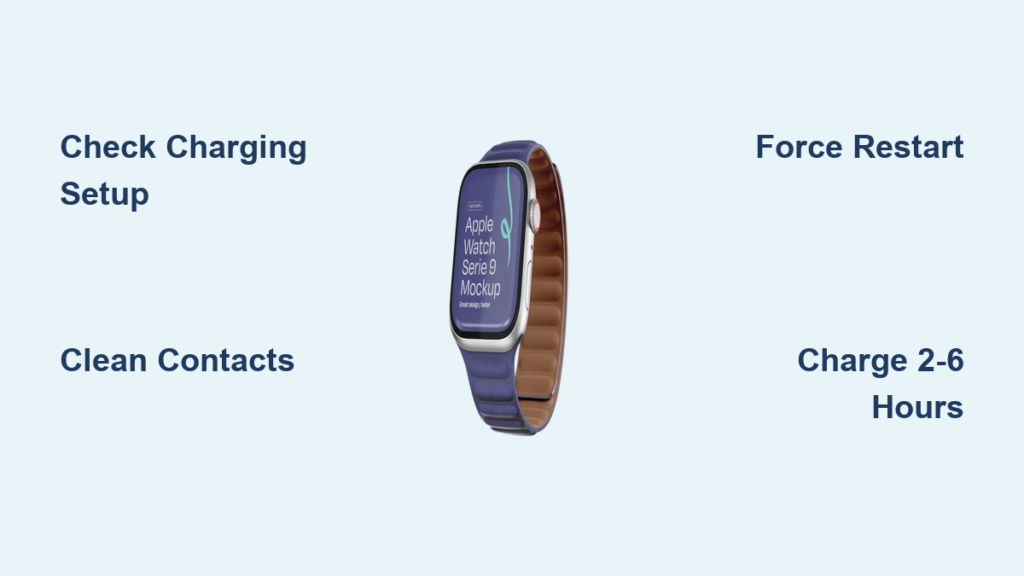
You press the side button. Nothing. You snap your Apple Watch onto the charger—still pitch black. No chime, no logo, no sign of life. Why won’t my Apple Watch turn on? It worked yesterday. Now it’s unresponsive, and panic sets in. The good news? In over 90% of cases, your watch isn’t broken—it’s just stuck in a deep power-saving state or caught in a software freeze. With the right steps, you can revive it quickly and safely.
This guide delivers a clear, step-by-step recovery process based on official Apple support, verified user reports, and expert troubleshooting. Whether your watch died overnight, froze after an update, or won’t wake up after long storage, you’ll learn how to diagnose and fix the real issue—without guessing. Most fixes take minutes. Some require patience over hours. But by the end, you’ll know exactly what to do—and when to seek help.
Confirm Your Charging System Works

Before assuming your Apple Watch is dead, rule out the most common culprit: a faulty charging setup.
Use Genuine Apple or MFi-Certified Charger
Third-party cables often deliver unstable power. Stick to:
– Apple Magnetic Charging Cable
– USB-C Magnetic Fast Charging Cable
– Apple Watch Magnetic Charging Dock
– MagSafe Duo Charger
Avoid knockoffs—even if they look identical. Non-certified chargers can trigger error messages like “Unable to charge” due to voltage mismatches. Genuine Apple chargers ensure consistent power delivery critical for reviving a drained battery.
Align Charger Perfectly
The magnetic puck must snap flush to the back of the watch. On larger models (45mm, 49mm), tilt the cable or lay it flat for better contact. For Apple Watch Ultra, remove the band if alignment fails. Thick or aftermarket bands can block the magnetic connection, especially on curved surfaces.
Plug Into a Wall Adapter (Not a Computer)
USB ports on laptops often don’t supply enough power. Always use a wall adapter rated at least 5W—preferably 12W or higher. Try different outlets if needed. If using a power strip, bypass it—some cut power during standby mode.
Remove Protective Plastic Wrap
New charging cables often come with a thin plastic film still covering the magnetic pins. Peel it off completely before use. Leaving it on prevents proper contact and charging.
Clean the Charging Contacts
Dirt, sweat, or corrosion can block power transfer—even with perfect alignment.
Wipe Watch and Charger with a Dry Cloth
Use a dry, lint-free cloth or cotton swab to gently clean:
– The metal charging ring on the back of the watch
– The magnetic pins on the charger
Do not use liquids, compressed air, or abrasive materials. Moisture can seep into internal circuits and cause permanent damage.
Inspect for Physical Damage
Look closely for:
– Bent or corroded pins
– Cracks near the charging port
– Discoloration (sign of water or heat damage)
If you spot any of these, stop charging and contact Apple Support. Continuing to charge a damaged unit risks further harm.
Force Restart Your Apple Watch
This is the single most effective fix for an unresponsive device. A force restart clears software freezes without erasing data.
Hold Side Button + Digital Crown for 10–15 Seconds
Press and hold both the side button and Digital Crown simultaneously. Keep holding—even if nothing appears. Release only when the Apple logo shows up.
Note: This works on all Apple Watch models, including Series 1 and earlier.
Let It Boot Completely
After the logo appears, wait up to a minute for the watch to restart fully. Do not press any buttons during this time. Interrupting the boot process can cause another freeze.
Try Even With a Black Screen
If the battery has residual power, a force restart may work even with no visual feedback. Give it a full 15 seconds—many users report success after thinking the watch was dead.
Charge for 2–6 Hours Without Interruption
A deeply drained battery may need hours before showing any sign of life.
Leave It Plugged In and Undisturbed
Connect your Apple Watch and do not touch it for at least 2 hours. Avoid checking every few minutes—this can interrupt charging cycles and delay recovery.
Watch for These Visual Cues
- Green lightning bolt: Charging normally
- Red lightning bolt: Battery critically low—keep charging
- Red bolt in a ring: Connected but not yet charging
- Blank screen: May still be charging—wait longer
Some users report needing up to 4 hours before any symbol appears.
Don’t Try to Power It On Prematurely
Attempting to turn it on too soon can prevent the system from booting. Let it charge uninterrupted first.
Restart Your Paired iPhone
Your iPhone’s connection can affect Apple Watch performance. A simple reboot may resolve sync issues.
Power Off iPhone Properly
- Face ID models: Press and hold side button + volume button until the power-off slider appears.
- Other models: Press and hold the top/side button.
Drag the slider, wait 30 seconds, then press the side button to restart.
Reconnect After Restart
Once your iPhone is back online, open the Apple Watch app and check if the watch responds. A fresh Bluetooth handshake can resolve communication errors.
Disable VoiceOver or Screen Curtain via iPhone
Accessibility features can make the screen appear off—even when the watch is running.
Turn Off Remotely
- Open Apple Watch app
- Tap My Watch > General > Accessibility
- Disable:
– VoiceOver
– Screen Curtain
If your watch boots but the screen stays black, this is likely the fix. Users frequently overlook this setting after testing accessibility modes.
Remove and Reattach the Watch Band
A loose or improperly seated band can interfere with internal connections—especially with Sport Bands.
Reconnect Securely
- Press the band release buttons and remove both sides
- Wipe the attachment points on the watch case
- Reattach firmly until you hear a solid click
This resets physical grounding points and has revived unresponsive watches in multiple user reports.
Test with Alternative Charging Methods
Rule out faulty components by testing different setups.
Swap Cables or Adapters
Borrow a known-working Apple charger. If your watch powers on, your original cable is likely defective.
Try a Charging Dock
Use the Magnetic Charging Dock or MagSafe Duo. These offer superior alignment compared to flat cables, especially for larger models.
Avoid Computer USB Ports
They often deliver inconsistent power. Stick to wall adapters for reliable charging.
Tap Buttons and Case to Dislodge Debris
Dust or moisture may jam mechanical parts.
Gently Tap the Watch
With bands removed:
– Tap the side button and Digital Crown lightly
– Gently tap each corner on a soft surface
This can free stuck components. Then attempt a force restart.
Try the Thermal Reset (Fridge Method)
Not official—but some users report success with this controversial trick.
Cool and Warm the Watch
- Place unplugged watch (no bands) in a sealed bag
- Refrigerate for 10 minutes
- Remove and let warm to room temperature (5–10 minutes)
- Attempt force restart
Why it might work: Thermal contraction could reset internal circuits.
Warning: Do not freeze or expose to condensation. Apple does not endorse this method.
Perform a Complete Battery Drain
If a red lightning bolt and time display persist, residual power may block boot.
Let Battery Die Fully
- Leave watch unplugged and unused
- Wait several days until pressing the crown shows no display
- One user left it in a car glovebox for a week
- After full drain, charging triggered a green bolt immediately
This resets the power management system in stubborn cases.
Accelerate Drain With Repeated Reboots
Speed up the discharge process.
Force Restart 2–3 Times Daily
Each restart consumes residual power. Useful when stuck in low-power limbo with no full shutdown.
Wait for Passive Recovery
Some watches reboot themselves after days of dormancy.
Real User Case: Series 6 After 5 Days
Watch showed no signs of life. Left untouched with occasional reboot attempts. Suddenly powered on with 13% battery and worked normally.
Suggests deeply drained batteries may need extended rest to stabilize.
Recognize Signs of Hardware Failure
When software fixes fail, hardware damage is likely.
Red Flags
- No response after 6+ hours of charging with known-good accessories
- Watch heats up abnormally during charging
- Cracked case, bent pins, or water intrusion
- Repeated force restarts do nothing
These indicate battery degradation, logic board failure, or water damage.
Consider Battery Replacement
Lithium-ion batteries degrade over time.
When to Replace
- Device is 2–3 years old
- Battery health below 80% (visible in Watch app > Battery > Battery Health)
- Won’t hold charge despite full cycles
Apple offers paid battery replacement for out-of-warranty devices. Cost varies by model.
Explore Refurbished Option
If replacement is too expensive, consider an Apple Refurbished watch. Comes with full warranty and new battery.
Seek Professional Help
When all else fails, get expert diagnostics.
Contact Apple Support
Use the Apple Support app or visit support.apple.com. They can:
– Run remote diagnostics
– Schedule Genius Bar appointment
– Process warranty or AppleCare+ claims
Visit Apple Store
Bring both watch and iPhone. Technicians can test charging, battery, and logic board.
Try Authorized Repair
For out-of-warranty devices, shops like iFixAndRepair offer transparent pricing, quick service, and warranty.
Note: Apple does not offer user-replaceable batteries. All internal repairs require professionals.
Prevent Future Power Failures
Avoid repeat issues with simple habits.
Charge Regularly
Don’t let battery drop below 20%. Daily charging prevents deep discharge.
Avoid Full Drains
Never leave it at 0% for days. Lithium-ion batteries weaken when fully drained.
Use Genuine Accessories
Only Apple or MFi-certified chargers ensure safe, stable power.
Clean Contacts Monthly
Wipe charging points with a dry cloth to prevent buildup.
Avoid Extreme Temperatures
Don’t leave in hot cars or freezing conditions. Heat and cold damage battery life.
Update Software
Keep watchOS and iOS up to date. Updates fix bugs that cause crashes.
Most “dead” Apple Watches aren’t dead—they’re just waiting for the right signal to wake up. By following this guide, you’ve covered every known fix, from simple resets to advanced recovery. Patience is key: deep discharge can take hours to reverse. But in the vast majority of cases, your watch will return to normal. If not, professional repair or replacement is the next step. Keep it charged, keep it clean, and your Apple Watch will keep ticking.





