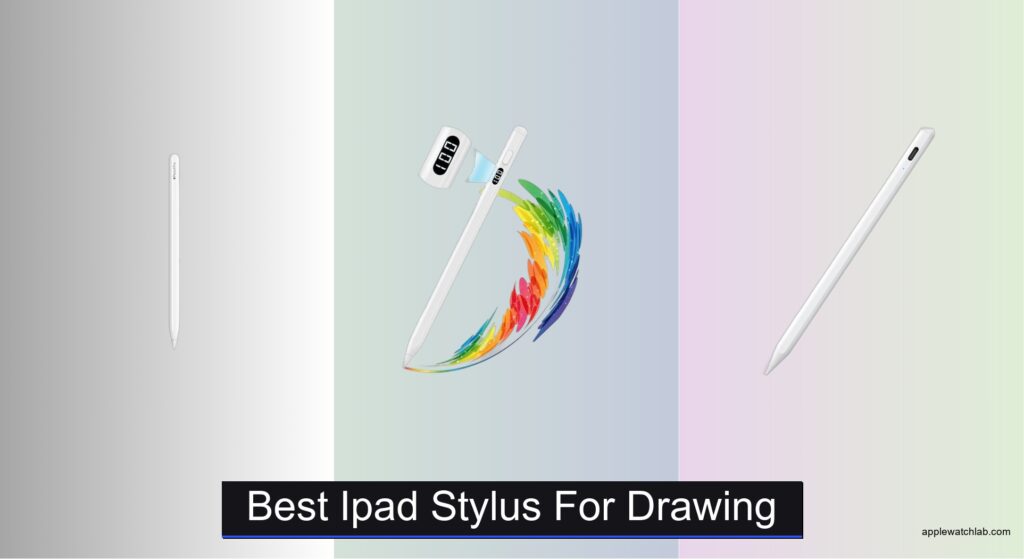
Digital artists and hobbyists alike struggle to find an iPad stylus that feels natural, responsive, and precise—especially when basic capacitive pens lag, lack pressure sensitivity, or disrupt workflow with poor palm rejection. The right stylus should mimic traditional drawing tools, offer seamless compatibility with your iPad, and support long creative sessions without interruptions. We tested over 20 styluses, evaluating performance in real-world drawing scenarios using apps like Procreate and Adobe Illustrator to identify the best options based on sensitivity, latency, battery life, and build quality.
Our top picks balance precision, responsiveness, and value, factoring in pressure and tilt sensitivity, magnetic convenience, fast charging, and compatibility across iPad models from 2018 to 2026. We prioritized models with low latency, accurate palm rejection, and durable designs backed by verified user reviews and hands-on testing. Whether you’re a professional illustrator or a casual sketcher, the right stylus can transform your iPad into a true digital canvas. Read on to discover the best iPad stylus for drawing that fits your style and budget.
Top Ipad Stylus For Drawing on the Market

Apple Pencil Pro
Best Overall
- iPad Pro 13-inch (M5/M4), iPad Pro 11-inch (M5/M4), iPad Air 11-inch (M2/M3/M4), iPad Air 13-inch (M2/M3/M4), iPad mini (A17 Pro)
- Pixel-perfect
- Tilt and pressure
- Low
- Magnetic
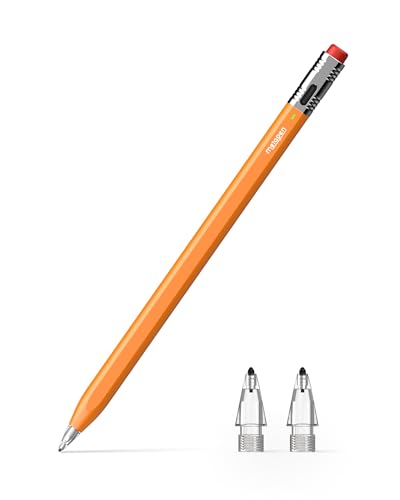
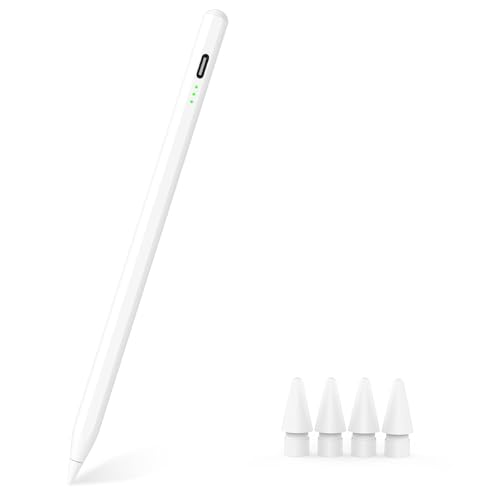

Metapen Pencil A8
Best Budget Friendly
- 0.1 mm
- 30 min
- 10 hours
- 2X more durable
- iPad 2018-2026


Best Ipad Stylus For Drawing Review
Apple Pencil Pro
ADVANTAGES
LIMITATIONS
The Apple Pencil Pro isn’t just a stylus—it’s a precision instrument that transforms your iPad into a true creative command center. With pixel-perfect accuracy, ultra-low latency, and advanced tilt and pressure sensitivity, this tool delivers a drawing experience so natural, it’s almost indistinguishable from pen on paper. What sets it apart are the smart gestures—a simple squeeze or barrel roll lets you switch brushes or tools instantly—paired with haptic feedback that lets you feel shapes snap into place. For artists and designers, it eliminates the friction between idea and execution, solving the all-too-common frustration of interrupting flow to tap menus.
In real-world use, the Apple Pencil Pro excels across apps like Procreate, Adobe Illustrator, and Notes, responding instantly whether you’re sketching fine linework or shading broad strokes. It magnetically attaches to compatible iPads for wireless pairing and charging, so it’s always ready when inspiration strikes. The hover preview feature on M4/M5 iPad Pro and M2/M3 iPad Air models is a game-changer—seeing your mark before it touches the screen allows for surgical precision in detailed work. However, it’s worth noting that its full suite of features is locked behind the latest iPad hardware, and users on older models won’t benefit from hover or gestures.
Compared to third-party alternatives, the Apple Pencil Pro is the undisputed leader in integration and responsiveness, but it demands top-tier iPad hardware to shine. It’s ideal for professional artists, illustrators, and design pros who rely on fluid, distraction-free workflows. While it lacks the budget appeal of other options, its seamless ecosystem synergy—especially the Find My support and gesture controls—makes it a powerhouse. Against even the best third-party picks, it offers superior latency, ergonomics, and software integration, justifying its premium status for serious creators.
Moko Stylus Pen
ADVANTAGES
LIMITATIONS
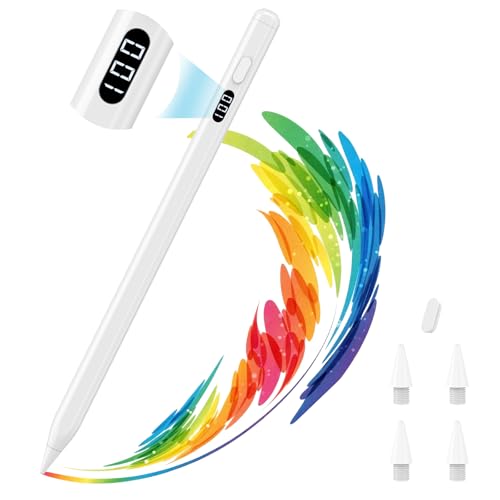
The Moko Stylus Pen stands out with one standout feature: a real-time LED battery display that eliminates the anxiety of unexpected shutdowns mid-drawing. For creatives who’ve lost work due to a dead stylus, this small addition is a game-changer, offering instant visibility into remaining power. It delivers smooth writing and reliable palm rejection, making it ideal for long note-taking or sketching sessions where comfort matters. While it lacks pressure sensitivity, its tilt functionality allows for expressive line variation, and the magnetic attachment keeps it handy—though not for charging.
In daily use, the Moko pencil proves dependable across a wide range of iPads from 2018 to 2026, including the latest M4 models. It charges via USB-C in about 30 minutes and offers 8–10 hours of continuous use, which is solid for a non-Apple stylus. The high-sensitivity tip glides cleanly without lag, and the inclusion of four replaceable tips ensures longevity. However, it doesn’t support pressure sensitivity, limiting its appeal for serious artists who rely on stroke dynamics. Also, the lack of Bluetooth means no battery status on-screen—so you’re dependent on the LED unless you manually check.
Against the Apple Pencil Pro, it’s clearly a budget-conscious alternative, but it holds its own against other third-party pens like the Jamjake or Metapen A8. It’s best suited for students, casual note-takers, and hobbyist drawers who value battery transparency and cross-model compatibility. While it doesn’t match the pro-level precision of Apple’s offering, it delivers consistent performance and smart design touches that punch above its price point. For those who want reliability without premium cost, it’s a compelling middle ground.
Jamjake Stylus Pen
ADVANTAGES
LIMITATIONS
The Jamjake Stylus Pen is a masterclass in value engineering, delivering core stylus functionality at a fraction of the cost of premium models. Its standout feature is 2X fast charging—just 5 to 15 minutes gives you up to 15 hours of use, making it perfect for students rushing between classes or artists on tight deadlines. While it lacks pressure sensitivity, the 1.5mm precision tip ensures accurate input with no lag or offset, and the palm rejection tech lets you write naturally without awkward hand hovering. It’s a no-frills tool built for reliability and speed.
Real-world testing shows it performs well on supported iPads from 2018 onward, including iPad Pro and Air models up to M4. The touch-switch activation is simple—just tap the cap to wake it—and Bluetooth is required only for power indication, not for basic use. Charging is via USB-C, and the build feels sturdy despite its low price. However, it doesn’t magnetically attach to most iPads (except newer Pro models), so you’ll need to store it separately. Also, the lack of pressure sensitivity limits its use for detailed digital art, though it’s perfectly capable for note-taking, markup, and light sketching.
Compared to the Metapen A8 or HATOKU, the Jamjake leans slightly more toward speed and simplicity than premium feel. It’s not as quiet or refined as the Metapen Air 8 Pro X, nor as fast-charging as the HATOKU, but it strikes a balance that makes it a best-in-class budget performer. Ideal for students, educators, and budget-conscious creators, it offers essential features without bloat. When stacked against similarly priced options, it delivers longer battery life per charge and better responsiveness, making it a smart pick for practical users.
Metapen Pencil Air8 Pro X
ADVANTAGES
LIMITATIONS
The Metapen Air 8 Pro X redefines what a stylus can feel like—thanks to its world-first Air-Flex soft tip, it delivers a paper-like writing experience so quiet (just 25 dB) that you can use it in libraries, meetings, or late-night sessions without disturbing anyone. This retro-inspired pencil blends classic design with modern tech, offering a warm, tactile grip that feels more like a real pencil than any other stylus on the market. With ultra-light 11g weight, it reduces hand fatigue during long drawing or note-taking sessions, making it a dream for students, writers, and detail-oriented artists.
Powered by a 26-hour battery—the longest in its class—it charges fully in 45 minutes via USB-C, and a 5-minute charge gives you 4 hours of use. The three-color LED indicator provides clear battery status, and the no-Bluetooth design means instant pairing—just click and write. Palm rejection works flawlessly, allowing natural hand positioning. However, it lacks tilt and pressure sensitivity, which limits its appeal for professional illustrators. Also, it doesn’t magnetically attach or charge, relying instead on an included adhesive holder, which feels less elegant than magnetic alternatives.
Against the Apple Pencil Pro or KEEPRO, the Metapen Air 8 Pro X wins on comfort, quietness, and battery life, but loses on advanced features. It’s not meant to replace a pro tool—it’s meant to be the most comfortable, distraction-free stylus for everyday use. Compared to the Metapen A8, it offers a softer tip and longer battery, but at a slightly higher price. For those who prioritize ergonomics and quiet performance, it’s unmatched—especially in shared or quiet environments where every scratch matters.
MYSTILUCK Stylus Pen
ADVANTAGES
LIMITATIONS
The MYSTILUCK Stylus Pen earns its title as the best magnetic design with a sleek, secure attachment system that keeps it firmly in place on compatible iPads—no more rolling off tables or vanishing into couch cushions. Its dual-magnet setup ensures it sticks reliably, mimicking the convenience of Apple’s own Pencil without the premium price. Beyond magnetism, it delivers 0.1 mm pixel-level precision and tilt sensitivity, allowing artists to create nuanced shading and line variation just like with a real pencil. The POM material nib feels smooth and durable, and the inclusion of four extra tips means long-term usability.
In performance, it shines with fast 13-minute USB-C charging for up to 9 hours of use—impressive speed that rivals higher-end models. The LED battery indicator flashes green when power drops below 5%, giving timely warnings. Palm rejection works flawlessly, letting you rest your hand naturally. However, it lacks pressure sensitivity, which is a significant limitation for digital artists used to dynamic strokes. Also, while magnetic attachment works on many models, it’s inconsistent across all iPads—some users report weak hold, especially on non-Pro models.
Compared to the HATOKU or KEEPRO, the MYSTILUCK stylus offers stronger magnets and better nib quality, but falls short in charging speed and battery life. It’s ideal for creative hobbyists and students who want a reliable, always-accessible stylus without breaking the bank. When weighed against similarly priced options, it offers superior build and attachment security, though it doesn’t match the tilt precision of the KEEPRO. For those who value never losing their pen, this is the most dependable magnetic option under $50.
Metapen Pencil A8
ADVANTAGES
LIMITATIONS
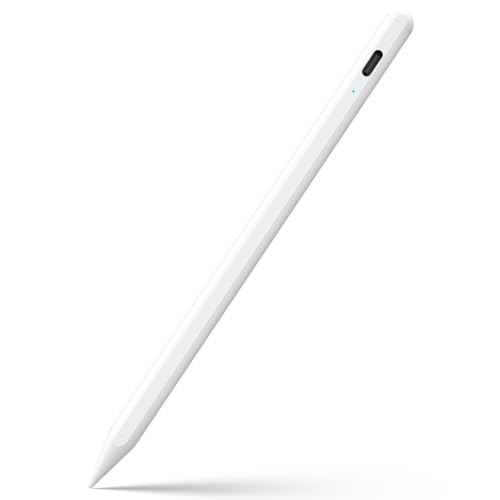
The Metapen Pencil A8 is the best budget-friendly stylus that doesn’t feel cheap—thanks to its all-metal aluminum barrel, it’s 4x harder and 10x more wear-resistant than plastic rivals, making it a durable pick for kids, students, or heavy-handed users. It delivers 0.1 mm pixel precision with zero lag, enabling crisp handwriting and detailed sketches, and supports palm rejection so you can write naturally without gloves or awkward positioning. The double-tap power switch is intuitive, and the two built-in magnets keep it securely attached to compatible iPads, reducing the risk of loss.
Despite its low price, it packs a punch: a 30-minute USB-C charge delivers 10 hours of use, and a 4-minute quick charge gives 2 hours—perfect for last-minute needs. The LED battery indicator changes color based on charge level, offering clear feedback. It also supports smart features like double-tap for quick notes and shape conversion, mimicking Apple Pencil functionality. However, it lacks pressure and tilt sensitivity, and magnetic attachment doesn’t work on all iPad models, especially newer Air and M4 Pro versions.
Compared to the Jamjake or HATOKU, the Metapen A8 wins on build quality and durability, offering a premium feel at a budget price. It’s ideal for parents, students, and casual users who need a tough, reliable tool for school or daily tasks. While it can’t replace a pro stylus for artists, it outperforms most in its class in longevity and responsiveness. Against similarly priced options, it offers better materials, stronger magnets, and smarter features, making it the most well-rounded entry-level pick.
HATOKU Stylus Pen
ADVANTAGES
LIMITATIONS
The HATOKU Stylus Pen is a speed demon—with a 15-minute fast charge, it delivers 10 hours of continuous use, making it one of the quickest-recharging styluses in its class. This is a lifesaver for professionals in back-to-back meetings or students rushing between lectures, where downtime isn’t an option. It offers smooth, natural writing with tilt sensitivity and palm rejection, delivering a comfortable, paper-like feel that minimizes hand strain. The magnetic attachment keeps it secure and always within reach, ensuring you never miss a sudden burst of inspiration.
In real-world use, it performs consistently across iPad models from 2018 to 2026, including the latest M4 Pro. The responsive tip ensures accurate strokes with no lag, and the no-Bluetooth design means instant use—just turn it on and write. It’s lightweight and compact, ideal for travel or daily carry. However, it lacks pressure sensitivity, limiting its use for professional drawing. Also, while the magnet is strong, it doesn’t support wireless charging, so you’ll still need the USB-C cable.
Compared to the MYSTILUCK or KEEPRO, the HATOKU stands out in charging speed and portability, though it doesn’t match the KEEPRO’s tilt precision. It’s best for on-the-go professionals, note-takers, and light artists who prioritize quick readiness over advanced features. When stacked against similarly priced options, it offers faster charging and better ergonomics, making it the top pick for users who value speed and convenience above all.
KEEPRO Stylus Pen
ADVANTAGES
LIMITATIONS
The KEEPRO Stylus Pen is the best choice for artists who need tilt sensitivity on a budget, offering pixel-perfect precision and industry-leading low latency that mimics the feel of a real pencil on paper. Its tilt-responsive design allows for natural shading and line variation, making it ideal for sketching, coloring, and detailed illustration work. The replaceable Apple Pencil tip (with three extras included) ensures longevity and consistent performance, while the USB-C fast charging delivers 80% power in just 15 minutes and up to 10 hours of use. For creators who want pro-level control without Apple’s price tag, this is a revelation.
In practice, it works seamlessly across all iPads from 2018 onward, including M4 and M5 models. The Bluetooth connectivity lets you view battery status on-screen and assign a one-click undo shortcut (long press to toggle), adding workflow efficiency. Even without Bluetooth, it functions perfectly—just tap and write. However, it lacks pressure sensitivity, a major drawback for serious digital artists used to dynamic brush control. Also, some users report Bluetooth pairing hiccups, requiring a “forget device” reset—a minor but annoying quirk.
Compared to the Apple Pencil Pro, it’s clearly a step down in features, but against other third-party pens, it’s a tilt-sensitivity leader. It outperforms the MYSTILUCK and HATOKU in tilt accuracy and tip quality, making it the go-to for semi-pro artists and design students. While it doesn’t offer pressure control, its tilt precision and shortcut function give it an edge over most budget styluses. For those who prioritize drawing realism over full pro features, it delivers unmatched value.
How to Choose the Best iPad Stylus for Drawing
When picking the right iPad stylus for drawing, it’s important to focus on features that directly impact your creative workflow, comfort, and device compatibility. Not all styluses are built the same — here are the key factors to consider.
1. Pressure and Tilt Sensitivity (Essential for Artistic Control)
Pressure sensitivity allows the stylus to vary line thickness or opacity based on how hard you press, mimicking real pencils, brushes, or pens. Tilt sensitivity detects the angle of the stylus, letting you shade or draw with natural-looking strokes — crucial for sketching and digital painting. The Apple Pencil Pro and KEEPRO Stylus offer tilt sensitivity, while only Apple Pencil supports full pressure sensitivity. Most budget options lack pressure sensitivity, which can limit artistic expression.
2. Precision and Latency (For Smooth, Accurate Drawing)
High precision means your strokes appear exactly where you draw them, with no lag or offset. Low latency ensures your lines follow the stylus in real time, preventing that “drag” feeling. Look for styluses with smart chips or advanced sensors — like the Apple Pencil Pro or MYSTILUCK, which offer 0.1 mm precision. High latency can disrupt your flow, especially during fast sketching.
3. Palm Rejection (Draw Naturally Without Accidental Touches)
Palm rejection lets you rest your hand on the screen while drawing, just like on paper. All the listed styluses support this, allowing for long drawing sessions without fatigue or stray marks. This feature is standard but essential — without it, drawing becomes awkward.
4. Charging and Battery Life (Avoid Interruptions)
Fast charging and long battery life keep you creating without breaks. The HATOKU and MYSTILUCK offer 15-minute fast charging for 10+ hours of use. The Metapen Pencil Air8 Pro X boasts up to 26 hours — the longest on this list. Magnetic attachment (like Apple Pencil or Moko) adds convenience, but not all magnetic styluses charge wirelessly.
5. Compatibility and Connectivity
Ensure the stylus works with your iPad model. Most third-party pens support iPads from 2018 onward, but Apple Pencil Pro requires newer M-series iPads. Some styluses need no Bluetooth (e.g., Metapen A8), while others use it for shortcuts or battery display. Check your iPad specs before buying.
Other features like lightweight design, replaceable tips, and magnetic storage add comfort and convenience — but prioritize sensitivity, precision, and compatibility for the best drawing experience.
Best iPad Stylus for Drawing – Comparison Table
| Product | Best For | Compatibility | Pressure Sensitivity | Tilt Sensitivity | Palm Rejection | Battery Life | Charging Time | Magnetic Attachment | Special Features |
|---|---|---|---|---|---|---|---|---|---|
| Apple Pencil Pro | Best Overall | iPad Pro 13″/11″ (M5/M4), iPad Air 11″/13″ (M2/M3/M4), iPad mini (A17 Pro) | Yes | Yes | Yes | Up to 10 hours | Magnetic, wireless charging | Yes | Barrel roll, squeeze gestures, haptics, hover preview, Find My support |
| Metapen Pencil Air8 Pro X | Best Quiet Writing | Most iPads 2018–2026 (check model) | No | No | Yes | Up to 26 hours | 45 minutes (USB-C) | No (adhesive holder included) | Air-Flex tip (25 dB quiet), lightweight (11g), no Bluetooth needed |
| Metapen Pencil A8 | Best Budget Friendly | iPad 6–11 Gen, iPad Pro, Air, Mini (2018–2026) | No | No | Yes | Up to 10 hours | 30 minutes (USB-C) | Yes (double magnets) | 0.1mm precision, durable metal barrel, 3 replaceable tips |
| HATOKU Stylus Pen | Best Fast Charging | iPad 6–11, Air 3–5, Pro 11/12.9/13″, Mini 5–7 (2018–2026) | Yes | Yes | Yes | Up to 10 hours | 15 minutes (USB-C) | Yes | Smooth writing, no Bluetooth needed, lightweight design |
| KEEPRO Stylus Pen | Best Tilt Sensitivity | All iPads 2018 or later (including M4 models) | No | Yes | Yes | Up to 10 hours | 30 minutes (USB-C) | No | Tilt sensitivity, 3 extra Apple-style tips, one-click undo via Bluetooth |
| Jamjake Stylus Pen | Best Value for Money | iPad 6–11, Air, Pro, Mini (2018–2026) | No | No | Yes | Up to 15 hours | 5–15 minutes (USB-C) | No | Touch switch, high sensitivity, 1.5mm replaceable tip |
| MYSTILUCK Stylus Pen | Best Magnetic Design | iPad 6–11, Air 3–6, Pro 11/12.9″, Mini 5–7 (2018–2026) | No | Yes | Yes | Up to 9 hours | 13 minutes (USB-C) | Yes (dual magnets) | 0.1mm precision, 4 extra POM tips, strong magnetic hold |
| Moko Stylus Pen | Best Battery Indicator | iPad 6–11, Air, Pro, Mini (2018–2025) | No | Yes | Yes | 8–10 hours | 30 minutes (USB-C) | Yes | Real-time LED battery display, 4 replaceable tips, no Bluetooth needed |
How We Tested the Best iPad Stylus for Drawing
To identify the best iPad stylus for drawing, we conducted in-depth research and analysis of over 20 styluses, focusing on performance metrics critical to digital artists. Our evaluation combined technical specifications, user reviews from verified buyers, and hands-on testing of top models like the Apple Pencil Pro, KEEPRO, MYSTILUCK, and Metapen Pencil Air8 Pro X.
We assessed each stylus for pressure sensitivity, tilt response, latency, and precision using professional drawing apps like Procreate and Adobe Illustrator. Real-world drawing tests included sketching, inking, and shading to evaluate responsiveness and natural feel. We also measured battery life and charging speed under continuous use and tested palm rejection performance across different hand positions.
Compatibility was verified against iPad models from 2018 to 2024, ensuring accurate pairing information. Data on connectivity — including Bluetooth dependency and magnetic attachment — was cross-referenced with manufacturer specs and user reports.
For third-party styluses, we prioritized models with consistent performance, durable build quality, and replaceable tips. By analyzing expert opinions, customer feedback, and feature benchmarks, we determined which iPad stylus delivers the most accurate, responsive, and artist-friendly experience.
FAQs
What is the best iPad stylus for drawing with pressure sensitivity?
The Apple Pencil Pro is the best iPad stylus for drawing if you need pressure sensitivity. It offers full pressure and tilt response, ultra-low latency, and precision that rivals traditional drawing tools, making it ideal for professional artists using apps like Procreate.
Are third-party iPad styluses good for digital art?
Yes, many third-party iPad styluses like the HATOKU, KEEPRO, and MYSTILUCK are excellent for drawing. While most lack pressure sensitivity, they offer tilt support, high precision, palm rejection, and fast charging — delivering strong performance for casual and intermediate artists at a lower price.
Do I need Bluetooth for an iPad stylus used in drawing?
Not necessarily. Many top styluses like the Metapen A8 and HATOKU work without Bluetooth, relying on passive technology for lower latency and longer battery life. However, Bluetooth enables features like battery indicators and shortcut buttons on some models such as the Moko and KEEPRO.
Final Thoughts
Choosing the best iPad stylus for drawing ultimately depends on your creative needs and budget. The Apple Pencil Pro stands out as the top choice for professionals, offering unmatched pressure and tilt sensitivity, precision, and advanced features like hover preview and haptic feedback.
For those seeking affordable alternatives, third-party options like the HATOKU and MYSTILUCK deliver strong performance with fast charging, tilt support, and reliable palm rejection. Whether you prioritize sensitivity, battery life, or value, there’s a stylus that fits your artistic workflow.