
You crushed a 45-minute spin class. You finished a tough outdoor run. Or maybe you spent an hour in a yoga session—only to realize afterward that your Apple Watch was left charging on the nightstand. Without tracking, your Activity rings stay incomplete, and your progress feels invisible. But here’s the good news: you can add a workout on Apple Watch after the fact.
Even though the Apple Watch doesn’t let you manually enter workouts directly from its screen, the iPhone Health app gives you full control to log missed sessions retroactively. This ensures your Move, Exercise, and Stand rings reflect your true effort—even when tracking slips through the cracks.
In this guide, you’ll learn exactly how to manually add a workout to Apple Watch, step by step. We’ll cover the correct path in iOS 18.5 (including fixes for missing menu options), what data is required for ring credit, and how to avoid common mistakes—like entering wrong calories you can’t edit later.
Use iPhone Health App to Add Workout
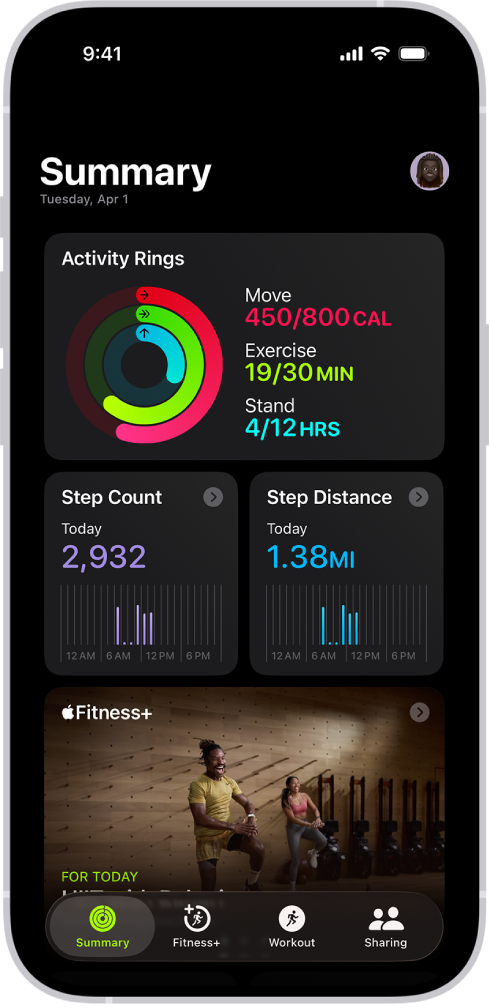
You cannot manually add a workout directly on the Apple Watch screen—this is a common misconception. Instead, all manual entries must be made through the Health app on your iPhone, which syncs data automatically to your watch.
This method allows you to input key details like:
– Workout type (e.g., Running, Cycling, Yoga)
– Start and end time
– Calories burned
– Optional distance or notes
Once saved, the workout appears in your Activity app, updates your daily rings, and counts toward weekly trends—just like a tracked session.
✅ Pro Tip: For best results, add workouts the same day they occurred. This avoids confusion with time zones, ensures accurate ring credit, and keeps your fitness history consistent.
Open Health App and Locate Workouts
Start by opening the Health app on your iPhone. Depending on your iOS version—especially iOS 18.5 and later—the way to access workout logging may vary due to a known interface bug.
Standard Path (iOS 16–18.4)
If you’re on an earlier iOS version, follow these steps:
- Tap the Browse tab at the bottom.
- Search for or scroll to Activity.
- Tap Workouts.
- Tap the Add button (+) in the top-right corner.
This opens the manual entry form where you can fill in your workout details.
Workaround for iOS 18.5 and Later
After updating to iOS 18.5, many users report that the Workouts section is missing under Browse > Activity. This appears to be a UI rendering bug affecting search indexing.
✅ Reliable Fix:
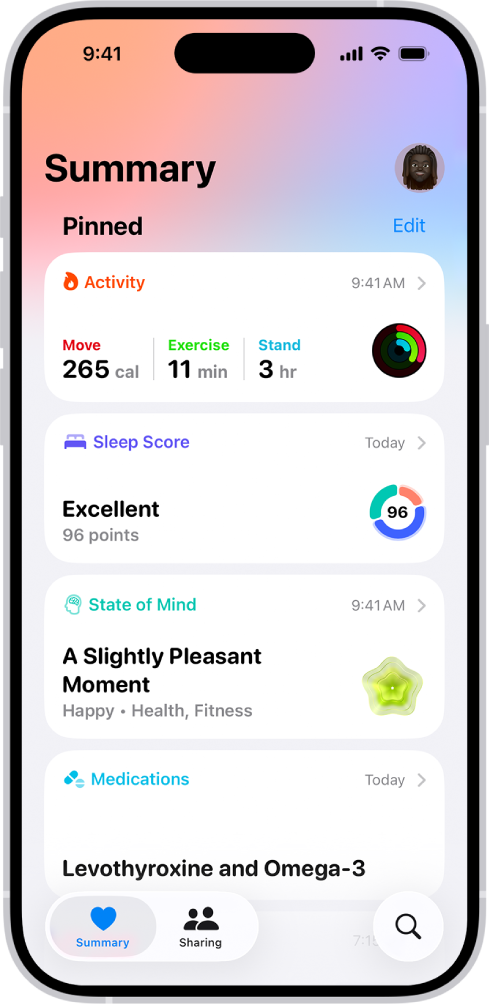
1. Go to the Summary tab in the Health app.
2. Scroll down until you see the Workouts card (usually below “Highlights”).
3. Tap Add Data in the top-right corner of the card.
This bypasses the glitch and reliably opens the workout entry form—currently the most consistent method reported by users.
🛠 Community Tip: Some users found success by scrolling manually through all items under Activity instead of using the search bar, as filtering issues may hide the Workouts option.
Enter Accurate Workout Details
Once you’ve opened the add form, it’s time to input realistic and accurate data.
Required Fields for Ring Credit
To get full credit in your Activity rings, you must enter:
- Workout Type: Choose from over 30 options including Running, Cycling, Swimming, HIIT, Yoga, and more.
- Start and End Time: Required to earn Exercise minutes.
- Calories Burned (Total Energy Burned): Required to increase your Move ring.
Optional fields include distance, heart rate, and notes—but these don’t affect ring progress.
📌 Example: A 30-minute indoor run that burned about 350 calories? Set the start/end times accordingly and enter 350 under Total Energy Burned.
After filling out the form, tap Add or Done to save.
⚠️ Critical Warning: Once saved, calories burned cannot be edited. If you make a mistake, your only option is to delete the entry and re-add it.
Ensure Activity Ring Credit
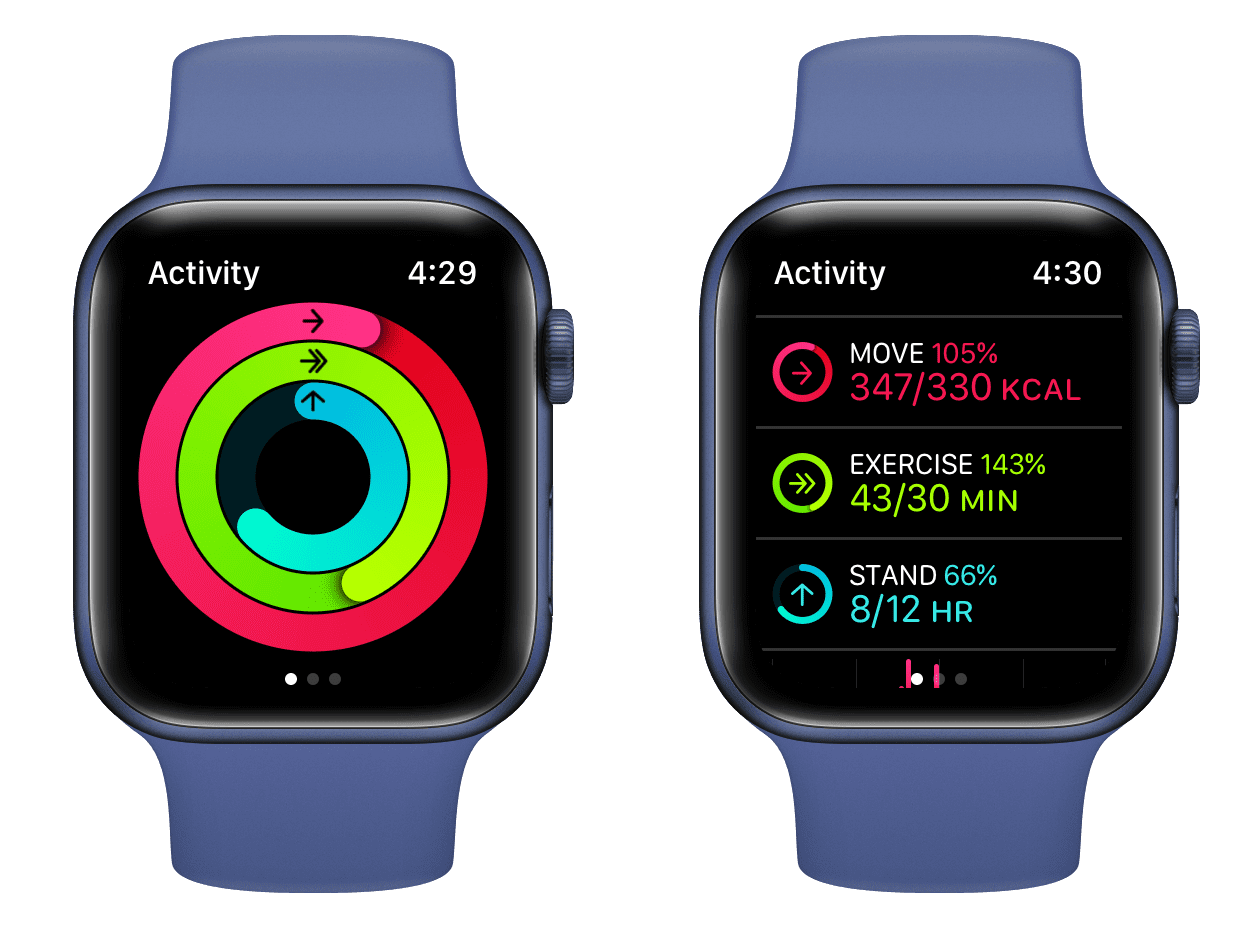
Just adding a workout isn’t enough—you need the right data to earn credit in your rings.
Here’s what each ring requires:
| Ring | Required Data |
|---|---|
| Move | Total calories burned must be entered |
| Exercise | Start and end time must be set |
| Stand | Not affected by manual workouts |
✅ Key Insight: Entering only calories gives Move ring credit but no Exercise minutes. Always include both time and calories to fully reflect your effort.
For example:
– You log a 45-minute strength training session with correct start/end times and 280 calories → both Move and Exercise rings update.
– You enter only 280 calories → Move ring increases, but Exercise minutes stay unchanged.
Verify the results by opening the Activity app on your Apple Watch. You should see both rings adjust accordingly.
Supported Workout Types
You can manually log almost any common activity. Supported types include:
- Running (Indoor/Outdoor)
- Walking (Indoor/Outdoor)
- Cycling (Indoor/Outdoor)
- Swimming (Pool/Open Water)
- Elliptical
- Rowing Machine
- Stair Climbing
- HIIT
- Core Training
- Functional Strength Training
- Yoga
- Dance
- Cross-Training
- Wheelchair Walk/Push
- Other
Choose the most accurate match to maintain clean, consistent fitness records.
💡 Pro Tip: Use “Other” for niche workouts like rock climbing, martial arts, or Pilates. Then, add a descriptive note to clarify the session.
Fix Missing Workouts Section (iOS 18.5 Bug)
Many users report the Workouts option disappears under Browse > Activity after updating to iOS 18.5. This is likely a UI bug, not an intentional change.
Quick Fixes
1. Use Summary Tab Method
- Open Health app > Summary
- Scroll to Workouts card
- Tap Add Data
This is currently the most reliable workaround.
2. Force Restart Health App
- Close the Health app from the app switcher.
- Reopen and try navigating again.
3. Restart iPhone
A soft reboot often resolves temporary glitches.
4. Avoid Search Function
Some users say searching for “Workouts” triggers a filter that hides the section.
Apple is expected to address this in iOS 18.6 or later, so keep your device updated.
No Editing Calories After Save
One of the biggest limitations: you cannot change calories burned after saving.
If you accidentally enter 500 calories instead of 300, you must:
- Delete the original workout
- Re-add it with the correct value
How to Delete a Workout
- In the Health app, go to Summary > Workouts
- Tap the workout entry
- Scroll down and tap Delete Entry
- Confirm deletion
Then re-enter with corrected data.
✅ Best Practice: Double-check calorie estimates before saving. Use past workouts or online calculators for accuracy.
Start and end times can usually be edited post-save, but this varies by iOS version.
Why You Can’t Add Workouts on Apple Watch
Despite the name, you cannot manually add a workout on the Apple Watch itself.
There is no “Add Workout” button in the Workout or Activity apps. The Watch relies entirely on the iPhone’s Health app for data input, editing, and management.
❌ Myth: “Just open Workout, pause, and edit.”
✅ Reality: The Workout app only records live sessions. No manual entry option exists.
All retroactive logging must be done on iPhone.
No Sensor Data in Manual Entries
Manually added workouts do not include:
– Heart rate
– Pace
– Cadence
– GPS route
– Elevation
– Zones or splits
Even if you recorded the session with a Garmin, Strava, or other device, that sensor data won’t appear in the native Apple Health entry.
Third-party apps may sync partial data, but only if they push it correctly to HealthKit.
📌 Example: You import a Strava run with heart rate. It may show in Strava’s Health section, but the native “Running” workout in Health won’t display those metrics.
Manual entries are basic summaries, not full session replays.
Best Practices for Manual Logging
Follow these tips to keep your data accurate and useful.
Estimate Calories Realistically
Overestimating skews long-term trends and ring goals.
✅ Use:
– Past similar workouts (e.g., “My last 5K run burned 320 cal”)
– Online calorie calculators (based on weight, duration, intensity)
– Fitness app history (if synced to Health)
Avoid guessing high numbers “just in case.”
Log Immediately After Exercise
Memory fades fast. Did your HIIT session last 20 or 25 minutes? Was it moderate or intense?
Add the workout within a few hours to ensure accurate timing and calorie estimates.
⏱ Time-Saving Hack: Jot down start/end times and perceived effort in your phone’s Notes app during or right after the workout.
Verify Ring Updates
After adding, open the Activity app on your Apple Watch.
Check that:
– Move ring increased by the number of calories entered
– Exercise ring shows additional minutes equal to workout duration
If not, double-check that both time and calories were entered.
Use Consistent Naming
Stick to standard workout types (e.g., “Indoor Run,” not “Treadmill Run” unless that’s the official option).
This keeps reports and trends clean across months.
💬 Add details in the notes field if needed: “Incline set at 5%, warm-up included.”
Where the Workout Appears
Once added, your manual workout shows up in:
- Apple Watch Activity app: Rings update, workout appears in daily view
- iPhone Fitness app: Timeline reflects the session
- Health app > Workouts: Full details accessible
- Apple Health dashboard: Counts toward weekly/monthly summaries
However:
❌ Does NOT appear in Apple Fitness+ as a completed workout
❌ Not counted as a tracked session in Fitness+ history
✅ Still contributes to overall activity goals and streaks
Third-Party App Workarounds
Apps like Strava, MyFitnessPal, or Garmin Connect allow manual entry independently.
Some let you:
– Add workouts with GPS, heart rate, and notes
– Sync to Apple Health via HealthKit
But syncing doesn’t guarantee the entry will look identical in the native Health app.
🔍 Tip: Check mapping settings. For example, a “Virtual Ride” in Strava should sync as “Indoor Cycling” in Health.
Still, for simplicity and reliability, direct input via Health app is best.
Final Tips and Takeaways
Manually adding a workout on Apple Watch is essential for maintaining accurate fitness tracking—even when you forget to wear your device.
Here’s what you need to remember:
✅ Always use the iPhone Health app—no direct Watch option
✅ Enter both time and calories for full ring credit
✅ Use Summary tab > Add Data if Workouts section is missing (iOS 18.5 fix)
✅ Double-check calories before saving—you can’t edit them later
✅ Delete and re-add if you make a mistake
✅ Log soon after exercise for best accuracy
While not as rich as real-time tracking, manual entry keeps your Activity rings honest and your progress visible.
🎯 Bottom Line: One forgotten workout doesn’t have to break your streak. With this method, your effort still counts—every time.




