
You glance at your wrist, and there they are—the colorful Move, Exercise, and Stand rings, silently judging your progress. If you’re asking how to turn off rings on Apple Watch, you’re not alone. While Apple designed these rings to motivate daily movement, many users find them more stressful than helpful—especially if fitness isn’t their focus or they’re taking a break from tracking.
Here’s the truth: Apple doesn’t offer a single “turn off” button for Activity rings. But that doesn’t mean you’re stuck with them. With clever settings, iOS 18’s new pause feature, and a few workarounds, you can effectively hide, silence, or suspend your rings—without losing streaks or corrupting data.
Whether you want peace of mind during recovery, a distraction-free watch face, or just a mental reset, this guide covers every working method to minimize or eliminate ring visibility and notifications. Let’s break down how to take back control.
Remove the Activity Rings from Your Watch Face
Replace or Delete the Rings Complication
The fastest way to stop seeing rings is to remove them from your watch face. This won’t stop tracking—but it will stop the visual pressure.
On your Apple Watch:
1. Press and hold your current watch face.
2. Tap Edit.
3. Tap the Activity rings complication.
4. Choose a different complication (like Calendar, Weather, or Timer) or tap Remove if your face allows it.
✅ Result: Rings vanish from your main screen.
❌ Note: All activity still tracks in the background.
This works on most customizable faces like Modular, Infograph, Motion, and Utility. For a clean slate, pick a face that doesn’t support complications at all.
Use a Watch Face That Hides Rings by Default
Some watch faces don’t display Activity rings unless manually added. Switch to one of these for guaranteed ring-free viewing:
- Time Travel
- Solar
- Activity Analog (without adding rings)
- Numerals
👉 Pro Tip: Set Solar as your default. It shows only time and date—no complications, no distractions, no rings.
Even if you accidentally tap the screen, the rings won’t appear unless you open the Fitness app directly.
Silence Ring Notifications on Apple Watch
Turn Off Goal Completion Alerts
Even with rings hidden, your watch might buzz when you close one. These motivational pings can feel like guilt triggers—especially if you’re not aiming to “win” the day.
On your iPhone:
1. Open the Watch app.
2. Go to My Watch > Notifications > Activity.
3. Tap Goal Completions.
4. Toggle it off.
✅ Effect: No more haptics or pop-ups when Move, Exercise, or Stand rings close.
🧠 Best for: Users who want quiet tracking without constant feedback.
⚠️ Reminder: This only silences alerts. The rings still track and appear in apps.
If you’re using your Apple Watch for sleep tracking, mindfulness, or timekeeping, disabling notifications removes one of the biggest sources of unwanted interaction.
Delete the Fitness App to Remove Ring Access
Clean Up Your App Grid
If you never check your rings, why keep the app? Removing the Fitness app (formerly Activity) clears it from your home screen and widgets.
On your Apple Watch:
1. Press the Digital Crown to view all apps.
2. Touch and hold any app until icons wiggle.
3. Tap the X on the Fitness app.
4. Confirm deletion.
✅ Result:
– App disappears from your watch.
– No accidental taps into ring stats.
– Cleaner interface.
🔁 To restore: Open the App Store on your watch, search “Fitness,” and reinstall.
📌 Important: Deleting the app does not stop tracking. Your Apple Watch continues collecting motion data via the Health app—steps, calories, and stand hours are still recorded.
Pause Activity Rings (iOS 18 and Later)
Take a Break Without Breaking Streaks
Introduced in iOS 18, the Pause Rings feature is the closest thing to “turning off” rings—without losing your hard-earned consistency.
Requirements:
- iPhone with iOS 18 or later
- Apple Watch running watchOS 11 or newer
How to Pause:
- Open the Fitness app on your iPhone.
- Tap your Activity rings.
- Scroll down and tap Pause Rings.
- Choose a duration:
– For Today
– Rest of the Week
– Rest of the Month
– Custom dates
While Paused:
- Rings turn gray
- No new activity counts
- Streaks remain intact
- Past progress stays visible
You can cancel early or extend the pause anytime. When the period ends, tracking resumes automatically.
✅ Ideal For:
– Injury recovery
– Travel days
– Mental health breaks
– Avoiding guilt during low-activity weeks
💡 Expert Tip: Use this during planned rest weeks in training. You stay consistent in Apple’s eyes—even if you’re lounging on the couch.
Stop All Activity Tracking (Advanced Method)
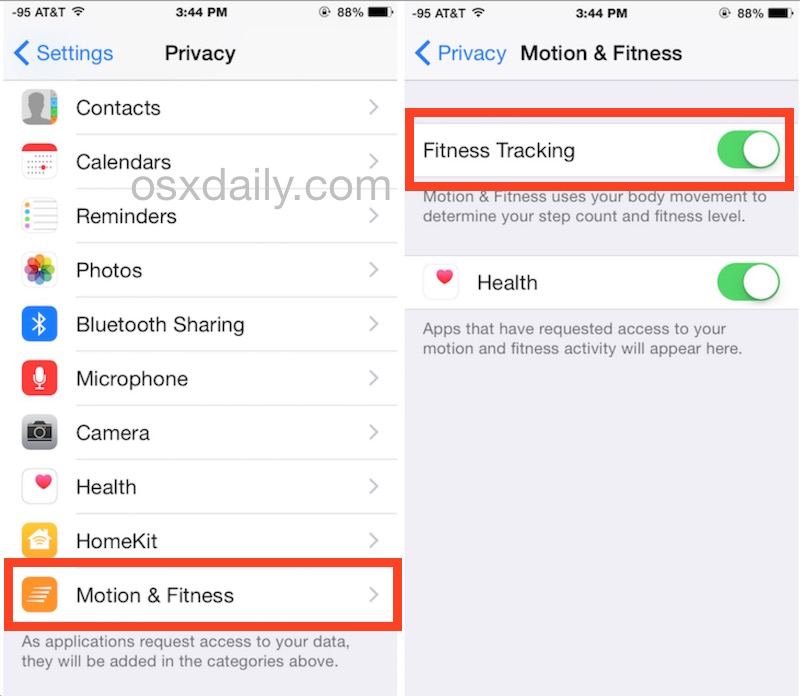
Disable Motion & Fitness in Privacy Settings
Want to fully halt data collection? This method cuts off the sensors behind the rings.
On iPhone:
1. Open Settings.
2. Go to Privacy & Security > Motion & Fitness.
3. Toggle off Fitness Tracking.
⚠️ Consequences:
– Steps, distance, and calories stop being counted
– Stand hour alerts disappear
– Third-party apps (Strava, MyFitnessPal) lose accuracy
– Heart rate data may become less reliable
❌ Downsides: Not ideal if you use your watch for workouts, sleep tracking, or health insights.
🔧 Alternative: Use Screen Time to block access to the Fitness app instead. This keeps sensors active but reduces temptation to obsess over rings.
Smart Hacks: Trick the System
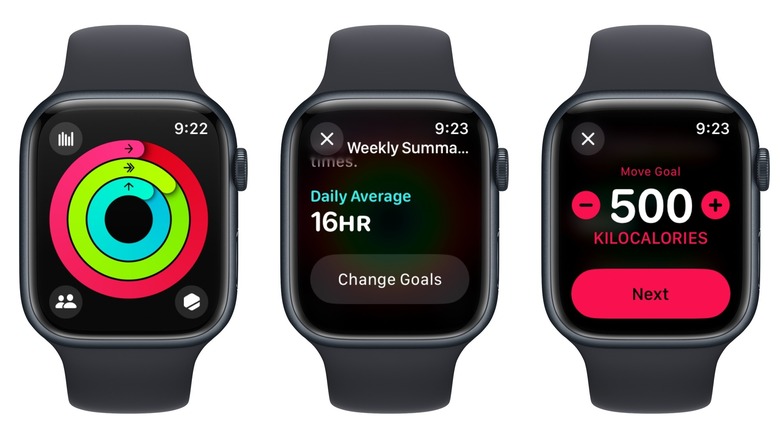
Set Extreme Goals to Minimize Ring Impact
Since Apple won’t let you disable rings, some users game the system with unrealistic goals.
Option 1: Make Rings Never Close
Set unattainable targets so your rings stay open:
– Move: 10,000+ calories
– Exercise: 180 minutes
– Stand: 23 hours
🧠 Effect: Rings stay mostly empty—less pressure to “finish.”
❗ Drawback: Data becomes meaningless. Only useful if you don’t care about accuracy.
Option 2: Close Rings Instantly
Set minimums to knock them out fast:
– Move: 10 calories
– Exercise: 1 minute
– Stand: 6 hours (lowest possible)
✅ Result: Rings close quickly—no nagging visuals.
⚠️ Catch: If you’re highly active, the Move ring might spin constantly, feeling incomplete even when you’ve done plenty.
Why Apple Won’t Let You Turn Off Rings
Designed to Keep You Moving
Apple built Activity rings as a core wellness engine—not just a feature, but a philosophy. They’re persistent by design because Apple believes:
– Daily movement improves long-term health
– Visual progress boosts motivation
– Streaks reinforce habit formation
Even if you hide them, rings appear in:
– Today View (swipe up from watch face)
– iPhone Fitness app
– Weekly summaries
– Widgets and share sheets
As one Reddit user put it: “They’re in your face… I have to touch the rings to open the calendar. They waste space.”
That’s the reality: rings are embedded in navigation, design, and feedback loops across iOS and watchOS.
What Real Users Do to Manage Rings
Community-Tested Strategies
- @infinityandbeyond75: “Set all goals to minimum. Stand at 6 hours, Move at 10. Rings close fast. Peace of mind.”
- @hobbeston: “Turn off Motion & Fitness in Privacy. Works, but kills steps. Use only if you don’t care about data.”
- @applewatchnewbie: “Use the Solar face. No complications. Clean. Calm. No rings in sight.”
Which Method Should You Use?
| Method | Hides Rings? | Stops Alerts? | Pauses Tracking? | Reversible? |
|---|---|---|---|---|
| Remove Complication | ✅ | ❌ | ❌ | ✅ |
| Disable Notifications | ❌ | ✅ | ❌ | ✅ |
| Delete Fitness App | ✅ | ✅ (indirectly) | ❌ | ✅ |
| Pause Rings (iOS 18+) | ✅ (grayed) | ✅ | ✅ | ✅ |
| Disable Motion Tracking | ✅ | ✅ | ✅ | ✅ |
🟢 Best Combo for Most Users:
1. Switch to Solar or Time Travel watch face
2. Remove any Activity complications
3. Disable Goal Completions in Notifications
4. Use Pause Rings when needed
Final Recommendations: Choose Based on Your Goal
Want to hide rings?
→ Remove complication + use a simple watch face
Want to stop alerts?
→ Turn off Goal Completions in Notifications
Need a tracking break?
→ Pause Rings (iOS 18) — keeps streaks, stops counts
Want a clean interface?
→ Delete Fitness app + pause rings
Want no data collected?
→ Disable Fitness Tracking — use only if you don’t rely on health metrics
✅ Recommended Workflow:
1. Pick the Solar watch face.
2. Remove all Activity complications.
3. Open Watch app > Notifications > Activity > Goal Completions → Off.
4. When needed, pause rings via iPhone Fitness app.
You’ll get a calm, focused Apple Watch—without sacrificing your streaks or data.
Final Note: Apple may never add a “Turn Off Rings” button. But with iOS 18’s Pause Rings feature, you now have more control than ever. Use it wisely—take breaks when life gets tough, but come back when you’re ready. Your health journey isn’t all-or-nothing. And your watch shouldn’t make it feel that way.




