
If your Apple Watch screen looks too dim—even with brightness turned all the way up—you’re not imagining things. Many users of Apple Watch Series 7, 8, 9, 10, 11, SE, and Ultra models report struggling to see the display indoors, at night, or in low-light environments. The culprit? Apple’s aggressive auto-brightness system, which dynamically dims the screen based on ambient light conditions. Unlike your iPhone, the brightness slider on Apple Watch doesn’t set a fixed level—it only controls the maximum brightness the screen can reach when triggered by bright surroundings.
This means your watch may appear dark in dim rooms, even with settings maxed out. But here’s the good news: you can make your Apple Watch screen appear brighter using smart workarounds, environmental tricks, and software resets. In this guide, you’ll learn how to force full brightness, improve visibility, and troubleshoot persistent dimness—all without jailbreaking or installing third-party apps. Whether you’re trying to read notifications in bed or need better clarity during workouts, these proven methods will help you get the most out of your display.
Max Out Brightness Settings
Before trying advanced fixes, ensure your Apple Watch is configured to allow maximum brightness output.
Adjust Brightness on Your Watch
Start by setting the brightness slider to its highest level directly on the device:
- Press the Digital Crown to open the app grid.
- Tap the Settings app.
- Go to Display & Brightness.
- Drag the sun icon slider all the way to the right.
This sets the upper limit for how bright your screen can get—but remember, it won’t stay that bright unless environmental conditions trigger it.
Use the iPhone Watch App to Confirm Settings
You can also adjust brightness from your paired iPhone:
- Open the Watch app.
- Navigate to My Watch > General > Display & Brightness.
- Slide the brightness bar to 100%.
⚠️ Important: This does not disable auto-dimming. Your screen will still darken in low light, even at full slider settings.
Force Full Brightness Using External Light
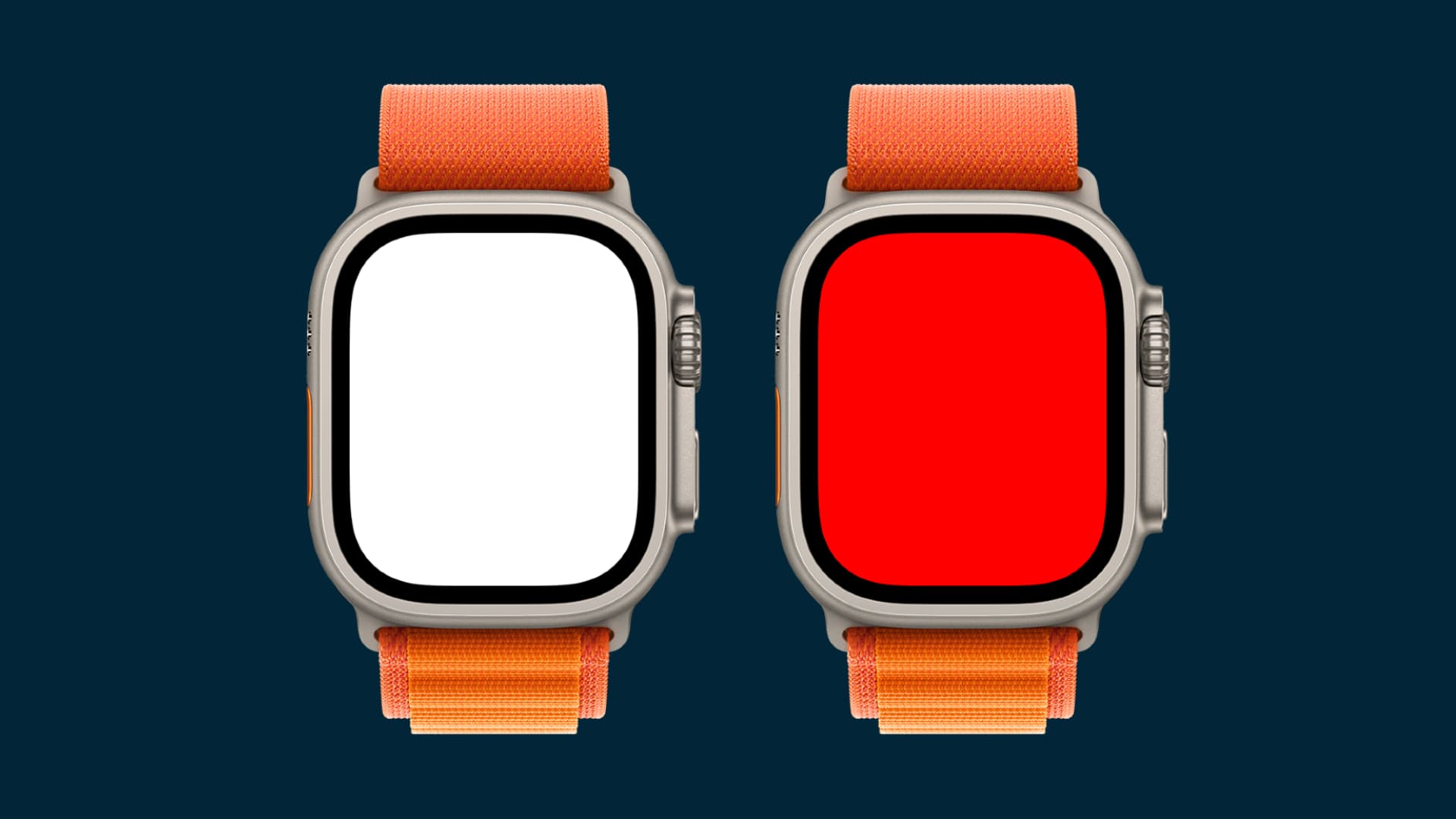
Since Apple Watch relies on an ambient light sensor (located near the Digital Crown), you can manually trigger maximum brightness by exposing the sensor to strong light.
Shine a Flashlight on the Screen
Here’s a simple but powerful trick:
- Wake your Apple Watch (tap the screen or raise your wrist).
- Unlock it (if passcode is enabled).
- Hold your iPhone flashlight 1–2 inches from the watch face.
- Point the light directly at the top bezel where the sensor is located.
- Wait 1–3 seconds—the screen should gradually ramp up to full brightness.
✅ Pro Tip: Step outside into direct sunlight for instant maximum brightness. If the screen brightens under sunlight, your hardware is working correctly.
This method proves that your display can be bright—it just needs the right environmental cue.
Restart to Fix Stuck or Unresponsive Brightness
Sometimes, software glitches cause the brightness system to freeze, ignoring sensor input and staying dim no matter the setting.
How to Restart Your Apple Watch
A full restart clears temporary bugs and resets sensor functionality:
- Press and hold the side button until the Power Off slider appears.
- Drag the slider to turn off the watch.
- Wait 10 seconds after the screen goes black.
- Press and hold the side button again until the Apple logo appears.
After rebooting, test brightness again with the flashlight trick. Many users report immediate improvement in screen responsiveness after a restart.
Update to the Latest watchOS Version
Apple frequently improves display behavior, sensor calibration, and auto-brightness logic through software updates.
Check for watchOS Updates
- Open the Watch app on your iPhone.
- Tap General > Software Update.
- If an update is available, install it (your watch must be charged above 50% and connected to the charger).
Newer watchOS versions often include:
– Smoother auto-brightness transitions
– Fixes for stuck dimming issues
– Better ambient light sensor accuracy
Keeping your watch updated ensures you benefit from the latest performance and display optimizations.
Cool Down an Overheated Apple Watch

When your Apple Watch overheats, it automatically reduces screen brightness to protect internal components.
Signs Your Watch Is Overheating
- Screen appears unusually dim
- Performance feels sluggish
- You see a temperature warning (“Your Apple Watch is too hot”)
How to Cool It Down
- Remove the watch from your wrist.
- Turn it off using the side button.
- Place it in a cool, shaded area—avoid direct AC or refrigeration.
- Let it rest for 5–10 minutes.
- Power it back on.
Once cooled, brightness should return to normal. Avoid running GPS-intensive apps or charging in hot environments to prevent future overheating.
Try the Keypad Reset Trick (Works on Series 7 and Newer)
A popular user-discovered workaround may reset display behavior—especially effective on Apple Watch Series 7, 8, 9, 10, 11, and Ultra.
Keypad Brightness Reset Steps
- On your Apple Watch, open the Phone app.
- Tap Keypad to open the dial pad.
- Press the back arrow to return to the main Phone screen.
- Tap Keypad again to reopen it.
- Use the Digital Crown to swipe up and fully close the Phone app.
✅ User Feedback: “Did this and now my screen is much brighter all the time.” — billytalons
“It actually worked! Screen is brighter even indoors.” — Naswas7
While Apple hasn’t confirmed this trick, many users say it “resets” the brightness system. It may clear a software state that artificially limits display output.
Optimize Your Watch Face for Better Visibility
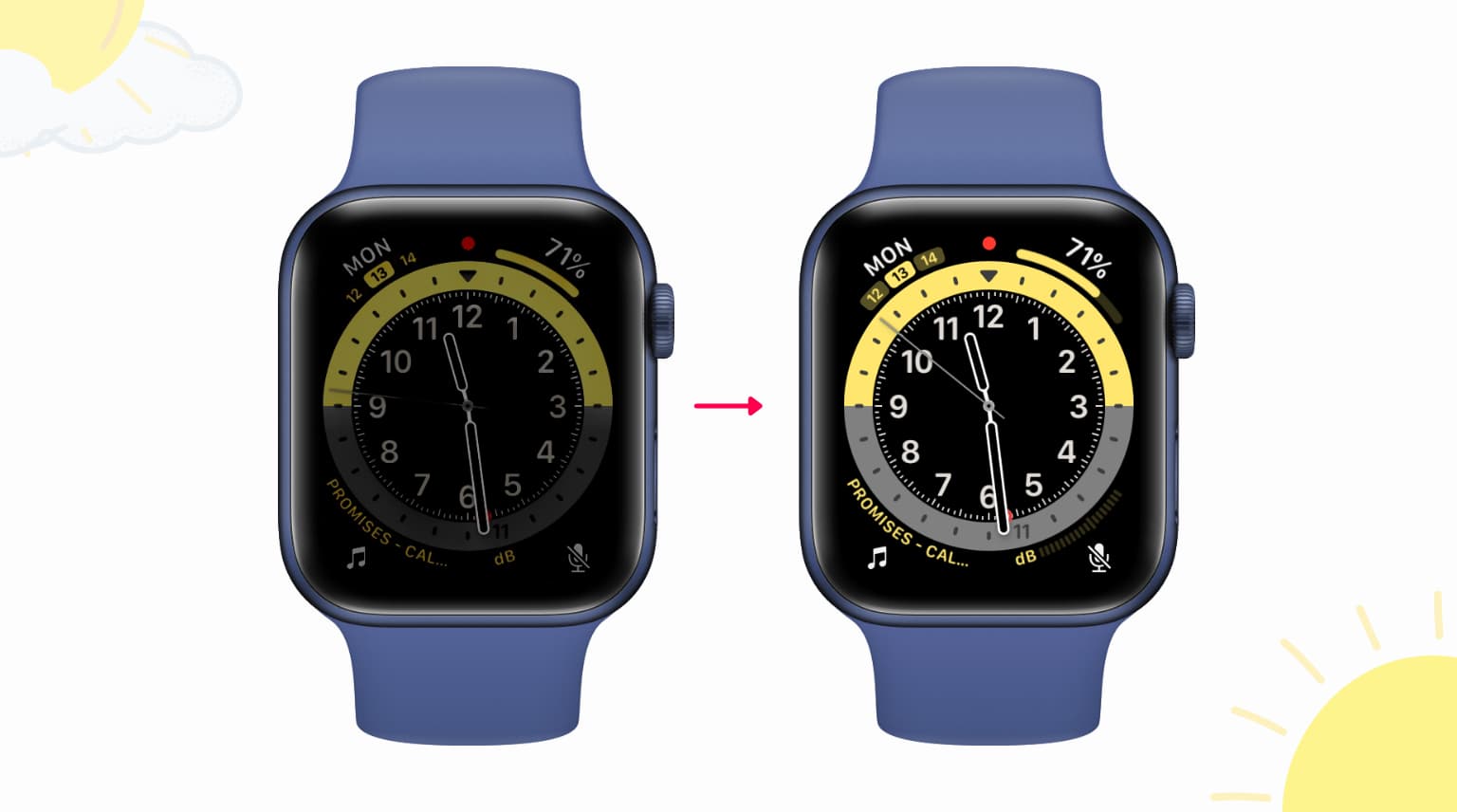
You can’t set a fixed brightness, but you can make the screen appear brighter by choosing the right watch face.
Use Light-Colored or White Watch Faces
Modern Apple Watches use OLED displays, where black pixels are turned off completely. Dark faces use less power but look dimmer because fewer pixels emit light.
Switch to a light or white watch face to increase perceived brightness:
– Modular (light variant)
– Simple with light background
– Color face in light mode
– Chronograph (light version)
✅ Result: More pixels are illuminated, making the screen look brighter even at the same luminance level.
Avoid black or dark-themed faces if visibility is your priority.
Improve Text and Wake Settings for Readability
Even with lower brightness, you can enhance legibility through accessibility and display settings.
Enable Bold and Larger Text
- Go to Settings > Display & Brightness.
- Turn on Bold Text (requires restart).
- For larger text: go to Settings > Accessibility > Display & Text Size > Larger Text and adjust the slider.
Extend Screen Wake Duration
- Open Settings > Display & Brightness.
- Tap Wake Duration.
- Select Wake on Wrist Raise (Longer).
This keeps the screen active longer after you lift your wrist, reducing the need to repeatedly raise it to check the time or notifications.
Reset and Re-Pair as a Last Resort
If nothing else works, a factory reset can resolve deep software issues affecting brightness.
Unpair and Re-Pair Your Apple Watch
- On your iPhone, open the Watch app.
- Go to All Watches.
- Tap the info button (i) next to your watch.
- Select Unpair Apple Watch (this erases all data).
- Set up the watch again—either as new or from a backup.
This process clears corrupted settings, sensor profiles, and display calibration errors. Some users report restored brightness after re-pairing.
Check for Hardware Issues
If your Apple Watch still won’t brighten—even in direct sunlight—it may be a hardware problem.
Common Hardware Faults
- Blocked or damaged ambient light sensor (near the Digital Crown)
- Faulty display panel
- Water or impact damage
What to Do
- Clean the sensor area gently with a soft, dry microfiber cloth.
- Test brightness outdoors in direct sunlight.
- If the screen remains dim, visit an Apple Store or authorized service provider.
✅ Real User Experience: “Apple replaced my watch under warranty—the screen was defective.” — Good_Plum3582
If the screen brightens perfectly in sunlight, the issue is likely software-related, not hardware.
Summary: How to Get the Brightest Apple Watch Screen Possible
| Action | Purpose |
|---|---|
| Max brightness slider | Sets the upper brightness limit |
| Shine light on sensor | Triggers full brightness mode instantly |
| Restart watch | Clears temporary display glitches |
| Update watchOS | Applies display and sensor fixes |
| Use light watch face | Increases perceived brightness via pixel output |
| Try keypad trick | Resets hidden display states (unofficial fix) |
| Re-pair watch | Eliminates deep software corruption |
| Visit Apple | Diagnose and repair hardware faults |
Final Note: Apple Watch does not allow manual brightness control—auto-brightness is always active. Until Apple adds a “manual mode” or minimum brightness setting, your best strategy is to use external light to trigger full brightness, apply software resets, and optimize watch face and text settings for better visibility. For most users, combining the flashlight trick with a light-colored watch face delivers the clearest, brightest experience possible. While the dimming behavior is by design, these methods give you practical control over how much you can see—when and where you need it most.




