
If your Apple Watch screen feels too dim—especially when checking messages outdoors or glancing at it in low light—you’re not alone. Many users struggle with visibility, even after sliding brightness all the way up. The truth is, how to increase brightness on Apple Watch isn’t just about moving a slider. Apple uses auto-brightness to dynamically adjust screen luminance based on ambient light, and your manual setting only determines the maximum possible brightness, not the constant level.
So even with the brightness maxed in Settings, your watch may still appear dim indoors. This is by design—but that doesn’t mean you’re stuck with a dark display. Whether you’re hiking under the sun, navigating at night, or troubleshooting a screen that won’t brighten, this guide reveals every official method and user-tested workaround to boost visibility across all Apple Watch models, from the SE to the Ultra 3 and Series 10.
You’ll learn how to manually set maximum brightness, use quick Control Center controls, enable accessibility features like Minimum Brightness, and fix stubborn dimming issues—even when standard solutions fail. Plus, real-world tricks like using your iPhone flashlight to force full brightness or the mysterious Phone app keypad fix that users swear by. Let’s make your Apple Watch screen as bright and readable as possible.
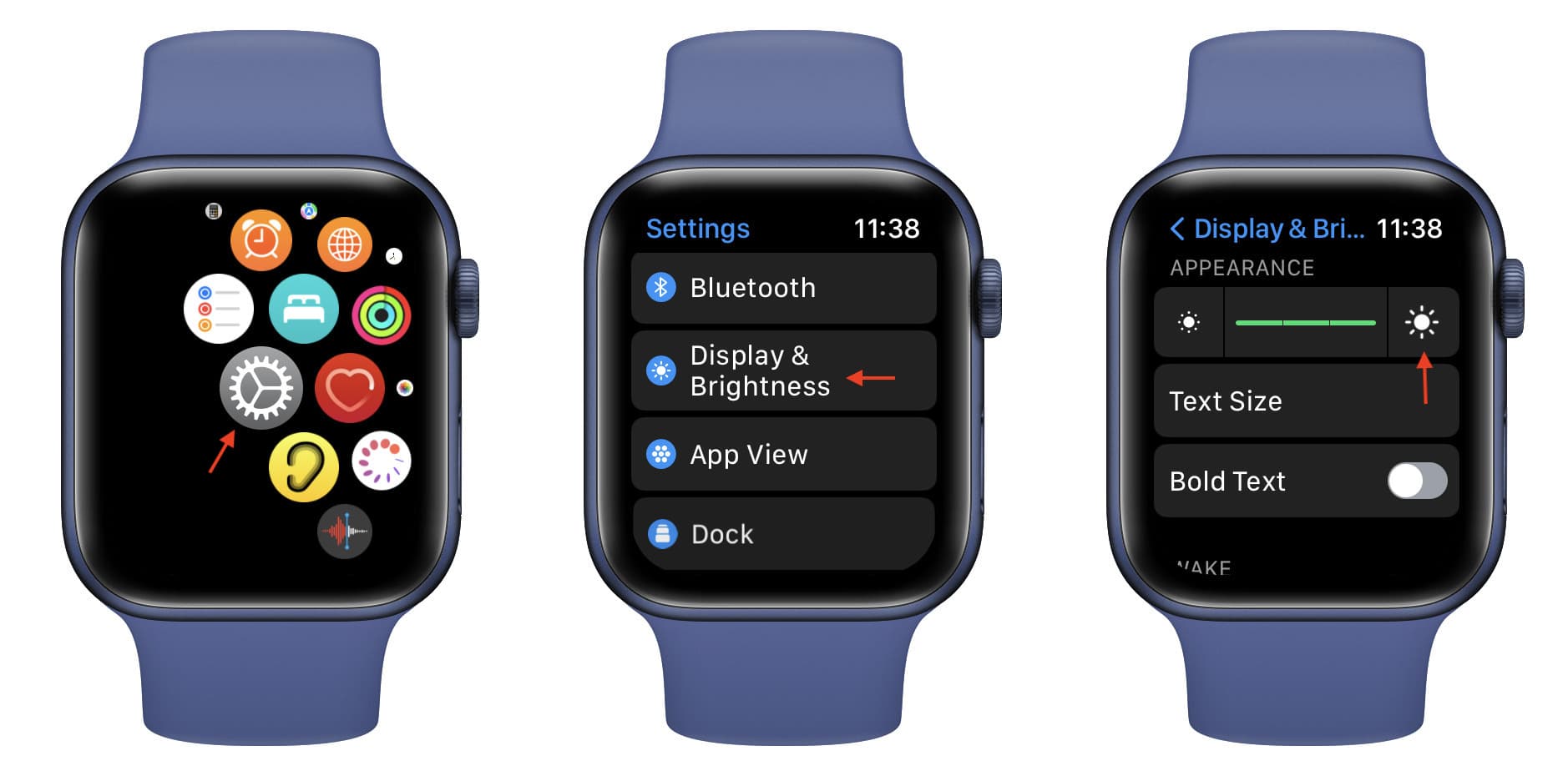
Adjust Brightness in Settings
Use the Brightness Slider
The most direct way to increase maximum screen brightness is through the Settings app on your Apple Watch.
- Press the Digital Crown to return to the Home screen.
- Tap the Settings (gear) icon.
- Scroll down and select Display & Brightness.
- Drag the brightness slider all the way to the right.
This sets the upper limit for brightness. The actual screen level will still vary based on lighting conditions thanks to auto-brightness.
Pro Tip: On newer models like Apple Watch Series 10 and Ultra 3, you can rotate the Digital Crown to adjust brightness in real time while viewing the screen—offering smoother, more immediate control.
Even with the slider maxed, don’t expect full brightness indoors. The screen only reaches peak luminance—up to 1000 nits—in bright ambient light, such as direct sunlight.
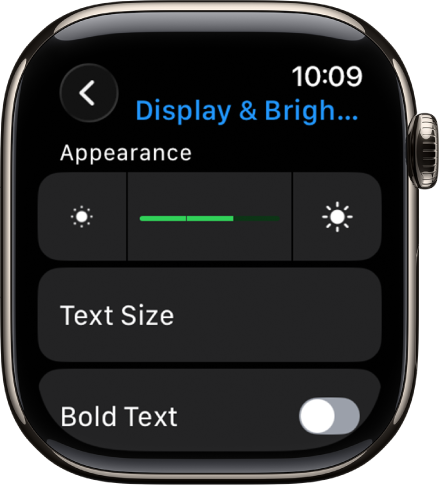
Tap to Adjust on Apple Watch SE and Older Models
If you’re using an Apple Watch SE or earlier model without Crown-based adjustment, you won’t see a slider.
Instead:
– Tap the small sun (on the left) to decrease brightness.
– Tap the large sun (on the right) to increase it.
Each tap moves the brightness up or down incrementally. Tap repeatedly until the large sun is fully highlighted.
User Insight: After adjusting here, test your watch outside in daylight. That’s the only way to see if it’s truly reaching maximum brightness.
Use Control Center for Instant Brightness Control
Open and Adjust in Seconds
Need to boost brightness fast? Skip the menus and use Control Center.
- Wake your Apple Watch.
- Swipe up from the watch face.
- Tap the sun icon (brightness control).
- Turn the Digital Crown clockwise to increase brightness.
A brightness bar appears as you turn—keep going until it’s full.
This method gives real-time feedback and works even when the screen is dim, making it ideal for sudden sunlight exposure.
Alternative Path: If the sun icon doesn’t respond, tap the Aa (text size) button instead. On some watch faces or software versions, this slider adjusts brightness when accessed through Control Center.
Control Apple Watch Brightness from iPhone
Adjust Remotely When Screen Is Too Dim
If your Apple Watch screen is too dark to navigate, use your iPhone to adjust brightness remotely.
- Open the Apple Watch app.
- Tap the My Watch tab.
- Go to Display & Brightness.
- Drag the brightness slider to the maximum.
The change syncs instantly to your watch.
Use Case: Perfect for prepping your watch before heading outside or troubleshooting a dim display when you can’t see the screen.
This method sets the same maximum brightness cap—no deeper system override—but it’s incredibly useful when your watch is unresponsive or too dark to use.
Prevent Excessive Dimming with Minimum Brightness
Keep Screen Readable in the Dark
In dark environments, Apple Watch can dim to near-invisibility—even at max settings. For users with low night vision, this makes reading the time or notifications nearly impossible.
Solution: Enable Minimum Brightness in Accessibility.
Steps:
1. Open Settings on Apple Watch.
2. Go to Accessibility > Display & Text Size.
3. Toggle on Minimum Brightness.
What It Does
- Prevents the screen from dimming below a readable threshold in low light.
- Helps in bedrooms, theaters, or during nighttime use.
- Especially beneficial for older users or those with visual sensitivity.
Warning: This setting increases battery drain and may accelerate OLED pixel wear over time.
Best Practice: Turn it on only when needed (e.g., at night), then disable it during the day to preserve battery and display life.
Troubleshooting Tip: If brightness seems stuck, try toggling Minimum Brightness off and back on—some users report this resets the display system.
Maximize Brightness in Sunlight (or Fake It Indoors)
How to See Full Brightness Without Going Outside
Apple Watch screens are designed to get brighter in bright environments. So even with max settings, you won’t see full output indoors.
Peak brightness (up to 1000 nits) only activates in direct sunlight or strong ambient light.
But you can simulate sunlight to test full brightness:
- Shine your iPhone flashlight directly onto the Apple Watch display.
- Wait 1–2 seconds.
The ambient light sensor detects the light and automatically boosts brightness to maximum.
User Confirmed: “Pointing a strong light on my Apple Watch automatically increases its screen brightness.”
This trick is perfect for diagnosing whether your screen can still reach full output—or if there’s a deeper issue.
Model-Specific Brightness Controls
Series 10: Smooth Adjustment with Digital Crown
Apple Watch Series 10 introduces refined brightness control:
– Go to Settings > Display & Brightness > Appearance.
– Rotate the Digital Crown to smoothly adjust brightness.
– See real-time preview of changes.
Offers three perceptible levels: Low, Medium, High, with smoother transitions than previous models.
Apple Watch Ultra 1, 2, 3
Built for extreme conditions:
– Full brightness slider in Settings > Display & Brightness.
– Supports Minimum Brightness.
– Best paired with Always-On Display for low-light navigation.
Pro Tip: Use with a light-colored watch face to enhance visibility during night hikes or dives.
Apple Watch SE
Simpler controls:
– Uses tap icons (sun images) instead of a slider.
– No Digital Crown adjustment.
– Default medium brightness—manually increase via Settings.
Fix a Stuck or Unresponsive Brightness Setting
Restart the Apple Watch
A frozen brightness setting is often just a software glitch.
Fix:
1. Press and hold the side button until the power slider appears.
2. Slide to power off.
3. Wait 30 seconds.
4. Press the side button to turn it back on.
This clears minor system hangs affecting display response.
Try the Phone App Keypad Workaround
Users have discovered a quirky but effective fix that forces brightness recalibration.
Steps:
1. Open the Phone app.
2. Tap the Keypad.
3. Exit the Keypad.
4. Reopen the Keypad.
5. Press the Digital Crown to close the app.
Result: Screen brightness increases and stays brighter.
User Feedback: “Oh wow! This actually worked!!!”
Why it works: Likely triggers a display redraw or sensor reset. Considered a software bug—but effective until Apple patches it.
Update watchOS
Outdated software can cause display bugs.
Check for updates:
1. Open Settings > General > Software Update.
2. Install any available update.
Apple frequently fixes brightness and sensor issues in new watchOS versions.
Note: Keep your iPhone nearby, both devices charged, and connected to Wi-Fi.
Check for Overheating
When Apple Watch overheats, it reduces brightness to protect the system.
Signs:
– Screen dim even in sunlight.
– Performance lag.
– iPhone displays a warning.
Fix:
– Remove the watch.
– Power it off.
– Let it cool for 5–10 minutes.
– Turn it back on.
Avoid GPS-heavy apps in hot weather or leaving it in direct sun.
Reset or Unpair for Persistent Issues
If brightness remains low:
Unpair and Re-pair
- In Apple Watch app, tap the three dots next to your watch.
- Select Unpair Apple Watch.
- Set up again.
Clears corrupted settings.
Full Reset
- Go to Settings > General > Transfer or Reset Apple Watch.
- Tap Erase All Content and Settings.
- Re-pair and test.
Warning: Back up data first if possible.
Optimize Readability Without Max Brightness
Use a White Watch Face
A light-colored face improves perceived brightness in dim light.
Best options: Chronograph GMT, Solar, Color, Infograph.
Avoid dark faces like X-Large or Modular.
Increase Text Size and Enable Bold Text
Make content easier to read:
– Settings > Display & Brightness > Text Size → drag right.
– Enable Bold Text for higher contrast.
Extend Wake Duration
Keep screen bright longer after raising your wrist:
– Settings > Display & Brightness > Wake Duration.
– Enable Wake for 70 Seconds.
Balance Brightness and Battery Life
Auto-Brightness: Keep It On
Auto-brightness can’t be disabled—but it’s helpful:
– Outdoors: Increases brightness.
– Indoors: Saves battery.
Adjust the maximum cap instead of fighting the system.
Disable Always-On Display (If Needed)
On Series 5+, Always-On Display dims the screen when inactive. Disabling it saves battery and reduces display wear.
Final Tips and Recommendations
- Outdoors: Max brightness + sunlight exposure.
- At night: Enable Minimum Brightness temporarily.
- Low vision: Combine large text, bold text, and light watch face.
- Stuck brightness: Try the keypad trick or restart first.
- Nothing works? Update watchOS, reset, or contact Apple Support.
While you can’t disable auto-brightness or exceed hardware limits, these methods give you full control. Most issues are software-related—not hardware. With the right settings, your Apple Watch can be bright, readable, and reliable—anytime, anywhere.





