
You take your first morning steps—walking to the kitchen, stepping onto the sidewalk, pacing during a phone call—and your Apple Watch quietly logs every one. But where do you actually see that number? Unlike other fitness trackers, the Apple Watch doesn’t display step count front and center. It tracks steps automatically using advanced motion sensors, but finding your total requires a few taps—or smarter setup.
The good news: with the right tools and configuration, you can make your daily step count visible at a glance, analyze long-term trends, and even get personalized feedback to stay motivated. Whether you’re aiming for 5,000, 10,000, or 15,000 steps a day, this guide shows you how to count, view, customize, and trust your Apple Watch step data—no guesswork needed.
Find Your Step Count in the Activity App
The Activity app is your go-to hub for daily movement tracking, showing your progress through the iconic red, green, and blue rings. But your actual step total is just one scroll away.
View Steps by Scrolling Down
To see your current step count:
1. Tap the Activity app (three-ring icon) on your Apple Watch.
2. Scroll down past the Move, Exercise, and Stand rings.
3. On the final summary screen, you’ll see:
– Total steps for the day
– Distance walked (in miles or kilometers)
– Flights climbed
This number updates in real time as you move. No extra apps or settings are required—your Apple Watch counts steps automatically the moment you start walking.
✅ Pro Tip: If you’re mid-workout, tap “End” or “Finish” to return to your daily summary and see updated step totals.
Access Steps Faster with Glances and Siri
You don’t need to open the full Activity app every time. Use these quick methods:
- Activity Glance: Swipe up from your watch face, find the Activity Glance, tap to expand, then swipe up again to reveal your step count.
- App Grid Shortcut: Press the Digital Crown, tap the Activity app, then swipe up—done in under two seconds.
- Siri Voice Command: Say, “Hey Siri, how many steps have I taken today?” Siri pulls live data from your Health app and reads it aloud instantly (available on supported models and regions).
While these methods are fast, none show steps directly on your watch face—unless you customize it.
Add Step Counter to Your Watch Face with Third-Party Apps
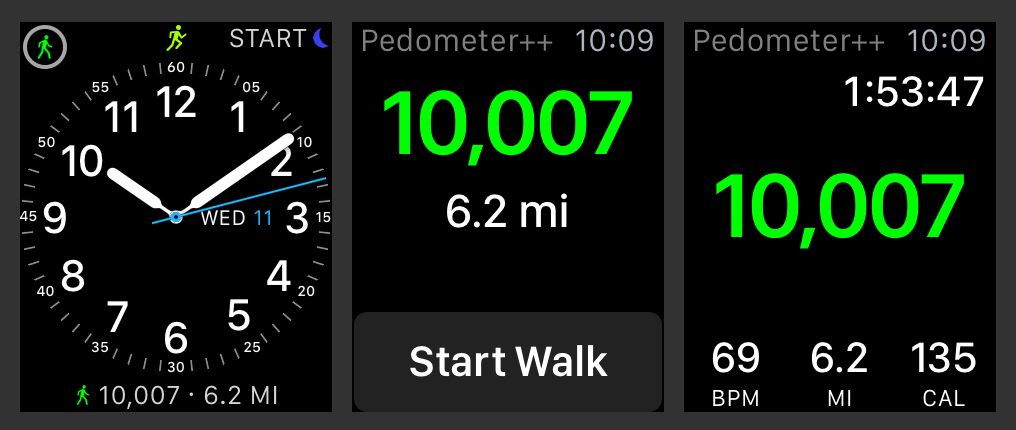
Apple doesn’t offer a native step count complication. But thanks to third-party apps, you can display your daily steps right on your watch face—just like a Fitbit or Garmin.
Use Pedometer++ for a Reliable Step Complication
Pedometer++ is a free, highly rated app that syncs with Apple’s Health app and adds a clean step counter to your watch face.
How to Set It Up
- Download Pedometer++ from the iPhone App Store.
- Open the Health app > Sources > Pedometer (note: appears without “++”).
- Tap Turn All Categories On to enable data sharing.
- Open the Watch app > My Watch > Complications.
- Choose a watch face (e.g., X-Large, Modular), tap Edit, and add Pedometer++.
- Position the complication where it’s easiest to see—like the bottom or side.
Now your step count appears every time you raise your wrist. Tap it to open detailed stats like hourly steps and goal progress.
⚠️ Note: Due to Apple’s energy-saving policies, complications update every 10–15 minutes—not in real time. This is normal.
Try Steps App for Real-Time Visibility
Steps App is another free option built specifically for step tracking, offering a minimalist, elegant complication.
Installation Steps
- Install Steps App from the App Store on your iPhone.
- Grant access to Steps, Walking & Running Distance, and Flights Climbed in Health permissions.
- Tap Connect Now to install it on your Apple Watch.
- In the Watch app > Complications, add Steps App to your preferred watch face.
It displays step count, distance, and floors climbed in a compact format—perfect for fitness-focused users who want clarity without clutter.
Other Trusted Step Apps
Several alternatives deliver similar functionality:
- Duffy: Runs entirely on Apple Watch—no iPhone needed. Lightweight and accurate.
- DailySteps: Simple, free, and great for users switching from Fitbit.
- Pedometer (by Substantial-Pain1199): Standalone Apple Watch app with no subscriptions.
- Stepz: Offers goal tracking and customizable alerts.
✅ Expert Tip: Stick to free, highly rated apps with clear developer names. Avoid apps with vague titles or in-app purchases—they may be low quality or data-harvesting.
Improve Step Count Accuracy with Proper Setup
Your Apple Watch is accurate out of the box—but only if it has the right data to work with.
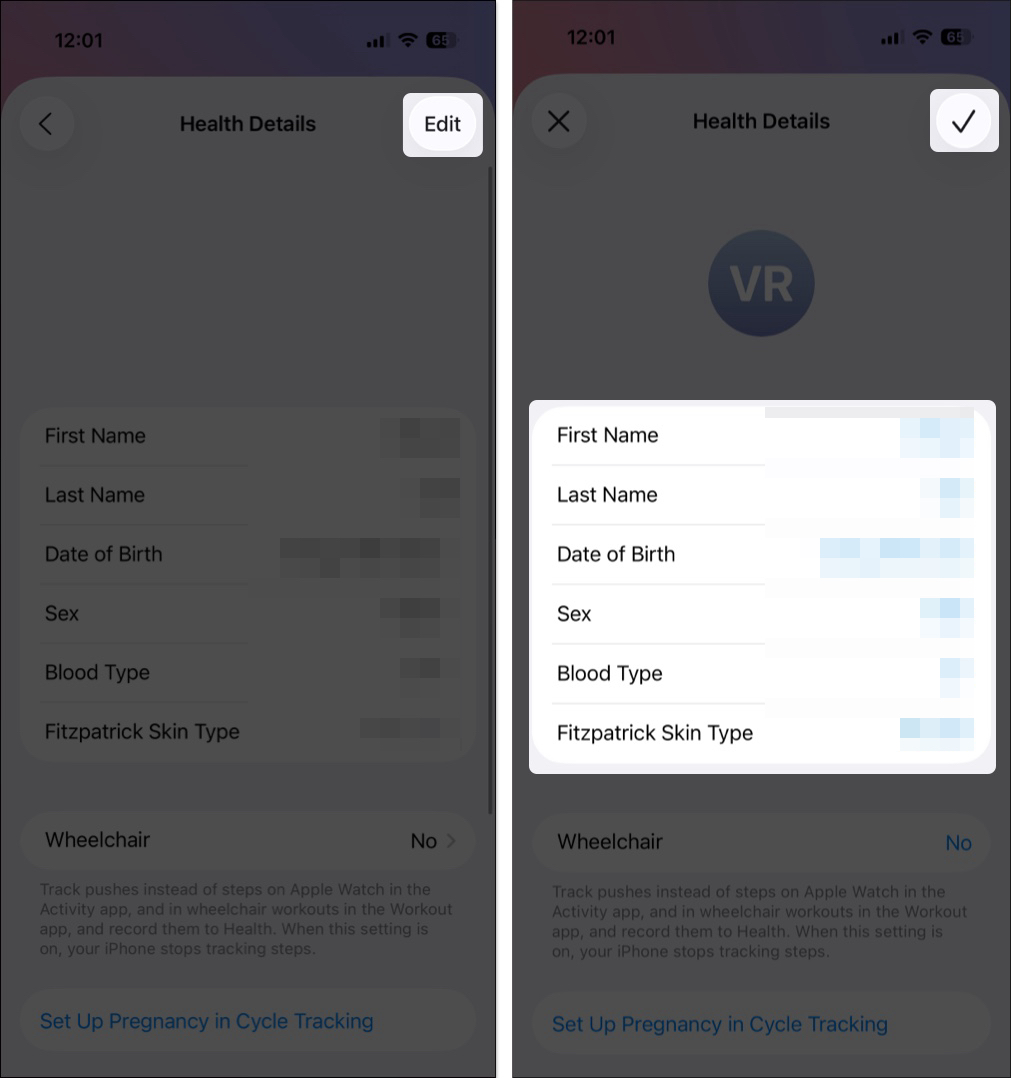
Update Your Health Profile
The watch estimates stride length using your personal details:
– Age
– Height
– Weight
– Gender
If your profile is outdated, your step and distance calculations may be off.
How to Check and Update
- On your iPhone, open the Health app > Medical ID > Edit.
- Confirm your height, weight, and age are correct.
- Or go to Watch app > My Watch > Health > Edit to update directly.
Accurate data means more precise step counts and better calorie estimates.
Enable Motion & Location Services
Step tracking relies on motion sensors and GPS. Make sure these are turned on:
On iPhone:
- Settings > Privacy > Motion & Fitness > Fitness Tracking: On
- Settings > Privacy > Location Services: On
- Under Location Services:
- System Services > Motion Calibration & Distance: Enabled
- Apple Watch Faces and Workout: Set to While Using the App
On Apple Watch:
- Open Watch app > My Watch > Privacy > Fitness Tracking: Enable
Without these, your watch may undercount steps—especially during outdoor walks.
Calibrate Your Apple Watch for Better Accuracy
Calibration helps your watch learn your natural stride, especially if you have an older or non-GPS model.
Perform an Outdoor Walk Calibration
- Wear your Apple Watch securely.
- Go outside to a flat, open area with clear sky (for strong GPS signal).
- Open the Workout app on Apple Watch.
- Start an Outdoor Walk.
- Walk continuously for at least 20 minutes, covering a known distance (e.g., 1 km or 0.6 miles).
- Save the workout after finishing.
- Repeat 2–3 times over several days.
After a few sessions, your watch refines its motion algorithms, improving step and distance tracking.
📌 Note: This is most beneficial for Apple Watch Series 1–2 or non-GPS models that rely on iPhone GPS.
Analyze Step Trends in the Health and Fitness Apps
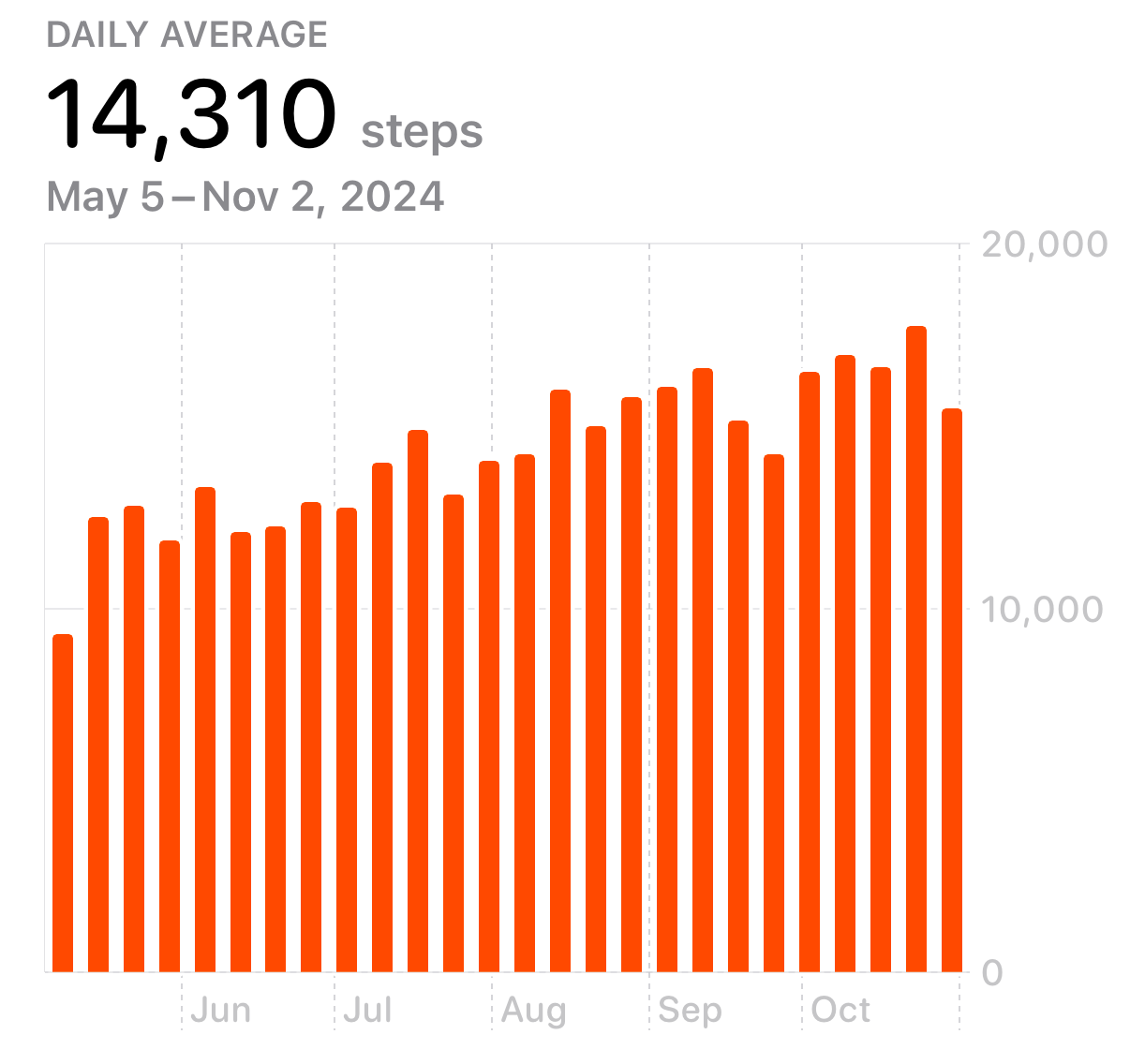
Seeing today’s steps is helpful—but tracking trends over time reveals real progress.
View Historical Data in the Health App
- Open Health app > Browse > Activity > Steps.
- Tap Show All Data for a full timeline.
- Scroll to see:
– Daily step count
– 7-day average
– Monthly trends
– Year-over-year comparisons
You can also tap any date to view steps alongside distance, heart rate, and calories burned.
Set a Health Shortcut for Quick Access
- In the Health app > Summary, tap Edit.
- Tap Add next to “Steps.”
- Drag it to the top.
Now your step count appears every time you open the Health app.
Get Coaching from the Fitness App
The Fitness app compares your 90-day average to the past year:
– Green up arrow: You’re maintaining or improving.
– Red down arrow: Activity is declining.
It may suggest: “Walk an extra quarter-mile per day to improve.” This personalized feedback helps you stay consistent.
Optimize Your Watch Face for Step Visibility
If steps matter to you, design your watch face to highlight them.
Best Watch Faces for Step Tracking
- X-Large: Oversized digits—perfect for quick reading.
- Modular: Supports multiple complications, including steps, distance, and floors.
- Activity Digital: Built for fitness tracking.
Customize Your Layout
- Press and hold your watch face.
- Tap Edit.
- Choose a face with room for complications.
- Add your step app (e.g., Pedometer++, Steps App) to a visible spot.
Place it at the bottom for easy wrist flicks or the top for immediate visibility.
💡 Expert Note: Former Fitbit users often miss the always-on step display. A well-designed watch face with a step complication bridges that gap.
Troubleshoot Step Count Issues
Step Count Not Updating?
| Cause | Fix |
|---|---|
| Fitness Tracking disabled | Enable in Watch app > Privacy > Fitness Tracking |
| Health permissions blocked | Re-enable in Health app > Sources > [App Name] |
| Watch worn too loosely | Wear snugly—loose fit reduces sensor accuracy |
| Low battery mode | Charge your watch—background tracking pauses when battery is low |
Restart both devices if issues persist.
Inaccurate Step Count?
- Verify health data is correct.
- Calibrate using a 20-minute outdoor walk.
- Check GPS signal during workouts.
- Update watchOS and iOS for improved motion algorithms.
Stay Motivated with Siri and Activity Awards
- Ask Siri: “Hey Siri, how many steps have I taken today?”
- Earn badges in the Activity app > Achievements tab for streaks, challenges, and milestones.
Seeing your 7-day streak or a new personal record can be the push you need to go further.
Sync Steps with Third-Party Apps
Connect your Apple Watch data to:
– Strava
– MyFitnessPal
– Nike Run Club
Just open the app, go to Settings > Health, and grant permission to read step data. Your steps will sync automatically—no manual entry required.
Final Note: The Apple Watch counts steps accurately by default, but real-time visibility requires third-party apps. By adding a step complication, calibrating your watch, and reviewing trends in the Health and Fitness apps, you turn your device into a powerful step-tracking companion. Whether you’re rehabbing, training, or just staying active, your step count is just a glance away—once you know how to find it.




