

You’re out for a run, your hands are covered in paint, or you’re in the middle of a meeting—typing on your Apple Watch just isn’t an option. That’s where dictation on Apple Watch saves the day. This built-in feature turns your voice into text across Messages, Notes, Reminders, and more, letting you respond quickly without touching the screen. But if the microphone icon isn’t showing up, it’s likely because dictation hasn’t been enabled yet.
Activating dictation isn’t a one-device job. It requires coordination between your Apple Watch and your iPhone. While the toggle lives on the watch, backend settings on your iPhone—especially Siri and keyboard permissions—can block it from working. Once properly set up, you’ll see the microphone appear in any text field. Tap it, speak naturally, and watch your words appear in real time. Just remember: dictation needs internet access, as your voice is processed securely in the cloud.
In this guide, you’ll learn exactly how to enable dictation on Apple Watch, fix common issues, and use voice input effectively. Whether you’re sending a quick message, logging a thought, or capturing time-sensitive notes, this step-by-step walkthrough ensures your voice becomes your fastest input method.
Turn On Dictation Directly on Your Apple Watch
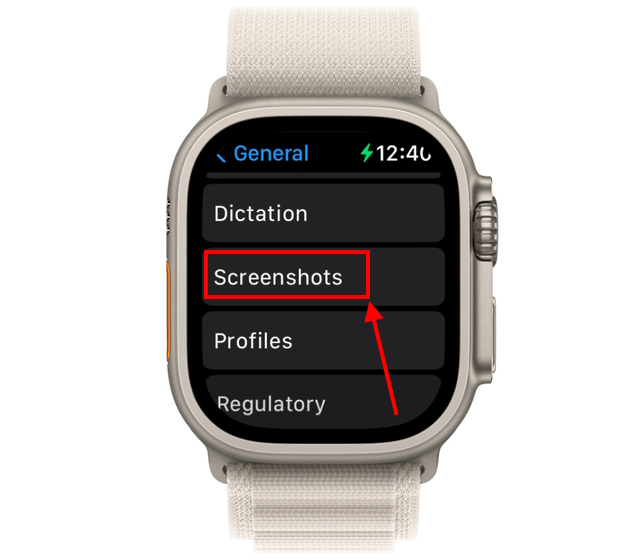
The first step to using voice-to-text is enabling the feature on your wrist. The setting is straightforward but tucked into a submenu, so it’s easy to overlook.
Access Dictation Settings on the Watch
- Press the Digital Crown to return to the Home screen.
- Tap the Settings app (gear icon).
- Scroll down and select General.
- Tap Dictation.
- Toggle Dictation to ON.
- If prompted, tap Enable Dictation to confirm.
After enabling, you’ll see the Auto Punctuation option. Toggle this on to let your Apple Watch automatically insert periods, commas, and line breaks based on your speech rhythm—no need to say “period” after every sentence.
✅ Pro Tip: Auto Punctuation makes dictation feel natural. Without it, you’ll have to verbally command punctuation, which can slow you down.
No restart is needed. The change takes effect immediately. The microphone icon (🎙️) will now appear in any text field across supported apps.
Confirm Settings on Your iPhone
Even if you’ve enabled dictation on the watch, it can be overridden by settings on your paired iPhone. To ensure everything syncs correctly:
- Open the Watch app on your iPhone.
- Tap the My Watch tab.
- Go to General > Dictation.
- Make sure Enable Dictation is toggled on.
This setting mirrors the one on your watch and gives you a larger screen to verify the status. If it’s off here, dictation won’t work—even if it’s enabled on the watch.
🔒 Why both devices? Apple uses a secure, end-to-end system. Your voice is encrypted and processed with privacy in mind, but both devices must agree on permissions for dictation to function.
Start Using Voice Dictation in Any App
With dictation enabled, using it is simple—just tap and talk.
Dictate Messages, Notes, and More
- Open an app with text input: Messages, Notes, Reminders, or Safari search bar.
- Tap the text field to bring up the keyboard.
- Tap the microphone icon at the bottom of the keyboard.
- Speak clearly—your words appear as text in real time.
- Tap Done or Send when finished.
No special commands are needed. Speak naturally, at a steady pace. The system picks up your words within a second, with minimal lag.
Add Punctuation by Voice
With Auto Punctuation on, pauses and tone help the system determine sentence breaks. For more control, say these words aloud:
- “Period” → adds a full stop
- “Comma” → inserts a comma
- “New line” → starts a new paragraph
- “Question mark” → ends with “?”
These verbal cues are especially useful when you need precise formatting without looking at the screen.
Switch Between Dictation Languages
If you speak multiple languages, you can switch them on the fly:
- On the keyboard, swipe up with your finger.
- Select the desired language from the list.
- Tap the microphone and begin speaking.
Languages sync automatically from your iPhone’s keyboard settings. Supported options include English (US, UK), Spanish, French, German, Japanese, and Mandarin.
🌍 Note: Accuracy depends on language and pronunciation. For best results, use standard dialects and speak clearly.
Fix “Dictation Is Disabled” or Grayed-Out Microphone
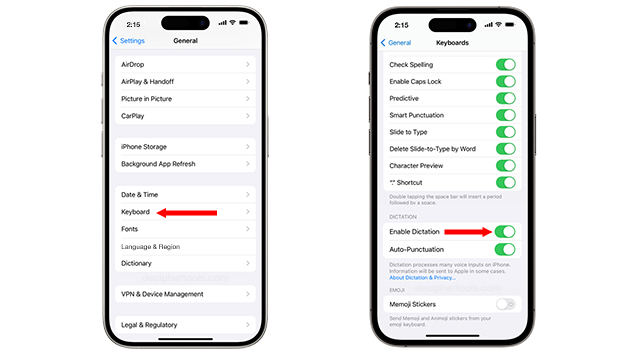
If the microphone is missing or grayed out, dictation is likely blocked by a deeper setting. Here’s how to fix it.
Enable Siri on iPhone
Dictation relies on Siri. If Siri is disabled, dictation won’t work.
- On iPhone, go to Settings > Siri & Search.
- Turn on:
– Listen for “Hey Siri”
– Press Side Button for Siri
– Allow Siri When Locked
Even if you don’t use voice activation, Siri must be active in the background for dictation to function.
Turn On Keyboard Dictation on iPhone
Another critical setting is hidden in the iPhone’s keyboard menu:
- Go to Settings > General > Keyboard.
- Tap Enable Dictation to turn it on.
This setting allows voice input across all Apple devices. If it’s off, your Apple Watch won’t recognize speech—even if everything else looks correct.
Check Screen Time and Restrictions
Parental controls or work profiles might block dictation.
- Open Settings > Screen Time.
- Tap Content & Privacy Restrictions.
- Go to Allowed Apps.
- Ensure Siri & Dictation is enabled.
Restrictions override all other settings. This is a common issue on shared or managed devices.
Troubleshoot Microphone Problems

If your voice isn’t being picked up, the issue could be hardware-related.
Clean the Microphone Port
The mic is on the lower edge of the Apple Watch, opposite the side buttons. It can be blocked by:
- Cases
- Screen protectors
- Dirt, sweat, or moisture
To fix:
– Remove the case and screen protector temporarily.
– Gently wipe the port with a soft, dry, lint-free cloth.
– Avoid using liquids or sharp tools.
🧼 Reference: Apple recommends only soft cloths for cleaning. Never use compressed air or solvents near openings.
Test the Microphone
Check if the mic works in other apps:
- Say “Hey Siri, what time is it?”
- If Siri responds, the mic is functional.
- If not, restart your Apple Watch.
To restart:
– Press and hold the side button until the power slider appears.
– Drag to power off.
– Press and hold the side button again to turn back on.
Improve Dictation Accuracy
Even with perfect settings, poor transcription can happen. Here’s how to get better results.
Speak Clearly in Quiet Environments
Background noise—like traffic, music, or wind—confuses the speech engine.
Best practices:
– Find a quiet spot when possible.
– Hold your wrist slightly closer to your mouth.
– Speak at a steady pace—don’t rush.
– Enunciate each word clearly.
Avoid shouting or whispering. Natural volume works best.
Know the Limitations
Apple Watch dictation is powerful but not perfect.
- No custom vocabulary: Unlike desktop software (e.g., Dragon), you can’t train it for medical or technical terms.
- Accent sensitivity: Heavy accents or fast speech may reduce accuracy.
- No offline mode: Requires internet to process speech.
⚠️ Realistic Expectation: In ideal conditions, accuracy is 85% to 95%. Always review transcribed text before sending.
Use Dictation for Time-Stamped Voice Logs (Workarounds)
Apple Watch doesn’t have a built-in voice logger with timestamps, but you can create one.
Create a Timestamped Logging Shortcut
- On iPhone, open the Shortcuts app.
- Tap + to create a new shortcut.
- Add actions:
– Get current date and time (format: HH:mm)
– Ask for input (prompt: “What should I log?”)
– Append to note (choose a daily log in Notes or Bear) - Save as “Log Event.”
- Assign a Siri phrase: “Hey Siri, log event.”
Now say:
“Hey Siri, log event: 14:30 – patient stable, vitals normal”
→ Automatically saved with timestamp.
Syncs to Apple Watch via Shortcuts app—tap and run anytime.
Try Third-Party Apps
For professionals, apps like Bear Notes, Drafts, or Evernote offer better dictation and organization. Many support templates, tags, and automation.
💬 User Tip: Drafts + a custom shortcut lets you append entries to a single daily journal—ideal for field workers, medics, or creatives.
Keep Dictation Running Smoothly
Regular maintenance ensures consistent performance.
Update watchOS and iOS
Apple improves dictation with each update.
To check:
– iPhone: Settings > General > Software Update
– Apple Watch: Watch app > My Watch > General > Software Update
Ensure both devices run:
– iOS 13 or later
– watchOS 6 or later
Older versions may lack full support or have bugs.
Re-Enable After Updates
Sometimes, updates reset permissions.
After an update:
– Recheck Dictation in Settings on both devices.
– Confirm Siri and Microphone Access are still allowed.
A quick 30-second check prevents future issues.
Summary: Key Steps to Enable Dictation
| Step | Action |
|---|---|
| 1 | Turn on Dictation in Settings > General > Dictation on Apple Watch |
| 2 | Enable Siri on iPhone: Settings > Siri & Search |
| 3 | Toggle on Enable Dictation in iPhone Settings > General > Keyboard |
| 4 | Ensure internet via Wi-Fi, cellular, or iPhone Bluetooth tethering |
| 5 | Use clear speech in quiet environments |
| 6 | Keep both devices updated to latest OS versions |
Final Note: Dictation on Apple Watch is a game-changer for hands-free communication. It’s free, built-in, and works on all Apple Watch models from Series 3 onward. While not designed for high-stakes transcription, pairing it with Shortcuts or third-party apps unlocks powerful productivity tools. With the right setup and a few smart habits, your voice becomes your fastest input method—anytime, anywhere.




