
You’re glancing at your Apple Watch when a message pops up: “Enter your Apple ID password.” You tap the screen, ready to type—but no keyboard appears. Frustration kicks in. You’re not alone. Thousands of Apple Watch users face this exact moment, confused about where and how to enter their password. The truth? You usually can’t enter your Apple ID password directly on the Apple Watch. Instead, Apple routes authentication through your paired iPhone for security and ease of use.
Understanding this distinction is key. Your Apple Watch displays the prompt, but the real action happens on your iPhone. This guide breaks down exactly when you can and should enter a password on your Apple Watch, how to unlock it with your passcode, and what to do when the prompts just won’t stop. You’ll learn the difference between your Apple ID and local passcode, how to use Scribble, dictation, and the on-screen keyboard, and how to fix persistent login loops—step by step.
Apple ID vs. Watch Passcode: What’s the Difference?
Before diving in, it’s crucial to understand the two types of “passwords” associated with your Apple Watch.
Apple ID Password
This is your master iCloud login—the same one you use for the App Store, iCloud, Apple Pay, Find My, and more. It’s a long, secure credential, often complex with letters, numbers, and symbols. You do not enter this on the Apple Watch during normal use. Instead, authentication syncs from your iPhone.
Apple Watch Passcode
This is a 4–6 digit (or custom alphanumeric) code that unlocks your watch screen. Unlike your Apple ID, this passcode is always entered directly on the watch. It’s local, fast, and designed for daily use.
⚠️ Key Rule: If your watch asks for your Apple ID password, go to your iPhone. The Apple Watch shows the prompt, but your iPhone handles the input.
When You Need to Enter Your Apple ID Password
After Changing Your Apple ID Password
If you’ve recently updated your iCloud or Apple ID password—especially with two-factor authentication enabled—your Apple Watch will eventually lose access.
What Happens:
- The watch shows: “Enter your Apple ID password.”
- Your iPhone receives a notification: “Sign in to Apple ID on Apple Watch.”
How to Fix It:
- Unlock your iPhone and wait for the prompt.
- Enter your new Apple ID password directly on the iPhone.
- Once confirmed, the watch will sync and stop asking.
✅ Pro Tip: If no prompt appears, open the Watch app > My Watch > App Store and tap the App Store icon. A red badge often triggers the login screen instantly.
Still Not Working?
- Restart your Apple Watch via Watch app > General > Restart.
- Toggle Airplane Mode on the watch for 10 seconds.
- As a last resort, erase all content and re-pair to force a clean setup.
During Initial Setup or After a Reset
:max_bytes(150000):strip_icc()/001_how-to-change-scribble-to-keyboard-on-apple-watch-5191816-7a762aef1fce49c5be118c9ce106f4e2.jpg)
When setting up a new Apple Watch or re-pairing after a factory reset, you can enter your Apple ID password directly on the device.
Available Input Methods:
- Scribble: Write letters with your finger; the watch converts them to text.
- Dictation: Tap the microphone and speak your password.
- On-Screen Keyboard: Tap individual characters in a QWERTY layout.
🔍 Look for the input selector (ABC/123/mic) in the bottom-right corner of the screen.
Step-by-Step:
- On the setup screen, enter your Apple ID email.
- Tap the password field.
- Choose Scribble, Dictation, or Keyboard.
- Enter your password carefully.
- Confirm and continue.
❗ Watch Out: Scribble often confuses
0andO, orl,I, and1. Speak slowly during dictation to avoid errors.
How to Unlock Apple Watch with Passcode
Unlike your Apple ID, your local passcode is always entered on the watch—no iPhone needed.
Using a 4–6 Digit Passcode
- Wake the watch (raise wrist or tap screen).
- Tap the numbers on the keypad.
- Screen unlocks instantly.
Using a Custom Alphanumeric Passcode
If your passcode includes letters and numbers:
- Tap the input selector icon on the lock screen.
- Press and hold it.
- Select Keyboard.
- Type your code using the full QWERTY layout.
⚠️ Troubleshooting: If the keyboard doesn’t appear:
– Restart both devices.
– Check for watchOS updates.
– Re-pair if sync issues persist.
Change or Turn Off Your Watch Passcode
You can manage your passcode from either device.
On iPhone:
- Open Apple Watch app.
- Tap My Watch > Passcode.
- Choose:
– Change Passcode
– Turn Passcode Off
– Unlock with iPhone
On Apple Watch:
- Open Settings > Passcode.
- Tap Change Passcode or Turn Passcode Off.
❗ Warning: Disabling the passcode turns off Apple Pay, Find My, and Unlock Mac—features that rely on secure authentication.
Enable Automatic Unlock with iPhone
Skip typing your passcode every time by enabling seamless unlock.
Requirements:
- iPhone and Apple Watch within ~33 feet.
- Bluetooth on.
- Wrist Detection enabled.
How to Enable:
- Go to Watch app > My Watch > Passcode.
- Turn on Unlock with iPhone.
✅ Pro Tip: Your Apple Watch passcode should differ from your iPhone passcode for stronger security.
Why Your Watch Locks Automatically
Your Apple Watch locks in these situations:
– Removed from wrist (if Wrist Detection is on).
– Locked manually via Control Center.
– After 10 failed passcode attempts (if Erase Data is enabled).
Enable Erase After 10 Failed Attempts
For maximum security:
1. On Apple Watch: Settings > Passcode.
2. Turn on Erase Data.
3. Device wipes itself after 10 wrong tries.
🔒 Ideal for high-security needs—like corporate or shared devices.
Fix Repeated Apple ID Prompts
If your watch keeps asking for your Apple ID password:
Quick Fixes:
- Keep your iPhone unlocked and nearby.
- Restart the Apple Watch via the Watch app.
- Open Watch app > My Watch > App Store to trigger login.
- Toggle Airplane Mode on the watch.
- Disable and re-enable Bluetooth.
Advanced Fix: Re-pair the Watch
- On iPhone: Watch app > Unpair Apple Watch.
- Restart both devices.
- Re-pair and restore from backup.
✅ User Confirmed: “After re-pairing, the constant password prompts stopped.”
Input Method Challenges and Tips
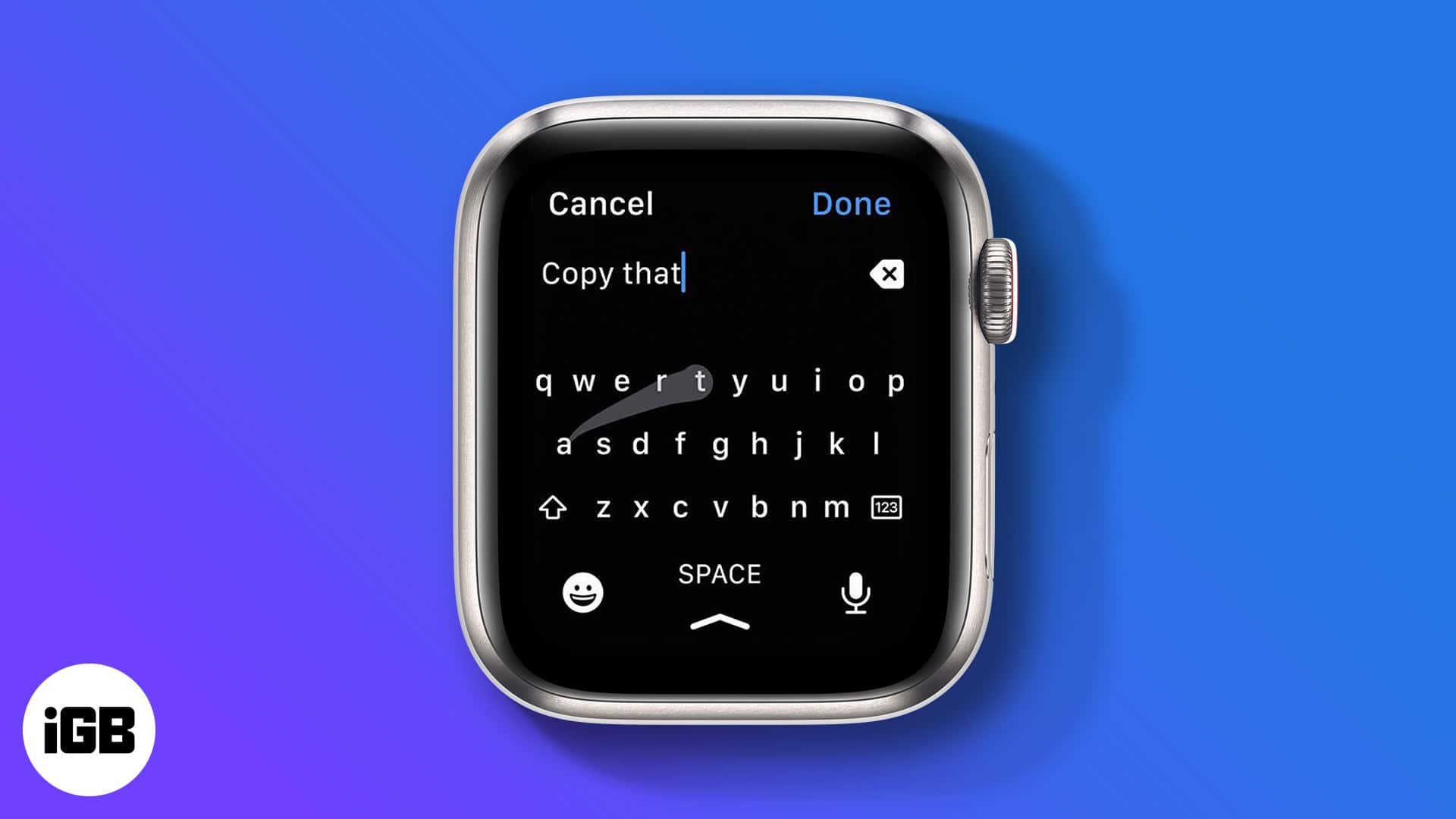
Scribble: Hard to Read Complex Passwords
- Characters turn to dots instantly—no real-time feedback.
- Confuses
0vsO,lvsI. - Best for: Simple passwords or PINs.
Dictation: Privacy and Accuracy Risks
- Background noise causes errors.
- Speaking passwords in public is risky.
- Best for: Quiet, private environments.
On-Screen Keyboard: Slow but Accurate
- Small keys = high typo risk.
- Best for short or simple passwords.
- Tip: Zoom in using the Digital Crown if available.
✅ Best Practice: Avoid overly complex Apple ID passwords if you frequently reset or re-pair—but never sacrifice core security.
Special Case: Sleep-Only Apple Watch
Some users wear a second Apple Watch just for sleep tracking.
Issue:
- Watch wakes in the morning with “Enter Apple ID password.”
- iPhone was out of range overnight.
Fix:
- Bring iPhone close upon waking.
- Open Watch app > App Store to trigger sync.
- Enable Unlock with iPhone to reduce future prompts.
Keep Your System Updated
Outdated software causes sync and authentication issues.
Check for Updates:
- On Apple Watch: Settings > General > Software Update.
- Ensure iPhone runs the latest iOS version.
✅ Security Note: Updates often patch authentication bugs and improve MFA compatibility.
Summary: When and Where to Enter Passwords
| Scenario | Where to Enter | Method |
|---|---|---|
| Changed Apple ID password | iPhone | Enter when prompted in notification or Watch app |
| New watch setup | Apple Watch | Use Scribble, Dictation, or Keyboard |
| Unlocking screen | Apple Watch | Enter passcode via keypad or keyboard |
| Forgotten passcode | iPhone | Unpair to erase and reset |
| Frequent login prompts | iPhone | Trigger via Watch app > App Store |
| Want no passcode | iPhone or Watch | Disable in Passcode settings (loses Apple Pay) |
Final Tips for Smooth Password Use
- Never rely on Scribble for complex passwords—use your iPhone.
- Keep iPhone nearby during setup or password changes.
- Use “Unlock with iPhone” to reduce daily friction.
- Restart both devices if sync fails.
- Re-pair as last resort—it clears all data but fixes deep issues.
🎯 Bottom Line: The iPhone is your password entry hub. The Apple Watch shows prompts, but the real action happens on your phone. Understand this flow, and you’ll never be stuck staring at a blank screen wondering what to do next.




