
Losing your Apple Watch is more than just an inconvenience—it can mean losing access to health data, messages, and even your digital wallet. But what if the device is offline, disconnected from Wi-Fi, cellular, or your iPhone? Can you still find it?
Yes—but only if you prepared in advance. Apple’s Find My network allows you to retrieve the last known location of your Apple Watch even when it’s powered off or out of range—provided key features were enabled before it went missing. Without proper setup, tracking is impossible.
This guide walks you through how to locate your offline Apple Watch, why the location might not appear, and what you can do to maximize recovery odds. Whether your watch died, was misplaced, or stolen, these steps could be the difference between loss and recovery.
Check Last Known Location in Find My

The Find My app is your primary tool for locating a missing Apple Watch. If the device was online even briefly before going offline, it likely transmitted its final GPS coordinates.
Open Find My on iPhone or iPad
Start by opening the Find My app on your paired iPhone or iPad. Make sure you’re signed in with the same Apple ID linked to the watch. Tap Devices, then select your Apple Watch from the list.
If the watch is offline, you’ll see:
– Status: Offline
– A map pin marking the last known location
– A timestamp showing when it last connected
– Estimated distance and battery level (if available)
This data is automatically saved—only if “Send Last Location” was enabled. The location is usually accurate within a few meters if the watch had GPS or Wi-Fi access before disconnecting.
Pro Tip: Tap Directions to open Apple Maps and navigate directly to the last known spot. You can also tap Play Sound—if the watch reconnects, it will ring loudly even in silent mode.
Use iCloud.com to Locate from Any Device
Don’t have your iPhone handy? Use any web browser to go to iCloud.com/find. Sign in with your Apple ID and two-factor authentication, then click Find iPhone.
Under Devices, select your Apple Watch. You’ll see the same last known location as in the app. This method is especially useful if you’ve lost your iPhone too.
However, if no location appears and the status says “No Location Found,” it means one of several things:
– The watch never connected after being lost
– Find My wasn’t enabled
– The 7-day tracking window has expired
Important: After 7 days of inactivity, iCloud stops displaying location data. After a month, the battery is likely too dead to transmit any signal.
Enable Lost Mode to Lock and Track
If you can’t recover your Apple Watch right away, activating Lost Mode protects your data and increases the chance someone returns it.
What Lost Mode Does
Lost Mode turns your Apple Watch into a secure, traceable device:
– Locks the watch with your passcode
– Suspends all Apple Pay cards and passes
– Displays a custom message on the screen (e.g., “Reward if found – Call 555-1234”)
– Shows your contact number
– Preserves and updates the last known location if the watch reconnects
Even if someone tries to erase it, Activation Lock prevents reactivation without your Apple ID.
Activate Lost Mode From iPhone
- Open Find My > Devices
- Tap your Apple Watch
- Select Lost Mode
- Enter a phone number
- Add a message (optional)
- Tap Activate
You’ll get an email confirmation. The message will appear the next time the watch powers on or connects to a network.
Turn On Lost Mode via iCloud
Go to iCloud.com/find > Sign in > Devices > Select Apple Watch > Click Lost Watch. Enter your contact info and message, then click Activate.
Smart Tip: Use a Google Voice number or temporary line to avoid exposing your personal number.
Why No Location Appears in Find My

If your Apple Watch shows “No Location Found,” don’t panic—but understand the limitations.
Find My Was Not Enabled
This is the most common reason. If Find My wasn’t turned on before the watch went missing, Apple has no way to track it. There’s no workaround. No location, no alerts, no recovery.
Battery Died Too Long Ago
Unlike AirTags, Apple Watches don’t have a long-life backup battery. Once the battery fully drains, the watch can only send a brief Bluetooth signal using residual power—typically for hours to a few days, not weeks.
After 30 days, the battery is dead. No signal. No tracking.
No Recent Network Connection
The watch must have connected to Wi-Fi, cellular, or the paired iPhone to upload its last location. If it was lost in a remote area or turned off immediately, no location was recorded.
Send Last Location Was Disabled
Without Send Last Location, the watch won’t transmit its final GPS fix before shutdown. Always enable this:
- iPhone: Settings > [Your Name] > Find My > Find My iPhone > Send Last Location
Maximize Recovery With Offline Finding
Even when offline, your Apple Watch can still be detected—if Offline Finding is on.
How Offline Finding Works
- The watch emits a secure Bluetooth signal
- Nearby Apple devices (iPhones, iPads, Macs) detect it anonymously
- They relay the approximate location to iCloud
- You see the update in Find My if the watch reconnects
All data is end-to-end encrypted. No one else can access your watch’s location.
Enable Offline Finding Before Loss
This setting syncs across devices:
– iPhone: Settings > [Your Name] > Find My > Find My iPhone > Offline Finding (toggle on)
Warning: You cannot enable this after the watch is lost.
Get Alerts When Watch Reconnects
Even if your Apple Watch stays offline for days, you can still get notified the moment it reconnects.
Turn On Notify When Found
In the Find My app:
1. Go to Devices
2. Select your Apple Watch
3. Tap Notify When Found
4. Toggle it on
You’ll receive a push notification when the watch connects to any network—Wi-Fi, cellular, or iPhone.
Real-World Use: Someone finds your watch, charges it, and turns it on. You’ll be alerted instantly.
Check Find My daily. Don’t assume it’s gone forever.
Erase Apple Watch Remotely If Recovery Fails
If you’ve given up on finding your Apple Watch, erase it to protect your personal data.
Requirements for Remote Erase
- Two-factor authentication enabled on your Apple ID
- Or access to iCloud.com
You can erase even if the watch is offline.
Steps to Erase
- Open Find My app or go to iCloud.com/find
- Select your Apple Watch
- Tap Erase Apple Watch
- Confirm the action
After erasure:
– All data is wiped
– Activation Lock remains (requires your Apple ID to reactivate)
– You can still see location updates if the watch reconnects (iOS 15+)
Warning: Erasing is permanent. You cannot undo it.
Device Tracking Limits: Apple Watch vs AirTag
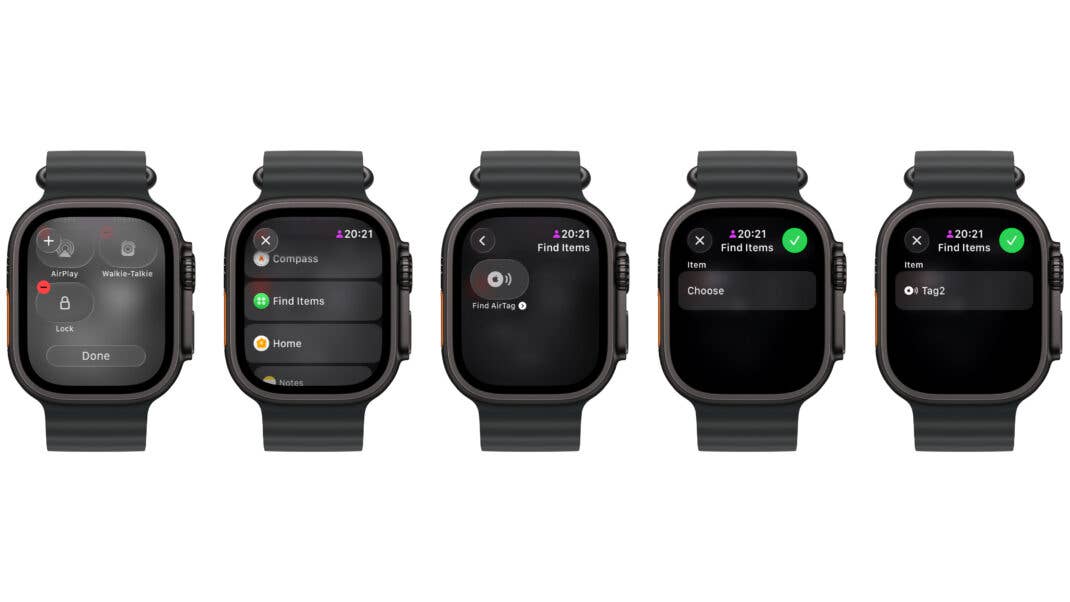
Apple Watch isn’t built for long-term offline tracking like AirTags.
U1 Chip and Precision Finding
- Apple Watch Series 6 and later (including SE 2nd gen) may have the U1 chip
- Enables Precision Finding when nearby and powered on
- But does not support persistent tracking when powered off
AirTags, by contrast, are designed to broadcast for months on a coin battery. Apple Watch lacks this capability.
Can You Track a Powered-Off Apple Watch?
Yes—but only briefly. When the battery dies, the watch uses residual power to send a final Bluetooth signal. If nearby Apple devices detect it, the location updates. But this window is short, typically hours to a few days.
Reality Check: After a month, the battery is dead. No signal. No tracking.
Pro Tips to Improve Recovery Odds
Don’t wait until you lose your watch. Act now.
1. Enable All Find My Features Now
On your iPhone:
– Find My iPhone: On
– Offline Finding: On
– Send Last Location: On
– Notify When Found: On
These settings sync automatically to your Apple Watch.
2. Use a Secure Band
Choose a band with:
– Magnetic clasp
– Retention loop
– Snug fit
Avoid loose or slippery straps during workouts.
3. Attach an AirTag (With Caution)
Apple doesn’t make a case with an AirTag slot, but third-party bands do. You can:
– Use a watch band with AirTag pocket
– Tape an AirTag discreetly (not recommended long-term)
Ensure it doesn’t block charging or damage the watch.
4. Report to Police With Serial Number
If stolen, provide:
– Serial number (Watch app > General > About)
– Last known location
– Lost Mode confirmation
This helps prove ownership and aids recovery.
Final Steps: What to Do Right Now
Whether your watch is missing or you’re preparing for the future:
- Open Find My and verify your Apple Watch appears
- Enable Lost Mode if missing
- Turn on Notify When Found
- Check iCloud.com from another device
- Wait for updates—someone might turn it on
If it’s been over 7 days with no update, chances drop fast. After 30 days, recovery is rare.
But if you set up Find My correctly, that last known location could be the clue you need to get your Apple Watch back.
Final Note: The only way to find your Apple Watch when offline is to have Find My, Offline Finding, and Send Last Location enabled before it went missing. Without them, tracking is impossible. Act now—before it’s too late.





