You’ve got an iPad, an Apple Watch, and a dream: a lightweight, mobile setup without the bulk of an iPhone. Maybe you’re a fitness enthusiast who wants to stream workouts on your iPad while tracking heart rate on your wrist. Or perhaps you’re trying to simplify your tech life—just an Apple Watch and iPad in your bag. But when you go to pair them, nothing happens. That’s because you cannot pair an Apple Watch to an iPad, no matter how hard you try.
Despite both devices being part of Apple’s tightly integrated ecosystem, direct pairing between Apple Watch and iPad is not supported. The Apple Watch was built from the ground up as an extension of the iPhone—not the iPad. This means setup, management, and core features like calls, messages, and app syncing all require an iPhone, even if it’s only used once a year.
But don’t give up yet. While full pairing isn’t possible, your iPad can still interact with your Apple Watch in meaningful ways—if your watch is already paired to an iPhone and all devices share the same Apple ID. You can use Apple Fitness+ on iPad with real-time metrics, view health data, control music, and even use your watch as a remote for presentations or camera functions.
In this guide, you’ll learn exactly what’s possible, what’s not, and how to make the most of your Apple Watch and iPad—even within Apple’s strict ecosystem rules.
No Direct Pairing: Why iPad Can’t Replace iPhone
Apple Watch pairing is locked to the iPhone for both technical and strategic reasons. Even though iPad and iPhone run similar operating systems and share hardware capabilities, iPadOS lacks the underlying services needed to manage an Apple Watch.
Apple Watch App Missing on iPadOS
The Apple Watch app, which is essential for setup and configuration, is only available on iPhone. Without it, the iPad has no way to:
– Start the pairing process
– Configure settings
– Install watch faces
– Manage cellular plans
– Sync apps or update watchOS
There is no workaround—this app does not exist on iPadOS, and Apple has not signaled any plans to release one. This single missing app is the biggest roadblock to iPad–Apple Watch integration.
No Call or Message Routing
Even if your iPad has cellular data, it cannot route calls or texts to your Apple Watch. The iPhone acts as the central telephony hub, handling:
– Voice calls (including on cellular Apple Watch models)
– SMS and MMS messaging
– iMessage synchronization
– Emergency SOS calls
– Find My alerts
An iPad with data can’t replicate these functions. It’s built for internet access, not phone services.
Bluetooth and Sync Protocols Are iPhone-Only
The initial pairing process uses a secure combination of:
– NFC handshake
– Bluetooth LE (Low Energy) connection
– Camera-based QR code scanning
– iCloud keychain authentication
These protocols are coded to work exclusively between iPhone and Apple Watch. The iPad doesn’t support the low-level Bluetooth services required to establish trust or maintain a persistent link. Even if you place your watch next to your iPad, it won’t detect it as a pairing option.
What You Can Do: iPad and Apple Watch Integration
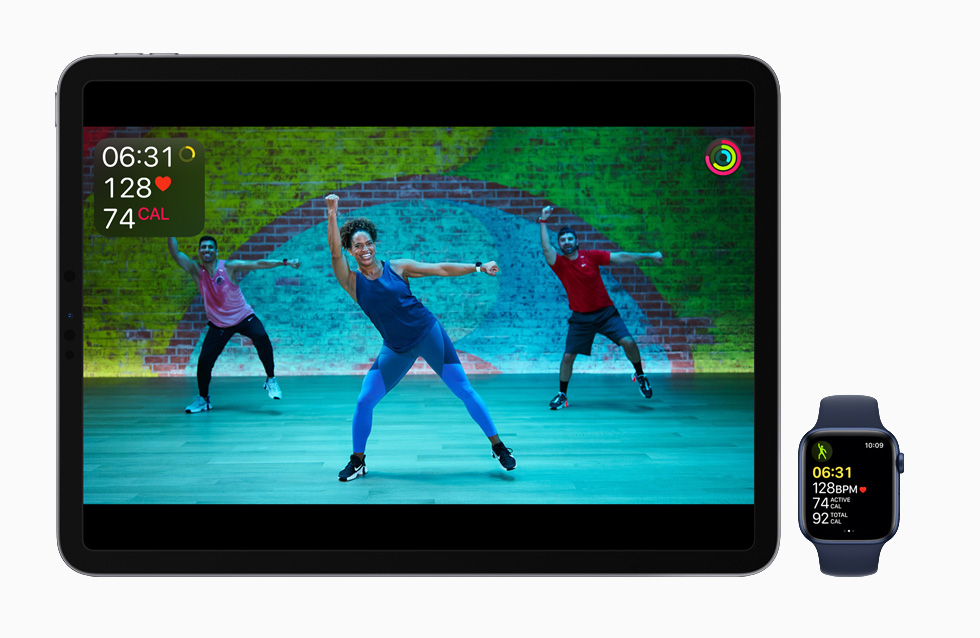
While direct pairing isn’t supported, your iPad can still interact with your Apple Watch—as long as the watch is already paired to an iPhone and all devices are signed into the same Apple ID.
Use Fitness+ on iPad with Apple Watch
One of the most popular use cases is streaming Apple Fitness+ workouts on your iPad while seeing real-time metrics from your Apple Watch, including:
– Heart rate
– Elapsed time
– Calories burned
– Activity rings
How It Works
- Open the Fitness+ app on your iPad.
- Start a workout.
- Tap “Connect Apple Watch.”
- Ensure Bluetooth is on and your watch is nearby.
Important: Your iPhone must be paired and connected to iCloud—even if it’s not in the room. The data flows: Apple Watch → iPhone → iCloud → iPad.
Fix: “Apple Watch Unavailable” Error
Many users encounter this error despite correct setup. Verified fixes include:
Install and Open the Home App
Simply installing and launching the Home app on both iPhone and iPad often resolves the issue. This triggers iCloud sync and Bluetooth trust protocols needed for device communication.
Sign Out and Back Into iCloud
Go to iPad Settings → [Your Name] → Sign Out. Restart, then sign back in.
Restart Devices
Reboot your Apple Watch and iPad to clear temporary sync glitches.
Temporarily Disable iPhone Bluetooth
Turn off Bluetooth on your iPhone to force the watch to connect directly to the iPad.
Enable iCloud Keychain
Go to Settings → [Your Name] → iCloud → Keychain and ensure it’s turned on.
User Confirmation: Multiple reports (e.g., Aperire, Jjcraig87) confirm that installing the Home app is the most reliable fix.
View Health Data on iPad

With iPadOS 16.4 and later, the Health app is available on iPad. You can:
– Review workout history
– Track sleep patterns
– Monitor heart rate trends
– View ECG and blood oxygen data (if supported)
All data syncs from your iPhone → iCloud → iPad. The Apple Watch sends data to the iPhone first, which then uploads it to iCloud.
Limitation: You cannot configure health tracking or export data from the iPad. These actions must be done on iPhone.
Control iPad with Apple Watch
Your Apple Watch can act as a remote for certain iPad functions via Continuity:
Control Music Playback
Use the Now Playing app on your watch to play, pause, or skip tracks on Apple Music playing on your iPad.
Use as Camera Remote
Open the Camera app on iPad, tap “Record,” then use your Apple Watch to:
– Take photos
– Start/stop video
Present Slides with Watch
In Keynote or compatible apps, use your watch as a presentation clicker to:
– Advance slides
– See current/next slide
– View timer
All these features require:
– Same Apple ID
– Wi-Fi or Bluetooth proximity
– iPhone nearby (to bridge connections)
Customize Watch Faces Indirectly
You can’t edit watch faces on iPad, but you can:
1. Design faces using the Watch app on iPhone
2. Sync changes via iCloud
3. Use them on your Apple Watch
Some third-party apps on iPad offer watch face previews, but no native editing capability exists.
Workarounds for iPhone-Free Users

If you don’t own an iPhone but still want to use an Apple Watch, here are realistic options.
Use a Friend’s iPhone for Setup
You can temporarily use someone else’s iPhone to pair your Apple Watch.
Steps:
1. Have the iPhone user open the Watch app.
2. Follow setup prompts (scan animation on watch).
3. Complete configuration and cellular activation (if applicable).
Important: The watch will be linked to their Apple ID. To transfer ownership:
– They must go to Watch app → My Watch → All Watches → tap your watch → Unpair Apple Watch
– Then, you pair it with your own iPhone
Warning: Until unpaired, they’ll receive your notifications, messages, and calls.
Buy a Used iPhone for Pairing
Many users buy an older, low-cost iPhone (like iPhone SE or iPhone 8) solely for Apple Watch pairing.
Benefits:
– One-time setup and cellular activation
– Keep iPhone at home or powered off
– Apple Watch functions independently (especially cellular models)
Cost: As low as $100–$150.
Once paired, the iPhone only needs to stay connected to iCloud for background syncing—it doesn’t need to be carried daily.
Use Family Setup for Kids or Seniors
If you’re setting up a watch for someone without an iPhone (like a child or elderly parent), Family Setup lets you manage it from your iPhone.
Requirements:
– You must have an iPhone
– Carrier support for multiple lines
– Shared Family Sharing group
Features you can control:
– Approved contacts
– Location sharing
– Screen time limits
– Emergency alerts
The family member’s watch still relies on your iPhone for setup and management.
Can a Cellular Apple Watch Work Without iPhone?
Yes—but only after initial setup with an iPhone.
If you have a GPS + Cellular model, your Apple Watch can:
– Make and receive calls
– Send iMessages
– Stream music (with Apple Music subscription)
– Use Maps and Wallet
– Access apps over cellular
Even then, the iPhone must remain:
– Paired
– Connected to iCloud
– Signed into the same Apple ID
Without the iPhone in the ecosystem, the watch eventually loses functionality and may require re-pairing.
Common Misconceptions Debunked
“iPad Runs iOS, So It Should Work Like iPhone”
False. While iPadOS shares a foundation with iOS, it lacks:
– Telephony services
– Apple Watch app
– Bluetooth LE pairing protocols
– Call and message routing
It’s optimized for tablets, not wearable management.
“I Use Fitness+ on iPad—Aren’t They Paired?”
No. The connection is indirect. Your Apple Watch sends data to your iPhone, which syncs to iCloud. The iPad pulls that data through the cloud—not directly from the watch.
“Can I Set Up with iPhone Once, Then Ditch It?”
No. If you unpair the Apple Watch from the iPhone, it resets and must be re-paired with an iPhone. There is no “iPhone-free” mode.
Final Tips and Recommendations
What You Can Do
- ✅ Use Fitness+ on iPad with Apple Watch (iPhone must be paired)
- ✅ View Health app data on iPad
- ✅ Control music, camera, and presentations from your watch
- ✅ Use cellular Apple Watch independently after setup
What You Cannot Do
- ❌ Pair Apple Watch directly to iPad
- ❌ Set up or manage watch without iPhone
- ❌ Use Apple Watch with Android or iPad-only
Best Solution for iPad-Only Users
- Buy a used iPhone ($100–$200) for setup and background syncing
- Use Family Setup if managing a watch for someone else
- Keep iPhone at home—it doesn’t need to be carried daily
Send Feedback to Apple
Want change? Let Apple know.
Submit feedback at:
https://www.apple.com/feedback/
Select category: Watch > Apple Watch
Many users have requested iPad pairing—especially those with accessibility needs or minimal-device lifestyles.
Bottom Line: iPhone Is Non-Negotiable
Despite rumors and hopes, you cannot pair an Apple Watch to an iPad. The iPhone remains the mandatory hub for setup, management, and core functionality.
But if your Apple Watch is already iPhone-paired, your iPad can still play a valuable supporting role in fitness, health tracking, and media control.
Until Apple opens the ecosystem, owning an iPhone is the price of entry for Apple Watch ownership—no exceptions.