
You depend on Google Calendar to organize your work meetings, personal appointments, and family events. But when you glance at your Apple Watch, your schedule isn’t there — and there’s no official Google Calendar app in the App Store. The frustrating part? You’re not doing anything wrong. The good news is that you can get Google Calendar on Apple Watch — and it works seamlessly, without downloading any third-party apps. All it takes is syncing your Google account through your iPhone’s built-in Calendar app.
Since Apple Watch pulls calendar data from the iPhone’s native Calendar app, your Google events will automatically appear on your wrist as long as your account is correctly linked. In this guide, you’ll learn how to sync Google Calendar to Apple Watch step by step, access events through complications and widgets, receive timely notifications, and troubleshoot common issues. You’ll also discover the limitations — like no event editing and the 7-day visibility window — and when it makes sense to use a third-party tool like SyncGene for full two-way sync. Whether you’re a busy professional or just want to stay on top of your day, this complete walkthrough ensures your Google Calendar stays visible, updated, and within wrist’s reach.
Sync Google Calendar via iPhone Settings
The foundation of getting Google Calendar on Apple Watch starts with your iPhone. Apple Watch doesn’t support standalone Google apps, so syncing must happen through iOS first. Once your Google account is added to the iPhone’s Calendar settings, events flow automatically to the Apple Watch.
Add Google Account to iPhone
- Open Settings on your iPhone.
- Scroll down and tap Calendar.
- Go to Accounts → Add Account.
- Select Google and sign in with your email and password.
- On the next screen, make sure “Calendars” is toggled ON — this is essential.
- You can leave Mail and Contacts off if you don’t use them.
🔒 If two-factor authentication is enabled, Google may ask for an app-specific password. Generate one in your Google Account settings under “Security” if prompted.
This step connects your Google Calendar to Apple’s ecosystem. From here, your events sync with the iPhone’s Calendar app — the gateway to your Apple Watch.
Confirm Calendar Visibility
After adding your account, ensure your calendars are visible:
- Open the Apple Calendar app.
- Tap Calendars at the bottom.
- Under Accounts > Google, check the boxes next to the calendars you want to sync (e.g., Primary, Work, Family).
Events should appear within minutes. If not, pull down to refresh or wait a few minutes for background sync to catch up.
View Google Events on Apple Watch
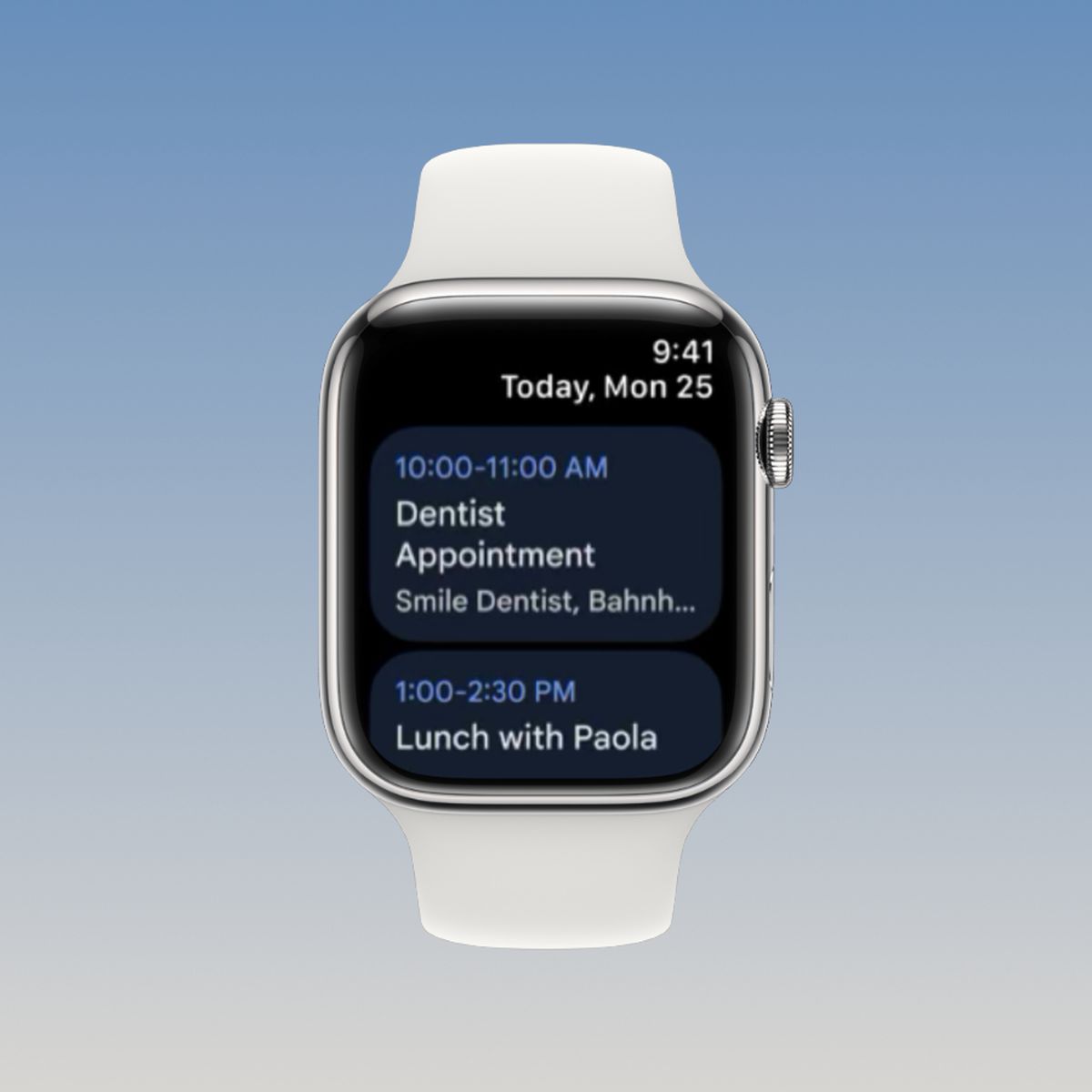
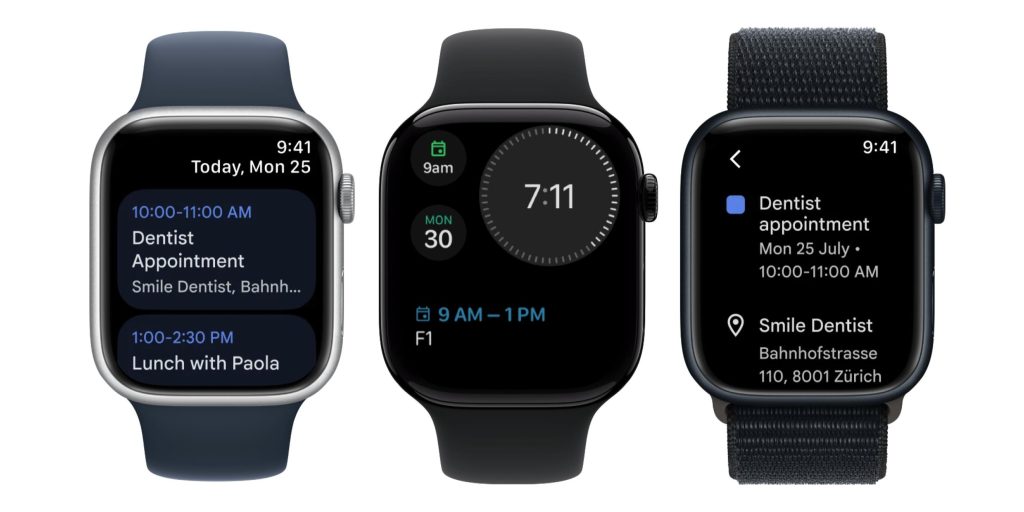
Once synced, your Google Calendar events appear automatically in the Apple Watch Calendar app — no extra steps needed.
Access Events in the Calendar App
- Press the Digital Crown to open your apps.
- Tap the Calendar icon.
- Swipe up or down to scroll through your schedule.
- Tap any event to view:
– Title and time
– Location
– Notes (if added)
– Calendar source (e.g., Google)
All events, including recurring ones and all-day events, display clearly. The app uses color-coding from your iPhone, so Work and Personal calendars remain visually distinct.
Use List View for Better Readability
- Tap the ⋯ button in the bottom-right corner.
- Select View → List to see events in a clean, chronological format.
This is especially helpful for busy days with overlapping meetings.
Glanceable Access: Complications & Widgets
You don’t need to open the Calendar app every time. Apple Watch lets you see your next event instantly using complications and widgets.
Add a Calendar Complication
Display your next event directly on your watch face:
- Press firmly on your watch face and tap Edit.
- Choose a complication slot (e.g., bottom center).
- Select Calendar.
- Pick a style — such as Next Event or Agenda.
- Press the Digital Crown to save.
✅ Pro Tip: Use different watch faces for different contexts — a minimalist face with a simple event complication for workouts, and a detailed one for work hours.
Use the Smart Stack for Contextual Updates
Swipe up from the watch face (or down with the Digital Crown) to open the Smart Stack. If the Calendar widget is enabled, it shows your next event based on time and location.
- Tap the event to see full details.
- The Smart Stack learns your habits and surfaces important meetings before they start.
This feature reduces the need to open the Calendar app, making your schedule truly glanceable.
Receive Event Notifications on Your Wrist
Your Apple Watch alerts you when a Google Calendar event is about to begin — but only if notifications are properly configured.
Enable Alerts on iPhone
- On your iPhone, go to Settings → Calendar → Default Alert Times.
- Choose a default reminder (e.g., 15 minutes before).
- For individual events, open the event and adjust alert settings manually.
When active, you’ll receive:
– A haptic tap and optional sound
– An on-screen notification with event details
– Options to snooze or dismiss
⚙️ Notifications require your iPhone to be nearby and connected via Bluetooth or Wi-Fi.
Limitations of Google Calendar on Apple Watch

While viewing your schedule works well, there are significant restrictions.
What You Can’t Do on Apple Watch
| Action | Supported? |
|---|---|
| Create new events | ❌ No |
| Edit existing events | ❌ No |
| Delete events | ❌ No |
| View events beyond 7 days | ❌ No |
| See full descriptions or attachments | ❌ Limited |
Google Calendar on Apple Watch is read-only. Any changes must be made on your iPhone, iPad, or via the Google Calendar website.
7-Day Sync Window
Only events within the next 7 days appear on Apple Watch. This design conserves battery and storage but can be limiting for long-term planners.
📅 To see farther ahead, check your schedule on your iPhone or in a browser.
Fix Common Sync Issues
Even with correct setup, events sometimes don’t appear. Here’s how to fix the most frequent problems.
Events Missing on Watch
Follow these steps:
-
Check Calendars toggle in Settings
→ iPhone Settings → Calendar → Accounts → Google → Ensure “Calendars” is ON. -
Verify calendar visibility in Apple Calendar app
→ Open Calendar → Tap Calendars → Confirm Google calendars are checked. -
Restart both devices
→ Reboot iPhone and Apple Watch to force a fresh sync. -
Pull to refresh on iPhone
→ Open Calendar app and swipe down.
⏱️ Allow 2–5 minutes after fixes for events to reappear.
Only Primary Calendar Shows Up
By default, only your main Google calendar syncs. To add others:
- Open Calendar app on iPhone.
- Tap Calendars.
- Under Google, check additional calendars (e.g., Work, Family).
They’ll sync automatically to your Apple Watch.
Sync Breaks After iOS or watchOS Updates
Apple sometimes resets account permissions after updates.
Fix: Re-add your Google account
1. Go to iPhone Settings → Calendar → Accounts → Google.
2. Tap your account → Sign Out.
3. Re-add it using the initial setup steps.
🔁 This is common after major system updates.
Two-Way Sync with SyncGene
Want to edit events from your wrist or backup your calendar? Use SyncGene, a secure third-party service that syncs Google Calendar with iCloud.
Why Use SyncGene?
- ✅ Two-way sync: Changes on Apple Watch (via iCloud) update Google Calendar
- ✅ Automatic backup to Google Drive
- ✅ Supports multiple Google and iCloud accounts
- ✅ Real-time sync (with premium plan)
Set Up SyncGene
- Visit SyncGene.com and create an account.
- Click Add Account → Select Google → Log in.
- Click Add Account again → Select iCloud.
- Go to Filters → Enable Calendar sync.
- Choose which calendars to sync.
- Click Save → Sync All.
🛡️ SyncGene claims no data is stored on their servers — backups go to your Google Drive.
When to Use SyncGene
- You edit events frequently and want changes reflected in Google
- You use both iCloud and Google calendars and need them unified
- You want automatic backups of your schedule
- You manage multiple accounts
💰 Free plan allows manual sync every 24 hours. Premium ($2.99/month) enables real-time updates.
Watch Experience & Compatibility
Google Calendar works smoothly on Apple Watch when using modern hardware and software.
Supported Devices & OS
- Minimum: Apple Watch Series 3 + watchOS 9
- Recommended: Series 5+ with watchOS 11
- Fully compatible with all Apple Watch models
Visual & Functional Features
- Color-coded events: Calendars retain their iPhone colors
- List view: Clean, easy-to-read layout
- Haptic alerts: Subtle tap before events
- Font scaling: Adjust text size in the Watch app on iPhone
Battery Impact
- Minimal under normal use
- Syncing multiple calendars may slightly increase background activity
- No significant battery drain reported
Real-World User Feedback
Based on verified user experiences:
What People Love
- “Sync is instant and reliable — I see new events within minutes.”
- “Love the Smart Stack widget — it reminds me of meetings before I walk in.”
- “No extra apps needed — it just works with what’s built in.”
Common Complaints
- “Wish I could edit events on the watch.”
- “The 7-day limit is annoying — I plan my month on Google Calendar.”
- “Took me a while to realize events show up under Apple Calendar, not Google.”
🗣️ “It works perfectly once you figure out that Google events show up as regular Calendar entries — just make sure the right calendars are toggled on.” – Verified user
Native Sync vs. Third-Party Tools
| Feature | Native Sync | SyncGene |
|---|---|---|
| Cost | Free | Free + paid plans |
| Setup | iPhone Settings | Web-based |
| Two-Way Sync | ❌ No | ✅ Yes |
| Edit Events on Watch | ❌ No | ✅ Indirectly |
| Backup to Cloud | ❌ No | ✅ Yes |
| Sync Speed | Near real-time | Real-time (premium) |
| Security | Apple encryption | End-to-end encrypted |
| Battery Use | Low | Slight increase |
✅ Best for most users: Native sync
✅ Best for power users: SyncGene
Best Practices & Pro Tips
Maximize your Google Calendar experience on Apple Watch:
Setup Best Practices
- Sync only essential calendars to reduce clutter
- Use List View for better readability
- Test with a sample event after setup
- Check sync settings monthly, especially after updates
Pro Tips for Daily Use
- Ask Siri: Say “What’s my next meeting?” for a voice summary
- Enable Theater Mode to silence alerts during presentations
- Use Focus modes to filter notifications (e.g., mute calendar during Sleep)
- Customize complications per watch face for context-aware access
Summary: Key Takeaways
- ✅ Google Calendar works on Apple Watch — via Apple’s native Calendar app
- 🔧 No app download needed — sync through iPhone Settings > Calendar > Add Google Account
- 📱 Events appear in Calendar app, complications, Smart Stack, and notifications
- ⏳ Allow 2–5 minutes for sync; ensure “Calendars” toggle is ON
- 🚫 No editing, creating, or deleting events on Apple Watch
- 🗓️ Only events within 7 days are accessible
- 🔁 For two-way sync and editing, use SyncGene (free and premium options)
- ❓ Troubleshoot missing events by checking calendar visibility in iPhone Calendar app
With the right setup, your Google Calendar becomes a seamless part of your Apple Watch — keeping your schedule always visible, always updated, and always on your wrist.





