
You’ve just upgraded to a new iPhone, but you don’t want to lose your Activity rings, health history, or perfectly customized watch faces. The good news: you can absolutely pair your existing Apple Watch to your new phone—without starting from scratch. Whether you still have your old iPhone or it’s been lost, sold, or broken, this guide walks you through every step to ensure a smooth transition. You’ll preserve your data, avoid Activation Lock, and get your devices synced fast.
The key? Proper preparation. If you had access to your old phone, unpairing correctly is crucial. If not, a factory reset followed by restoration from backup will do the trick. Either way, your Apple ID is the linchpin—without it, you won’t get past setup. Let’s walk through the exact process, including compatibility checks, data recovery, and troubleshooting tips so you don’t miss a beat in your daily routine.
✅ Confirm Compatibility Before You Begin

Before diving into pairing, verify that your devices can actually work together.
Check iOS and watchOS Requirements
Your new iPhone must run iOS 15 or later, and your Apple Watch needs watchOS 9 or higher. Most Apple Watch models from Series 4 onward meet this requirement, but older devices like the Series 3 (which maxes out at watchOS 8) may fail to pair with an iPhone 12 or newer.
Pro Tip: If your watch can’t update past watchOS 8, it likely won’t support newer iPhones. Check Apple’s official compatibility list before proceeding.
Sign In with the Correct Apple ID
You must use the same Apple ID that was linked to your old iPhone and Apple Watch. Activation Lock ties your watch to that account for security—there’s no bypass, even at an Apple Store, without proof of ownership.
If you’ve forgotten your Apple ID or password, go to iforgot.apple.com now. Recovery can take time, so don’t wait until setup day.
Prepare Both Devices
- Charge your Apple Watch and new iPhone to at least 50%
- Turn on Wi-Fi and Bluetooth on the iPhone
- Keep both devices within 12 inches during pairing
- Ensure a stable internet connection
Skipping these basics leads to failed scans, sync errors, or incomplete setups.
## Back Up Your Data (If Old iPhone Is Still Available)
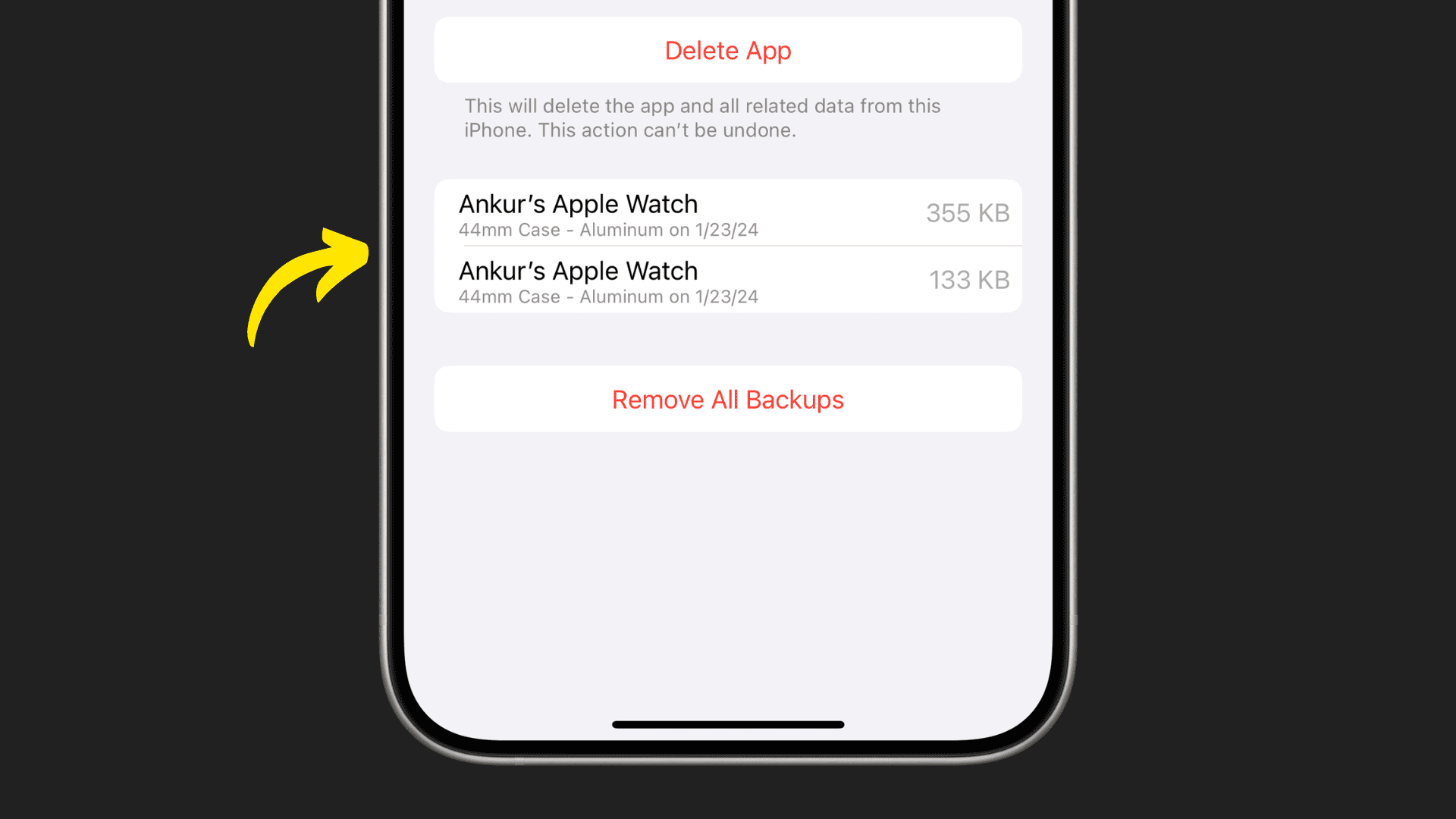
Never skip this if you still have the old phone—it’s your best shot at saving everything.
Update Both Devices First
Outdated software causes pairing issues. On your old iPhone, go to Settings > General > Software Update and install the latest iOS. On your Apple Watch, open Settings > General > Software Update.
⏱️ Time needed: Up to 60 minutes. Do this overnight.
Create a Full Backup
Use iCloud or a computer (preferred):
-
iCloud Backup:
Go to Settings > [Your Name] > iCloud > iCloud Backup → tap Back Up Now
Make sure Health & Activity are enabled under iCloud settings. -
Computer Backup (Mac/PC):
Connect via cable → Open Finder (Mac) or iTunes (Windows) → Select device → Check “Encrypt local backup” → Back up🔐 Why encrypt? Unencrypted backups don’t include Health or Activity data.
✅ Verify your backup: Log in to iCloud.com, check under your account for a recent Apple Watch backup.
## Unpair Apple Watch from Old iPhone
This clears the old connection so your watch can safely pair with the new phone.
Step-by-Step Unpairing
- Open the Apple Watch app on your old iPhone
- Tap All Watches (top-left)
- Select your watch → Tap the “i” icon
- Scroll down → Tap Unpair Apple Watch
- Enter your Apple ID password → Confirm
⏳ Wait 5–10 minutes. The watch will erase itself and restart automatically.
❗ Never skip this step. Trying to pair while still linked causes “Already Paired” errors.
## Set Up Your New iPhone and Restore
Start fresh, then bring back your world.
Restore from Backup
- Power on your new iPhone
- Follow setup prompts
- At Apps & Data, choose:
– Restore from iCloud Backup (if using cloud)
– Restore from Mac or PC (if using encrypted backup) - Sign in with the same Apple ID
- Pick the most recent backup
💡 If no Apple Watch prompt appears later, open the Apple Watch app manually and tap Pair New Watch.
## Pair Apple Watch to New iPhone
Now it’s time to reconnect.
Start the Pairing Process
- Keep your Apple Watch on your wrist and unlocked
- Open the Apple Watch app on your new iPhone
- Tap Continue (if prompted) or Pair New Watch
Scan the Onscreen Animation
Hold your iPhone up to the Apple Watch screen. When the swirling animation appears, your iPhone camera will auto-detect it.
📷 Can’t scan? Tap Pair Apple Watch Manually → Enter the 6-digit code shown on the watch.
🔄 No animation? Restart both devices and try again.
## Reset Apple Watch (No Old iPhone Access)
If your old phone is gone, reset your watch to start fresh.
Erase with Passcode
- Unlock watch → Open Settings > General > Reset
- Tap Erase All Content and Settings → Confirm with passcode
Force Reset (No Passcode)
- Place watch on charger
- Press and hold Side Button + Digital Crown for 10+ seconds
- Release when reset screen appears → Tap Reset
🔋 Must be charged. A low battery blocks resets.
After resetting, the watch boots into pairing mode—ready to connect.
## Restore from Backup After Pairing
During setup, choose Restore from iCloud Backup to recover:
- Health & Activity history
- Workout logs
- Watch faces and app layout
- Notifications and settings
❌ No backup found? Confirm:
– Same Apple ID signed in
– iCloud Backup was enabled
– Computer backup was encrypted
– Internet is stable
If none appear, you’ll have to set up as new—and lose all previous data.
## Finalize Setup: Passcode, Features, and Sync
Complete the onboarding to lock in your settings.
Create a Passcode
Set a 6-digit passcode (recommended). It’s required after restarts and enhances security.
🔐 Write it down. Forgetting it means another reset.
Customize Display & Health Settings
- Adjust text size and enable Bold Text
- Enter date of birth for accurate health tracking
- Tap Start Today to resume Activity Rings
- Enable Fall Detection, SOS, and Heart Rate Alerts
Learn Key Gestures
A short tutorial runs:
– Flick wrist down → Dismiss notification
– Double-tap (Series 9+) → Answer calls
– Press Digital Crown → Return to apps
– Press Side Button → Open Control Center
Tap Continue to finish.
## Let Devices Sync Fully
Keep iPhone and watch close together. Background syncing may take 2–5 minutes.
Look for: “Device Added to Your Account”
Tap OK, then Start Now
On the watch, tap Start for an interactive tour.
## Post-Setup Tweaks
Fine-tune your experience.
Reinstall Apps & Complications
Some third-party apps don’t auto-install. Re-download them via the iPhone App Store, then re-add complications to your watch faces.
Activate Cellular (If Applicable)
Go to Apple Watch app > My Watch > Cellular → Follow carrier prompts.
📶 Note: Requires same carrier as iPhone (unless using Family Setup).
Share Settings (Optional)
Choose to share:
– Health data
– Keyboard shortcuts
– Notification preferences
## Fix Common Pairing Issues
“Already Paired”?
- Fix: Unpair from old iPhone or reset the watch
No Pairing Prompt?
- Restart both devices
- Open Apple Watch app > Pair New Watch
- Use manual pairing
Camera Won’t Scan?
- Clean lens
- Ensure bright lighting
- Tap Pair Manually
Activation Lock Stuck?
- You must enter the original Apple ID and password
- No workaround exists
## Best Practices for a Smooth Transition
✅ Do This:
– Always back up before switching phones
– Use encrypted computer backups
– Update both devices first
– Keep Apple ID recovery info updated
❌ Avoid:
– Skipping unpair step
– Resetting without confirming backup
– Using a different Apple ID
– Interrupting sync process
💬 User Insight: Reddit threads show that resetting is fastest when the old phone is gone. Data loss only happens without a backup.
✅ Final Checklist: Pair in 10 Steps
| Step | Action |
|---|---|
| 1 | Charge both devices (50%+) |
| 2 | Confirm Apple ID and passcode |
| 3 | If old iPhone: Unpair via Watch app |
| 4 | If not: Reset Apple Watch |
| 5 | Set up new iPhone and restore backup |
| 6 | Open Apple Watch app and start pairing |
| 7 | Scan animation or use manual code |
| 8 | Restore from backup (don’t set up as new) |
| 9 | Create passcode and customize settings |
| 10 | Wait for sync and confirm success |
Your Apple Watch is now fully paired and restored. All your health data, apps, and Activity Rings are back—ready to keep you moving. With the right steps, switching phones doesn’t mean starting over.




