
Losing your iPhone—even for a few seconds—can feel like a minor crisis. It’s probably tucked under a pillow, buried in your bag, or quietly sitting on silent in another room. But if you own an Apple Watch, you’ve got a powerful tool right on your wrist: the ability to ping your iPhone and make it ring at full volume, no matter how deep it’s hiding. This built-in feature works instantly, cutting through silence and clutter with sound and even light. Whether you’re using the latest Apple Watch Ultra or an older model, you can locate your iPhone in seconds. In this guide, you’ll learn exactly how to ping your iPhone from your Apple Watch, troubleshoot when it doesn’t work, and unlock advanced location tools like Precision Finding if your devices support them.
Access Control Center the Right Way
The first step in locating your iPhone is opening the correct menu. Apple changed how this works in WatchOS 10, and many users still try the old swipe-up gesture—only to find the Ping iPhone option missing. The new method is simple but requires precision.
Press and Hold the Side Button
Forget swiping up from the watch face—that method no longer works in WatchOS 10 and later. Instead, press and hold the side button located below the Digital Crown. Keep holding until the Control Center appears, filled with toggles for Airplane Mode, Silent Mode, and more. This is the only reliable way to access the Ping iPhone feature now.
What to look for: When the Control Center loads, you’ll see a grid of icons. If you only briefly press the side button, you might see Apple Pay or the power-off slider instead. That means you didn’t hold long enough.
Make Sure the Ping iPhone Icon Is Enabled
The phone icon with radiating sound waves is your key to finding your device. If it’s not visible, it may have been removed from your Control Center layout. To fix this:
- Open the Watch app on your iPhone.
- Tap My Watch, then go to Control Center.
- Tap Edit, then scroll down and add “Ping iPhone” if it’s missing.
- Drag it to the top for quick access.
Now, every time you press and hold the side button, the icon will be right where you need it.
Trigger the iPhone Ring with One Tap
Once you’re in Control Center, pinging your iPhone is effortless—but incredibly effective.
Tap to Make Your iPhone Ring
With the Control Center open, tap the Ping iPhone icon once. Within a second, your iPhone will start ringing at full volume, even if it’s on silent, in Do Not Disturb mode, or buried under a blanket. The sound is loud and persistent, designed to be heard across rooms.
Important: The ringing won’t stop automatically. You must physically pick up your iPhone and tap the screen or press a button to silence it. Be mindful if others are sleeping or in a quiet environment.
Use Touch-and-Hold for Flashlight Assistance
In dark or cluttered spaces, sound alone might not be enough. That’s where a hidden trick comes in: touch and hold the Ping iPhone icon instead of just tapping it. This triggers your iPhone’s LED flashlight to blink repeatedly while the device rings.
This dual-sensory cue—sound and light—makes it far easier to spot a phone hidden under furniture, in drawers, or behind objects. It’s especially useful at night or in low-light offices.
Pro tip: Combine both features—tap to start the ring, then touch and hold to activate the flashlight—for maximum detection power.
Use Precision Finding for Real-Time Directions
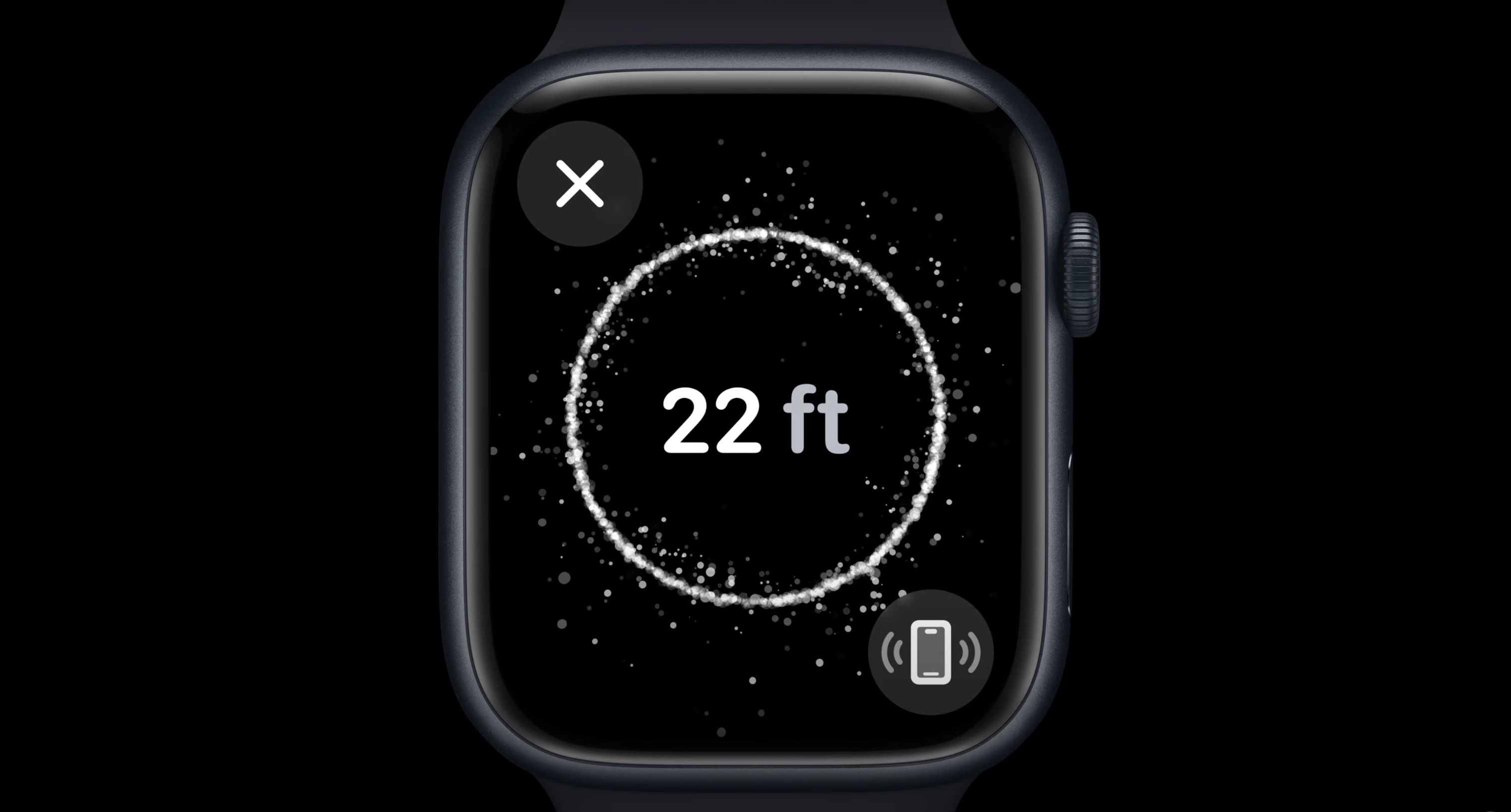
If you own compatible hardware, you can go beyond basic pinging and get step-by-step guidance to your iPhone using Precision Finding.
Check If Your Devices Support Precision Finding
Not all Apple Watches and iPhones can use this advanced feature. You’ll need:
- Apple Watch Series 9 or any Apple Watch Ultra model
- iPhone 15, 15 Plus, 15 Pro, or 15 Pro Max
Why the restriction? Precision Finding relies on the U1 chip and ultra-wideband (UWB) technology, which enable highly accurate spatial awareness. Devices like the Apple Watch SE or iPhone 14 and earlier lack this chip, so they can’t support directional tracking—no software update can change that.
Note: Precision Finding is not available in all countries. Check Apple’s support site to confirm regional availability.
Ensure Software Is Up to Date
Even with compatible hardware, outdated software can block access. Make sure both devices are current:
- Apple Watch: Update via Settings > General > Software Update
- iPhone: Go to Settings > General > Software Update
You’ll need WatchOS 10 or later and iOS 17 or later for full functionality, especially on iPhone 15 models.
Follow On-Screen Guidance to Locate Your iPhone
When you tap the Ping iPhone icon on a compatible setup, your Apple Watch transforms into a smart tracker.
View Direction and Distance in Real Time
After activation, your watch displays:
– A compass-style arrow pointing toward your iPhone
– A distance estimate (e.g., “40 feet away”)
As you move, the interface updates dynamically. The arrow adjusts with your position, and the distance counter decreases in real time.
Move Based on Haptic and Visual Cues
The system uses haptic feedback to guide you:
– Stronger vibrations mean you’re getting closer
– Narrowing arrow indicates accurate direction lock
Walk slowly and let the feedback guide your path. Avoid sudden turns—precision improves with steady movement.
Get Confirmation When You’re Close
When you’re within a few feet, two things happen:
– The Apple Watch screen turns solid green
– Your iPhone emits two short pings
This signals you’ve found it—no guessing, no second-guessing. The green screen is a clear, visual confirmation that you’re right on target.
Expert tip: For best results, maintain a clear line of sight. Walls, metal objects, or thick furniture can interfere with UWB signals and reduce accuracy.
Troubleshoot When the Ping Feature Is Missing
If you don’t see the Ping iPhone icon, don’t assume it’s broken. Most issues have quick fixes.
Fix 1: Use the Correct Gesture
The most common mistake? Swiping up instead of holding the side button. Since WatchOS 10, swipe-up no longer opens Control Center. Re-train your habit: press and hold until the menu appears.
Fix 2: Restore Bluetooth Connection
If your devices are out of range or disconnected, the icon won’t appear. Check the connection:
- Open the Watch app on your iPhone.
- Go to My Watch and look at the top for connection status.
- Bring both devices within 30–50 feet of each other.
Fix 3: Re-enable Find My iPhone
The ping feature depends on Find My services. If it’s turned off, pinging fails silently.
On your iPhone:
– Go to Settings > [Your Name] > Find My > Find My iPhone
– Ensure the toggle is ON
– Also confirm Send Last Location and Location Services are enabled
Why Your iPhone Isn’t Ringing—And How to Fix It
Even after a successful ping, your iPhone might stay silent. Here’s what to check.
Check Power and Mode
- Is your iPhone powered off or out of battery? Ping won’t work.
- Is Airplane Mode on? Disable it.
- While ping usually overrides Do Not Disturb, extreme restrictions might interfere.
Restart Both Devices
Temporary glitches can break connectivity.
- Restart Apple Watch: Hold side button > slide Power Off > wait > restart
- Restart iPhone: Hold side + volume button > slide to power off > restart
This often resolves connection hiccups in under two minutes.
Customize Control Center for Faster Access
If other icons are missing too, your Control Center may need resetting.
Reorder Controls via iPhone
- Open Watch app > My Watch > Control Center > Edit
- Drag Ping iPhone to the top
- Remove unused toggles to reduce clutter
Force Restart Watch If Unresponsive
If the screen is frozen:
– Press and hold side button + Digital Crown for 10 seconds
– Release when the Apple logo appears
Your data remains safe—this is just a hard reboot.
Maximize Success with Pro Tips
Use these strategies to make pinging faster and more reliable.
Keep Software Updated
Enable automatic updates:
– iPhone: Settings > General > Software Update > Automatic Updates
– Watch: Same path in Watch settings
Apple frequently improves Find My and Control Center stability.
Combine with Find My App for Distant Devices
Ping only works within Bluetooth range (~50 feet). If your iPhone is farther away:
– Use Find My app on another device
– Visit iCloud.com/find
– See GPS location, play sound remotely, or mark as lost
Key difference: Ping = for nearby devices | Find My = for distant or missing phones
Accessibility Benefits for Visually Impaired Users
Precision Finding supports accessibility:
– Enable VoiceOver for spoken directions
– Use haptic pulses to guide movement without looking
– Combine with flashlight flash for multi-sensory detection
Technical Requirements at a Glance

| Feature | Requirement |
|---|---|
| Basic Ping (Sound) | Any paired Apple Watch + iPhone (Bluetooth) |
| Flashlight Flash | iPhone with LED flash; touch-and-hold Ping icon |
| Precision Finding | Apple Watch Series 9/Ultra + iPhone 15+ (U1 chip) |
| WatchOS Version | 10 or later |
| iOS Version | 17 or later |
| Connectivity | Bluetooth LE + UWB (for Precision) |
| Effective Range | ~50 ft (Bluetooth); ~30 ft with clear view (Precision) |
Avoid These Common Mistakes
- Tapping instead of holding the side button → Use press-and-hold
- Expecting Precision Finding on older models → Requires U1 chip
- Forgetting Find My must be enabled → Double-check after setup
Final Note
Pinging your iPhone from your Apple Watch is one of Apple’s most practical, underused features. By pressing and holding the side button, then tapping the phone-with-sound-waves icon, you can make your iPhone ring instantly—even on silent. With compatible devices, Precision Finding adds directional arrows, distance tracking, and a green confirmation screen for pinpoint accuracy. While WatchOS 10 changed how you access the tool, the function is more reliable than ever when software, settings, and gestures align. Keep both devices updated, ensure Find My is active, and use the flashlight trick in dark spaces. If your iPhone is out of range, switch to the Find My app for GPS-based help. Once mastered, this simple trick becomes a daily lifesaver.




