
You press and hold the side button on your Apple Watch, the power slider appears — but when you try to slide it, nothing happens. Or worse, the watch powers off only to turn itself back on seconds later. You’re not imagining it. Since WatchOS 10, Apple changed how the shutdown process works, leaving even longtime users confused. The “how to power down Apple Watch” routine isn’t what it used to be — and if your screen is broken or unresponsive, the challenge increases.
Whether you’re troubleshooting a frozen device, preparing for a repair, or just want to shut it down properly, this guide covers every working method to power off your Apple Watch. You’ll learn the standard shutdown, the hidden WatchOS 10 slider, how to force restart, and how to turn off a completely unresponsive watch. Plus, you’ll discover why your Apple Watch might turn back on after shutdown — and how to stop it for good.
How to Shut Down Apple Watch Normally
Use this method when your watch is responsive and functioning correctly.
Press and Hold the Side Button
Locate the side button — the flat button below the Digital Crown. Press and hold it for 3 to 5 seconds. The screen will display power options, including a red power icon on the right.
Slide to Power Off
Tap the red power icon, then drag the slider from left to right. The screen will go dark — your Apple Watch is now fully powered down.
Important: This is a complete shutdown. Unlike sleep mode, it stops all tracking, notifications, and background activity.
Turn It Back On
To restart, press and hold the side button until the Apple logo appears. If you’ve set a passcode, you’ll need to enter it after booting.
Pro Tip: Always unplug your Apple Watch before shutting down. If it’s connected to the charger, the power-off process will fail — the watch stays on or reboots automatically.
Power Off via Settings (WatchOS 10 and Newer)

Apple redesigned the shutdown menu in WatchOS 10, making it less intuitive.
Navigate to Shut Down in Settings
Open the Settings app on your Apple Watch, go to:
General > Shut Down
You’ll see a screen with a power icon at the top, followed by Siren, Workout, and other options.
Warning: The Siren option is directly beneath Power, making it easy to accidentally trigger a loud emergency alarm — a common frustration reported by users.
Find the Hidden Power Off Slider
After tapping Power, the slide-to-shut-down control does not appear at the top. Instead, it’s hidden in the bottom middle of the screen — small, subtle, and easy to miss.
- Drag the slider upward — or, for many users, double-tap it to confirm shutdown
- The watch will power off after a brief confirmation
User Tip: If the slider doesn’t respond, try tapping or swiping gently across the lower screen area. The lack of visual feedback in WatchOS 10 makes this step confusing, but the control is there.
Force Restart a Frozen Apple Watch
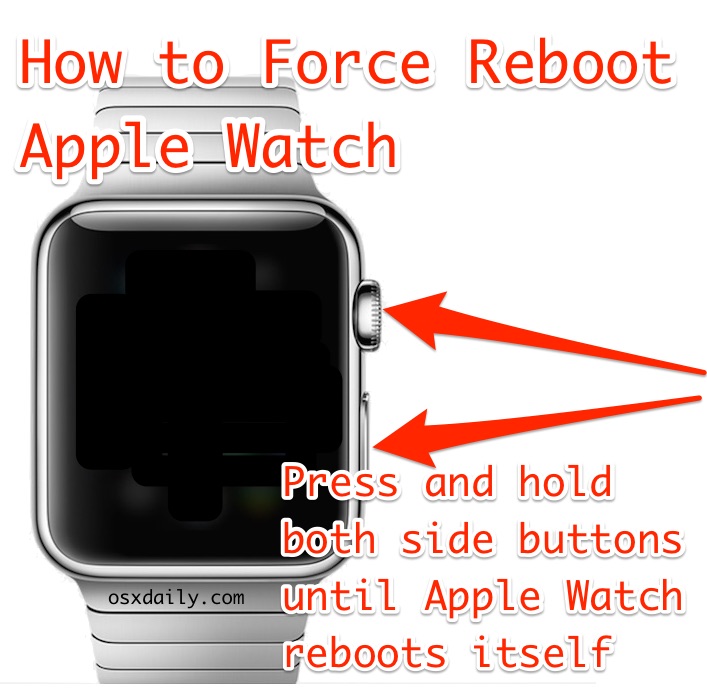
If your watch is stuck, unresponsive, or won’t accept touch input, a force restart is your best bet.
Hold Side Button and Digital Crown Together
- Press and hold both the side button and the Digital Crown
- Keep holding for at least 10 seconds
- Release when the Apple logo appears
This hard reset restarts the system without erasing data.
When to Use This:
– App is frozen
– Screen is unresponsive
– Power slider won’t workDo not perform this while charging — it can cause instability or prevent the reboot from completing.
Turn Off Apple Watch with a Broken Screen
If your touchscreen is cracked, water-damaged, or dead, you can’t use the slide-to-shut-down method. Use this two-stage button trick instead — ideal before repairs.
Two-Button Shutdown Method for Non-Responsive Screens
- Unplug the watch from the charger
- Press and hold both the side button and Digital Crown
- Keep holding until the Apple logo appears (this starts a reboot)
- Release the Digital Crown only — continue holding the side button
- When the Apple logo disappears, release the side button
Your Apple Watch will now be completely powered off.
Why It Works: This method tricks the system into shutting down during the reboot sequence, bypassing the need for touch input.
Verified For: All Apple Watch models from Series 1 through Series 9 — including Ultra models. Confirmed by iFixit and user reports.
Why Your Apple Watch Turns Back On After Shutdown

Many users report their Apple Watch powers back on seconds after turning off. This isn’t a glitch — it’s caused by Bluetooth reconnection with your iPhone.
How It Happens
- You shut down the watch successfully
- The paired iPhone detects it via Bluetooth
- The iPhone sends a wake signal, triggering an automatic reboot
- Sometimes, the setup screen appears, as if the watch is new
How to Stop Automatic Reboots
Disable Bluetooth on Your iPhone
- On your iPhone, go to Settings > Bluetooth
- Toggle Bluetooth off
- Now power down the Apple Watch
This breaks the connection and prevents the wake-up signal.
Forget Apple Watch in Bluetooth Settings
- On iPhone: Settings > Bluetooth
- Tap the (i) icon next to your Apple Watch
- Select Forget This Device
- Power down the watch
Note: You’ll need to re-pair the watch later — but this ensures a clean shutdown.
Enable Airplane Mode Before Shutting Down
- On Apple Watch: Swipe up from the watch face to open Control Center
- Tap the Airplane Mode icon (airplane symbol)
- Wait 5 seconds, then proceed with shutdown
This disables all wireless signals, stopping Bluetooth reconnection.
User Confirmed: Dmode123456 (Series 3) and others report this method stops unwanted restarts.
Alternatives to Full Shutdown
You don’t always need to power down. These modes reduce activity while keeping the watch ready.
Use Theater Mode
- Purpose: Mutes alerts, disables raise-to-wake, and keeps the screen off
- Activation:
- Swipe up → Tap Theater Mode (two masks icon)
- Combine with Airplane Mode for maximum quiet
User Tip: scjcs uses Theater Mode daily to avoid distractions without full shutdown.
Disable Always On Display
If your screen stays dim when covered, Always On Display (AOD) is on.
Turn It Off
- Go to: Settings > Display & Brightness > Always On
- Toggle it off
Now, covering the screen will fully black out the display.
User Observation: Laketech noted that without disabling AOD, the screen never fully turns off.
Cover to Blackout or Mute
On supported models:
– Cover the screen with your hand for 1 second
– Alarms silence, and the display turns off (if AOD is off)
Limitation: This does not power down the device — background apps and tracking continue.
Troubleshooting Power-Down Failures
Power Slider Won’t Slide
If the red slider appears but dragging does nothing:
- The touchscreen may be damaged, wet, or unresponsive
- Try a force restart (side button + Digital Crown)
- Clean the screen and dry your fingers
- Test touch response in another app (e.g., Heart Rate)
System Check: If only the shutdown slider is unresponsive, it may be a WatchOS bug — update your software.
Buttons Don’t Respond at All
If no button press works:
- Charge the watch for 15+ minutes
- Try the force restart again
- If still unresponsive, contact Apple Support — could be battery or logic board failure
Note: A completely drained Apple Watch may take a few minutes before it responds to input.
WatchOS 10 Interface Quirks and Fixes
Siren in Shut Down Menu: A Design Flaw?
In WatchOS 10, Siren appears directly under Power in the Shut Down menu.
- Risk: Users accidentally trigger emergency alarms
- Feedback: Widespread confusion and frustration
Apple’s Intent: Likely a space-saving UI choice, but poorly executed.
Podcast Remote Controls Missing After Update
After upgrading to WatchOS 10, some users lost iPhone podcast controls.
Fix:
- Double-tap the back button (top-left)
- Double-tap the Now Playing button
- Controls should reappear
Design Change: Playback buttons are now on the bottom edge — praised by Brian Giles for thumb access.
Voice Assistant Glitches on Restart
Changing text-to-speech voices can cause odd behavior.
Example: mr grieves’ Experience
- Set voice to Eddie (Eloquence)
- After restart:
- PIN read aloud
- Repeated click click click sounds
- Brief speech from Daniel, then silence
Fix:
- Revert to Stephanie voice via iPhone app
- Restart again
Lesson: Voice settings can interfere with startup — stick to defaults for stability.
Best Practices for Long-Term Use
Restart Weekly, Not Daily
Apple Watches are built for continuous operation.
- Recommended: Restart once a week
- How: Use force restart or standard shutdown
Battery Tip: Avoid full discharges. Lithium-ion batteries degrade faster when drained completely.
Powering Down Doesn’t Void Warranty
Shutting down your Apple Watch does not void the warranty. Apple supports user-initiated restarts for troubleshooting.
Repair Prep: Always power down before screen or battery replacement.
Summary: All Ways to Power Down Apple Watch
| Method | Use Case | Steps |
|---|---|---|
| Standard Power Off | Normal use | Hold side button → Tap Power → Slide right |
| Settings Menu (WatchOS 10) | Interface familiarity needed | Settings > General > Shut Down → Tap Power → Find hidden slider → Double-tap |
| Force Restart | Frozen device | Hold side button + Digital Crown 10+ sec → Release at Apple logo |
| Broken Screen Method | Non-responsive touchscreen | Hold both buttons → Release crown at logo → Hold side until logo vanishes → Release |
| Prevent Auto-Reboot | Stop Bluetooth wake-up | Disable iPhone Bluetooth or enable Airplane Mode first |
Final Tips for Reliable Shutdowns
- Always unplug before shutting down
- In WatchOS 10, look for the hidden slider in the bottom middle
- For repairs, use the two-stage button method to power off safely
- Use Theater Mode or Airplane Mode instead of full shutdown for temporary breaks
- Disable Always On Display if you want the screen to go fully black
- If shutdown issues persist, update watchOS or contact Apple Support
Knowing how to power down Apple Watch properly saves time, prevents frustration, and protects your device during maintenance. Whether you’re troubleshooting, repairing, or just taking a break, these methods ensure you stay in control.




