
Your Apple Watch is designed to be a streamlined extension of your life—but when it’s packed with apps you never open, it starts to feel more like digital clutter than a productivity tool. Whether you’re overwhelmed by preloaded Apple apps or tired of seeing third-party apps you barely use, knowing how to remove apps from Apple Watch is essential for maintaining speed, simplicity, and focus.
The good news: you can delete or hide most third-party and synced apps—but not all. Built-in system apps like Calculator, Stocks, Weather, and News can’t be fully removed, even if they serve no purpose for your daily routine. This guide walks you through every method to remove or hide apps, including direct deletion from the watch, iPhone-based management, and smart workarounds for stubborn built-in apps. You’ll also learn how to prevent future app clutter and boost performance by cleaning up your device.
Delete Apps Directly from Apple Watch (Fastest Method)
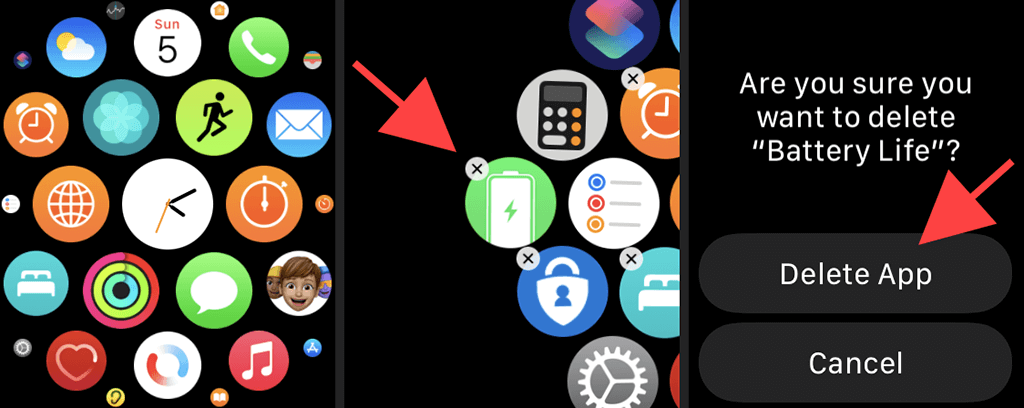
If you want to remove an app quickly while on the go, your best bet is doing it right on your wrist. However, you must be in Grid View—this method doesn’t work in List View.
Use Grid View to Delete with the X Button
This is the most visual and intuitive way to uninstall apps from your Apple Watch.
Steps:
- Press the Digital Crown to return to your app screen.
- Touch and hold any app icon until all icons start jiggling (you’ll see them shake slightly).
- Look for the red X in the top-left corner of the app you want to remove.
- Tap the X, then confirm by selecting Delete App.
- Press the Digital Crown again to stop jiggling and exit.
✅ Works for: Third-party apps (e.g., Spotify, Strava, Uber) and iPhone-synced apps.
❌ Doesn’t work for: Built-in Apple apps—no X appears.
⚠️ Troubleshooting tip: If icons don’t jiggle, go to Settings > Apps > App View > Grid View on your watch.
This method gives you instant control, but remember: only removable apps show the X. System apps like Voice Memos or Podcasts won’t budge.
Swipe Left to Delete in List View (Quick Shortcut)
Prefer scrolling through a clean list of apps? You can delete them faster using swipe gestures—but only in List View.
Steps:
- Press the Digital Crown to open your app list.
- Swipe left on the app you want to remove.
- A red trash icon appears—tap it.
- Confirm with Delete App.
✅ Best for: Power users who navigate via list and want one-swipe deletion.
❗ Note: Swipe-to-delete is disabled for non-removable apps—no option appears.
To switch to List View:
– On Apple Watch, go to Settings > Apps > App View > List View.
This keeps your screen minimalist and lets you manage apps without the jiggly animation—perfect for those who hate visual chaos.
Remove Apps Using the iPhone Watch App (Full Control)
For deeper control—especially when managing multiple apps or preventing future clutter—the Watch app on iPhone is your most powerful tool.
Toggle Off “Show App on Apple Watch” (Hide Without Deleting)
This instantly removes an app from your watch while keeping it on your iPhone.
Steps:
- Open the Watch app on your iPhone.
- Tap the My Watch tab.
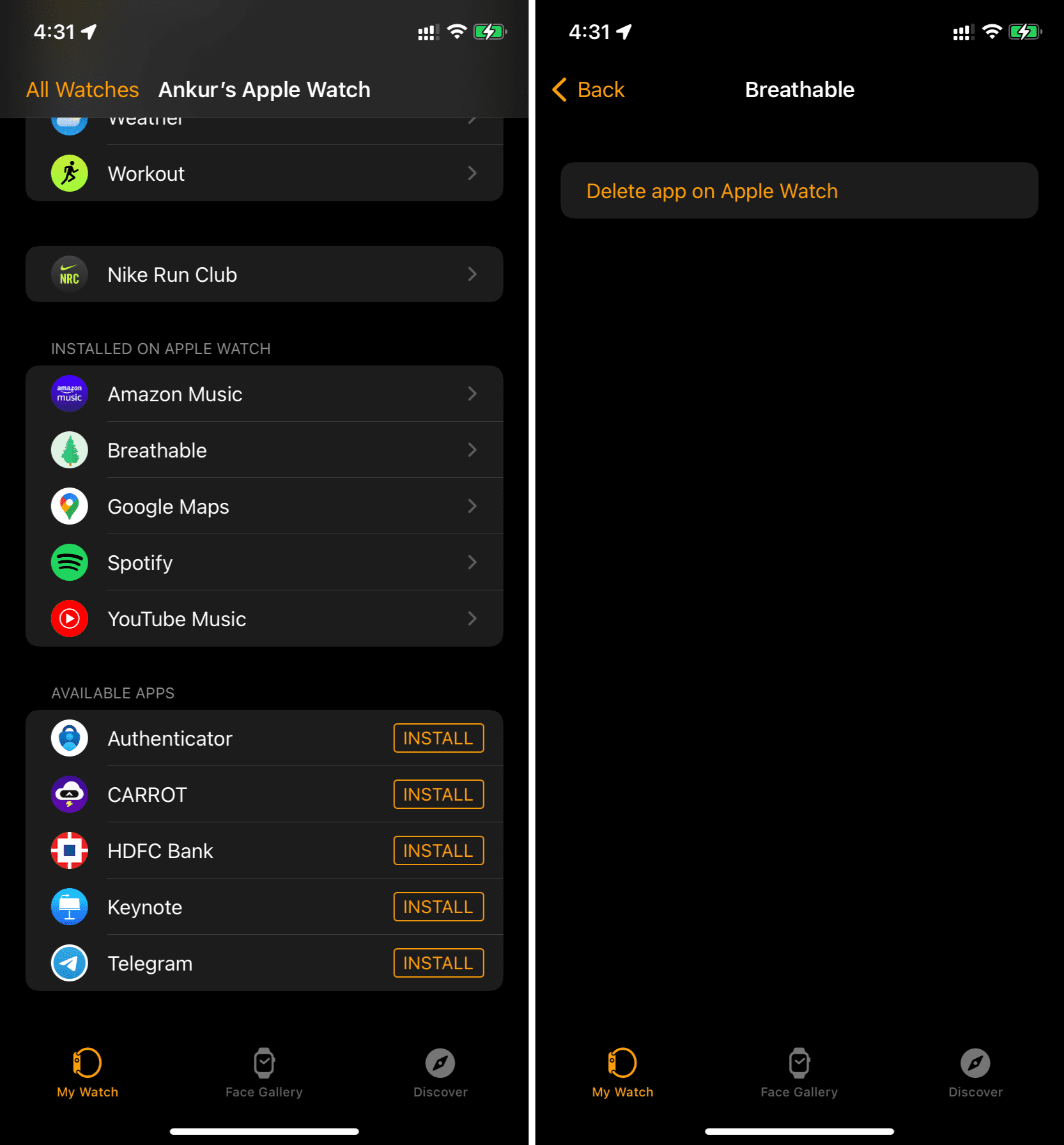
- Scroll down to Installed on Apple Watch.
- Find the app and tap the “i” (info) icon next to it.
- Toggle off Show App on Apple Watch.
✅ Result: App disappears from your watch. iPhone version stays intact.
💡 Use case: Ideal for apps you use occasionally but don’t want cluttering your interface.
This is perfect for apps like Podcasts or Audiobooks—you might use them weekly, but they don’t need a permanent spot on your wrist.
Fully Delete Watch-Only Apps
Some apps run only on the watch, like fitness trackers, games, or health utilities. These must be uninstalled completely.
Steps:
- In the Watch app, go to My Watch > Installed on Apple Watch.
- Tap the “i” next to the app.
- Tap Delete App on Apple Watch.
- Confirm with Delete.
✅ Applies to: Standalone watch apps (e.g., Sleep++, AutoSleep, WatchBands).
📦 Storage benefit: Frees up space for music, updates, or new apps.
Unlike synced apps, deleting these removes all data from the watch. However, your iPhone data (if any) remains untouched.
Apps You Can’t Delete—And How to Work Around Them

No matter how much you try, certain apps are locked in place by Apple. These core system apps support essential functions and cannot be removed—even in 2024.
Non-Deletable Built-in Apps Include:
- Clock
- Phone
- Messages
- Workout
- Calculator
- Weather
- Stocks
- News
- Podcasts
- App Store
- Find My
- Voice Memos
- Calendar
- Photos
- Audiobooks
- Stopwatch
- Alarms
- Timer
❌ No delete option appears in Grid View, List View, or the Watch app.
💬 User frustration: “Why do I need Stocks on a device I use for running and calls?”
While Apple claims these apps ensure OS stability, many users feel they contribute to unnecessary visual clutter, especially those with ADHD or minimalistic preferences.
Workarounds to Minimize Clutter
Since you can’t delete system apps, organize and hide them instead.
Switch to List View or Use App Library
Reduce visual overload with smarter navigation.
Steps:
- On Apple Watch, go to Settings > Apps > App View.
- Choose List View for a scrollable, text-based menu.
- Or enable App Library (watchOS 7+) to auto-sort apps into categories like Utilities, Health, and Media.
✅ Benefit: Frequently used apps stay front and center; others are tucked away automatically.
App Library is especially helpful if you have 30+ apps—it keeps your main screen clean without deleting anything.
Rearrange Apps Strategically
Push unused apps to the edge of your app grid or behind less-used watch faces.
Tips:
- Place rarely used apps on the last screen of your app grid.
- Use complications (mini widgets on your watch face) to access key data—no need to open apps.
- Avoid placing non-essential apps on your most-used watch face.
💡 Pro tip: Long-press your watch face, swipe to switch, then tap Edit to customize complications for time, heart rate, battery, or weather.
This reduces taps and keeps your interface distraction-free.
Stop Apps from Auto-Reappearing
Deleted apps sometimes return after syncing with your iPhone. Here’s how to stop it.
Disable Automatic App Install
Prevent new iPhone apps from syncing to your watch.
Steps:
- Open Watch app on iPhone.
- Go to General > App Install.
- Turn off Automatic App Install.
✅ Result: Installing a new app on your iPhone won’t push it to your watch.
⚠️ Exception: If you delete an app from your iPhone, it will also be removed from the watch—even if auto-install is off.
This setting is crucial for avoiding future clutter—especially after installing trial apps or games.
Troubleshooting: Can’t Delete an App?
Several issues can block app removal. Here’s how to fix them.
App Has No X or Trash Option
Likely Causes:
- It’s a built-in Apple app (e.g., Calculator, Stocks).
- You’re in List View and trying to use jiggly mode (only works in Grid View).
✅ Fix: Switch to Grid View in Settings, or accept that system apps can’t be removed.
Screen Time Restrictions Are Blocking Deletion
Parental controls or Screen Time may disable app deletion.
Fix:
- On iPhone, go to Settings > Screen Time > Content & Privacy Restrictions.
- Tap iTunes & App Store Purchases.
- Set Deleting Apps to Allow.
🔐 Required for: Family-shared Apple Watches or supervised devices.
App Is Tied to a Background Service
Some fitness or health apps resist deletion while active.
Solution:
- Close the app on your watch.
- Disable Background App Refresh in the Watch app (My Watch > [App] > Background App Refresh).
- Try deleting again.
Benefits of Removing Unused Apps
Cleaning up isn’t just about looks—it improves your watch’s performance.
Frees Up Storage Space
Apple Watch models have limited storage (typically 32GB, with 10–15GB used by the OS). Removing large apps (e.g., music, games) can free space for:
– Offline music
– Podcasts
– Watch faces
– System updates
📊 Example: Deleting a music app with 500MB of cached songs improves sync speed and update reliability.
Improves Performance and Battery Life
Fewer apps mean:
– Less memory usage
– Faster app switching
– Reduced background activity
– Lower battery drain
✅ Pro tip: Remove apps with frequent notifications (e.g., social media, news) to extend battery life.
Reduces Distractions
A clean interface helps you focus—especially during workouts, mindfulness, or work.
💬 User insight: “Less clutter = fewer distractions. I check my watch for time and heart rate, not headlines.”
Best Practices for App Management
Keep your Apple Watch lean and efficient.
Audit Apps Monthly
Review what you actually use.
Quick Checklist:
- Open Watch app > My Watch > Installed on Apple Watch.
- Sort by Recently Used.
- Delete apps unused in 30+ days.
⏱️ Time required: Under 3 minutes.
Use iPhone Method for Bulk Control
Delete multiple apps fast using the Watch app.
✅ Efficiency boost: Manage 10+ apps in under a minute.
Use Complications Instead of Apps
Add Timer, Weather, Heart Rate, or Battery as complications.
💡 Result: Fewer taps, faster access, less app clutter.
Summary: What You Can and Can’t Do
| Action | Possible? | How |
|---|---|---|
| Delete third-party apps | ✅ Yes | Grid View X or iPhone toggle |
| Remove synced iPhone apps | ✅ Yes | Toggle off in Watch app |
| Delete built-in apps | ❌ No | Calculator, Stocks, Weather stay |
| Hide apps from view | ✅ Partial | Toggle off or move to edge |
| Swipe to delete in List View | ✅ Yes | For removable apps only |
| Stop auto-install of apps | ✅ Yes | Disable in General > App Install |
| Reinstall deleted apps | ✅ Yes | From App Store on iPhone or watch |
Final Tips
- Deleting an app from your iPhone removes it from your Apple Watch if it has a companion component.
- Re-adding apps: Go to the App Store on your iPhone or Apple Watch.
- All changes are reversible: You can always re-enable “Show App on Apple Watch.”
While Apple gives you strong tools for managing third-party apps, the inability to remove system apps remains a major limitation. Until full customization arrives, use List View, App Library, and strategic toggling to create a minimalist, high-performance watch experience.
Keep your watch focused on what you actually use—because a clean interface isn’t just satisfying, it’s smarter, faster, and more personal.




