
Is your Apple Watch showing a red iPhone icon or failing to receive notifications? You’re not alone. When the connection between your Apple Watch and iPhone breaks, core functions like calls, texts, health tracking, and app alerts stop working. The good news: most pairing problems can be fixed at home in under 30 minutes. Whether you’re seeing “paired to another iPhone,” missing data, or a frozen setup screen, this guide walks you through proven steps to repair Apple Watch to iPhone—safely and effectively.
You’ll learn how to diagnose the root cause, restart and reset devices properly, re-pair with confidence, and most importantly, preserve your health and activity data. Every step follows Apple’s official protocols and real-world troubleshooting experience. No guesswork, no jargon—just clear, actionable fixes that work.
Check Bluetooth, Wi-Fi, and Device Proximity First
Before diving into resets, rule out simple connection blockers. Most pairing issues stem from incorrect settings or distance.
Enable Bluetooth and Wi-Fi on iPhone
Your Apple Watch connects via Bluetooth and uses Wi-Fi for remote syncing. If either is off, the link fails.
- Open Control Center (swipe down from top-right on iPhone X or later)
- Make sure Bluetooth and Wi-Fi icons are active
- If Airplane Mode is on, disable it immediately
For full control, go to:
– Settings > Bluetooth → Toggle ON
– Settings > Wi-Fi → Connected to a network
– Settings > Airplane Mode → OFF
Note: Non-cellular Apple Watches rely on Wi-Fi when out of Bluetooth range. Keep both enabled for stable sync.
Turn Off Airplane Mode on Apple Watch
Airplane Mode disables all wireless signals. Even if turned on by accident, it cuts communication.
- Press the side button to open Control Center
- Tap the airplane icon to disable it
- Wait 10–15 seconds for Bluetooth to reconnect
Also verify:
– Do Not Disturb or Theater Mode isn’t silencing alerts
– Wi-Fi is on under Settings > Wi-Fi on the watch
Keep Devices Within 1 Foot During Setup
Bluetooth range is short—especially during pairing. For best results:
- Place iPhone and Apple Watch within 12 inches (30 cm) of each other
- Avoid metal surfaces, thick walls, or crowded Wi-Fi areas
- Lay them side by side on a table during re-pairing
Pro tip: A weak signal during setup causes failed pairing. Close proximity is critical.
Restart Both Devices to Clear Glitches
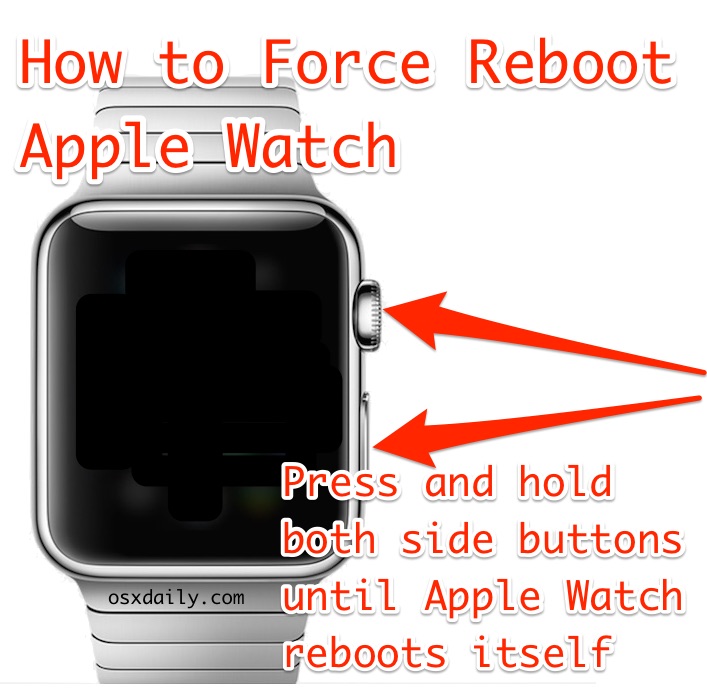
A soft restart resolves temporary software bugs that block syncing or pairing.
Restart iPhone Properly
- Press and hold the side button + Volume Up (iPhone 8 or later) until the power slider appears
- Swipe to turn off
- Wait 30 seconds
- Press and hold the side button until the Apple logo shows
Allow 2 minutes for full reboot.
Restart Apple Watch
- Press and hold the side button until the power slider appears
- Swipe to turn off
- After 30 seconds, press and hold the side button again until the Apple logo appears
Wait time: After both devices restart, give them 2–3 minutes to reconnect automatically. Many issues fix themselves at this stage.
Update iOS and watchOS to Fix Compatibility

Outdated software is a top cause of failed pairing. Ensure both devices run compatible versions.
Update iPhone to Latest iOS
- Go to Settings > General > Software Update
- Download and install any available updates
- Your iPhone must run iOS 14 or later for Apple Watch Series 6 and newer
Tip: Plug into power and connect to Wi-Fi before updating to avoid interruptions.
Update Apple Watch to Latest watchOS
- Open Apple Watch app on iPhone
- Tap General > Software Update
- If an update is available, tap Download and Install
- Keep the watch on its charger with at least 50% battery
- Stay within range of your iPhone during installation
Warning: Do not move devices apart during an update. Interrupting it may require a full reset.
Reset Sync Data Without Erasing Your Watch
If your watch is paired but not syncing messages, calendar, or health data, reset sync data first—it’s safe and non-destructive.
How to Reset Sync Data
- On Apple Watch: Open Settings > General > Reset
- Tap Reset Sync Data
- Confirm action
This removes synced accounts (Mail, Contacts, Calendars) from the watch only. All data stays intact on your iPhone.
What happens next: Devices will re-sync automatically. Allow 5–10 minutes for full restoration.
Best for: Missing notifications but no red iPhone icon.
Unpair Apple Watch Through iPhone App (Safest Method)
When basic fixes fail, unpairing and re-pairing is the most reliable repair. This triggers an automatic backup—so your health data stays safe.
Step-by-Step Unpairing
- Open Apple Watch app on iPhone
- Tap All Watches at the top
- Tap the “i” icon next to your watch
- Select Unpair Apple Watch
- Confirm when prompted
Critical: This creates a full backup of your health data, apps, and settings.
The watch will begin erasing itself. Do not interrupt the process.
Time required: 5–10 minutes. Keep both devices close.
Erase Apple Watch Manually (No iPhone Access)
If you can’t access the original iPhone, erase the watch directly.
How to Factory Reset Without iPhone
- On Apple Watch: Go to Settings > General > Reset
- Tap Erase All Content and Settings
- Enter passcode if needed
- Confirm with Erase All
The watch restarts and returns to factory settings.
Warning: This deletes all data. If no backup exists, health and workout history may be lost permanently.
Use when: Selling, resetting, or pairing to a new iPhone after losing the old one.
Re-pair Apple Watch to iPhone Step by Step
After unpairing or erasing, reconnect your devices using the setup process.
Turn On and Prepare Apple Watch
- Press and hold the side button until the Apple logo appears
- Wait for the “Hello” screen to load
Pair Using iPhone Camera
- Open Apple Watch app on iPhone
- Tap Start Pairing
- Point iPhone camera at the Apple Watch
– Align the watch face in the viewfinder
– A pairing animation will appear - Tap Continue when connected
If scanning fails:
– Tap Pair Apple Watch Manually
– Enter the 6-digit code shown on the watch
Restore from Backup to Keep Health Data
Preserve your apps, settings, and health metrics by restoring from backup.
During Setup: Choose Restore Option
- Tap Restore from Backup
- Select the most recent backup (created during unpairing)
- Sign in with your Apple ID
- Wait for sync to complete
Time estimate: Small backups take 10–20 minutes. Large health datasets may take up to 24 hours.
Pro tip: Keep both devices charged, unlocked, and close during sync.
Fix Common Edge Cases
Some issues need special handling—especially after app deletion or switching phones.
Reinstall Deleted Apple Watch App
Deleting the app doesn’t unpair the watch.
- Open App Store on iPhone
- Search “Apple Watch”
- Tap Get to reinstall
- Open the app
- If it says “paired to another iPhone,” go to All Watches > [i] > Unpair
Then re-pair as new.
Apple Watch Paired to Old iPhone (No Access)
If you lost the original iPhone:
– On Apple Watch: Settings > General > Reset > Erase All Content and Settings
– After reset, pair with your current iPhone
Activation Lock: If Find My Apple Watch was on, you’ll need the Apple ID and password from the previous account.
Prevent Future Pairing Problems
Avoid recurring issues with these habits:
- Enable automatic updates on both devices
- Restart weekly to clear cache
- Keep iCloud Backup enabled: Check Apple Watch app > My Watch > iCloud
- Avoid Bluetooth interference from third-party devices
Final tip: Always unpair through the Apple Watch app—not by erasing—to preserve health data.
If hardware issues persist (no power, frozen screen, water damage), contact Apple Support or visit an Apple Store.





