
Your Apple Watch suddenly freezes, notifications stop arriving, or it won’t connect to your iPhone—but you’re worried about losing your health data, workout logs, or custom watch faces. The good news? You can fix most Apple Watch issues without resetting. A full reset erases everything and forces you to start over, but the vast majority of problems stem from temporary software glitches, not permanent damage. With the right steps, you can restore full functionality while keeping all your personal data intact—from heart rate history to saved complications.
If your Apple Watch still displays apps, activity rings, or messages, your data is safe. Most connectivity failures, syncing errors, or unresponsiveness are fixable using non-destructive methods. Whether it’s a frozen screen, red iPhone icon, or crashing apps, solutions like force restarting, Bluetooth resets, and selective app reinstalls can get your device working again—no data loss required. Let’s walk through the proven ways to repair your Apple Watch without resetting, preserving every bit of your hard-earned health metrics and personalized settings.
Force Restart an Unresponsive Apple Watch
When your Apple Watch won’t respond to taps, freezes on the Apple logo, or gets stuck in a loop, a force restart is your first and safest fix. This clears temporary system crashes without touching your data.
How to Force Restart Safely
- Press and hold the Side button and Digital Crown at the same time.
- Keep holding for at least 10 seconds.
- Release when you see the Apple logo appear.
The screen will go black, then reboot. If the Apple logo shows up, your watch is recovering. Wait for it to fully boot—there should be no setup screen or erase prompt.
What This Fixes
- Frozen interface or unresponsive touch
- Apps that won’t close or crash repeatedly
- Stuck on startup after a failed update
- WatchOS glitches causing lag or crashes
Important: A force restart is like unplugging a frozen computer. It doesn’t delete files, reset preferences, or erase Health data. Your workouts, messages, and third-party apps remain untouched. Use this step whenever your watch becomes non-responsive—it’s fast, safe, and often resolves the issue instantly.
Re-Pair Apple Watch Without Losing Data
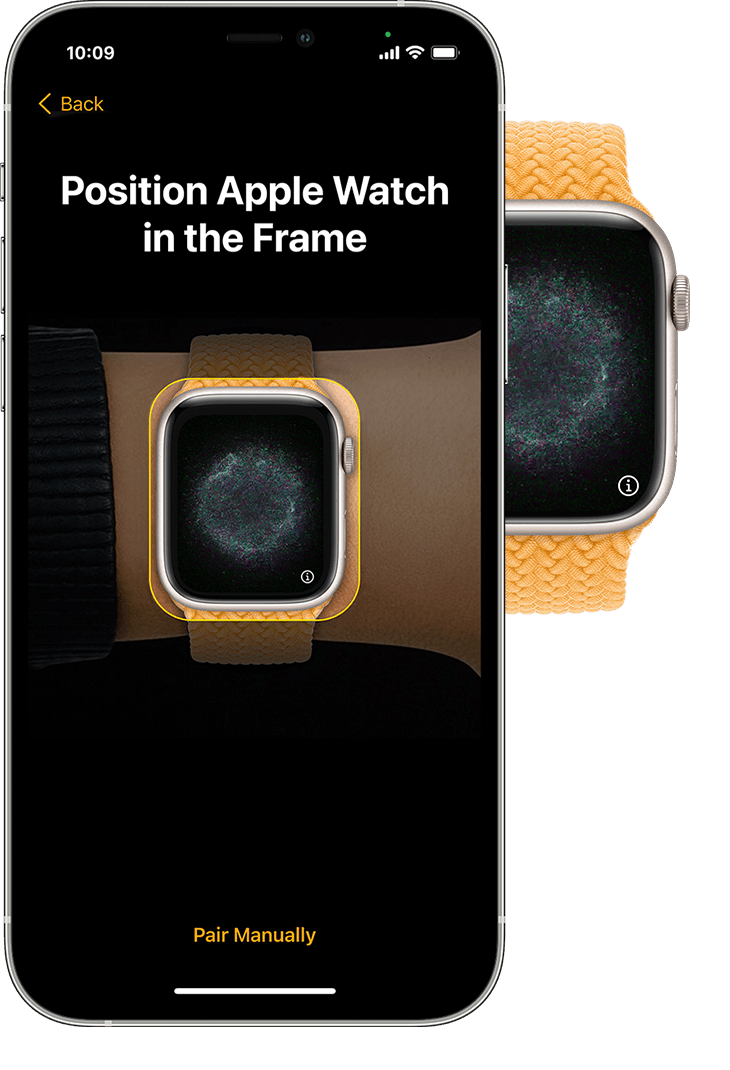
If your Apple Watch shows a red strikethrough iPhone icon or won’t reconnect, don’t panic. You can re-pair it without erasing—preserving all your apps, watch faces, and health records.
Fix the Red iPhone Icon Without Reset
- On your iPhone, go to Settings > Bluetooth and toggle it off.
- Wait 10–15 seconds to let the wireless stack reset.
- Turn Bluetooth back on.
- Open the Apple Watch app and tap Start Pairing.
- Hold your iPhone within 1–2 feet of the watch.
- Watch for the dynamic pairing animation on the Apple Watch screen.
- Tap Pair when the code appears.
If the animation shows up, your watch wasn’t erased—your data is still there. The connection will restore in seconds.
Why This Works
The red “X” icon usually means a Bluetooth handshake failure, not a full unpairing. By resetting your iPhone’s Bluetooth, you clear corrupted connection data and force a fresh handshake. Since the watch wasn’t erased, everything—your Activity rings, custom complications, and third-party apps—stays exactly as it was.
Success Signs:
– No “Set Up as New” prompt appears
– Your usual watch face loads instantly
– Health and workout history is visible
– Third-party apps like Strava or Spotify are still installed
Restart Both Devices to Fix Syncing Failures

When messages don’t sync, calls don’t route, or workouts won’t upload, the issue is often a broken communication link. Restarting both devices together resets the connection pipeline—without deleting a single file.
Fix Syncing Issues with a Dual Restart
- Force restart your Apple Watch: Hold Side button + Digital Crown for 10+ seconds.
- Restart your iPhone:
– iPhone 8 and later: Press and hold Side + Volume Down until the power slider appears.
– Slide to power off, wait 10 seconds, then turn it back on. - Wait for both devices to fully boot.
- Open the Apple Watch app and check the connection status.
What Gets Fixed
- Delayed or missing notifications
- Failed call and message syncing
- Stalled WatchOS updates
- Handoff and AirDrop malfunctions
This method clears background processes that block communication between devices. It’s a clean reset for Bluetooth, Wi-Fi, and iCloud syncing—without any data loss.
Update WatchOS and iOS Without Resetting
Outdated software is a common cause of crashes, freezes, and connectivity drops. Fortunately, you can update both devices without resetting—and in most cases, the update will resolve the underlying issue.
How to Update Safely
On Apple Watch:
- Open Settings.
- Tap General > Software Update.
- If an update is available, download and install it.
- Keep your watch on the charger during installation.
On iPhone:
- Open the Apple Watch app.
- Go to General > Software Update.
- Install any pending updates.
Key Notes
- Updates patch bugs—they don’t erase your data.
- Always ensure your devices have over 50% battery or are charging.
- A backup is automatically created before major updates.
If your watch has been acting up since a recent update, rolling forward to the latest version may fix it—Apple often releases patches for known issues within weeks.
Reset Wireless Features to Fix Connection Glitches

Stuck Bluetooth, failed Wi-Fi sync, or disabled Handoff? Resetting wireless features can fix these instantly—no reset needed.
Quick Wireless Reset Steps
| Feature | How to Reset |
|---|---|
| Bluetooth | Settings > Bluetooth → Toggle off, wait 10 sec, toggle on |
| Wi-Fi | Settings > Wi-Fi → Toggle off/on |
| Airplane Mode | Swipe up for Control Center → Turn on → Wait 10 sec → Turn off |
| Do Not Disturb | Control Center → Toggle off/on |
| Handoff | iPhone: Settings > General > AirPlay & Handoff → Toggle off/on |
Best Practices
- Always wait 10 seconds after turning a feature off before turning it back on.
- Use Airplane Mode to reset all wireless modules at once.
- If issues persist, follow up with a dual restart.
This method clears stuck connections to your iPhone, Wi-Fi networks, and Bluetooth accessories—without affecting your apps, Health data, or messages.
Reinstall Crashing Apps Without Resetting
If one app keeps freezing your watch or draining the battery, don’t reset the whole device. Just reinstall the problematic app.
How to Fix a Crashing App
- Open the Apple Watch app on your iPhone.
- Tap the My Watch tab.
- Select the app that’s causing issues.
- Tap Show App on Apple Watch and toggle it off.
- Wait 10 seconds, then toggle it back on.
The app will automatically reinstall. All your other apps, watch faces, and Health data remain untouched.
When to Use This
- An app won’t open or crashes on launch
- It causes the watch to freeze or lag
- It uses excessive battery
- System instability started after installing it
This is a surgical fix—only the selected app is affected.
Reset Sync Data While Keeping Health Intact

If your Calendar, Mail, or Contacts aren’t syncing—but you don’t want to lose Health or Activity data—use Reset Sync Data.
How to Clear Sync Cache Safely
- On iPhone, go to Settings > Apple Watch > General > Reset.
- Tap Reset Sync Data.
- Confirm the action.
Your watch will re-sync mail, contacts, and calendar events from your iPhone.
What’s Preserved vs. Cleared
✅ Kept Safe:
– Health & Activity history
– Workouts and sleep data
– Third-party apps
– Watch faces and complications
❌ Cleared and Re-synced:
– Mail, Contacts, Calendars
– Notes, Reminders
– iCloud-synced settings
This is ideal when syncing fails but your Health data is intact.
Diagnose Issues Using the Apple Watch App
The Apple Watch app on your iPhone is a powerful diagnostic tool—use it to spot and fix problems before they escalate.
How to Check Connection Status
- Open the Apple Watch app.
- Look for the status icon:
– ✅ Green dot: Connected and healthy
– ❌ Red “i” icon: Connection issue - Tap the red icon for troubleshooting tips.
- Follow prompts to reconnect via Bluetooth or Wi-Fi.
The app may suggest a re-pair or restart—both safe, non-destructive actions.
When to Avoid Resetting Your Apple Watch
Resetting should be a last resort. If your watch still shows apps, activity rings, or messages, you don’t need to reset.
✅ Skip Reset If:
- Force restart works
- Pairing animation appears
- Health data is visible
- Watch responds to basic inputs
⚠️ Reset Only If:
- Watch won’t boot after multiple restarts
- Screen is completely frozen
- System corruption prevents use
- Apple Support confirms OS damage
Even then, unpair via iPhone first to trigger an automatic backup.
Protect Your Data With Smart Habits
Avoiding reset starts with good data hygiene.
Key Protection Tips
- Sync daily: Keep iPhone and watch close to ensure Health data uploads.
- Enable iCloud Backup: Go to Settings > [Your Name] > iCloud > iCloud Backup.
- Check backup status: In Apple Watch app > General > Usage > Backups.
- Never erase manually unless directed by Apple.
What Survives Without Reset
- Health & Activity: Stored locally and synced to iPhone
- Workouts: Saved even if unsynced
- Wallet cards: Transit, credit, and key cards stay secure
- Custom watch faces: Layouts and complications preserved
- Messages: Local cache remains until sync completes
Summary: Repair Your Apple Watch Without Resetting
✅ Try These Steps First (In Order)
-
Force Restart Watch
Hold Side + Digital Crown for 10+ seconds. -
Re-Pair via Bluetooth Reset
Toggle iPhone Bluetooth off/on, then re-pair. -
Restart Both Devices
Reboot iPhone and watch together. -
Update WatchOS and iOS
Install latest versions. -
Toggle Wireless Features
Reset Bluetooth, Wi-Fi, Airplane Mode. -
Reinstall Faulty Apps
Disable and re-enable in Apple Watch app. -
Reset Sync Data
Clears mail, contacts, calendars—keeps Health.
❌ Reset Only If:
- All steps fail
- Watch won’t boot
- Apple Support advises it
🛡️ Pro Tips
- Always check backup status before any action.
- Use Airplane Mode for a full wireless reset.
- Keep devices charged during troubleshooting.
Most Apple Watch issues are fixable without resetting. By using force restarts, re-pairing, and targeted resets, you can restore full function—while keeping your health data, apps, and customizations intact. For hardware issues like cracked screens or water damage, visit an Apple Store; your data usually survives if the device powers on. Stick to these steps, and you’ll avoid unnecessary resets for good.





