
You wake up, glance at your Apple Watch, and wonder: How well did I actually sleep? Instead of guessing, you can now get a clear answer—your Sleep Score. Introduced with watchOS 26 and iOS 16, this 0–100 metric turns your overnight biometrics into a single, easy-to-understand number that reflects the quality of your rest. Whether you’re tracking recovery, adjusting bedtime habits, or simply curious, the Sleep Score gives you actionable insight.
But how do you find it? Where does it appear? And what if it’s missing? This guide walks you through how to see your Sleep Score on Apple Watch, how it’s calculated, why it matters, and what to do if you’re not seeing it. You’ll also learn how to improve your score, use third-party devices, and even track sleep without wearing your watch.
Let’s dive in—and start making your sleep work for you.
Open the Sleep App on Apple Watch for Instant Access
The fastest way to check your Sleep Score is directly from your wrist—no phone needed.
Launch the Sleep App from Your Wrist
To view your score:
1. Press the Digital Crown on your Apple Watch.
2. Locate and tap the Sleep app (icon: a moon inside a circle).
3. Your latest Sleep Score appears at the top of the screen, labeled clearly with a number and color-coded background.
If this is your first time opening the app, ensure sleep tracking is enabled. If not, you’ll see a message: “Sleep is not enabled on this watch.”
✅ Fix it now: Open the Watch app on iPhone > My Watch > Sleep > toggle on “Use This Watch for Sleep.”
Swipe Up to View Full Sleep Details
After checking your score, swipe up to unlock deeper insights:
– Total sleep duration vs. time in bed
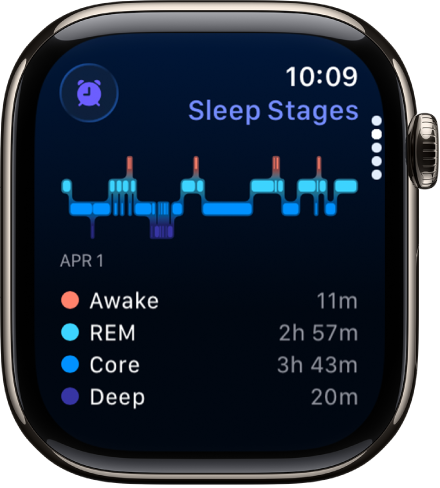
– Sleep stages (light, deep, REM) — available on Series 9 and Ultra 2 with advanced analysis
– Restlessness and nighttime awakenings
– Consistency rating based on your recent sleep patterns
Your Apple Watch uses heart rate, movement, and HRV (Heart Rate Variability) overnight to generate this data. The longer you track, the more personalized and accurate the insights become.
❗ Note: Apple Watch Series 3–5 support sleep tracking but won’t display the Sleep Score on the watch face. However, the score will still appear in the iPhone’s Health app.
Check Sleep Score in the iPhone Health App for Long-Term Trends

For deeper analysis and historical context, the Health app is your best resource.
Navigate to Sleep Score in the Health App
To find your score:
1. Open the Health app on your iPhone.
2. Tap the Browse tab (bottom right).
3. Scroll down and select Sleep.
4. Tap Sleep Score under “Health Categories.”
Here you’ll see:
– Your daily Sleep Score
– A 7-day trend graph
– A 30-day overview
– Historical data going back months—or even years
🔍 Can’t find it? Tap the search bar at the top, type “Sleep,” then select Sleep Score from the results.
View Retroactive Sleep Scores Going Back Years
One of the most powerful features: Apple calculates Sleep Scores retroactively. If you’ve been tracking sleep since April 2020—either via Apple Watch or third-party apps syncing to Health—you’ll instantly see past scores.
This means you can analyze long-term trends: Did your sleep improve after switching jobs? Did weekend late nights drag down your weekly average? The data is already there—just waiting to be reviewed.
Confirm Device Compatibility and Setup Requirements
Not all Apple Watches show Sleep Score the same way. Make sure yours meets the requirements.
Supported Devices and Features
| Apple Watch Model | Sleep Score Support |
|---|---|
| Series 6–9, Ultra 1–2 | Full support: on-watch score + stages |
| Series 3–5 | Sleep tracking only (no on-watch score) |
| iPhone-only users | Can receive Sleep Score via motion/mic |
✅ Best experience: Use Apple Watch Series 9 or Ultra 2 for full REM, deep, and light sleep staging, plus HRV-based recovery insights.
Enable Sleep Tracking to Unlock the Score
If your score isn’t appearing:
1. On iPhone, open the Watch app.
2. Go to My Watch > Sleep.
3. Turn on “Use This Watch for Sleep.”
4. Set a bedtime and wake time (optional but recommended).
Without this enabled, your watch can’t collect sleep data—and no score will be generated.
Understand How Apple Calculates Your Sleep Score

Your Sleep Score isn’t arbitrary. It’s built from four key metrics, each weighted differently:
Sleep Duration (Up to 50 Points)
This is the largest factor. Apple compares your actual sleep time to your personal sleep goal (set in the Sleep app).
– Sleep 8 hours with an 8-hour goal? Max points.
– Sleep 6.5 hours with an 8-hour goal? Significant deduction.
🎯 Pro Tip: Set a realistic goal. If you consistently sleep 7 hours, don’t set an 8-hour target—otherwise, you’ll be penalized daily.
Bedtime and Wake Time Consistency (Up to 30 Points)
Apple evaluates how regularly you go to bed and wake up, using data from the last 13 nights.
– Going to bed within 30 minutes of your usual time boosts consistency.
– Sleeping in 2+ hours on weekends? That hurts your score.
⏰ Weekend effect: Inconsistent weekend schedules are a top reason for lower consistency scores.
Sleep Interruptions (Up to 20 Points)
Tracks awakenings, tossing, and restlessness using motion and heart rate spikes.
– Frequent bathroom trips, snoring, or stress-related wakefulness reduce points.
– Long gaps in your sleep graph = lost points.
💡 Visual clue: In the Health app, look for breaks in your sleep curve—each may indicate an interruption.
Sleep Stages and Restorative Sleep (Indirect Weighting)
While not a standalone 100-point component, deep and REM sleep influence restorative quality.
– More deep/REM = better recovery.
– HRV during sleep also signals restfulness.
Apple may use this data indirectly, especially with newer models that provide detailed staging.
Interpret Your Sleep Score Categories
Apple groups scores into four clear tiers:
| Score | Quality | What It Means |
|---|---|---|
| 90–100 | Excellent | Long, consistent sleep with minimal disruptions |
| 75–89 | Good | Solid rest, minor inconsistencies |
| 60–74 | Fair | Room for improvement—watch for trends |
| 0–59 | Poor | Short duration, irregular timing, or frequent wake-ups |
📊 Expert insight: Don’t fixate on one bad night. Focus on trends over 2–4 weeks. A rising average means progress.
Sync Third-Party Devices to Get Sleep Score Without Apple Watch
You don’t need an Apple Watch to see a Sleep Score.
Compatible Wearables That Feed Data to Health
Apple integrates sleep data from:
– Oura Ring
– Garmin
– Withings
– Whoop
– Zepp (Amazfit)
– Coros
– Ultrahuman
As long as your device syncs to the Health app, Apple will calculate a Sleep Score using that data.
How to Enable Third-Party Integration
- Install your wearable’s iPhone app.
- Grant it permission to write sleep data to Health.
- Wait for the next morning’s analysis.
✅ Benefit: Even if you don’t wear your Apple Watch to bed, you’ll still see a Sleep Score in the Health app.
Track Sleep Using iPhone Only (No Watch Required)
No Apple Watch? You can still get a Sleep Score.
Enable iPhone-Only Sleep Tracking
- In the Watch app on iPhone, go to Sleep.
- Disable “Use This Watch for Sleep.”
- Keep your iPhone on your nightstand while sleeping.
The iPhone uses:
– Motion sensors to detect movement
– Microphone (with privacy safeguards) to listen for breathing/snoring
⚠️ Limitation: Less accurate than Apple Watch. No heart rate or HRV = less precise scoring.
Improve Your Sleep Score with Science-Backed Tips
Want higher scores? Try these proven strategies.
Stick to a Sleep Schedule
Go to bed and wake up at the same time daily, even on weekends.
🔄 Result: Better consistency = up to +30 points.
Limit Evening Caffeine
Avoid coffee, tea, or energy drinks after 2:00 PM. Caffeine can stay in your system for 6–8 hours, delaying sleep onset.
Activate Sleep Focus Mode
- Go to Settings > Focus > Sleep.
- Schedule it to turn on automatically.
- It silences notifications and dims the Lock Screen.
🌙 Bonus: Pair with Wind Down to launch meditation or audiobooks.
Reduce Screen Time Before Bed
Blue light suppresses melatonin, the sleep hormone.
– Use Grayscale (Accessibility) or Night Shift 1 hour before bed.
Optimize Your Bedroom
Keep it cool (60–67°F), dark, and quiet.
– Use blackout curtains and white noise if needed.
Review Trends Weekly
Open the 30-day graph in the Health app.
Ask: What habits match high vs. low scores?
– Late dinners? Evening workouts? Stressful days?
📈 Goal: Spot patterns, then adjust.
Troubleshoot Missing or Low Sleep Scores
“Sleep Score Not Showing?” Fixes
1. Update Software
Ensure watchOS 26+ and iOS 16+ are installed.
2. Check Health Permissions
Go to Settings > Privacy > Health > Sleep > ensure access is granted.
3. Wait for Morning Analysis
Scores appear after analysis, not in real time. Delays happen with third-party syncs.
“High Score, Low Energy?” Explained
Some users feel tired despite high scores. Why?
– Algorithm favors duration and consistency, not how you feel.
– Individual needs vary.
– Stress, diet, and mental health affect energy more than metrics.
🧠 Bottom line: Use the score as one tool, not the full picture.
Maintain Accuracy and Privacy
Charge Your Watch Fully
Start bedtime with 80%+ battery. Low power may disable sensors.
🔋 Tip: Enable Low Power Mode during sleep tracking.
Keep Data Secure
All sleep data is encrypted and stored on-device. iCloud sync is optional and protected by your passcode.
Calibrate for Accuracy
Wear your Apple Watch snugly but comfortably. A loose fit = poor heart rate readings = inaccurate stages.
The Sleep Score turns passive tracking into active improvement. By checking it daily, understanding its components, and adjusting habits, you gain real control over your rest. Whether you use an Apple Watch, third-party device, or just your iPhone, the insights are within reach. Start today—your best sleep is waiting.




