
You step outside, tighten your laces, and glance at your wrist—your Apple Watch is ready to track every stride. Whether you’re pounding the pavement, sprinting on a 400-meter track, or logging miles on a treadmill, the Apple Watch delivers accurate, real-time data to help you train smarter. With built-in GPS, heart rate monitoring, advanced running metrics, and smart features like Track Detection and Race Route, it’s one of the most capable running companions available.
This guide shows you exactly how to track a run on Apple Watch—from starting your workout and customizing metrics to using pro-level tools like lap alerts, pacing, and training load analysis. You’ll learn how to get the most accurate results, whether you’re a beginner or a seasoned runner using an Apple Watch Ultra.
Start an Outdoor or Indoor Run
Begin tracking your run using the native Workout app for instant access to time, distance, pace, and heart rate.
Choose the Right Run Type
- Outdoor Run: Uses GPS to map your route, track pace, and measure elevation.
- Indoor Run: Estimates distance and pace using motion sensors (arm movement). Best for treadmills.
To start:
1. Open the Workout app on your Apple Watch.
2. Scroll with the Digital Crown and select Outdoor Run or Indoor Run.
3. Tap Start (or swipe left and tap Start to skip the countdown if Precision Start is enabled).
Tip: If you’re using an Apple Watch Ultra, press the Action button to launch your assigned workout instantly.
After finishing, tap End, then Save. Your data syncs automatically to the Fitness app on your iPhone.
Customize Your Run Metrics
Tailor what you see during a run so you stay focused on the stats that matter most.
Select Key Running Metrics
You can display up to 12 workout views. Popular choices include:
– Pace (current, average)
– Heart Rate (live, zones)
– Cadence (steps per minute)
– Elevation Gain
– Split Time (per mile/km)
– Activity Rings progress
– Running Power (on Series 8 and newer)
– Ground Contact Time, Vertical Oscillation, Stride Length
How to Edit Workout Views
- In the Workout app, select Outdoor Run or Indoor Run.
- Tap the workout type.
- Scroll through available views.
- Tap Include next to each metric you want.
- Drag to reorder—put your most-used metrics first.
- Tap Edit to adjust units (e.g., mph vs. min/mile) or set thresholds.
Pro Tip: Use the Metrics view to fine-tune which sub-metrics appear (e.g., show heart rate zone instead of raw BPM).
These settings save automatically and apply every time you start a run.
Use Track Detection for Accurate Lap Tracking
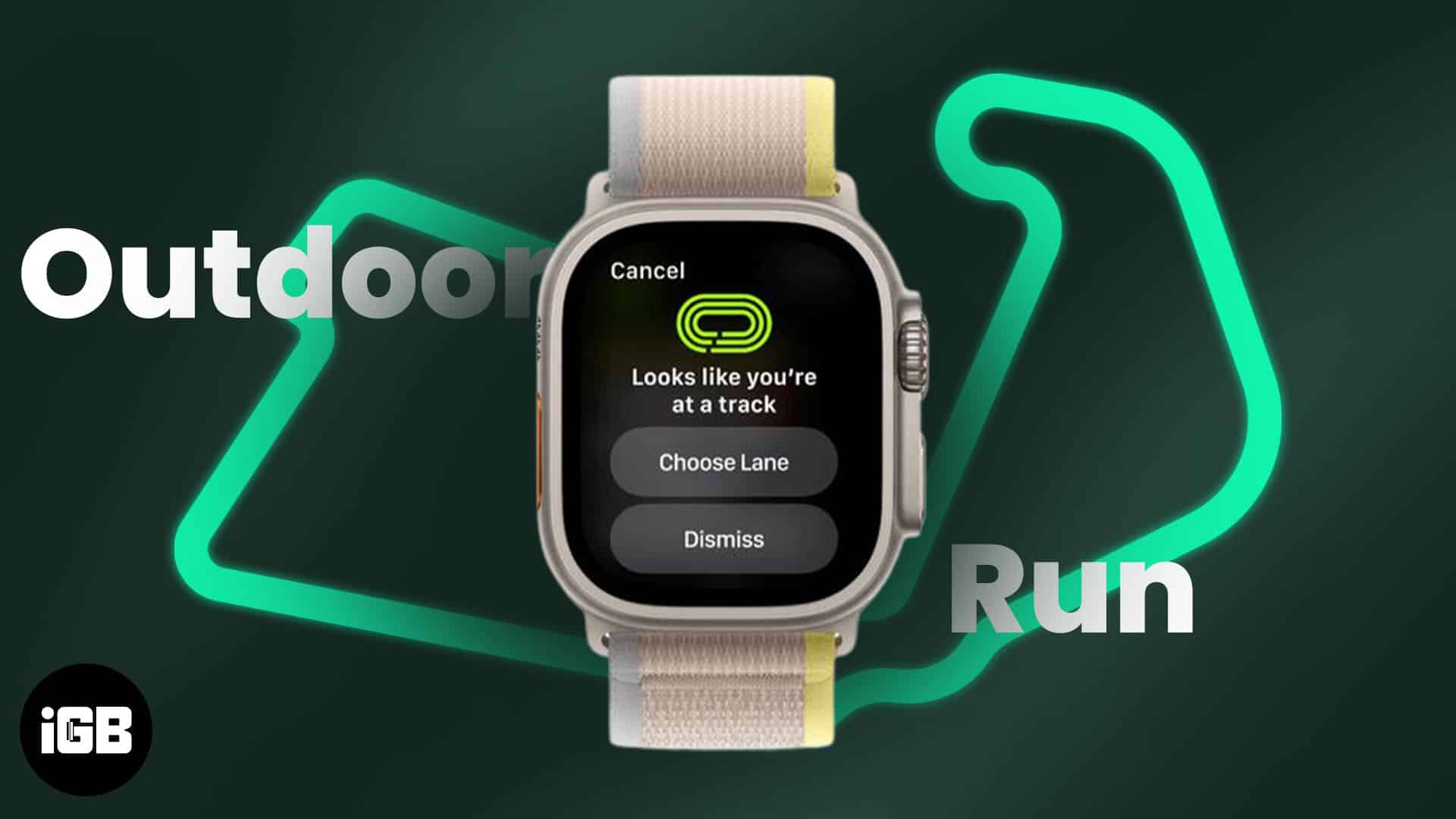
Run precise laps with lane-level GPS accuracy on recognized tracks.
Enable Track Detection
Available on Apple Watch Series 4 and later with watchOS 9.2+, Track Detection activates when you start an Outdoor Run near a standard 400-meter track.
When prompted:
1. Tap Choose Lane.
2. Use +/- buttons to select your lane (1–9).
3. Tap Confirm.
4. Set units: Meters or Miles (first-time only).
Note: If you switch lanes mid-run, swipe right → tap Lane → update your selection.
Why It Matters
- Automatically detects lap splits on standard tracks.
- Eliminates GPS drift with dual-frequency GPS (Ultra models).
- No manual calibration needed.
- Works even if the track isn’t labeled on public maps.
Supported Countries
Track Detection works in:
– United States
– Canada
– UK
– Australia
– Germany
– France
– Italy
– Netherlands
Ensure Location Services and GPS are enabled for best results.
Set Lap Alerts on the Track
Get haptic feedback and split updates every time you complete a lap.
Turn On Lap Alerts
- In the Workout app, tap the ⋯ icon on the Outdoor Run card.
- Tap Alerts.
- Select Track Lap.
- Toggle Lap Alert on.
Once active, your Apple Watch vibrates and displays:
– Split time
– Average pace
– Distance covered
Requirement: Lap alerts only work when Track Detection is active and a lane is selected.
Use this to maintain consistent pacing or push harder on final laps.
Maintain Pace with Pacer Mode
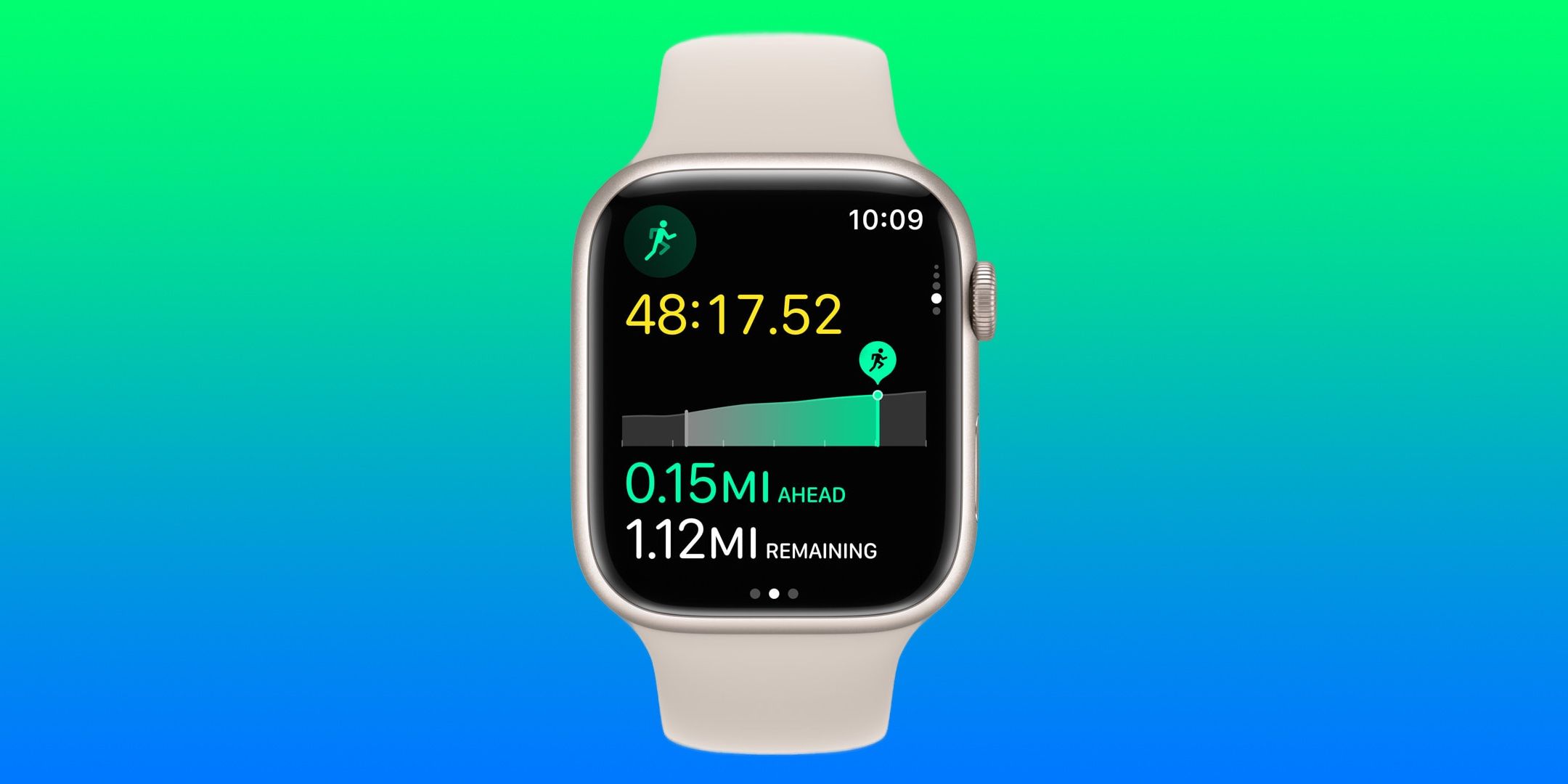
Stay on target with visual cues that compare your current pace to your goal.
Set Up Pacer
- Before starting your run, open the Workout app.
- Tap Outdoor Run → Pacer.
- Set your target pace (e.g., 8:00 min/mile).
- Start the workout.
During the run:
– Green bar above pace: You’re ahead of target.
– No bar: On pace.
– Red bar below: Falling behind.
This real-time feedback helps you avoid going out too fast or fading late.
Race a Previous Route for Motivation
Challenge yourself by racing against your past performance on the same path.
How to Use Race Route
- Start the Workout app.
- Tap Outdoor Run → Race Route.
- Choose a previous run on the same route.
- Begin your workout.
Your Apple Watch shows:
– A moving dot representing your past self.
– Real-time comparison: Faster or Slower than last time.
– Time gap between you and your previous run.
Pro Tip: Combine Race Route with Segment view to break down performance by lap or kilometer.
Ideal for pushing personal records on familiar trails or loops.
Create Custom Interval Workouts
Build structured runs with warm-ups, intervals, recovery, and cooldowns.
Build a Custom Run
- In the Workout app, select Outdoor Run or Indoor Run.
- Tap Custom.
- Add components:
– Warm-up: 5-minute jog
– Work Interval: 1 km fast run (x5)
– Recovery: 2-minute easy jog
– Cooldown: 5-minute walk - Set alerts (e.g., “Pace above 7:00 min/mile”).
- Save as a template (e.g., “Speed Ladder”).
During the run:
– The Apple Watch automatically advances to the next phase.
– Haptic alerts signal transitions (e.g., start sprint, begin recovery).
Use Case: Perfect for tempo runs, hill repeats, or track workouts.
Use Apple Watch Ultra Features for Serious Runners

Maximize performance with hardware built for endurance athletes.
Action Button for Quick Start
Program the orange Action button to:
– Instantly start your Outdoor Run.
– Mark a segment mid-run (swipe right → tap Mark Segment).
To assign:
1. Open Settings on Apple Watch.
2. Go to Action Button → Workout.
3. Select Outdoor Run.
Now one press starts your workout—no app needed.
Precision Start: Skip the Countdown
Eliminate the 3-second delay when starting a run.
Enable it:
1. Go to Settings → Workout → Precision Start.
2. Toggle on.
Now swipe left on the workout screen and tap Start, or press the Action button to begin instantly.
Benefit: Crucial for accurate race starts or interval timing.
Monitor Training Load and Recovery
Track long-term fitness impact and avoid overtraining.
View Training Load
- Open the Activity app on Apple Watch.
- Scroll down to Training Load.
- Turn the Digital Crown to see data over the past 7 days.
Training Load calculates based on:
– Workout duration
– Heart rate intensity
– Effort level
High load? It may be time to rest.
Check Overnight Vitals
See how well your body recovers while you sleep:
– Heart Rate
– Respiratory Rate
– Heart Rate Variability (HRV)
These appear in the Health app under Sleep > Recovery.
Tip: Wear your Apple Watch to bed with Sleep Mode enabled to collect data.
Low HRV or elevated resting heart rate? Consider an easy day.
Sync With Third-Party Running Apps
Use your favorite apps while still syncing data to Apple Fitness.
Top Compatible Apps
- Strava
- Nike Run Club
- Runkeeper
- MapMyRun
- Garmin Connect (limited)
Enable Data Syncing
- Open the app on your iPhone.
- Go to Settings or Connected Apps.
- Link to Apple Health or Fitness.
Once connected:
– Workouts appear in the Fitness app.
– Contribute to Activity Rings.
– Count toward Training Load.
Limitation: Some apps don’t support all Apple Watch metrics (e.g., Running Power, Ground Contact Time).
Use the native Workout app for full metric access.
Play Music, Calls, and Use Apple Pay
Stay connected and motivated without carrying your phone.
Stream Audio from Your Wrist
- Sync playlists from Apple Music, Spotify, or Podcasts.
- Play offline: Download music directly to your Apple Watch.
- Control playback from the Now Playing screen.
No headphones? Use the built-in speaker for short voice cues.
Make Calls and Send Messages
- Answer calls via cellular or Bluetooth.
- Use Siri (“Send a message to Sarah I’m halfway done”).
- Dictate replies or use Quick Responses.
Use Apple Pay Mid-Run
Need water or a snack?
1. Double-click the side button.
2. Hold watch near terminal.
3. Pay without pulling out your wallet.
Review Post-Run Data
Analyze performance and track progress over time.
On Apple Watch (Activity App)
After ending your run, view:
– Total time and distance
– Average and max pace
– Heart rate zones
– Calories burned
– Elevation gain
– Route map (with lane-accurate track data)
– Segment comparisons
Swipe left to see each metric.
On iPhone (Fitness App)
For deeper analysis:
– View trend charts (weekly, monthly).
– Share workout summary via Messages or Mail.
– Export data through the Health app.
– See photos taken during the run (if camera remote was used).
Insight: Compare today’s run to past efforts to spot improvements.
Maximize Accuracy: Calibration & Tips
Get the most reliable data from every run.
Calibrate Indoor Runs
Improve treadmill accuracy:
1. Run outdoors with GPS once (at least 20 minutes).
2. Keep arm motion natural.
3. The Apple Watch learns your stride length.
After calibration, indoor run pace and distance become much more accurate.
Optimize GPS Signal
Before starting:
– Stand still for 10–15 seconds after opening the Workout app.
– Wait for GPS to lock (check the status icon at the top).
– Avoid tall buildings or dense tree cover if possible.
Wear Watch Snugly
Loose fit reduces heart rate and cadence accuracy. Wear it:
– One finger’s width below the wrist bone.
– Tight enough to stay in place during arm swings.
Battery Life and Model Differences
Know what to expect based on your Apple Watch model.
| Feature | Supported Models | Notes |
|---|---|---|
| Track Detection | Series 4 and newer | Requires watchOS 9.2+ |
| Dual-Frequency GPS | Apple Watch Ultra, Ultra 2 | Best-in-class accuracy |
| Precision Start | All models (watchOS 9+) | Skip 3-second delay |
| Action Button | Ultra, Ultra 2 | One-touch start and segment mark |
| Advanced Running Metrics | Series 6 and newer | Built-in sensors |
| Training Load | Series 3 and newer | Needs consistent HR monitoring |
Battery Estimates
- Standard models: ~10% per hour during GPS runs.
- Apple Watch Ultra: Up to 36 hours in Workout mode.
- Tip: For long runs, enable Low Power Mode (Settings → Battery).
Complete Run Tracking Workflow
Follow this step-by-step routine for optimal results.
Pre-Run Checklist
- Charge watch to at least 50%.
- Update to latest watchOS (Settings → General → Software Update).
- Customize workout views.
- Set pace goals or interval plan.
- Enable Track Detection if using a track.
During the Run
- Monitor pace, heart rate, and cadence.
- Use Pacer or Race Route for motivation.
- Mark segments (Ultra users).
- Stay connected with audio, calls, or Apple Pay.
Post-Run Review
- End and save the workout.
- Check summary on Apple Watch.
- Dive into details in the Fitness app.
- Monitor Training Load and overnight recovery.
Final Tip: Combine Segment views with Race Route to chase personal bests on favorite loops.
Tracking a run on Apple Watch is simple to start and powerful to master. From basic pace tracking to advanced lap alerts and training load insights, it adapts to your goals—whether you’re training for a 5K or optimizing recovery. With the right setup, your Apple Watch becomes more than a tracker: it’s a coach, competitor, and chronicler of every mile.




