
You’ve got your running shoes laced, your route mapped, and your Apple Watch snug on your wrist. But are you really getting the most out of it? The Apple Watch isn’t just a step counter—it’s a precision running coach, GPS tracker, and performance lab rolled into one. When properly configured, it delivers real-time pace alerts, heart rate zone guidance, lap tracking, and deep post-run analytics that can transform your training.
Yet too many runners leave these powerful features turned off by default. A missed GPS calibration, disabled voice feedback, or unconfigured heart rate zones can mean inaccurate data, wasted effort, and missed progress.
This guide walks you through every essential setting, feature, and workflow to turn your Apple Watch into a fully optimized running machine. Whether you’re training for your first 5K or fine-tuning a marathon plan, these steps ensure reliable tracking, actionable insights, and smarter runs—all without touching your iPhone mid-stride.
Let’s get your watch race-ready.
Enable GPS and Update Software

Turn On Location Services
For accurate outdoor run tracking, your Apple Watch needs access to GPS and motion sensors. Go to Settings > Privacy & Security > Location Services > System Services and toggle on Motion Calibration & Distance. This allows the watch to calculate distance, elevation, and pace using both GPS signals and your stride pattern.
Before every run, wait for the solid GPS icon (a filled dot) to appear. If it’s hollow or missing, stand still in an open area for 30–60 seconds while the watch locks onto satellites. Starting too soon leads to inaccurate distance and pace data.
Update watchOS and iOS
Outdated software can cause GPS drift, incorrect heart rate readings, or missing features. Always keep both devices up to date:
- On iPhone: Settings > General > Software Update
- On Apple Watch: Settings > General > Software Update
Apple frequently improves running algorithms—especially for models like the Apple Watch Ultra 2 and Series 9. Updates often include better GPS accuracy, multi-band signal support, and enhanced metric calculations. Staying current ensures your data stays trustworthy.
Start Outdoor and Indoor Runs
Begin an Outdoor Run
To track a run with full GPS accuracy:
- Open the Workout app on your Apple Watch.
- Turn the Digital Crown to select Outdoor Run.
- Tap Start for a 3-second countdown—or use Precision Start if enabled.
- Wait for GPS confirmation before taking off.
Your watch will display real-time metrics: current pace, heart rate, distance, and elapsed time. After finishing, swipe to end and save the workout.
Switch to Indoor Run for Treadmills
For treadmill sessions, choose Indoor Run. Note: Distance is estimated based on arm motion and stride calibration. To improve accuracy:
- Run outdoors at least once so the watch learns your natural stride length.
- Avoid holding the treadmill handrails—this reduces motion detection.
If your treadmill supports GymKit, tap your Apple Watch to the NFC reader to sync pace, incline, and distance directly, bypassing stride estimation entirely.
Use Precision Start (Ultra Only)
Activate Instant Start
Apple Watch Ultra owners can skip the 3-second countdown with Precision Start. This lets you launch a run instantly using the Action Button—perfect for races or group runs where timing is critical.
To enable:
– Open Settings > Workout > Precision Start, then toggle it on.
– Optionally disable Workout Start Confirmation for zero delay.
Once set:
1. Open Workout app, select Outdoor Run.
2. Wait for GPS lock (watch vibrates when ready).
3. Press the Action Button—no screen tap needed.
⚠️ Tip: Leaving the GPS screen open too long may trigger an orange screen glitch. If this happens, restart the watch or wait for it to reset.
Set Auto Pause and Button Controls
Let Your Watch Pause Automatically
Auto Pause stops the timer when you stop moving—like at crosswalks—and resumes when you start running again. It uses GPS data to detect movement, so it’s highly accurate.
Ensure it’s enabled:
– In Workout app > ⋯ > Preferences > Auto Pause, confirm it’s turned on.
This keeps your average pace accurate and eliminates the need to manually pause.
Control Workouts Hands-Free
Sweaty fingers or gloves? Use physical buttons to manage your run:
- Press Action Button + Digital Crown or Action Button + Side Button to pause or resume.
- Works even with Water Lock enabled.
This shortcut is ideal during intense efforts when screen interaction is impractical.
Create Custom Running Workouts
Build Interval and Tempo Sessions
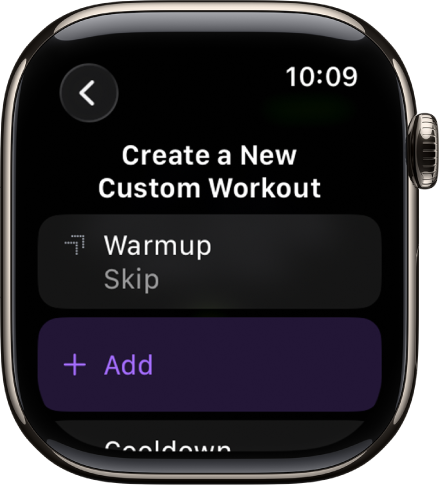
Custom workouts guide you through structured training—like 4 x 1-mile repeats with 90-second recoveries.
To create one:
1. In Workout app, tap ⋯ next to Outdoor Run.
2. Select Create Workout > Custom.
3. Tap Add Workout Set:
– Choose Time, Distance, or Calories.
– Example: 10-minute warm-up, 4 x 1-mile @ goal pace, 1-mile cool-down.
4. Add Alerts for pace or heart rate.
5. Name and save (e.g., “Tempo Tuesday”).
During the run, your watch vibrates when transitioning between segments and displays real-time targets.
Sync with TrainingPeaks
You can’t create custom workouts directly on iPhone—but apps like TrainingPeaks can push them to your watch.
- Sync your account with Apple Health.
- Plan a workout in TrainingPeaks.
- It appears as a purple workout in the Workout app.
Your watch shows instructions (e.g., “Run 6:45/mile”) and alerts if you go off target.
Set Up Pacer for Target Pace
Maintain Consistent Speed
Use Pacer to hold a specific pace throughout your run.
To set:
1. In Workout app, select Outdoor Run.
2. Tap Pacer.
3. Enter Distance (e.g., 5 miles) and Target Time (e.g., 40 minutes).
4. Tap Done.
During the run:
– Watch shows current vs. target pace
– A graph indicates if you’re ahead or behind
– Last Pacer settings are saved for future use
Swipe to Outdoor Run > ⋯ > Pacer > Distance • Time to adjust mid-run or reset.
Race Against Past Routes
Compete With Your PR
After running the same route twice, Apple Watch may suggest Race Route—letting you race your last effort or personal best.
To use:
1. Open Workout app near the start of a saved route.
2. Tap ⋯ > Race Route.
3. Choose to race Last Run or Personal Best.
During the run:
– See how far ahead or behind you are
– If you stray off course, the watch prompts: “Proceed To Route”
– Saved routes appear under Suggested > Route
This turns routine runs into competitive challenges—ideal for motivation and pacing practice.
Track Laps on a Running Track
Automate Lap Detection
When near a track, your Apple Watch may prompt: “Start Track Workout?”
To begin:
1. Tap Choose Lane.
2. Use +/- to select lane (1–9), then Confirm.
3. First time? Set units in Settings > Workout > Units of Measure > Automatic Track Detection.
The watch uses your lane to calculate exact lap distance.
Get Lap Alerts
Stay informed every time you complete a lap:
– Swipe to Outdoor Run > ⋯ > Track Lap > Lap Alert, turn on.
– Watch vibrates and displays:
– Lap time
– Distance
– Average pace
🔄 Change lanes mid-run: Swipe right on the watch face, tap Lane, enter new number.
⚠️ Leaving the track? Accuracy drops. Return to resume precise lap counting.
Set Heart Rate Zones for Training
Define Custom Zones
Apple’s default zones may not match your fitness level. For accurate training:
- Get tested (e.g., VO2 max or lactate threshold test).
- In Health app (iPhone) > Heart > Heart Rate > Custom Zones, set your ranges.
– Example: Zone 2 = 115–130 BPM for aerobic base building.
Create Zone-Based Workouts
Build a custom workout with heart rate alerts:
1. In Workout app > ⋯ > Create Workout > Custom.
2. Add a set (e.g., 4 miles).
3. Tap the set > Add Alert > Heart Rate > Custom Range.
4. Enter lower (115) and upper (130) limits.
5. Save as “Easy Run” or “Long Slow Distance.”
During the run, the watch vibrates if you go above or below the zone—helping you avoid overtraining on recovery days.
✅ Benefit: Builds aerobic endurance, improves fat-burning efficiency, reduces injury risk.
Enable Voice Feedback
Get Audio Updates Mid-Run
No need to glance at your wrist. With Voice Feedback, your watch speaks metrics through connected headphones.
To enable:
– Go to Settings > Workout > Voice Feedback.
– Choose frequency: Every Mile, Every Kilometer, or Custom Interval.
– Select metrics: Pace, Heart Rate, Distance, Calories, Split Time.
Example: “Pace: 8:15 per mile. Heart rate: 142 BPM.”
🔊 Best for: Trail runs, tempo efforts, or when focusing on form. Keeps you in the flow.
Configure Real-Time Alerts
Stay on Target Automatically
Set alerts to notify you when you drift from goals.
To add:
1. In a workout, tap ⋯ > Preferences > Alerts.
2. Add alerts for:
– Pace (e.g., warn if slower than 9:30 min/mile)
– Heart Rate
– Cadence (steps per minute)
– Power (if supported)
– Split Intervals (e.g., every half-mile)
Use cases:
– Prevent surging during easy runs
– Maintain 170–180 spm cadence
– Avoid dropping below target power
These alerts keep your effort consistent without constant screen checks.
Customize Workout Display
Show Only What You Need
Too many metrics cause distraction. Simplify your screen.
To edit:
1. In Workout app > ⋯ > Preferences > Workout View.
2. Tap the pencil icon.
3. Toggle on/off:
– Heart Rate
– Pace
– Cadence
– Power
– Stride Length
– Vertical Oscillation
– Distance
– Time
Try These Pre-Built Views
- Mindful Run: Distance + Time only
- Form Focus: Cadence + Stride Length
- Race Day: Pace + Heart Rate + Split Timer
✅ Result: Less mental load, better focus, improved running economy.
Turn On Auto-Lap and Splits
Capture Lap-by-Lap Data
Enable Auto-Lap to automatically record splits at set distances.
To activate:
– Settings > Fitness > Auto-Lap > On
– Choose interval: Every Mile or Every Kilometer
After the run, review splits in the Fitness app on iPhone:
– Scroll by minute to see split times
– Tap Show More for lap-by-lap breakdown
Use this to analyze pacing strategy—did you negative split? Or fade at the end?
Play Music and Audio Workouts
Run Without Your Phone
Download music directly to your Apple Watch:
– Open Apple Music, Spotify, or Pandora app.
– Tap Library > Add to Watch.
– Choose playlists or albums.
Avoid streaming via cellular—it drains battery fast.
Try Guided Audio Runs
With Apple Fitness+, download “Time to Run” sessions:
– Narrated runs through cities like NYC or LA
– Paced intervals with motivational cues
– No internet needed once downloaded
Perfect for new runners or days when motivation is low.
Connect to Treadmills via GymKit
Sync Real-Time Data
For compatible treadmills (Life Fitness, Technogym, etc.), use GymKit:
- Tap your Apple Watch to the treadmill’s NFC reader.
- Syncs:
– Distance
– Pace
– Incline
– Heart Rate
– Calories
⚠️ Note: GymKit does not work with Custom Workouts. Choose either GymKit or TrainingPeaks—not both.
This gives you lab-grade accuracy indoors, matching outdoor GPS data.
Analyze Runs in Fitness App
Review Post-Run Metrics
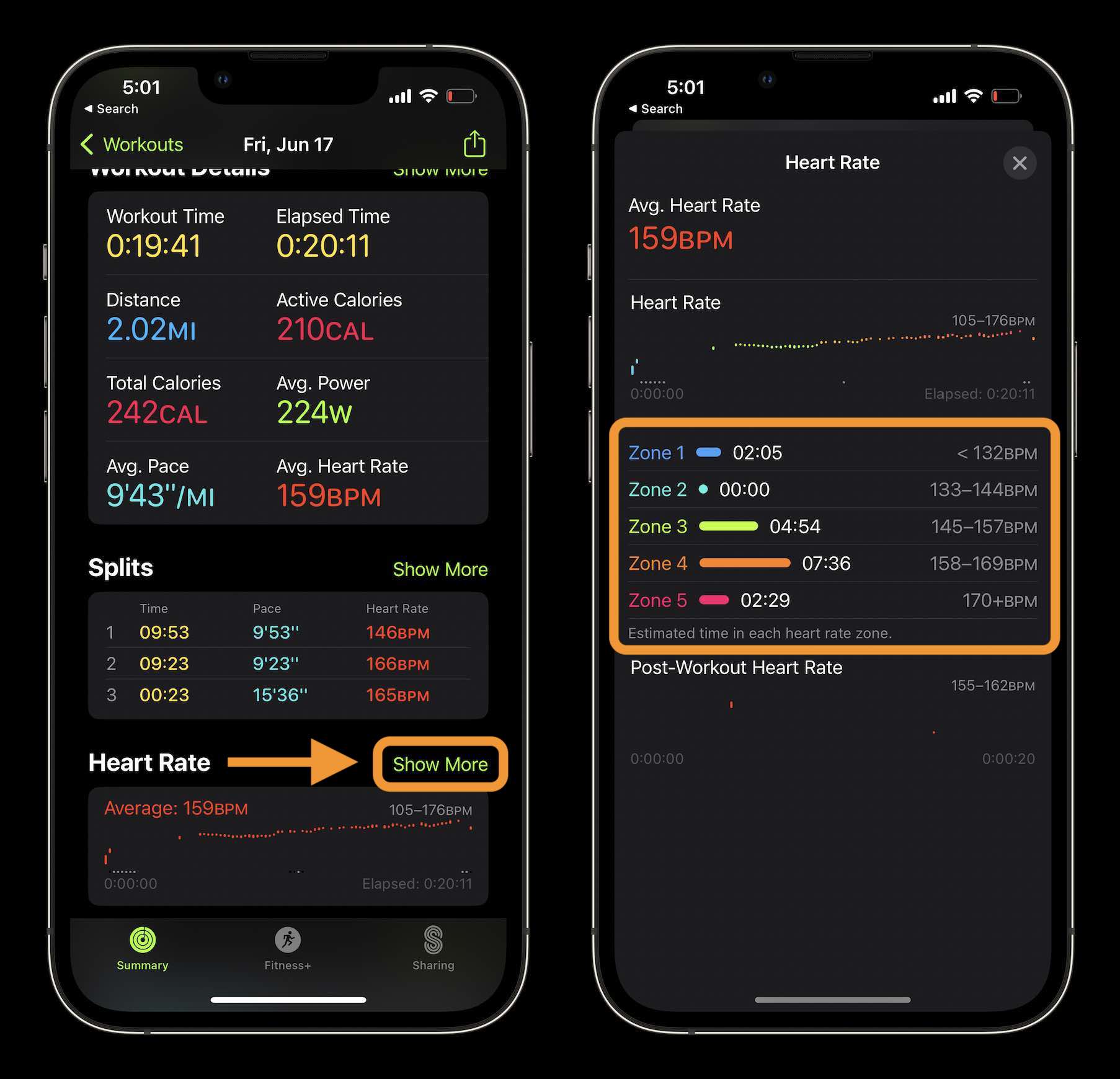
After finishing, your watch shows:
– Duration
– Distance
– Average pace
– Heart rate
– Calories
It syncs automatically to the Fitness app on iPhone.
Tap the run to dive deeper:
– Interactive map with color-coded effort:
– Green = high effort
– Yellow = moderate
– Red = recovery
– Heart rate zones over time
– Cadence, power, elevation
– Hill detection and incline
Use this to spot pacing errors, terrain effects, or fitness trends.
Sync With Strava
Share and Track Progress
To send runs to Strava:
1. On iPhone: Settings > Apps > Strava > Connect with Health
2. Enable Read Data for all fitness metrics
3. Disable Write Data (for safety)
4. Enable Manual Uploads (for privacy)
After a run:
– Open Strava > Import from Apple Health
– Rename activity (e.g., “Tuesday Tempo”)
– Add location, photos, and shoe model
– Track mileage per pair to know when to replace
🔄 Treadmill runs: Confirm distance manually unless using GymKit.
Follow runners like @ShervinShares for inspiration and tips.
Follow a Daily Running Routine
Optimize Every Run
Use this pro workflow for consistency:
- Open Fitness app, select Outdoor Run
- Wait for GPS lock (solid icon)
- Press Action Button to start (Precision Start)
- Turn on Water Lock (prevents sweat touches)
- Use Digital Crown to cycle views
- Finish: press Action + Side Button to pause > swipe to end
- Turn off Water Lock
- Import to Strava via Health
- Add notes, shoes, photos
✅ Repeat daily: Builds reliable data, tracks long-term progress.





