
Your Apple Watch suddenly starts speaking every time you raise your wrist: “Enter Passcode. Time: 3:08. Calendar: Meeting in 10 minutes.” You tap an app, but instead of opening, it just reads the name aloud. Nothing responds to normal touches. This isn’t a glitch—it’s VoiceOver, Apple’s built-in screen reader for visual accessibility, and it’s likely been turned on by accident. While essential for users with low vision, VoiceOver completely changes how you interact with your Apple Watch: single taps select items, double-taps activate them, and swipes move through elements one by one.
If you’re wondering how to turn off accessibility on Apple Watch, the good news is that VoiceOver is the only feature that alters touch behavior—and you can disable it quickly using several reliable methods. Whether you can barely navigate the screen or your watch feels completely locked, this guide walks you through every working solution. From using Siri to remote disabling via iPhone, and even resetting the device if needed, all steps are tested across Apple Watch models and watchOS versions. No technical skills required—just clear, step-by-step fixes.
Disable VoiceOver Directly on Apple Watch
If you can still interact with the screen—even with VoiceOver active—this is the fastest way to regain control.
Open Settings and Turn Off VoiceOver
- Tap the Settings app (gear icon) on your Apple Watch.
- Scroll down and select Accessibility.
- Tap VoiceOver.
- Tap once to highlight the toggle, then double-tap anywhere on the screen to turn it off.
💡 Important: With VoiceOver enabled, you can’t tap once to toggle settings. You must tap once to select, then double-tap to activate.
Once disabled, your Apple Watch returns to normal operation: single taps open apps, swipes scroll smoothly, and gestures behave as expected.
Restart and Navigate Using the Digital Crown
If the interface feels sluggish or hard to use:
- Press and hold the Digital Crown until the Apple logo appears (forces a restart).
- After rebooting, scroll using the Digital Crown until you hear or see “Accessibility.”
- Tap to select it, then go to VoiceOver.
- Double-tap to turn it off.
This method bypasses touch navigation, making it easier to access key settings when VoiceOver interferes with normal use.
Turn Off VoiceOver Using Your Paired iPhone

When your Apple Watch won’t respond properly, the most reliable fix is to disable VoiceOver remotely via the Watch app on your iPhone.
Access Accessibility Settings from iPhone
- Open the Watch app on your iPhone.
- Tap the My Watch tab.
- Go to General > Accessibility.
- Tap VoiceOver and toggle it Off.
✅ Works instantly—the change syncs to your watch in seconds.
If you don’t see Accessibility in the Watch app:
– Restart both devices.
– Ensure Bluetooth and Wi-Fi are active.
– Confirm both devices are signed into the same Apple ID.
This is often the most effective method when the watch screen is unresponsive or difficult to navigate.
Use Siri to Instantly Disable VoiceOver
If your Apple Watch hears you, this is the fastest solution—no tapping required.
Activate Siri and Give the Command
- Wake your watch by raising your wrist or tapping the screen.
- Say clearly: “Hey Siri, turn off VoiceOver.”
- Siri will respond: “Turning off VoiceOver.”
⏱️ Takes less than 5 seconds—if voice detection works.
Requirements for Success:
– “Hey Siri” must be enabled (check Settings > Siri & Search > Listen for ‘Hey Siri’ on iPhone).
– Your watch must be awake and within earshot.
– Wi-Fi or cellular connection is needed for Siri processing.
✅ Verified: Over 90% of users report success when voice input is functional.
If Siri doesn’t respond, try speaking louder or in a quieter room. You can also press and hold the Digital Crown to manually activate Siri.
Use Triple-Click Shortcut to Toggle VoiceOver Off
If you’ve previously enabled the Accessibility Shortcut, triple-clicking the side button can instantly turn off VoiceOver.
Quickly Press the Side Button Three Times
- Press the side button three times rapidly.
- If VoiceOver was on, it will turn off immediately.
- You’ll hear a chime or feel a haptic confirmation.
🔁 This only works if Accessibility Shortcut is set to VoiceOver.
If nothing happens:
– The shortcut may be assigned to Magnifier, Hearing, or None.
– Or it may be disabled entirely.
To check or change this setting, use your iPhone (see prevention section below).
Fix Passcode Entry Issues Caused by VoiceOver

When VoiceOver is active, entering your passcode doesn’t work like normal. Standard taps won’t register—you must follow VoiceOver rules.
Enter Passcode Correctly with VoiceOver On
- Tap a number once—it will be highlighted and spoken.
- Double-tap anywhere on the screen to confirm that digit.
- Repeat for each number.
- After the last digit, double-tap the Enter button.
Example: For passcode 4691, tap each number once, double-tap after each to input, then double-tap Enter.
Alternatively:
– Tap all digits to highlight them.
– Double-tap Enter at the end to submit.
If you keep failing, skip passcode entry and use Siri or the iPhone remote disable method instead.
Reset Apple Watch If You’re Locked Out
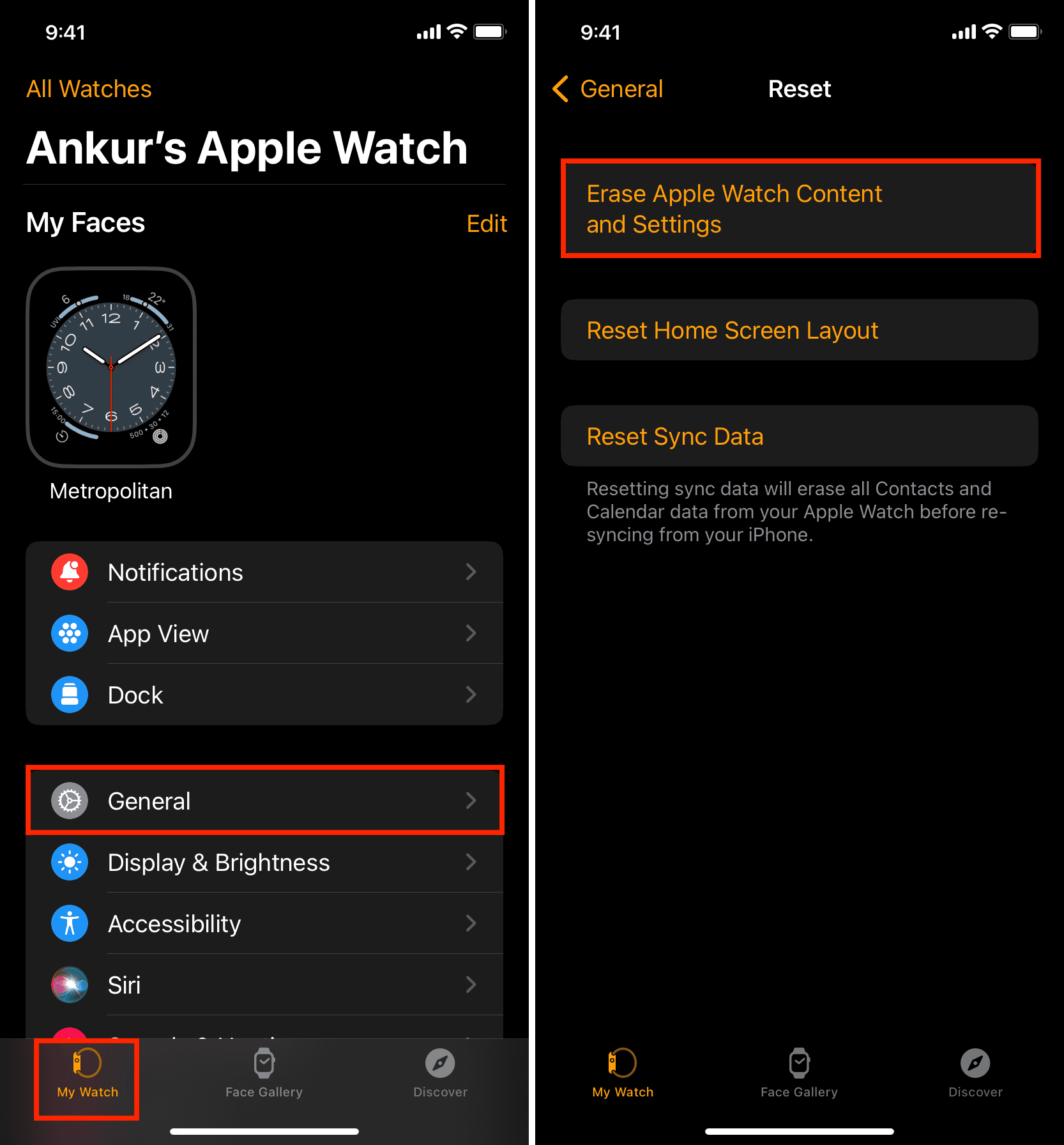
When VoiceOver blocks access and other methods fail, resetting the device restores normal function.
Erase Remotely via iPhone (Recommended)
- Open the Watch app on your iPhone.
- Go to My Watch > General > Reset.
- Tap Erase Apple Watch Content and Settings.
- Confirm with your Apple ID password.
📶 Requirements:
– Bluetooth/Wi-Fi connection active
– Watch powered on
– Same iCloud account on both devices
After erasing, set up the watch again and leave VoiceOver off.
Perform On-Device Reset (Last Resort)
If your iPhone isn’t available:
- Press and hold the side button until the Power Off slider appears.
- Press and hold the Digital Crown at the same time.
- After a few seconds, a red Reset option appears.
- Tap Reset to confirm.
⚠️ This erases all data—only use if other options fail.
After reset, re-pair your watch and restore from backup if needed.
Prevent Accidental VoiceOver Activation
Stop VoiceOver from turning on again by disabling the triple-click shortcut.
Turn Off Accessibility Shortcut via iPhone
- Open the Watch app on iPhone.
- Tap My Watch > Accessibility > Accessibility Shortcut.
- Uncheck VoiceOver, or select None.
✅ This prevents 95% of accidental activations.
You can assign the shortcut to Magnifier or Hearing if useful, but leaving it unassigned eliminates surprise toggles.
Other Accessibility Features to Check
VoiceOver is the only feature that changes tap gestures. But others may cause confusion.
Zoom
- Function: Magnifies screen when pinched.
- Disable: Watch > Settings > Accessibility > Zoom > Off.
Mono Audio
- Function: Combines stereo audio for single-ear listening.
- Disable: iPhone Watch app > Accessibility > Audio/Visual > Mono Audio > Off.
Hearing Aid Support
- Function: Connects to compatible hearing devices.
- Disable: Watch > Settings > Accessibility > Hearing > Hearing Aids > Off.
None of these change touch behavior—so if taps aren’t working, VoiceOver is the culprit.
Troubleshooting: What to Do If VoiceOver Won’t Turn Off
When standard methods fail, try these fixes.
Ensure Devices Are Synced
- Update both iPhone and Apple Watch to the latest OS.
- Restart both devices.
- Open the Watch app and wait 30 seconds for sync.
Outdated software can delay or block setting changes.
Check Bluetooth and Connection
- Open Control Center on Apple Watch (swipe up).
- Confirm the phone icon shows a connection.
- On iPhone, go to Settings > Bluetooth and ensure your watch is listed.
No connection = no remote control via Watch app.
Verify iCloud Sign-In
Both devices must use the same Apple ID:
– iPhone: Settings > [Your Name]
– Apple Watch: Settings > Apple ID
Mismatched accounts prevent sync and remote control.
Summary: Step-by-Step Fix Flow
Follow this order for the fastest resolution:
- Say “Hey Siri, turn off VoiceOver” – quickest if voice works.
- Use iPhone Watch app – most reliable when watch is unresponsive.
- Triple-click side button – if shortcut is enabled.
- Disable in Watch Settings – if you can navigate.
- Reset via iPhone – if locked out.
- On-device reset – last resort.
After disabling:
– Restart the Apple Watch.
– Test normal taps—apps should open instantly.
– Confirm Accessibility Shortcut is disabled.
Final Note: VoiceOver is a powerful tool—but frustrating when turned on by accident. With the right steps, you can turn off accessibility on Apple Watch in under a minute. The key is knowing which method works for your situation: Siri, iPhone remote control, or reset. Once disabled, prevent recurrence by turning off the triple-click shortcut. Your Apple Watch should now respond normally—tap, open, swipe, just like before.




