
If you’ve ever stared at your Apple Watch Series 8, wondering how to shut it down, you’re not alone. Unlike traditional electronics with power switches, the Apple Watch 8 relies entirely on software-driven controls—making the process less intuitive. Whether you’re troubleshooting, preparing to sell your device, or simply curious, knowing how to turn off Apple Watch 8 correctly is essential for maintaining performance and privacy.
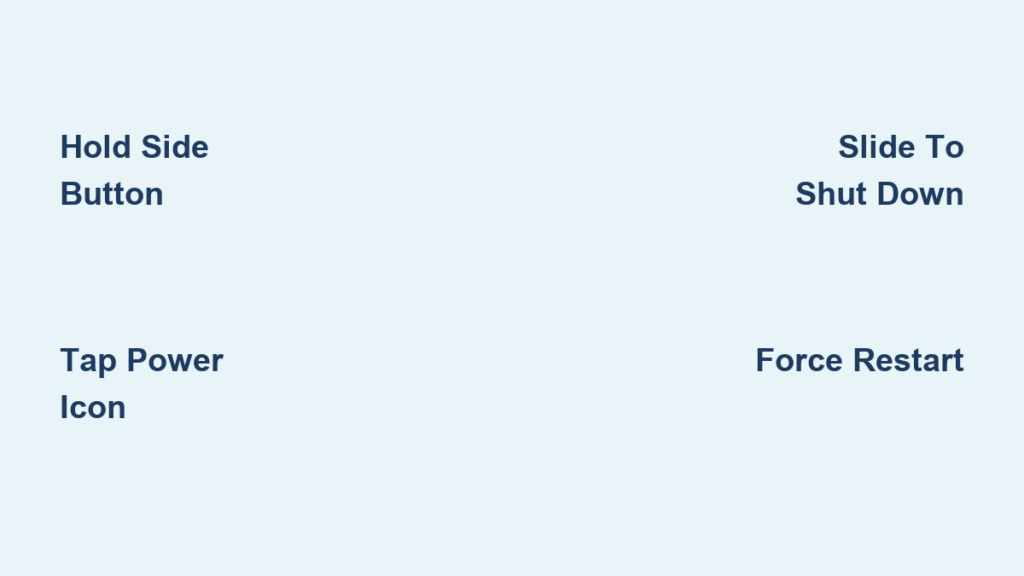
The standard method is simple: press and hold the Side button, tap the red power icon, then slide to power off. But what if the screen is frozen? What if it turns back on by itself minutes later? This guide covers every possible scenario, including force restarts, common glitches, auto-restart fixes, and smarter alternatives that save battery without full shutdown.
Let’s break down the exact steps, troubleshooting tips, and expert-backed best practices to help you master power control on your Apple Watch Series 8.
Shut Down Apple Watch 8 Using the Side Button
Press and Hold the Side Button Until Power Options Appear
To begin powering down your Apple Watch 8, press and hold the Side button (located on the right edge, below the Digital Crown). Keep holding for about 5–10 seconds. The display will exit the watch face and show a Power Off screen with a red power symbol.
This step initiates the shutdown sequence. If nothing appears, ensure your battery isn’t completely drained—devices below 10% charge may respond slowly or not at all.
Pro Tip: Don’t confuse this with waking the watch. A short press brings up the Control Center or activates the display. For shutdown, you must hold continuously until the power menu loads.
Tap the Red Power Off Icon to Activate the Slider
Once the red power icon appears, tap it once. This action enables the slide-to-shut-down function. You’ll now see a draggable slider labeled “Power Off” ready to be swiped.
If tapping does nothing, the touchscreen may be unresponsive due to software lag. In that case, skip to the force restart section instead.
Note: Some older Apple Watch models allow shutdown via Settings > General > Shutdown, but this option is not consistently available on Series 8. The Side button method remains the most reliable.
Slide to Power Off and Confirm Shutdown
Now, drag the Power Off slider from left to right across the screen. Once you do, the watch begins its shutdown process. The screen will dim and go completely black within 10–15 seconds.
At this point, your Apple Watch 8 is fully powered down. No notifications, haptics, or background activity will occur until manually turned back on.
Visual Cue: Watch for the screen to fade out smoothly. If it freezes during shutdown, proceed to a force restart.
How to Turn On Apple Watch 8 After It’s Off
Hold Side Button Until Apple Logo Appears
After shutdown, turning your Apple Watch 8 back on is straightforward. Press and hold the Side button again—this time for up to 10 seconds or more.
Wait until the Apple logo appears in the center of the black screen. This confirms the boot-up sequence has started. Do not release the button too early, or the startup may fail.
Once the logo disappears and the watch face returns, your device is fully operational. It may take a few moments to reconnect with your iPhone over Bluetooth.
Warning: An off Apple Watch shows no signs of life, even when charging. Don’t assume it’s broken—simply initiate startup manually.
Force Restart When Apple Watch 8 Won’t Respond

Simultaneously Press Side Button + Digital Crown
If your Apple Watch 8 is frozen, stuck on the Power Off screen, or unresponsive to taps, a force restart is your best fix.
Here’s how:
– Press and hold both the Side button and the Digital Crown at the same time
– Keep holding for at least 10 seconds
– Release only when the Apple logo flashes on screen
This resets the system instantly and clears temporary software glitches—without deleting any data.
Expert Insight: A force restart is like rebooting a computer. It’s safe, non-destructive, and often resolves issues that prevent normal shutdown.
When Should You Force Restart?
Use this method only when:
– The Power Off icon appears but won’t activate
– The screen is frozen on a single app or screen
– Touch input is ignored entirely
– The device fails to respond after multiple shutdown attempts
Avoid using it daily—it’s designed for emergencies, not routine resets.
Fix: Power Off Icon Shows But Tapping Does Nothing
Diagnose Screen Responsiveness
If the red power icon appears but tapping it does nothing, don’t assume hardware damage. First, test the screen:
– Open the Heart Rate app
– Tap different areas of the screen
– If controls respond normally, the touchscreen is functional
If so, the issue is likely a software freeze, not physical damage.
Apply Software Fixes
Try these steps in order:
1. Force restart the device
2. Update watchOS via iPhone: Watch app > My Watch > General > Software Update
3. Restart your iPhone to refresh the Bluetooth connection
4. Unpair and re-pair the watch if problems persist
Outdated software or sync errors can disrupt even basic functions like powering down.
Stop Apple Watch 8 From Turning Itself Back On
Why Does It Auto-Restart After Shutdown?
A common frustration: your Apple Watch shuts down but powers back on minutes later. This usually happens because:
– The paired iPhone sends Bluetooth signals that trigger reconnection
– The watch hasn’t been fully erased, so it tries to re-enter setup mode
This is especially common when storing or selling the device.
Prevent Automatic Reboots
To stop unwanted restarts:
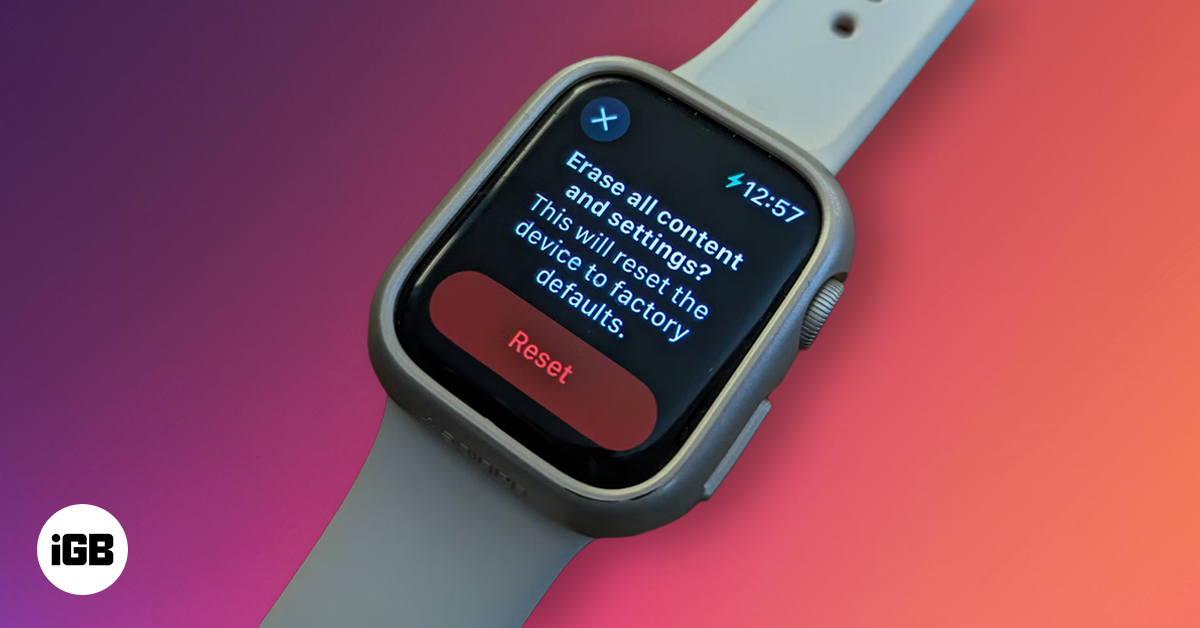
– Erase all content before shutdown:
Settings > General > Transfer or Reset Apple Watch > Erase All Content and Settings
– Turn off Bluetooth on your iPhone
– Enable Airplane Mode on the watch before powering down
These steps cut communication links that could trigger involuntary restarts.
Best Practice: Always erase your Apple Watch before selling or long-term storage to protect privacy and prevent boot loops.
Smart Alternatives to Full Shutdown
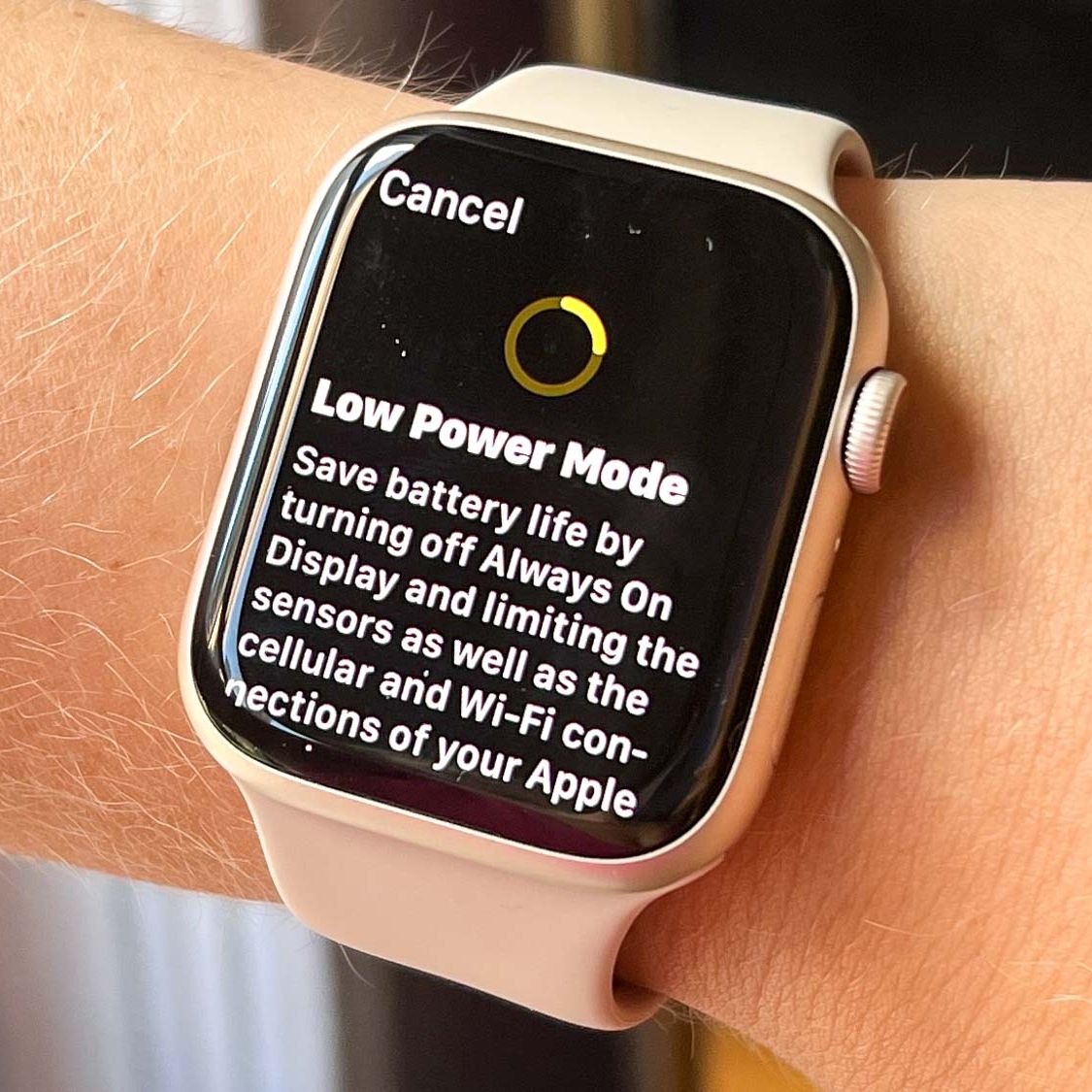
Most users never fully power off their Apple Watch 8—and for good reason. With optimized battery management, there are better ways to reduce distractions and save power.
Disable Always On Display to Save Battery
The Always On Display (AOD) keeps the watch face dimly visible when your wrist is down. While convenient, it uses extra power.
To disable:
1. Open Settings on your watch
2. Tap Display & Brightness
3. Toggle off Always On Display
Result: The screen stays dark when idle, saving up to 20% battery without shutting down.
Activate Theater Mode for Silence and Darkness
Theater Mode keeps the screen dark and prevents it from waking with wrist raises or taps.
Turn it on by:
– Double-pressing the Side button
– Or swiping up → Control Center → Tap the theater mask icon
With Theater Mode:
– Screen stays off unless tapped
– Haptics continue (unless Silent Mode is also on)
– Notifications arrive but stay hidden
Pro Tip: Combine Theater Mode with Airplane Mode or Do Not Disturb for total quiet and blackout.
Manually Dim the Screen Instantly
Need to blank the screen fast?
– Cover the display with your hand for one second
– The screen will dim instantly
This gesture works even with AOD on and is perfect for quiet rooms or meetings.
When Should You Actually Power Down?
Ideal Situations for Full Shutdown
While unnecessary daily, full shutdowns are useful for:
– Software updates (some require clean restarts)
– Troubleshooting crashes or freezes
– Selling or gifting the device
– Long-term storage (over one week)
For sleep, travel, or downtime? Just charge it overnight or use Theater Mode.
Fact: Apple designs the Series 8 for 24/7 operation. Frequent shutdowns offer no benefit and may slightly wear the battery.
Never Turning It Off? That’s Normal
Many users go months or years without powering off their Apple Watch. Nightly charging acts as a soft reset, clearing memory and refreshing connections—so full shutdowns aren’t needed for maintenance.
Power Management Design: What You Need to Know
No Scheduled Shutdowns or Physical Switch
The Apple Watch 8 doesn’t support auto-shutdown timers or physical power buttons. All controls are software-based, reflecting Apple’s design philosophy: the watch should always be ready, not require boot-up time.
Battery Life and Charging Tips
- Average battery life: 18 hours
- Drains faster with: AOD, GPS workouts, third-party apps
- Charge nightly—avoid letting it drop to 0%
- Store at 50% charge for long-term storage
Quick Reference Table
| Action | How to Do It |
|---|---|
| Turn Off Watch | Hold Side button → Tap red icon → Slide right |
| Turn On Watch | Hold Side button until Apple logo appears |
| Force Restart | Hold Side + Digital Crown for 10+ seconds |
| Erase Before Shutdown | Settings > General > Reset > Erase All Content |
| Stop Screen From Waking | Double-press Side button (Theater Mode) |
| Save Battery Without Shutdown | Disable AOD + Use Airplane Mode |
Best Practices Summary
- For daily use: Use Theater Mode or disable AOD instead of turning off
- For troubleshooting: Try force restart first
- For resale: Erase all data and unpair from iPhone
- For battery health: Charge nightly, avoid 0% battery, store at 50%
Turning off your Apple Watch 8 is simple when it works—but knowing how to handle edge cases makes all the difference. With this guide, you can confidently manage power, troubleshoot issues, and keep your device running smoothly for years.




