
You’re in the middle of a morning run, tracking your pace and heart rate, when suddenly—your Apple Watch screen flips to a compass view with a curved arrow labeled “Backtrack.” Your workout metrics vanish, replaced by a route retracing path you never asked for. If you’ve ever wondered how to turn off compass backtrack on Apple Watch, you’re not alone. This automatic feature, designed for hikers in remote areas, frequently activates in city parks, suburban trails, and even golf courses—derailing workouts and obscuring critical data.
The good news is simple: you can disable automatic Backtrack with just one toggle. And better yet, turning it off doesn’t remove the feature—it just puts you in control. In this guide, you’ll learn exactly how to turn off compass backtrack on Apple Watch, why it activates unexpectedly, and how to use it manually when you actually need it. Whether you’re a daily runner, weekend trail explorer, or city walker, regaining control over your screen ensures a smoother, more reliable fitness experience.
Disable Automatic Backtrack in Workout Settings
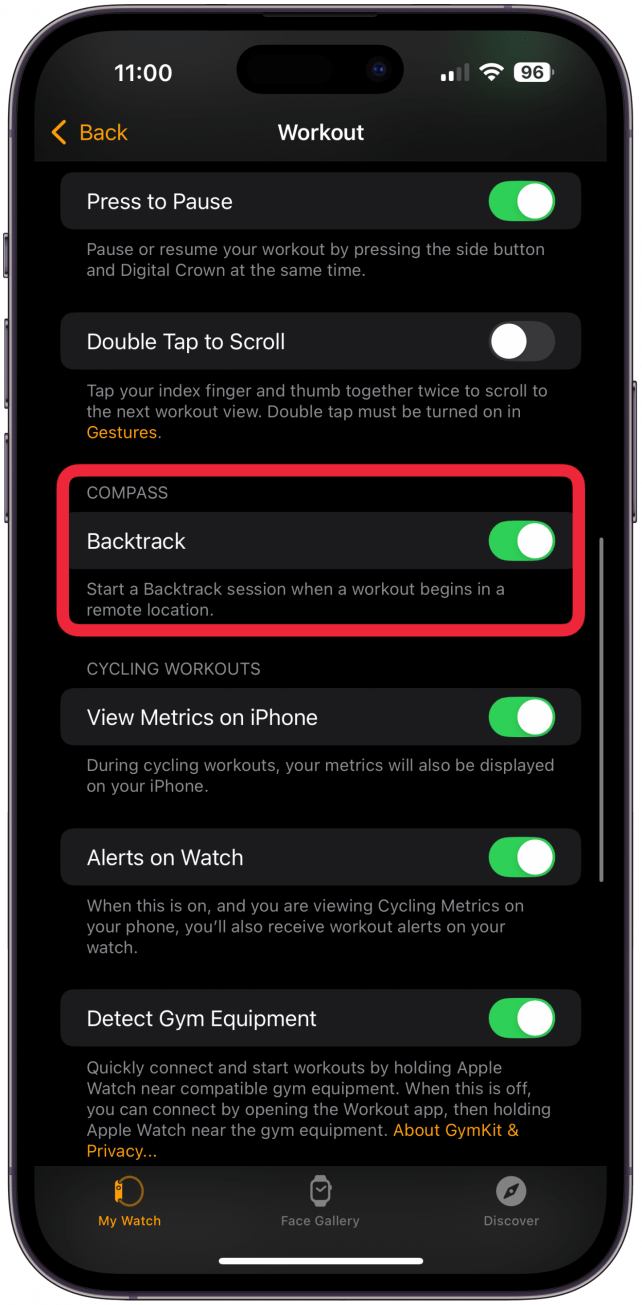
Apple doesn’t let you manage Backtrack directly from the watch—it’s controlled through your iPhone. But the fix is quick, permanent, and easy to reverse when needed.
Open the Watch App on Your iPhone
Start by launching the Watch app on your paired iPhone. This is the central hub for nearly all Apple Watch settings, including sensor behaviors, app permissions, and workout functions.
Navigate to Workout Settings
Scroll down the list of apps until you find Workout. Tap it to enter the configuration menu. This section governs how your Apple Watch behaves during outdoor runs, hikes, walks, and other GPS-based activities.
Turn Off the Backtrack Toggle
Inside the Workout settings, look for the Compass section. You’ll see a switch labeled Backtrack. Tap it to turn the toggle OFF.
Once disabled, your Apple Watch will no longer launch the Backtrack interface at the start of a workout—no matter how “remote” it thinks your location is. Your workout screen will stay focused on your chosen metrics like pace, heart rate, and distance.
✅ Pro Tip: After disabling, go for a short outdoor walk or run to test it. If the compass doesn’t pop up automatically, you’ve successfully stopped the surprise takeovers.
Why Backtrack Activates in Non-Remote Areas

Many users assume Backtrack only kicks in during true wilderness hikes. But real-world reports show it triggers in places like Central Park, Griffith Park, and suburban nature trails—locations with clear paths and cell service.
What Triggers the “Remote Location” Detection?
Apple has never officially defined what qualifies as a “remote location.” However, Backtrack typically activates when:
- GPS detects low population density
- Few nearby Wi-Fi networks or cell towers
- You’re far from major roads or urban infrastructure
But due to imprecise geolocation logic, Backtrack often fires in semi-urban green spaces, leading to frustration among runners and walkers who expect predictable behavior.
⚠️ Common Complaint: “I get the Backtrack screen every time I run in my local park—even though I’ve mapped the route a hundred times.”
No Granular Control or Customization
As of watchOS 10 and later, there’s no way to fine-tune when or where Backtrack activates. The setting is all-or-nothing: either it can auto-start, or it cannot. You can’t limit it by workout type, schedule it for certain times, or restrict it to specific geographic zones.
Keep Manual Backtrack Access When Needed
Disabling automatic Backtrack doesn’t eliminate the feature—it just stops it from hijacking your screen. You can still use it on demand when venturing into real backcountry terrain.
Start Backtrack Manually for Off-Trail Adventures
If you’re heading into unmarked wilderness or complex trail systems, here’s how to activate Backtrack manually:
- Open the Compass app on your Apple Watch.
- Tap the curved arrow icon (Backtrack button).
- Confirm you want to begin recording your path.
Now, at any point, you can tap the same button to view your return route—perfect for retracing steps in dense forests or off-trail hikes.
🧭 Expert Note: Manual Backtrack is ideal for backpackers, geocachers, or solo hikers who need a digital breadcrumb trail without unwanted interruptions.
End the Session to Save Battery
After finishing your activity, tap the Backtrack button again to stop the session. Leaving it running uses continuous GPS, compass, and motion sensors, which can drain your battery faster—especially on long treks.
🔋 Pro Tip: Ultra runners and multi-day hikers should disable auto-Backtrack and only enable it when entering truly remote zones to maximize battery life.
Troubleshoot Lingering Backtrack Issues
Even after turning off the setting, some users report the compass screen still appearing.
Backtrack Still Shows Up?
If the screen takes over despite the toggle being off:
- Force restart your Apple Watch: Press and hold the side button and Digital Crown for 10 seconds until the Apple logo appears.
- Recheck the setting: Go back to Watch app > Workout > Backtrack and confirm it’s still off.
- Update software: Ensure both your iPhone and Apple Watch are running the latest version of iOS and watchOS—bugs are sometimes fixed in updates.
Can’t Exit the Backtrack Screen?
During a workout, if the compass freezes or won’t dismiss:
- Swipe left or right to cycle through views.
- Tap the screen to reveal controls.
- Press the side button to exit to the watch face, then reopen the Workout app.
❗ Warning: Never rely solely on Backtrack in life-or-death navigation. Always carry a physical map and compass for true off-grid safety.
Battery and Performance Impact

While Apple doesn’t publish official stats, user testing shows Backtrack can affect battery life.
How It Uses Power
Backtrack runs continuously when active, drawing energy from:
- GPS for precise location tracking
- Magnetometer for directional accuracy
- Accelerometer to detect movement changes
All three sensors remain active during a session, increasing power draw—especially on long hikes.
Save Battery by Disabling Auto-Start
For daily workouts like runs or gym sessions, keeping Backtrack off prevents unnecessary sensor usage. On a full charge, this could extend your battery by 30–60 minutes, crucial during endurance events or multi-day trips.
User Feedback and Community Insights
Online forums are filled with complaints about Backtrack’s unpredictable behavior.
Common Frustrations
- “It pops up every time I run in the park.”
- “I lost my pace data mid-run because the screen changed.”
- “There’s no quick way to turn it off once it starts.”
Many users describe the Workout > Backtrack toggle as a “hidden setting” because it’s not accessible on the watch and isn’t mentioned in workout prompts.
Who Actually Benefits?
Despite the backlash, some users value the safety net:
- Solo hikers in mountainous or forested zones
- Trail runners exploring unfamiliar paths
- Backpackers without cell service
Even among these users, most agree: Backtrack should be on-demand, not automatic.
Clarify Common Misconceptions
Let’s clear up confusion around what disabling Backtrack actually does.
Does It Break the Compass App?
No. Turning off automatic Backtrack does not affect standard compass functions. You can still:
- View your heading (north, south, etc.)
- See elevation, coordinates, and azimuth
- Use navigation apps that rely on compass data
Only the auto-retrace function is disabled.
Can You Automate or Schedule It?
Not currently. There’s no automation rule, Shortcut, or geofence option to turn Backtrack on only in certain areas. Third-party apps also cannot trigger it programmatically.
Is Backtrack Required for Safety?
Absolutely not. While helpful in rare cases, most users navigate fine without it. And since manual use remains available, disabling auto-start enhances usability without sacrificing functionality.
Best Practices for Outdoor Workouts
Want the best balance of safety and performance? Follow these tips.
Use This Setting Strategy
- Keep Backtrack OFF by default.
- Turn it ON manually before entering remote or unmarked terrain.
- Turn it OFF again after returning to save battery.
This puts you in control without losing access.
Pair With Real Navigation Tools
For serious off-trail adventures:
- Use Gaia GPS, AllTrails, or Komoot for detailed maps
- Enable waypoints and route tracking
- Carry a physical map and compass as backup
Apple’s Backtrack is a convenience—not a replacement for proper outdoor navigation.
Monitor Future watchOS Updates
Apple may improve Backtrack logic in future updates. Watch for potential changes like:
- Smarter “remote location” detection
- User-defined zones
- Integration with the Shortcuts app
Until then, manual management is your best bet.
Final Note: The how to turn off compass backtrack on Apple Watch question has a clear answer: disable it in the iPhone’s Watch app under Workout > Backtrack. Doing so stops unwanted screen takeovers, preserves battery, and keeps your workout data visible—without removing access to this useful tool when you actually need it. For most users, turning off automatic activation and using Backtrack intentionally is the smartest, most efficient approach.




