
You’re about to board a flight, send your Apple Watch Ultra 2 in for repair, or simply need to power it down for troubleshooting—and you realize it doesn’t turn off like a phone. There’s no “slide to power off” slider, no instant shutdown button. Instead, the Apple Watch Ultra 2 uses a deliberate drag-to-shutdown gesture to prevent accidental power-offs during workouts, travel, or daily wear. Knowing how to turn off Apple Watch Ultra 2 properly is essential for full control of your device, especially when battery conservation, compliance with airline rules, or software fixes are involved.
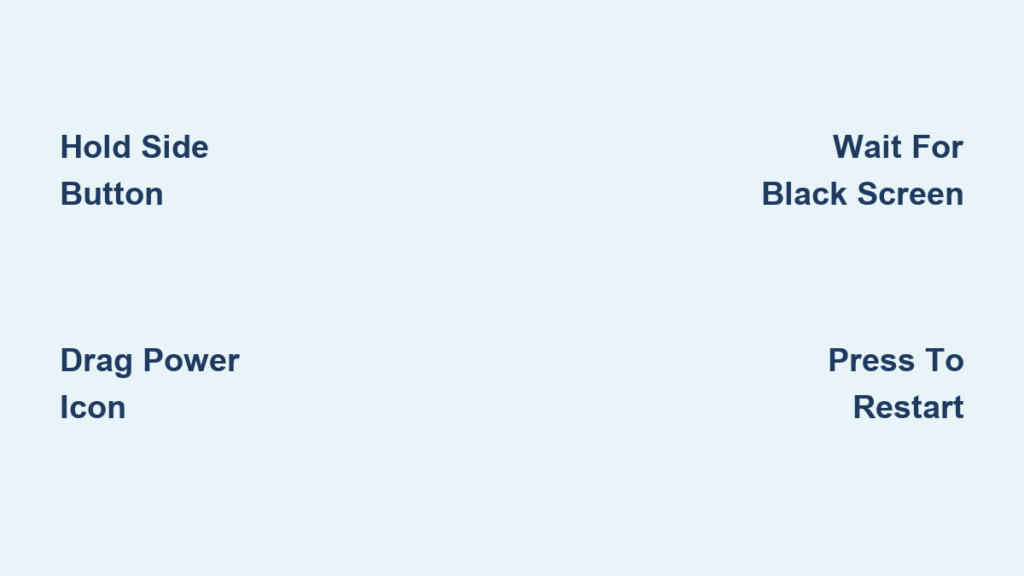
Unlike older gadgets that shut down with a long button press, the Ultra 2 requires a two-step process: first, holding the Side button to access the power menu, then dragging the red Power icon to the right to confirm shutdown. It’s quick, secure, and consistent across modern Apple Watch models. This guide walks you through every detail—how to power down, what to do if the screen is unresponsive, why Siri can’t help, and when you should (or shouldn’t) turn off your watch. Whether you’re a new owner or a seasoned user, mastering this process ensures you stay in control.
Power Off Using Side Button
The only standard way to turn off your Apple Watch Ultra 2 is through the Side button and touchscreen interaction. This method works on all watchOS versions from watchOS 9 onward and is designed to avoid accidental shutdowns.
Press and Hold Side Button
Begin by pressing and holding the Side button, located on the right edge of the watch, just below the Digital Crown. Keep holding it for 3–5 seconds. The display will exit the watch face and show the power menu, which includes options like Airplane Mode, Theater Mode, and the red-tinted Power icon (a circle with a vertical line).
Do not release the button too early. Wait until the screen fully transitions to the power options before letting go. If you tap or press too briefly, you’ll open the app dock instead—this is a common mistake.
Drag Power Icon to Confirm
Once the Power icon appears, tap and drag it to the right edge of the screen. There’s no pop-up asking “Are you sure?”—the drag action itself is your confirmation. As soon as the gesture completes, the screen will begin dimming.
Within 5–10 seconds, the display will go completely black. At this point, your Apple Watch Ultra 2 is fully powered off. All functions—including heart rate monitoring, GPS, notifications, and timekeeping—cease until you manually restart it.
Pro Tip: Make sure your finger swipes all the way across the screen. A partial drag won’t trigger shutdown, and the menu may time out instead.
Turning On Apple Watch Ultra 2
After powering down, the Apple Watch Ultra 2 won’t turn back on automatically—even when placed on the charger. You must manually restart it.
Press Side Button to Restart
To power it back on, press and hold the Side button again. Keep holding for up to 10 seconds. Eventually, the Apple logo will appear on a black screen, signaling the boot process has started.
The full startup takes 15–30 seconds. Once complete, your watch face returns, and the device reconnects to your iPhone via Bluetooth, assuming both are in range and paired.
Charge Before Powering On
If nothing happens when you press the Side button, the battery may be completely drained. In that case:
- Place the Apple Watch Ultra 2 on its Magnetic Charging Cable.
- Connect the charger to a USB power adapter or computer.
- Allow it to charge for at least 15 minutes.
- Then try pressing and holding the Side button again.
A deeply discharged battery might cause a brief flicker or no response at all. Patience is key—charging restores functionality, but it takes time.
Troubleshooting: Watch Won’t Turn Off

Sometimes the shutdown process fails. The screen might freeze, the Power icon won’t respond, or the watch ignores input entirely. Here’s how to fix it.
Screen Unresponsive to Touch
If dragging the Power icon does nothing, the touchscreen could be unresponsive due to moisture, dirt, or system lag. First, wipe the screen with a dry, lint-free cloth. Then, ensure your fingers are clean and dry—wet skin can interfere with touch detection.
If the issue persists, skip shutdown and perform a force restart instead. This often clears temporary glitches and restores normal operation.
Force Restart When Stuck
To force restart your Apple Watch Ultra 2:
- Press and hold both the Side button and the Action button (located directly beneath the Side button).
- Keep holding for at least 10 seconds.
- Release when the Apple logo appears.
This isn’t a shutdown—it’s a hard reboot, similar to restarting a frozen computer. After the restart, try the standard shutdown method again: hold the Side button, then drag the Power icon.
Note: The Action button is unique to the Ultra series and plays a key role in emergency alerts and recovery functions. Its inclusion in the force restart ensures users in rugged environments don’t accidentally reset their device.
Why Can’t I Use Siri to Shut Down?
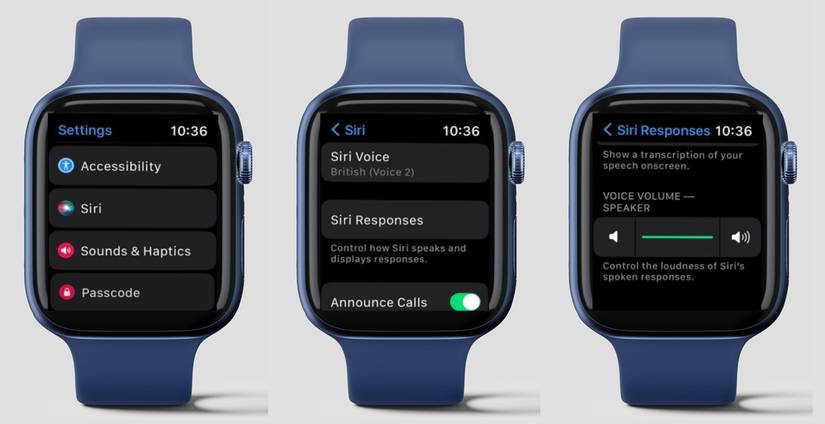
Many expect to say, “Hey Siri, turn off my watch,” but Apple does not allow voice-activated shutdown on the Apple Watch Ultra 2.
No Siri or Shortcut Option
There is no built-in shortcut, voice command, or AssistiveTouch gesture that powers down the watch. Even with accessibility features enabled, the drag-to-shutdown remains the only method.
Apple restricts this function for security and reliability. Imagine Siri accidentally turning off your watch during an active ECG reading, fall detection alert, or emergency SOS. Preventing remote or voice shutdown ensures critical health and safety features remain active.
While future watchOS updates might introduce new accessibility options, for now, physical interaction is mandatory.
When Should You Power Down?
The Apple Watch Ultra 2 is built for 24/7 operation. It manages battery life intelligently, entering low-power states when needed. Routine shutdowns aren’t necessary for performance or battery health.
Ideal Use Cases for Shutdown
- Air Travel: Some airlines require devices to be fully powered off during takeoff and landing. While Airplane Mode usually suffices, turning off the watch ensures compliance.
- Battery Conservation: If storing the watch for weeks, powering down prevents deep discharge.
- Software Troubleshooting: A full shutdown and restart can resolve issues that a simple reboot doesn’t fix.
- Servicing or Shipping: Powering off protects your data and prevents accidental feature activation.
Avoid daily shutdowns. They offer no benefit and may disrupt background health tracking and app sync.
Preventing Accidental Shutdowns
Even though the drag gesture prevents most accidental shutdowns, it’s still possible to trigger the power menu during intense activity.
How the Drag Gesture Helps
The need to drag the red Power icon to the right adds a second layer of confirmation. You can’t just tap it—you must swipe, making it unlikely to happen by accident.
If you frequently pull up the power menu unintentionally:
– Be mindful when pressing the Side button.
– Avoid holding it longer than needed to open apps.
– Enable Wrist Detection in Settings > Passcode to reduce unintended interactions.
Device-Specific Controls on Ultra 2

The Apple Watch Ultra 2 has unique hardware that affects power management.
Side Button Location and Function
The Side button is on the right bezel, below the Digital Crown. It serves multiple roles:
– Opens the app dock (quick press)
– Brings up power menu (long press)
– Works with Action button for force restarts
Its placement makes it easy to reach, even with gloves on—ideal for outdoor adventures.
Action Button Role in Recovery
The Action button, unique to Ultra models, sits directly beneath the Side button. While it doesn’t help turn the watch off, it’s essential for force restarts and safety features. Pressing both buttons together triggers recovery mode, preventing accidental resets in extreme conditions.
Accessibility and Alternative Methods
Users with limited dexterity may struggle with the drag gesture.
AssistiveTouch Limitations
Even with AssistiveTouch enabled (which supports head gestures or taps), there’s no way to bypass the drag-to-shutdown. Apple hasn’t introduced a menu option, complication, or voice command for this action.
Suggestions for Users with Motor Challenges
- Use the Accessibility Shortcut (triple-click Side button) to enable VoiceOver or AssistiveTouch.
- Rely on Airplane Mode or Theater Mode instead of full shutdown.
- Keep the watch charged and responsive to reduce the need for hard resets.
Maintenance Tips for Longevity
Turning off your Apple Watch Ultra 2 occasionally won’t harm it—but best practices help extend its life.
Don’t Shut Down Daily
The device is engineered for continuous use. Frequent shutdowns offer no benefit and may interrupt health tracking and updates.
Instead:
– Use Airplane Mode to disable radios
– Enable Do Not Disturb at night
– Let the watch enter Low Power Mode when battery drops
Store Properly When Powered Off
If storing long-term:
– Charge to ~50% before powering down
– Store in a cool, dry place
– Recharge every few months
Lithium-ion batteries degrade faster at 0% or 100% charge.
Summary: Key Steps to Power Off
| Step | Action |
|---|---|
| 1 | Press and hold the Side button until power menu appears |
| 2 | Tap and drag the red Power icon to the right |
| 3 | Wait for screen to go dark—device is off |
To turn it back on:
Press and hold the Side button until the Apple logo appears.
This method is consistent across Apple Watch Series 5 and later, including all Ultra models. No passcode, confirmation, or extra steps are needed.
Final Note: Turning off your Apple Watch Ultra 2 is simple once you know the drag gesture. It’s a secure, intentional process designed to prevent mistakes. Use it when traveling, troubleshooting, or storing your device—but otherwise, let it run. With proper care, your Ultra 2 will stay reliable whether it’s on or off.





