
If you’re wondering how to turn off heart rate on Apple Watch, you’re not alone. Many users disable this feature to protect their privacy, extend battery life, or reduce health-related anxiety. While Apple doesn’t allow you to completely shut down the physical heart rate sensor, you can stop all data collection, notifications, and health tracking with a few simple settings changes. This means your heart rate won’t be stored, shared, or displayed—giving you meaningful control over your data and experience.
The key lies in the Privacy settings of the Watch app on your iPhone, not on the watch itself. Once disabled, your Apple Watch will no longer update the Heart Rate app, send alerts for high or low readings, or sync biometrics to the Health app. However, be aware: the optical sensor may still activate briefly during system functions like wrist detection or workout launches, even when tracking is turned off.
In this guide, you’ll learn exactly how to disable heart rate monitoring, stop fitness tracking, silence alerts, understand battery benefits, and make informed decisions—whether your goal is privacy, mental wellness, or squeezing more life out of your battery between charges.
Disable Heart Rate Data Collection
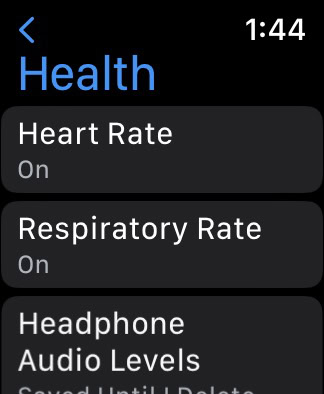
To fully stop your Apple Watch from gathering and using your heart rate data, you need to revoke access at the system level.
Turn Off Heart Rate in Privacy Settings
- Open the Watch app on your iPhone.
- Tap the Privacy tab at the bottom right.
- Select Health.
- Scroll down and tap Heart Rate.
- Toggle the switch to Off.
What happens when you do this:
The Apple Watch stops collecting, storing, and sharing heart rate data. The Heart Rate app on your watch will display “Data Not Available,” and the Health app on your iPhone will no longer receive updates. Third-party fitness or wellness apps (like Strava or MyFitnessPal) also lose access unless you manually re-grant permission later.Pro Tip: While in the Health privacy menu, review other biometric permissions—such as Respiratory Rate, Blood Oxygen, or Electrocardiogram (ECG)—to ensure no unwanted data is being collected.
Even with this setting off, the sensor may still activate briefly during background processes. But crucially, no data is saved or used—you’ve effectively cut off the flow of information.
Stop Fitness and Motion Tracking
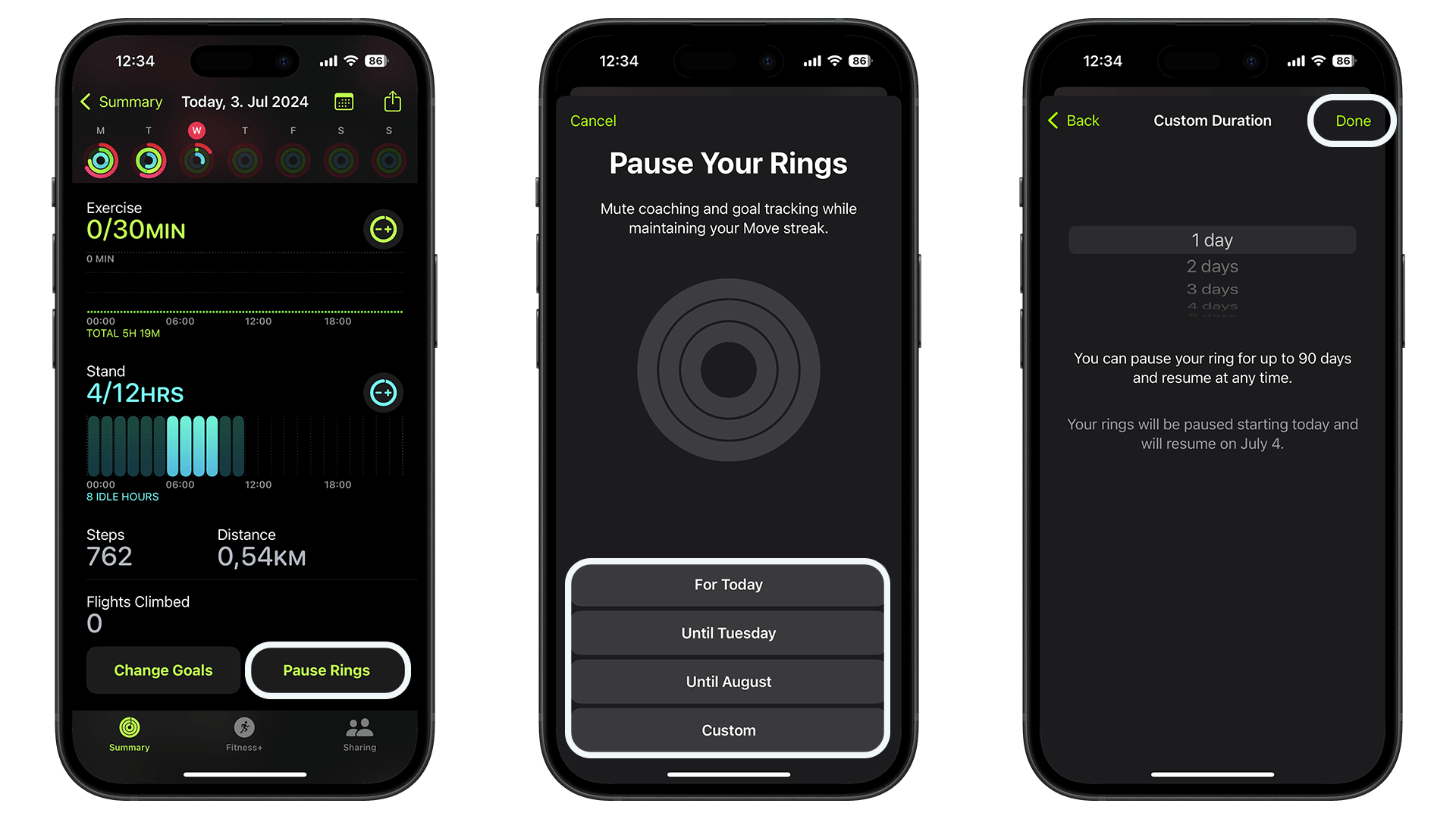
If you’re turning off heart rate monitoring, you might also want to disable step counting, workout detection, and Activity rings.
Disable Fitness Tracking
- In the Watch app on iPhone, go to Privacy > Motion & Fitness.
- Toggle Fitness Tracking to Off.
- Confirm the prompt when it appears.
Result: Your daily Move, Exercise, and Stand rings freeze. Automatic workout detection stops, calorie estimates disappear, and Smart Coaching features are disabled.
Important: Disabling Fitness Tracking also turns off heart rate notifications—even if you re-enable heart rate later, you’ll need to manually reactivate these alerts in the Heart Rate settings.
This step is ideal if you use your Apple Watch purely as a smartwatch for time, calls, and notifications, with no interest in health tracking.
Turn Off Heart Rate Alerts
You don’t have to disable all heart rate data to stop the alerts. If you want to keep passive monitoring but silence notifications, this is the way.
Disable High and Low Heart Rate Warnings
- Open the Watch app on iPhone.
- Go to the My Watch tab > Heart Rate.
- Turn off:
– High Heart Rate
– Low Heart Rate
– Irregular Rhythm Notifications
When these trigger:
– High Heart Rate: Alerts if your average rate exceeds your custom threshold (default: 120+ bpm over 10 minutes)
– Low Heart Rate: Notifies if your resting rate drops below a set level (e.g., under 50 bpm)
– Irregular Rhythm: Uses optical sensor and ECG (on Series 4+) to detect possible signs of atrial fibrillationNote: Turning off irregular rhythm notifications stops alerts, but occasional background rhythm checks may still occur. They just won’t notify you or record actionable data.
Many users with health anxiety find relief simply by disabling these alerts while keeping monitoring active for future reference.
Can You Fully Turn Off the Sensor?
Hardware Limitations Explained
❌ No, you cannot fully power down the optical heart rate sensor.
Even with all software permissions disabled, the sensor may still activate during:
- Wrist detection (required for Apple Pay, unlocking your iPhone)
- Workout app use (even if tracking is off)
- Sleep tracking setup or calibration
- Background motion algorithms that rely on biometric input
Why this happens: Apple integrates the sensor into core functions. For example, skin contact detection helps confirm the watch is being worn before enabling secure features.
Attempts to block the sensor physically—like using tape or stickers—are not recommended:
- Can interfere with wrist detection
- May cause errors in workout auto-pause or sleep tracking
- Can trigger warnings in apps expecting sensor data
Bottom Line: Software disables data use; the hardware remains partially active for system reliability.
Improve Battery Life by Disabling Heart Rate
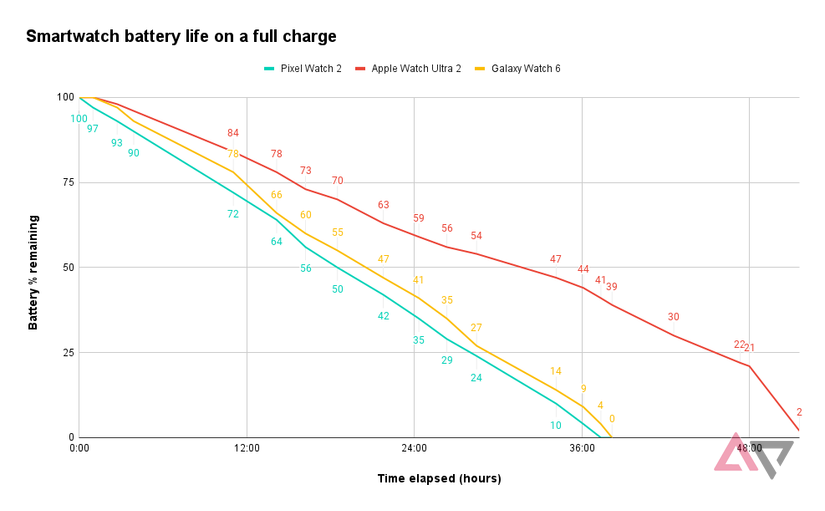
One of the biggest benefits of turning off heart rate monitoring? Longer battery life.
How Much Longer Will Battery Last?
- Continuous heart rate monitoring is one of the top battery drains on Apple Watch.
- Users report gaining 1–2 extra hours per day when heart rate and fitness tracking are disabled.
- Combined with other power-saving steps, total improvement can reach up to 50%.
Real-World Example: A user with heart rate and fitness tracking off, plus Workout Power Saving Mode enabled, achieved nearly two full days of battery life on a single charge.
Maximize Battery Savings
To stretch battery even further:
- Enable Workout Power Saving Mode
→ Settings > Workout > Power Saving Mode (reduces sensor polling during workouts) - Turn off Always-On Display
- Disable Background App Refresh
- Reduce haptic feedback intensity
These tweaks work best when combined with disabling heart rate and fitness tracking—ideal for travel or long days away from a charger.
Mental Health Considerations
For some, constant heart rate data worsens anxiety instead of helping.
Does Hiding Data Help Health Anxiety?
Not always. Many mental health advocates and users suggest that avoidance reinforces fear.
Cognitive Behavioral Insight
- Avoiding biometric readings can make your brain treat heart rate changes as dangerous.
- Seeing consistent, normal readings—even during panic—helps retrain your response.
“Your watch can show you that your heart is perfectly fine. Over time, it builds trust in your body.” – Reddit user with lived experience
Use Apple Watch as a Calming Tool
Instead of disabling monitoring, try this:
- When anxious or feeling palpitations:
– Open the Heart Rate app
– Watch the number stabilize
– Note it’s within normal range (typically 50–100 bpm at rest) - Save screenshots of calm readings to review during future episodes
Many users report reduced fear after repeatedly seeing that their heart rate remains safe—even when symptoms feel intense.
Expert Tip: If health anxiety is affecting your life, consider therapy focused on CBT or exposure techniques. Some therapists even recommend using your Apple Watch as part of treatment.
Compatibility Across Apple Watch Models
All modern Apple Watches let you disable heart rate data—but features vary.
| Feature | Available On | Notes |
|---|---|---|
| Disable Heart Rate Collection | All models (watchOS 6+) | Via iPhone Watch app |
| High/Low Heart Rate Alerts | Series 1 and later | Customizable thresholds |
| Irregular Rhythm Notifications | Series 4 and later | Requires setup |
| ECG App | Series 4 and later | Uses same sensor |
| Workout Power Saving Mode | Series 3 and later | Reduces sensor use during workouts |
No model allows full hardware shutdown of the sensor.
Even older models like Series 1 may perform background readings, though data isn’t stored when disabled.
Summary: What You Can and Can’t Control
| Action | Possible? | How to Do It |
|---|---|---|
| Stop heart rate data collection | ✅ Yes | Privacy > Health > Heart Rate > Off |
| Prevent storage in Health app | ✅ Yes | Same as above |
| Disable high/low alerts | ✅ Yes | My Watch > Heart Rate > Toggle alerts |
| Turn off irregular rhythm notifications | ✅ Yes | Same menu |
| Shut down optical sensor hardware | ❌ No | Not supported |
| Block sensor with tape | ⚠️ Not recommended | Causes errors |
| Extend battery life | ✅ Yes | Disable tracking + power modes |
Final Recommendations
For Privacy-Focused Users
✅ Disable Heart Rate and Fitness Tracking in Privacy settings. Combine with turning off iCloud Health sync for full data control.
For Battery Optimization
✅ Turn off heart rate + fitness tracking
✅ Enable Workout Power Saving Mode
✅ Lower screen brightness and disable Always-On
Result: Noticeable improvement—especially on older models.
For Those with Health Anxiety
🧠 Keep monitoring on—but disable alerts
📊 Use real data to challenge fears during panic
🩺 Consider professional support before removing access
Seeing normal readings over time can reduce fear more than avoidance.
Bottom Line: You can’t fully “turn off” the heart rate sensor hardware on Apple Watch—but you can disable every aspect of data use, alerts, and storage through the Watch app’s Privacy settings. Whether your goal is privacy, battery savings, or peace of mind, these steps give you meaningful control without sacrificing basic functionality.




