
You’re on the road, iPhone connected to CarPlay, and your car’s screen is showing turn-by-turn directions—clear and easy to follow. But suddenly, your Apple Watch taps your wrist. Then it happens again at the next turn. While Apple designed this haptic feedback to help, in practice, it’s often redundant—and worse, distracting. If you’ve ever wondered, “How to turn off maps on Apple Watch?”, you’re not alone. The good news is that while you can’t uninstall or completely disable the Maps app, you can stop it from sending navigation alerts to your wrist. This effectively “turns off” its active role during travel, especially when you’re already navigating on a larger screen.
This guide walks you through how to disable Maps turn alerts on your Apple Watch, customize them by travel mode, and eliminate unnecessary distractions—especially during CarPlay use. You’ll learn exactly where to go, what to toggle, and what to expect afterward. Whether you’re a daily commuter, a city walker, or just want a quieter wrist, these simple changes will give you full control over your navigation experience.
Disable Maps Turn Alerts via iPhone
You can’t adjust Maps alert settings directly on the Apple Watch. All configuration happens through the Watch app on your iPhone. This centralizes control and ensures you don’t accidentally disable something on the smaller screen. The key settings are located under My Watch > Maps > Turn Alerts, where you can selectively disable haptic feedback for different travel modes.
Turn Off Driving & CarPlay Alerts
If you use CarPlay, wrist taps from your Apple Watch are usually unnecessary—and potentially dangerous. When your dashboard already displays your next turn, a tap on your wrist adds no value and may tempt you to glance down. To silence these alerts:
- Open the Watch app on your iPhone.
- Tap the My Watch tab.
- Scroll down and select Maps.
- Under Turn Alerts, locate:
– Driving
– Driving with CarPlay - Toggle both to off (gray).
Pro Tip: If you only drive with CarPlay, disable both. If you occasionally drive without it (like in an older car), keep “Driving” on but disable “Driving with CarPlay” to avoid redundancy.
Once disabled, starting navigation on your iPhone will no longer send turn alerts to your watch during driving—but only for the modes you’ve turned off. The change applies instantly, so you don’t need to restart your devices.
Keep Walking or Cycling Alerts On
For non-driving travel, haptic feedback is often helpful. When walking through a busy downtown or cycling on a shared path, a subtle tap can guide you without pulling out your phone. Most users choose to keep these alerts active:
- Walking: Ideal for urban navigation or hands-free exploration.
- Cycling: Keeps your eyes on the road and hands on the handlebars.
To keep them enabled, simply leave the Walking and Cycling toggles on (green). This gives you the best of both worlds: silence while driving, but useful feedback when on foot or bike.
If you prefer complete quiet, you can turn all four modes off. But most people benefit from selective control—shutting off driving alerts while keeping walking and cycling active.
Stop Automatic Maps Sync from iPhone

By default, when you start navigation on your iPhone, it automatically sends turn-by-turn directions to your Apple Watch. This is convenient—but not always wanted. Disabling Turn Alerts stops this automatic sync for the modes you’ve turned off, giving you precise control over when Maps appears on your wrist.
What Happens After You Disable Alerts?
| Action | Result |
|---|---|
| Start navigation on iPhone (driving) | No haptic tap if “Driving” is off |
| Use CarPlay | Dashboard shows directions; watch stays silent |
| Manually open Maps on Apple Watch | Full navigation works with haptics (based on current mode) |
| Walk with iPhone navigation | Watch vibrates only if “Walking” is enabled |
This means:
✅ You eliminate unwanted interruptions
❌ You’re not deleting the Maps app
✅ You retain full functionality when you need it
Note: You’re not disabling Maps—you’re disabling automatic alerts. Think of it as muting notifications, not uninstalling the app.
Why Turn Off Maps on Apple Watch?

Avoid Distractions While Driving
Even minor distractions can be dangerous behind the wheel. A 2019 NHTSA study found that taking your eyes off the road for just two seconds doubles your risk of a crash. While a wrist tap seems harmless, it can prompt a glance at your watch—especially if you’re unsure what triggered it.
By turning off Driving with CarPlay alerts, you:
– Reduce cognitive load
– Eliminate redundant feedback
– Stay focused on the road
Apple built this setting specifically to prevent unnecessary alerts when directions are already visible on a larger screen.
Customize Based on Your Routine
Your ideal setup depends on how and where you travel. Not everyone needs the same alerts all the time. Here’s how common users adjust their settings:
| Scenario | Recommended Setting |
|---|---|
| Daily commuter using CarPlay | Turn off Driving & CarPlay alerts |
| Urban walker or runner | Keep Walking alerts on |
| Frequent cyclist | Keep Cycling enabled |
| Traveler visiting new cities | Temporarily re-enable all alerts |
| Lives in familiar area | Disable all automatic alerts |
This flexibility lets you tailor the experience—keeping alerts only when they truly help.
Manual Navigation Still Works
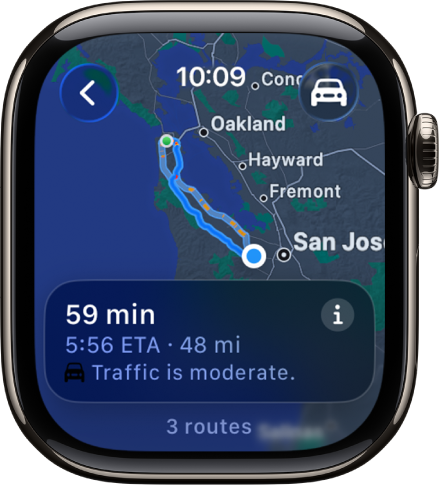
Here’s the key point: disabling turn alerts does not break Maps on Apple Watch. You can still:
- Open the Maps app directly on your watch
- Search for destinations
- Get turn-by-turn directions
- Receive haptic feedback (based on current mode)
For example:
1. Press the Digital Crown.
2. Tap Maps.
3. Enter a destination.
4. Start navigation.
The watch will guide you with taps—as long as the relevant mode (e.g., Walking) is still enabled.
Expert Note: This is why you don’t need to “delete” or “turn off” Maps entirely. Disabling alerts gives you peace of mind without sacrificing functionality when you actually need it.
No Direct Apple Watch Settings
You cannot adjust Maps alert preferences from the Apple Watch itself. All changes must be made in the Watch app on your iPhone. This may seem inconvenient, but Apple designed it this way for good reasons:
- Consistency: All device settings are managed from one place.
- Precision: Easier to toggle multiple options on a larger screen.
- Safety: Prevents drivers from fiddling with small controls while moving.
So while you can’t tweak this on the go, the trade-off is better control and fewer mistakes.
Test That Alerts Are Off
After making changes, verify they work:
Test Driving with CarPlay:
- Connect your iPhone to CarPlay.
- Open Maps and start driving directions.
- Watch your Apple Watch.
✅ Success: No haptic taps or screen wake-ups
❌ Issue: If you still feel taps, double-check:
– “Driving with CarPlay” is toggled off
– iPhone and watch are connected via Bluetooth
– You didn’t restart navigation before testing
Many users confirm this setting works perfectly—once disabled, the watch stays silent during CarPlay navigation.
Key Settings Summary Table
| Travel Mode | Default | Can Be Disabled? | Recommended For |
|---|---|---|---|
| Driving | On | Yes | Disable if using CarPlay |
| Driving with CarPlay | On | Yes | Often disabled |
| Walking | On | Yes | Keep on for city travel |
| Cycling | On | Yes | Keep on for safety |
| Manual Watch Use | N/A | N/A | Always available |
Use this as a quick reference when adjusting your preferences.
Common Mistakes to Avoid
❌ Assuming Maps Is Fully Disabled
Turning off alerts doesn’t remove the Maps app. The icon remains, and you can still open it manually. If you expect it to disappear, you’ll be confused. Remember: you’re disabling alerts, not the app.
❌ Forgetting to Re-enable for Trips
If you disable all alerts at home, remember to re-enable them when traveling to unfamiliar places. Getting lost because your watch didn’t tap is avoidable.
❌ Trying to Change Settings on the Watch
There’s no Maps alert toggle on the Apple Watch. Don’t waste time searching. All changes happen in the Watch app > My Watch > Maps.
Pro Tips for Better Control
Use Focus Modes to Automate Silence
Want to go further? Use Focus modes to automatically suppress alerts during certain times.
For example:
– Create a Driving Focus that silences non-essential alerts
– Pair it with CarPlay activation
– Prevents Maps, Messages, and other apps from tapping your wrist
While it won’t stop Maps specifically, it adds another layer of quiet.
Restart if Settings Don’t Apply
Rarely, changes may not sync immediately. If your watch still vibrates after disabling alerts:
1. Close the Watch app on iPhone
2. Restart your Apple Watch
3. Recheck the Maps settings
This usually resolves syncing delays.
Final Note: You’re in Control
So, how to turn off maps on Apple Watch? The answer isn’t deletion—it’s smart customization. By disabling Turn Alerts in the Watch app on your iPhone, you stop unwanted haptic feedback while preserving full functionality when you need it.
Whether you’re:
– Tired of redundant taps during CarPlay
– Preferring a quiet wrist in familiar areas
– Wanting to reduce distractions while driving
This simple tweak makes a big difference. You keep the power of Maps—just without the interruptions.
Bottom line: Open the Watch app, go to Maps, and toggle off the modes you don’t want. Done. Your Apple Watch stays smart, silent, and safe.




