
You’re trying to log into an app on your Apple Watch, and your password is something like P4ssw0rd. You tap the Scribble input field, scribble a neat little circle for the zero, and—boom—the watch instantly converts it into the letter “o”. You try again. Same result. You redraw it slower, taller, with a slash through it. Nothing works. The Apple Watch insists you’re typing a letter, not a number.
You’re not doing anything wrong. This is a known limitation of Apple Watch’s Scribble feature: it can’t reliably distinguish between the digit 0 and the letter O. And because Scribble doesn’t give you access to a numeric keypad, you’re left stranded—especially in password fields where precision matters.
But here’s the good news: you can write 0 on Apple Watch. There’s one simple, often-overlooked trick that works every time. In this guide, you’ll learn the only proven way to input a zero using Scribble, why other methods fail, and how to avoid this frustration in the future.
Why Your Zero Turns Into “O” on Apple Watch

Scribble Prioritizes Letters Over Numbers
When you draw a circle in Scribble, the Apple Watch’s handwriting recognition engine defaults to interpreting it as the lowercase letter “o”. That’s because:
- The system is trained on common English text, where “o” appears far more frequently than “0”.
- In natural language, a circular shape almost always represents the letter “o”.
- Without surrounding context (like numbers nearby), the algorithm assumes you’re writing text.
Even if your handwriting is perfect, the Watch doesn’t know you’re entering a password with 0. It treats every input like a casual message—so it picks the most probable character, not the correct one.
No Numeric Keypad in Scribble Mode
Unlike the full on-screen keyboard (available on larger Apple Watch models), Scribble doesn’t have a “123” key to switch to numbers. You can’t tap a button to bring up digits. That means you’re forced to handwrite every number, including zero—making accurate recognition essential.
And when it fails? You’re stuck.
✅ The Working Fix: Long-Press the “O” to Reveal Zero
Access the Hidden Numeric 0 in the Character Menu
The only reliable way to write 0 on Apple Watch is to let the Watch misread it first, then correct it using a long-press gesture.
Here’s How:
- Draw a circle in the Scribble area where you want the 0.
- The Apple Watch will convert it to “o”.
- Don’t submit or continue typing.
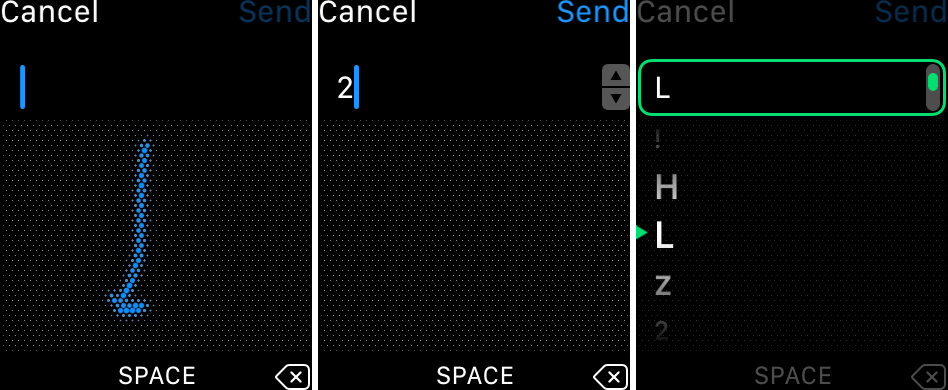
- Press and hold your finger on the misrecognized “o”.
- A pop-up selector appears with character options.
- Swipe up or down and select the slashed zero (Ø)—this is actually the number 0.
💡 Pro Tip: The slashed zero (Ø) may look like a special symbol, but in this menu, it represents the numeric digit 0. This is Apple’s visual cue to differentiate it from the letter “O”.
This method works in passwords, usernames, and recovery codes—anywhere you need a true zero, even at the end of strings like N0 or Agent007.
Why the Long-Press Trick Works
Apple embeds alternative characters behind every recognized letter. When you long-press:
- The system reveals hidden options, including uppercase, lowercase, and numeric equivalents.
- You can choose between o, O, 0, and Ø in one menu.
- You bypass the handwriting recognition error entirely.
This isn’t a glitch—it’s a built-in correction feature. Users have confirmed it works across Apple Watch Series 5 through Ultra 2 and watchOS 7 to 10.
📣 “I scribbled a 0, it turned into ‘o’. I held my finger on it—and boom—zero appeared in the menu. Solved in seconds.”
— Verified user, after months of failed attempts
❌ Failed Workarounds (Don’t Waste Your Time)
Despite endless experimentation, these popular methods don’t work consistently:
| Method | Result | Why It Fails |
|---|---|---|
| Drawing a tall oval | Inconsistent | Some claim a vertical zero avoids misreading, but results vary. The system still defaults to “o” without confirmation. |
| Adding a slash through the zero (/) | Not recognized | Hand-drawing Ø doesn’t trigger numeric mode. The Watch sees it as a stylized “o”. |
| Writing “zero” as a word | Rejected | Scribble treats this as text. It won’t convert “zero” to “0” in passwords. |
| Spelling “zero” aloud | No effect | Voice input isn’t supported during Scribble text entry. |
| Using the Digital Crown to cycle suggestions | Rarely shows 0 | The suggestion bar usually only offers “O” or “o”—not the digit. |
⚠️ Warning: Don’t rely on shape tricks. They might work once by luck, but the long-press method is the only guaranteed fix.
When You Need to Write Zero on Apple Watch
Password Entry After Reset
When re-pairing a reset Apple Watch, you must enter your iCloud password using Scribble. If it contains 0, and you can’t input it, setup fails.
👉 Solution: Use long-press to insert 0 mid-password.
Alphanumeric Usernames
Gamertags, email aliases, or social handles like userN0, XxGamer0, or Agent007 require numeric zero.
👉 Fix: Enter letters normally, then long-press any misread “o” to swap in 0.
Two-Factor Backup Codes
Though rare, some recovery codes may require manual entry on Watch. If a code includes 0, handwriting errors can block access.
👉 Tip: Double-check each digit using long-press correction.
App Login Prompts
Third-party apps that support WatchOS input (like banking or note apps) may require credentials.
👉 Always test for zero recognition—and correct with long-press if needed.
Pro Tips for Reliable Zero Input
Master the Long-Press Timing
- Hold your finger for 1–2 seconds on the “o”.
- Wait for the popup selector to appear before lifting.
- If it doesn’t trigger, try again with lighter pressure—sometimes heavy touch registers as a tap.
Look for the Slashed Zero (Ø)
In the character menu, the numeric 0 is shown as Ø. This is not a typo—it’s Apple’s way of indicating the digit.
- Select Ø to insert 0.
- Avoid selecting plain “O” or “o”—those are letters.
Use Full Keyboard When Available
On Apple Watch models with larger screens (Series 6 and up, SE, Ultra), some apps support a full on-screen keyboard.
- Tap the globe icon or keyboard icon to switch from Scribble.
- Access the 123 numeric pad directly.
- Enter 0 with a single tap—no handwriting needed.
✅ Best for passwords: If available, skip Scribble entirely and use the full keyboard.
Why Apple Hasn’t Fixed This Yet
Design Limitation, Not a Bug
This isn’t a software bug—it’s a design limitation in how Scribble interprets ambiguous characters.
- Machine learning models favor common linguistic patterns.
- In most messages, “o” is far more likely than “0”.
- But in passwords and codes, numeric precision is critical.
Apple hasn’t added a numeric lock mode or auto-detect numbers in high-security fields, leaving users to manually correct errors.
User Demand Is Growing
For years, users have requested:
– A dedicated number mode in Scribble.
– Option to prioritize digits in password fields.
– Voice-to-number input during authentication.
Until those arrive, the long-press workaround remains essential.
How to Prevent Future Issues
Train Yourself to Expect the Error
Assume every zero you write will become “o”—then plan to fix it.
- Don’t panic when “o” appears.
- Pause before submitting.
- Apply the long-press fix proactively.
Avoid Zero-Heavy Passwords on Watch
If possible, use simpler passwords when setting up devices that may require Watch input.
Or better: Enable AutoFill with iCloud Keychain so you don’t have to type passwords manually.
Use iPhone for Complex Logins
For passwords with multiple numbers or symbols:
– Start the login on your iPhone.
– Use AutoFill or paste from clipboard.
– Avoid Watch input altogether.
⏱️ Time Saver: It takes less time to grab your phone than to struggle with Scribble.
Summary: Writing 0 on Apple Watch Made Easy
You can write 0 on Apple Watch—even though Scribble keeps turning it into “o”. Here’s what works:
✅ The Only Reliable Method:
- Scribble a circle → it becomes “o”.
- Press and hold the “o”.
- Select the slashed zero (Ø) from the menu.
- Insert the correct 0 into your text.
This works in passwords, usernames, and code entry—anywhere you need a true numeric zero.
❌ Avoid These:
- Drawing ovals or slashes.
- Writing “zero” as a word.
- Relying on Digital Crown suggestions.
They don’t work consistently.
💡 Pro Advice:
- Use the full keyboard if your app supports it.
- Long-press early, before submitting.
- Remember: Ø = 0 in the selector menu.
Until Apple improves Scribble’s number recognition, this long-press trick is your best—and only—solution for writing zero on Apple Watch. Save yourself the frustration: use it every time.





