
If you’re planning to sell, gift, or troubleshoot your Apple Watch, knowing how to wipe it properly is essential. Simply resetting the device isn’t enough—depending on your goal, you need the correct method to fully erase data, remove Activation Lock, and protect your privacy. Doing it wrong can leave your personal information exposed or prevent the next user from activating the watch.
This guide walks you through every way to wipe an Apple Watch, including unpairing from your iPhone, erasing without a passcode or paired phone, handling cellular plans, and avoiding common mistakes. Whether you’re resetting for performance issues or preparing it for a new owner, you’ll learn the exact steps to ensure your device is securely erased and ready for its next chapter.
Unpair Apple Watch From iPhone to Fully Wipe It
This is the only correct method when selling, donating, or trading in your Apple Watch. Unpairing through your iPhone doesn’t just erase data—it removes Activation Lock, unlinks the device from your Apple ID, and automatically backs up your settings.
Why Unpairing Is the Only Safe Way to Transfer Ownership
Activation Lock is Apple’s anti-theft feature that ties your Apple Watch to your Apple ID. If you reset the watch directly but don’t unpair it, the device remains locked and unusable to anyone else. Only unpairing via the paired iPhone disables this security layer.
Additionally, unpairing triggers a final backup to your iPhone or iCloud, preserving your apps, health data (if synced), and preferences for future restoration.
How to Unpair Your Apple Watch in 5 Steps
- Open the Watch app on your iPhone.
- Tap My Watch, then select All Watches in the top-left corner.
- Tap the information icon (i) next to your Apple Watch.
- Choose Unpair Apple Watch.
- Confirm and enter your Apple ID password.
⚠️ Important: The process takes 5–15 minutes. Keep both devices close, with Bluetooth and Wi-Fi enabled. Your Apple Watch will erase itself and restart with the setup screen.
What You Lose (and What’s Saved)
After unpairing:
– All apps, messages, health data, and settings are erased.
– A complete backup saves to your iPhone (or iCloud if enabled).
– Activation Lock is permanently removed.
– The watch is no longer associated with your Apple ID.
💡 Pro Tip: If you plan to reuse the watch later, restoring from this backup will bring back most of your setup—except passwords and some app data.
Erase Apple Watch Directly on the Device (For Troubleshooting)
Use this method if you’re keeping the watch but want to fix glitches, app crashes, or sluggish performance. It resets the device to factory settings while keeping it paired with your iPhone.
Step-by-Step: Reset From the Watch
- Unlock your Apple Watch with your passcode.
- Press the Digital Crown to go to the Home Screen.
- Open Settings > General > Reset.
- Tap Erase All Content and Settings.
- Enter your passcode to confirm.
- For cellular models, choose:
– Keep Plan – Reuse with the same iPhone.
– Remove Plan – Cancel service or switch devices.
✅ Result: The watch restarts like new but stays paired. You can restore from a recent backup during setup.
Reset From iPhone (When Watch Is Unresponsive)
If the screen is frozen or unresponsive:
1. Open the Watch app on your iPhone.
2. Go to My Watch > General > Reset.
3. Tap Erase Apple Watch Content and Settings.
4. Confirm and wait.
This performs the same reset—ideal when touch input fails.
Wipe Apple Watch Without a Paired iPhone

Lost your iPhone? Replaced it? You can still erase your Apple Watch—even without the original phone.
How to Factory Reset Without iPhone Access
- Connect the Apple Watch to its magnetic charger.
- Press and hold the side button until the Power Off slider appears.
- Press and hold the Digital Crown at the same time.
- When “Erase all content and settings?” appears, tap Reset.
- Confirm with a second Reset tap.
⚠️ Critical Warning: This does not remove Activation Lock. The watch will still require your Apple ID and password to reactivate.
🔒 Note: Only unpairing via the original iPhone removes Activation Lock. If that’s not possible, contact Apple Support with proof of purchase for help.
Erase Apple Watch Without a Passcode
Forgot your passcode? No problem. You can still wipe the device using a recovery reset.
Recovery Mode Reset Steps
- Plug the Apple Watch into its charger.
- Press and hold the side button until the Power Off slider shows.
- Press and hold the Digital Crown until the erase prompt appears.
- Tap Reset twice to confirm.
🛠️ Outcome: All data is wiped, but Activation Lock remains active. The device cannot be fully activated without your Apple ID.
✅ Best Practice: Use this only if you can’t access the watch normally. If possible, unpair via iPhone first to disable Activation Lock.
Manage Cellular Plan Before Wiping (For GPS + Cellular Models)
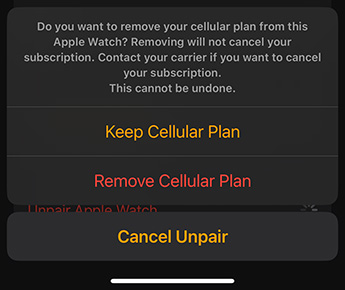
If your Apple Watch has cellular, you must decide what to do with your mobile plan before resetting.
Keep or Remove Your Cellular Plan?
During reset, you’ll be prompted:
– Keep Plan: Ideal if re-pairing to the same iPhone. Your number and subscription remain intact.
– Remove Plan: Use when canceling service, switching watches, or selling the device.
💬 Recommendation: Always Remove Plan before selling—prevents billing surprises and carrier issues.
Manually Remove Plan via iPhone
Before wiping:
1. Open Watch app > My Watch > Cellular.
2. Tap the information icon (i) next to your carrier.
3. Select Remove [Carrier] Plan.
4. Confirm.
⚠️ Note: Some carriers require a call to fully deactivate the line. Check with your provider to avoid charges.
Remove Activation Lock: The Right Way
Activation Lock protects your Apple Watch from theft—but it also blocks legitimate new owners if not disabled.
How to Permanently Remove Activation Lock
- ✅ Correct Method: Unpair via the Watch app on your iPhone.
- ❌ Does Not Work: Any reset performed directly on the watch.
❌ Critical Mistake: Selling a watch that wasn’t unpaired leaves Activation Lock active—making it unusable.
✅ Golden Rule: Always unpair via iPhone before transferring ownership.
Pre-Wipe Checklist: Avoid Data Loss
Prepare your Apple Watch before erasing to protect your data and ensure a smooth reset.
Must-Do Steps Before Wiping
- 🔋 Charge to at least 50%—ensure it doesn’t power off mid-erase.
- 📶 Connect to Wi-Fi—ensures backup sync.
- 🔄 Sync with iPhone—confirms latest data is backed up.
- 📝 Note custom watch faces and app layouts—easier to restore manually.
- 🚫 Sign out of sensitive apps (banking, health, etc.)—extra security layer.
- 💬 Decide on cellular plan—keep or remove?
💡 Pro Tip: Unpairing triggers an automatic backup. Erase on the watch does not.
Fix Common Wipe & Reset Issues
Encountering problems? Here’s how to troubleshoot.
Apple Watch Stuck During Reset
Solution: Force restart:
1. Press and hold the side button and Digital Crown.
2. Hold for 10 seconds until the Apple logo appears.
3. Retry the reset.
Unpair Option Grayed Out?
Causes:
– iPhone and watch out of range.
– Bluetooth off or watch powered down.
Fix:
– Bring devices close together.
– Restart both.
– Ensure Bluetooth and Wi-Fi are on.
Reset Option Missing?
- Ensure passcode is entered—required to access Reset.
- If forgotten, use recovery reset method.
Activation Lock Still Active?
Cause: Watch erased on-device instead of unpaired.
Solution:
– Unpair via iPhone if possible.
– If not, contact Apple Support with proof of purchase.
Unpairing vs. Factory Reset: Key Differences
| Feature | Unpair via iPhone | Erase on Watch |
|---|---|---|
| Full data erase | ✅ Yes | ✅ Yes |
| Removes Activation Lock | ✅ Yes | ❌ No |
| Unlinks from Apple ID | ✅ Yes | ❌ No |
| Automatic backup | ✅ Yes | ❌ No |
| Keeps cellular plan option | ✅ Yes | ✅ Yes |
| Needs paired iPhone | ✅ Yes | ❌ No |
| Works without passcode | ❌ No | ✅ Yes (recovery method) |
🔍 Bottom Line: Use unpairing to transfer ownership. Use on-device erase for troubleshooting.
Set Up After Wiping
Once erased, you can reconfigure your Apple Watch.
Post-Erase Setup Steps
- Power on the watch (Apple logo appears).
- Follow on-screen prompts.
- Choose:
– Set Up as New Apple Watch
– Restore from Backup (if available) - Sign in with your Apple ID.
- Re-pair with iPhone if needed.
💾 Backup Availability: Only if unpaired via iPhone or iCloud backups were enabled.
🔄 App Restoration: Apps reinstall automatically when signed in with the same Apple ID.
Frequently Asked Questions
How do I wipe my Apple Watch before selling?
Unpair it via the Watch app on your iPhone. This erases data, removes Activation Lock, and backs up your settings.
Can I reset without my iPhone?
Yes. Use the recovery reset (charger + side button + Digital Crown). But Activation Lock remains.
Does resetting remove Activation Lock?
Only if you unpair via iPhone. On-device resets do not remove it.
What if I forgot my passcode?
Use the recovery reset method—no passcode needed. Connect to charger, hold side button, then press and hold Digital Crown.
Will I lose health data?
If your watch was paired, health data synced to iPhone or iCloud is safe. Unpairing triggers a final backup. Unsynced data may be lost.
How long does erasing take?
Typically 5–15 minutes, depending on model and storage.
Can I recover data after wipe?
Only if a backup exists. Use Restore from Backup during setup.
What happens to apps?
All apps are deleted. They re-download automatically when re-paired with the same Apple ID.
Final Note: Always unpair via iPhone before selling or giving away your Apple Watch. This ensures Activation Lock is removed, data is backed up, and the new user can activate the device. For troubleshooting, use on-device reset. Never skip the unpair step—doing so can make your Apple Watch unusable to others.





