
You wake up, reach for your Apple Watch, and tap the screen—nothing. It’s completely black. No Apple logo, no flicker, no response. But when you plug it in, you hear the familiar chime. Or maybe it vibrates. That means your Apple Watch is still alive—so why won’t the display turn on?
If your Apple Watch display is not working, you’re not alone. From Series 1 to Series 10 and Ultra models, thousands of users report sudden black screens, unresponsive touch, or flashing logos. The good news? Most cases aren’t permanent hardware failure. In fact, a simple force restart, remote setting change, or proper charge can bring your watch back to life.
This guide delivers proven troubleshooting steps—no fluff, no guesswork. You’ll learn how to diagnose whether the issue is software-related, a misconfigured setting, or a true hardware failure. Whether your watch is under warranty or years past it, we’ll show you exactly what to do next—and how to fix it fast.
Confirm Power and Charging Status
Before assuming your display is broken, confirm your Apple Watch actually has power.
Look for the Red Lightning Bolt
A black screen with a red lightning bolt means your battery is completely drained—not dead, just asleep. This is normal after long periods of non-use.
- Plug in your original Apple Magnetic Charger.
- Within 30 seconds, you should see a red lightning bolt inside a charging ring.
- If nothing appears, leave it charging for at least 30 minutes.
- For watches dead over 48 hours, charge overnight (6–10 hours).
⚠️ No symbol? Try a different cable, power source, or clean the charging contacts.
Force Restart to Clear Software Freeze
A frozen operating system is the #1 cause of black screens. A force restart clears glitches and reboots the system—even if the screen is unresponsive.
How to Force Restart Any Apple Watch
- Press and hold both the side button and Digital Crown.
- Hold for 10 to 30 seconds—don’t release too soon.
- Release when you see the Apple logo.
- Wait up to 2 minutes for full boot.
✅ Pro Tip: If the logo flashes and disappears, repeat the process. Some users need 3–5 attempts, especially after failed updates.
Check Screen Curtain and VoiceOver Settings
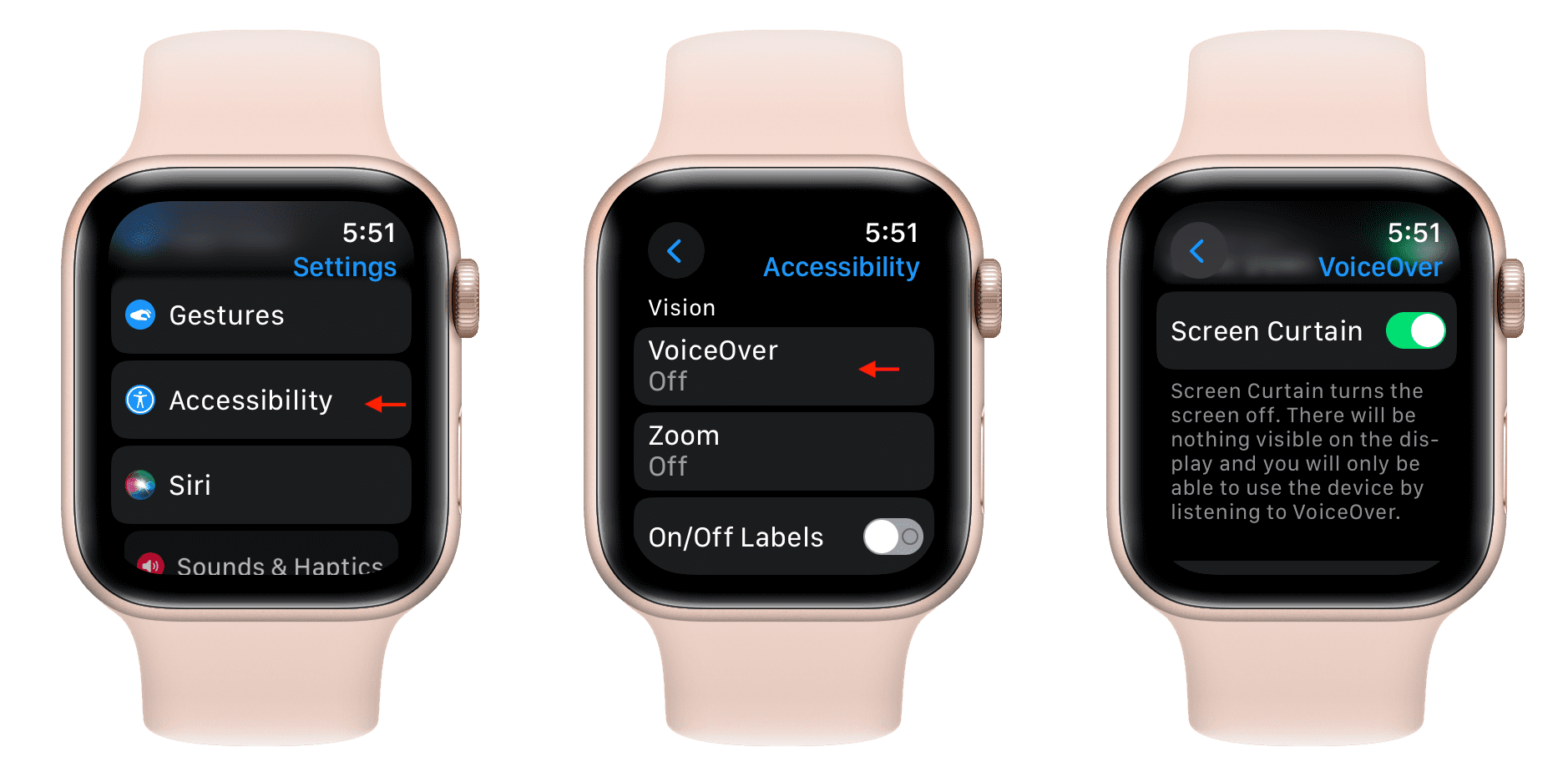
Your display might be working—but turned off remotely without your knowledge.
Turn Off Screen Curtain from iPhone
Screen Curtain disables the screen entirely. You’ll still feel haptics and hear sounds, but the display stays black.
To fix:
1. Open the Watch app on your iPhone.
2. Go to My Watch > General > Accessibility.
3. Turn off:
– Screen Curtain
– VoiceOver
🔍 This works even if the watch screen is black. Many users restore full function in seconds with this fix.
Remotely Change Your Watch Face
A corrupted watch face can freeze the interface and block the display.
Refresh the Display from Your iPhone
- Open the Watch app.
- Tap My Watch > Clock Face.
- Choose a new face (e.g., Simple, Minimal, or Unicorn).
- Tap “Add” or “Send to Apple Watch”.
This forces a sync and may wake a frozen display. Works even if the watch seems unresponsive.
✅ User Tip: Some report success after switching to a light-colored face, possibly reducing strain on aging OLED panels.
Test and Replace Charging Equipment
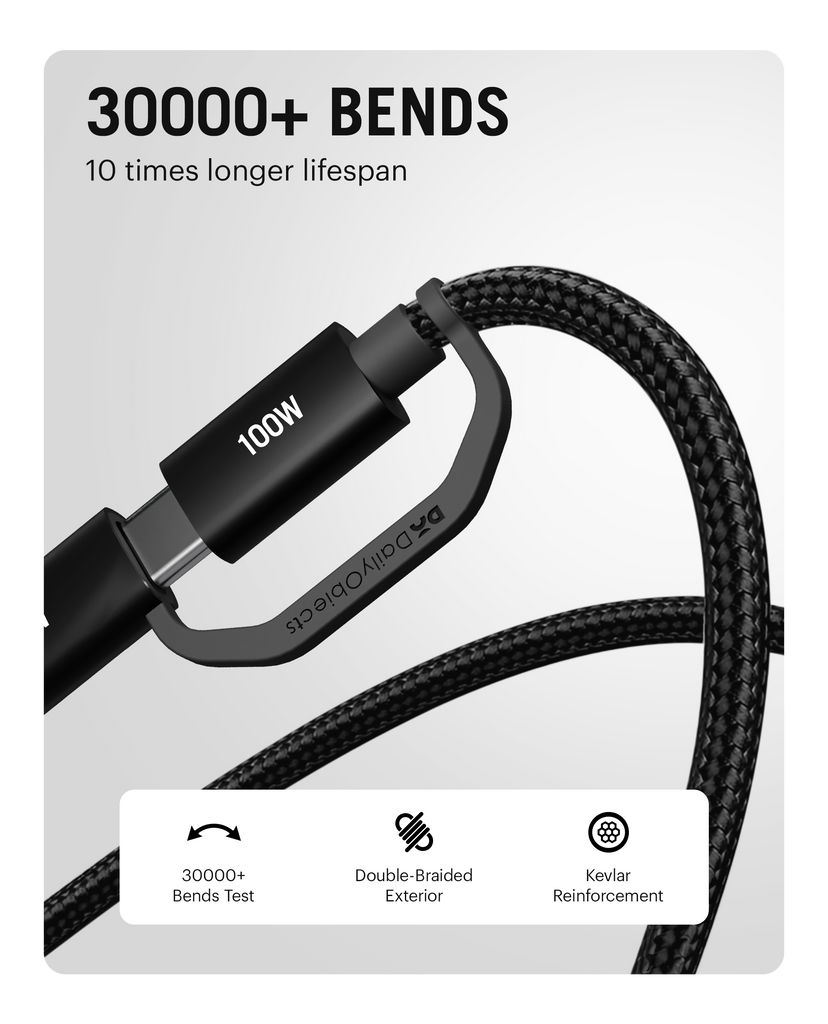
A bad charger can mimic a dead display.
Diagnose Charger Issues
- Borrow a working Apple Watch charger from a friend.
- Test your cable on their watch.
- Use a wall outlet instead of a laptop USB port.
- Swap between USB-A and USB-C adapters.
Replace Worn or Defective Cables
Signs of a failing charger:
– Frayed wires
– Weak or misaligned magnets
– Intermittent charging
Buy only Apple-certified or MFi-licensed replacements. Cheap knockoffs can damage your watch.
Try the Button Spam Method
A rapid sequence of inputs may jolt a frozen system.
Rapid Button Press Technique
While on the charger:
1. Press the side button 5–15 times quickly.
2. Alternate with Digital Crown presses.
3. Follow with a force restart.
🧪 Why it works: Repeated inputs may bypass a software hang that ignores single commands. Some users revive their watches after standard fixes fail.
Clean the Charging Contacts
Dirt, sweat, or metal residue can block charging and prevent wake-up signals.
Safe Cleaning Steps
- Power off (if possible).
- Use a dry microfiber cloth to wipe the back of the watch.
- For grime, lightly dampen a cotton swab with 90%+ isopropyl alcohol.
- Gently clean the metal charging contacts.
- Dry completely before recharging.
❌ Never submerge the watch. Avoid moisture near speaker or mic ports.
Reseat Internal Connections (Tap Method)
After drops, internal display cables can loosen—especially the ribbon connecting the screen to the logic board.
Gentle Physical Reset
- Hold the watch firmly in both hands.
- Press on the front screen (corners, edges, center).
- Apply light pressure to the back.
- While charging, perform a force restart.
⚠️ Caution: Use moderate pressure only. Not recommended for cracked screens. Based on user reports of reseating connections.
Freezer Method (Last Resort)
Cold exposure has revived unresponsive displays—but with serious risks.
Step-by-Step
- Place watch (with band) in a sealed plastic bag.
- Put in the freezer for 15–20 minutes.
- Remove and immediately press side button + Digital Crown.
- Hold until Apple logo appears.
✅ User Result:
“Sounds crazy, but it worked! Screen came back after 3 failed restarts.” – joshuafromunion❌ Risks:
Condensation, permanent seal damage, voided water resistance. Use only if all else fails.
Combine Charging and Button Input
Sometimes, your watch needs continuous input to wake from deep sleep.
Charge While Pressing Side Button
- Place on charger.
- Press and hold the side button (or alternate with Digital Crown).
- Leave charging for several hours or overnight.
- Try force restart every 30 minutes.
This helps in cases of boot loops or deep system sleep.
Identify Hardware Failure Signs
If software fixes fail, the problem may be physical.
Red Flags of Hardware Damage
- Watch vibrates but screen stays black
- Apple logo flashes repeatedly (boot loop)
- No response after 10+ hours of charging
- Visible cracks or discoloration on screen
- AssistiveTouch (blue dot) appears but no visual output
Common Hardware Problems
| Issue | Description |
|---|---|
| Loose display cable | Drop or wear can disconnect the ribbon |
| OLED panel failure | Permanent black screen, no backlight |
| Battery failure | Won’t hold charge, even after replacement |
| Logic board damage | Possible after liquid exposure |
| Water/moisture ingress | Corrosion on contacts, even without visible water |
Apple’s Blank Screen Service Program
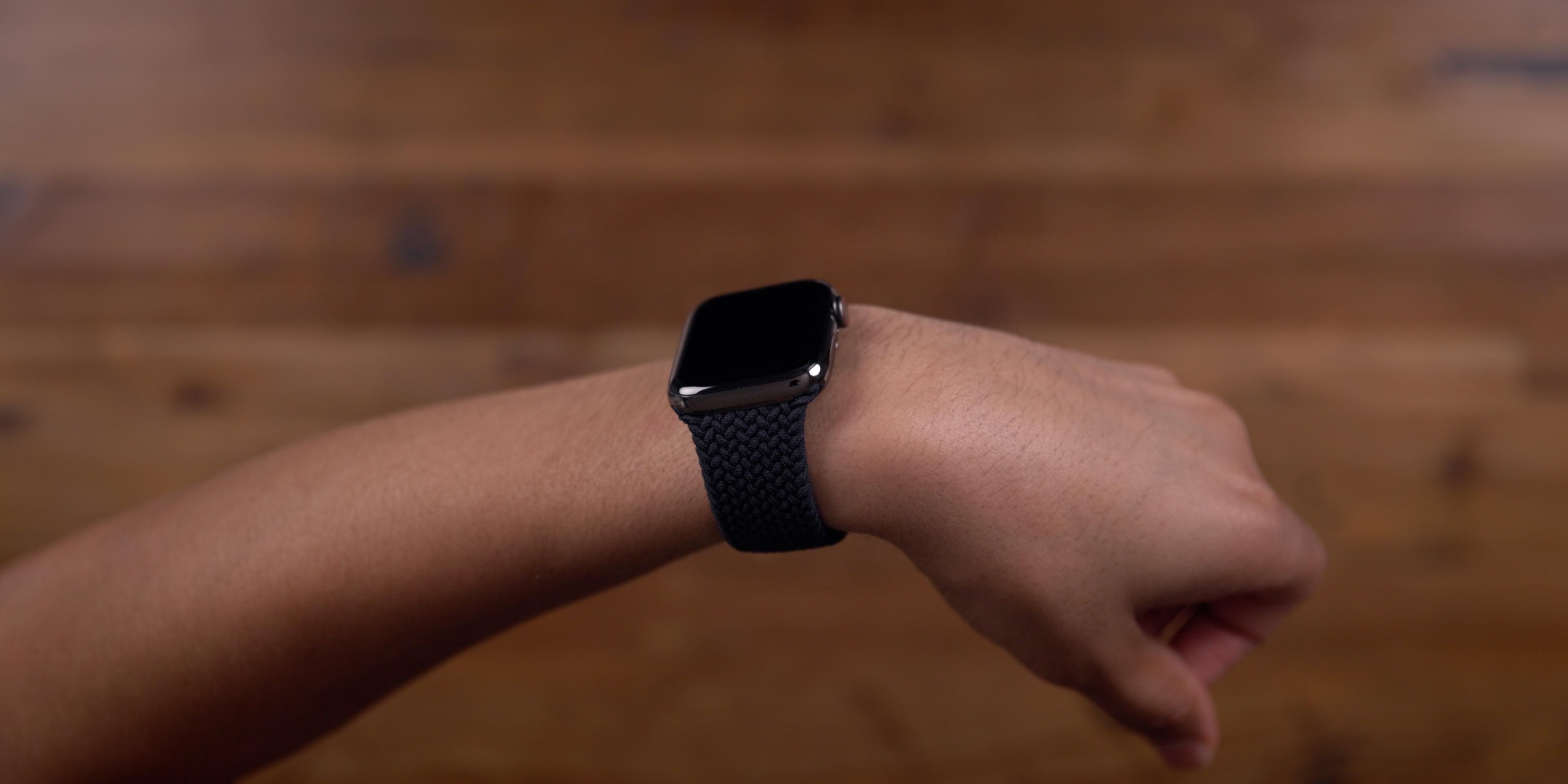
Apple acknowledged a known defect in certain models.
What You Need to Know
- Eligible models: Specific Apple Watch Series 6 and Series 7 units
- Free repair if serial number is in the program
- Limited time window—many users report being excluded after 2 years
Check eligibility at Apple’s Service Program page using your serial number.
Warranty and AppleCare+ Coverage
Repair Costs If Out of Warranty
| Service | Cost (USD) |
|---|---|
| Display replacement (Series 7) | $299–$399 |
| Full repair (Ultra, Series 10) | $350–$437+ |
💡 Tip: If under AppleCare+, accidental damage repair is $99 (plus tax).
Bring your original charger and receipt to Apple Store or Authorized Provider.
Professional Repair Options
Apple Store or Authorized Service
- Run diagnostic tests to confirm issue
- Use OEM parts and restore water resistance
- Most reliable—but expensive
Third-Party Repair Shops
- Screen replacement: $50–$80
- Faster and cheaper
- Downsides: Non-OEM parts, lost water resistance, risk of further damage
DIY Replacement
- Kits on eBay, Amazon, iFixit ($60–$100)
- Requires tools: suction cup, spudger, screwdriver
- Tutorials on YouTube
- High skill level—one wrong move can kill the watch
🔧 Only attempt if: You’re comfortable with micro-repairs and accept the risk.
Model-Specific Issues
Apple Watch Series 7
- Frequent black screen after charging
- Stainless steel models more affected
- Some report boot loops or pink tint
Apple Watch Series 6
- Covered under Blank Screen Service Program
- Many excluded due to age
- Known ribbon cable issues
Apple Watch Series 10 (46mm GPS + Cellular)
- Recent surge in black screen reports
- Often resolves with force restart + charge
Apple Watch Ultra
- Requires band removal for reliable charging
- Stronger magnets, but thick bands interfere
Apple Watch Series 0–2
- “Green snake of death” or pink glow = OLED degradation
- Permanent hardware failure
- No official repair support
Final Diagnostic Flow: 11-Step Checklist
Use this sequence to rule out causes:
- 🔋 Check for red lightning bolt
- ⏳ Charge 30+ minutes with original cable
- 🔁 Force restart (10–30 sec hold)
- 🎧 Verify Screen Curtain & VoiceOver (via iPhone)
- 🕒 Change watch face remotely
- 🧼 Clean charging contacts
- 🔘 Try button spam + charge
- 🔌 Test with known-good charger
- ✋ Apply gentle pressure (tap method)
- ❄️ Freezer method (last resort)
- 🛠️ If all fail → Hardware issue confirmed
When to Seek Professional Help
Go to Apple or a repair pro if:
– Watch vibrates but screen stays black
– No Apple logo after full charge
– Boot loops persist
– Device is under warranty or AppleCare+
– You suspect drop or water damage
📌 Bring with you: Charger, receipt, and any error details.
Prevent Future Display Failures
Keep your Apple Watch running smoothly:
- Charge regularly—don’t let battery die completely
- Use Apple or MFi-certified chargers
- Clean contacts weekly
- Update watchOS to fix bugs
- Avoid extreme heat or cold
- Remove band when charging large models
Final Takeaways
- Most black screen issues are fixable—start with charging and force restart.
- Screen Curtain or VoiceOver can disable display without your knowledge.
- Hardware failures happen—especially in Series 6/7—but Apple has a free repair program for eligible units.
- User tricks like button spam, tap method, and freezer exposure work for some—but carry risks.
- Out-of-warranty repairs are expensive—third-party or DIY may be cost-effective, but affect durability.
- If your watch responds to input (vibrations, sounds), the display or cable is likely the issue—not the brain.
✅ Bottom Line: Always try software fixes first. Save hardware repairs for confirmed failures. Check your serial number with Apple’s service program before paying a dime.





