
You’re halfway through your workout when you notice something’s off—your Apple Watch isn’t tracking your steps, the activity rings aren’t updating, and there’s a red “X” where the iPhone icon should be. Your Apple Watch has disconnected from your iPhone, cutting off notifications, messages, and syncing. It’s a common but frustrating issue that disrupts everything from fitness tracking to Apple Pay.
The good news? Most disconnections are fixable without visiting an Apple Store. Whether the problem is temporary or keeps coming back, this guide delivers proven troubleshooting steps, user-confirmed fixes, and expert-backed diagnostics to get your devices talking again—and stay connected.
Red iPhone Icon on Apple Watch? Here’s What It Means
Your Watch Is No Longer Communicating with Your iPhone
A red iPhone icon on your Apple Watch face is the clearest sign of disconnection. Normally, a green icon appears when your watch is successfully paired via Bluetooth or Wi-Fi. When it turns red or disappears entirely, the communication link is broken.
This doesn’t always mean your phone is out of range. Many users report the red icon appearing even when their iPhone is in the same room—pointing to software or settings issues rather than distance.
No Notifications? Check Your Connection First
If your iPhone is receiving calls, texts, and app alerts but your watch stays silent, the pairing has failed. This often follows the appearance of the red icon. Even if Bluetooth appears active on your iPhone, the Apple Watch may not be syncing properly due to background glitches or corrupted connections.
Is Bluetooth Flickering on Your iPhone?
Open your iPhone’s Control Center. If the Bluetooth icon flickers or disconnects randomly—even when other devices like AirPods work fine—it could signal deeper instability in the pairing process. This behavior is frequently reported after iOS updates or when network settings are corrupted.
Why Does Your Apple Watch Keep Disconnecting?

Software Glitches After iOS or watchOS Updates
Many disconnections happen immediately after an update. Incomplete downloads, low storage, or bugs in new versions can disrupt the Bluetooth handshake between devices.
For example:
– An iPhone stuck “between” iOS versions may fail to maintain a stable connection.
– Users of Apple Watch A1978 on watchOS 10.6.1 have reported constant disconnections.
– iPhone 15 users on iOS 26.0.1 (likely a placeholder or typo) describe pairing instability post-update.
Even if the update installs successfully, residual software bugs in the Bluetooth stack can cause drops within hours.
Airplane Mode or Disabled Bluetooth – The Usual Suspects
Simple settings are often the culprit:
- Airplane Mode enabled on Apple Watch disables all wireless signals.
- Bluetooth turned off on iPhone breaks the essential pairing.
- Wi-Fi disabled—even if you rely on Bluetooth—can interfere with background reconnection logic.
Always verify both devices have wireless enabled before diving into complex fixes.
Are You Out of Range or Facing Interference?
Apple Watch uses Bluetooth 5.0 (or later), with a theoretical range of 30 feet (10 meters). But real-world performance drops due to:
– Walls, metal objects, or appliances between devices
– Crowded wireless environments (offices, gyms)
– Leaving your iPhone in another room
If the signal weakens, your watch may disconnect and fail to auto-reconnect.
Hardware and Model-Specific Patterns
While rare, some models report recurring issues:
– Apple Watch Series 5
– Apple Watch Ultra 1
– Apple Watch Series 10
– iPhone 12 Pro Max
– iPhone 15
User MsLouise confirmed the issue occurs only with her Apple Watch—other Bluetooth devices work fine—suggesting a firmware or software flaw, not iPhone hardware failure.
Quick Fixes That Actually Work
Toggle Airplane Mode on Apple Watch
This forces a wireless reset and resolves most temporary glitches.
- Swipe up from the watch face to open Control Center.
- Tap the airplane icon to turn Airplane Mode on.
- Wait 5–10 seconds.
- Tap again to turn it off.
- Wait for the green iPhone icon to return.
Pro Tip: Use Siri—say “Turn on Airplane Mode,” then “Turn off Airplane Mode.” This works even if the screen is unresponsive.
Restart Bluetooth on iPhone
Resetting Bluetooth clears temporary pairing errors.
- On iPhone, go to Settings > Bluetooth.
- Toggle Bluetooth off.
- Wait 10–15 seconds.
- Toggle Bluetooth back on.
- Wait up to a minute for your Apple Watch to reconnect.
User brianyyz confirmed: “I force reconnection by turning Bluetooth off and on, then selecting my watch.”
Restart Both Devices
A full reboot clears memory and resets network services.
- Turn off iPhone: Press and hold the side button + volume button until the power slider appears.
- Turn off Apple Watch: Press and hold the side button until the power slider shows.
- Wait 30–60 seconds.
- Turn iPhone on first, wait for full boot.
- Then power on Apple Watch.
Stefan Stuart Fletcher noted: “Power down iPhone, wait a minute, power up — watch reconnects automatically.”
Advanced Software Fixes
Update iOS and watchOS
Outdated or incomplete updates are a top cause of disconnection.
On iPhone:
– Go to Settings > General > Software Update.
– Install any pending iOS update.
– Ensure it’s fully complete—not “in progress.”
On Apple Watch:
– Open the Watch app on iPhone.
– Tap General > Software Update.
– Install the latest watchOS version.
acloudbuster fixed their issue after clearing storage and completing an iOS update.
Reset Network Settings on iPhone
This clears corrupted Bluetooth pairings and Wi-Fi data.
- Go to Settings > General > Transfer or Reset iPhone > Reset.
- Tap Reset Network Settings.
- Confirm the action.
- Wait for iPhone to reboot.
- Re-enable Bluetooth and wait for Apple Watch to reconnect.
Note: You’ll need to re-enter Wi-Fi passwords, but your Apple Watch data remains intact.
Disable Apple Watch Mirroring (If Enabled)
A newer accessibility feature, Apple Watch Mirroring, can interfere with pairing.
- On iPhone: Settings > Accessibility > Apple Watch Mirroring.
- If enabled, turn it off.
- Wait 30 seconds and check connection status.
akenns1947 (2025) reported success on an iPhone 17 Pro using this method.
Note: This setting may not appear on older iOS versions or non-Pro models.
Re-Pair Apple Watch (Last Resort)
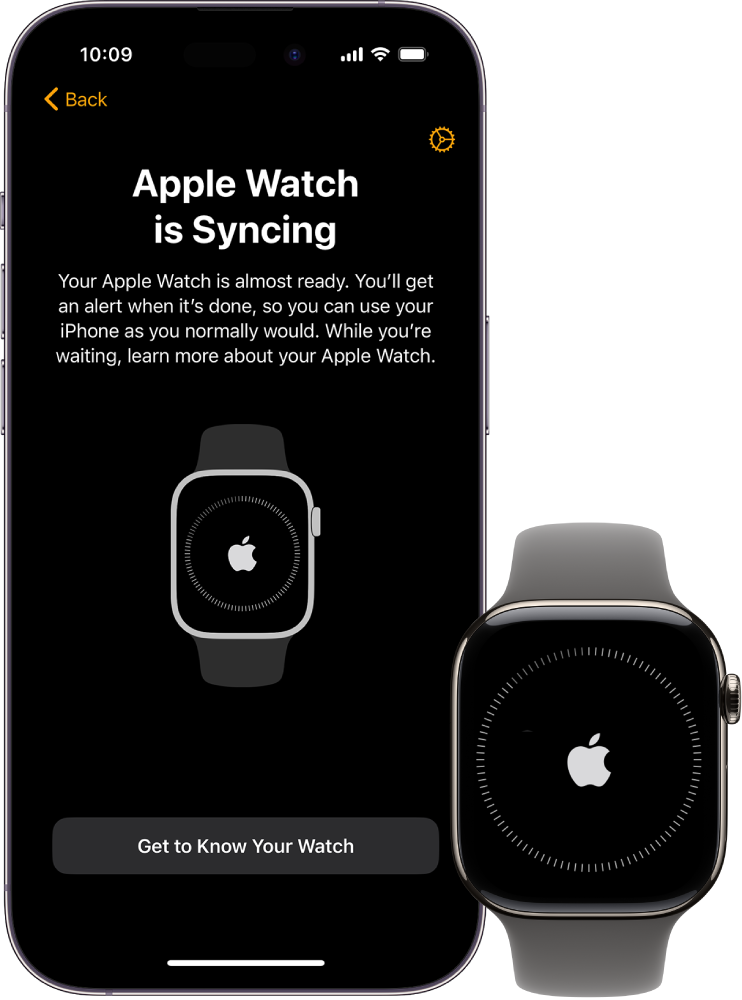
When all else fails, a full unpair and re-pair is often the only permanent fix.
Erase All Content on Apple Watch
- On Apple Watch, open Settings (gear icon).
- Go to General > Reset > Erase All Content and Settings.
- Enter your passcode if prompted.
- Confirm erasure.
This is the only way to reliably restore the pairing screen, per user Neiltyra.
Reconnect Using iPhone Watch App
- Open the Watch app on your iPhone.
- Tap “Pair Apple Watch”.
- Hold your iPhone near the watch.
- Follow on-screen instructions.
- When prompted, choose “Restore from Backup” to recover apps, settings, and health data.
Keep devices within 3 inches (7.6 cm) during pairing for best results.
Transfer to a New iPhone
If upgrading, use the built-in transfer tool:
- On new iPhone, open Watch app.
- Tap “Transfer Your Apple Watch”.
- Follow prompts to move data seamlessly.
This avoids full erase and preserves your setup.
Diagnose the Problem Device
Test iPhone with Other Bluetooth Devices
Rule out iPhone hardware issues:
- Pair a Bluetooth headset, speaker, or car system.
- Use it for several minutes.
- If it disconnects randomly, your iPhone’s Bluetooth module may be faulty.
If only the Apple Watch disconnects, the issue is likely software or watch-specific.
Test Apple Watch with Bluetooth Accessories
Check the watch’s Bluetooth stability:
- Pair AirPods or a heart rate monitor directly to your Apple Watch.
- Monitor connection during movement or app use.
- If those drop, the Apple Watch Bluetooth hardware could be failing.
Apple Support specialist mingoslkd recommends this diagnostic path.
Prevent Future Disconnections
Keep Software Updated
- Enable automatic updates on both devices.
- Regularly check Watch app > General > Software Update.
- Avoid delaying major OS updates.
Avoid USB Syncing via iTunes
Users report pairing corruption after syncing iPhone via USB cable with iTunes—especially on older Windows or macOS systems.
- Use Wi-Fi syncing instead.
- Go to iTunes settings > Sync with this iPhone over Wi-Fi.
Maintain Wireless Access
- Keep Bluetooth and Wi-Fi on iPhone at all times.
- Disable Low Power Mode during troubleshooting or initial pairing.
- Avoid placing iPhone in metal cases or pockets with foil-lined wallets.
Charge Devices Fully
Low battery can trigger disconnection behaviors.
- Charge both devices to 100% before pairing or resetting.
- Use original chargers to avoid power inconsistencies.
When to Seek Hardware Repair
Consider professional help if:
- Disconnection persists across multiple iPhones.
- The issue occurs with multiple Apple Watches.
- Other Bluetooth devices fail to stay connected.
- Watch won’t enter pairing mode after erase.
- There’s visible water damage or physical trauma.
Repair Options
- Apple Watch Repair: support.apple.com/repair
- iPhone Repair: support.apple.com/repair
Apple recommends direct support contact if standard fixes fail—especially with recurring issues.
Most Effective Solutions Ranked
| Fix | Success Rate | Reversible | Data Loss Risk |
|---|---|---|---|
| Toggle Airplane Mode | High | Yes | None |
| Restart iPhone | High | Yes | None |
| Restart Both Devices | High | Yes | None |
| Update iOS/watchOS | High | Yes | None |
| Toggle Bluetooth | Medium-High | Yes | None |
| Reset Network Settings | Medium | Yes | None |
| Use Siri to Toggle Airplane Mode | Medium | Yes | None |
| Erase and Re-Pair | Very High | Yes (with backup) | High (if no backup) |
Bottom Line: For chronic issues, erasing and re-pairing is the most reliable fix—despite the setup time.
Final Tips for Long-Term Stability
- Reboot both devices weekly to clear memory and refresh connections.
- Avoid jailbroken or modified firmware—these break Apple’s pairing protocols.
- Use Wi-Fi syncing to prevent iTunes-related pairing corruption.
- Monitor for recurring drops—if disconnections return within days, log the pattern and contact Apple Support.
While Apple hasn’t issued an official statement on widespread disconnection bugs, community reports and support responses confirm it’s a known, intermittent issue—most often tied to software, not hardware.
By following this guide, you’ve taken control of the apple watch disconnected from iphone problem with proven, step-by-step solutions. Now, get back to tracking, messaging, and staying connected—wrist-to-phone.




