

If you’re using an Apple Watch to track fitness or manage your weight, you’ve probably checked your Move ring to see how many active calories you’ve burned. But here’s the truth: that number only tells half the story. To truly understand your energy balance — whether you’re losing fat, maintaining weight, or fueling muscle growth — you need to know your total calories burned, which includes both the energy you expend during movement and the calories your body burns just to stay alive.
While the Apple Watch doesn’t display total calories burned directly on the watch face, it does calculate and store this data behind the scenes. With the right methods and tools, you can access this crucial metric and use it to make smarter decisions about nutrition, workouts, and long-term health. In this guide, you’ll learn how to find your total daily calorie burn using native Apple apps, why third-party apps are essential for real-time access on your wrist, how accurate the numbers really are, and how to apply this data for effective weight management and fitness progress.
What Total Calories Burned Really Means
Active vs. Passive Energy: The Two Sides of the Equation
Apple Watch tracks two distinct types of calorie expenditure:
- Active Calories (Active Energy Burned): These come from physical movement — walking, running, workouts, or even fidgeting. This is the number that fills your Move ring and reflects how much extra energy you burn beyond your body’s baseline.
- Passive Calories (Resting Energy / BMR): This is your body’s automatic calorie burn — energy used for breathing, digestion, circulation, and cellular repair while at rest. Also known as Basal Metabolic Rate (BMR), it’s calculated using your age, gender, height, weight, and heart rate patterns collected over time.
The formula is simple:
Total Calories Burned = Active Calories + Passive Calories
For most people, passive calories account for 60–75% of their total daily burn. A sedentary person might burn 1,800 calories at rest and only 300 through activity — totaling 2,100. Ignoring that 1,800 means you’re missing the biggest piece of your metabolic puzzle.
Why Total Calories Matter for Real Results
Focusing only on active calories can lead to poor decisions. For example:
– You complete a 45-minute run and burn 500 active calories. Great! But if your resting burn is 1,900, your total is actually 2,400.
– If you then eat 2,200 calories, you’re still in a 200-calorie deficit — perfect for gradual fat loss.
– Without knowing your total, you might think you “earned” a big meal and overshoot your needs.
Total calories give you the full picture of your daily energy output, helping you align food intake with actual expenditure — whether your goal is fat loss, muscle gain, or maintenance.
How to Find Total Calories on iPhone (No Extra Apps Needed)
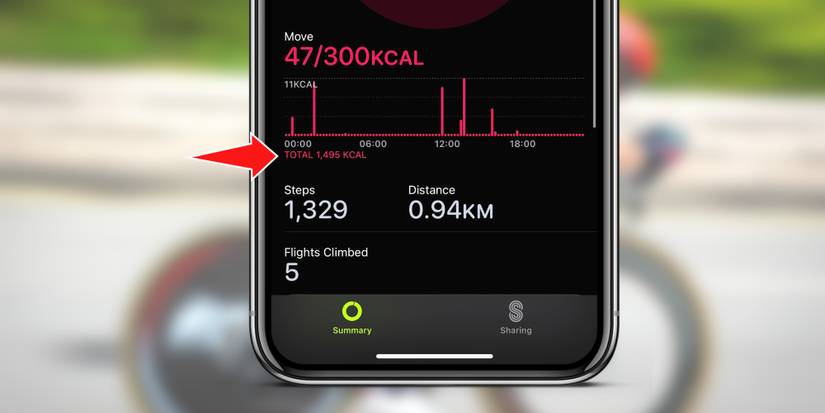
Use the Activity App History
The fastest native way to see your total calories burned:
- Open the Activity app on your iPhone.
- Tap History.
- Select any day.
- Scroll down to the Move ring chart.
- Swipe left on the chart — “Total Calories” will appear below the graph.
✅ Pro Tip: Tap the calendar icon to compare totals across days and spot patterns — like higher burns on workout days or dips during illness.
This method pulls combined active and passive energy data directly from Apple’s HealthKit, making it reliable and instantly accessible.
Check the Health App for Deeper Insights
Want more detail? The Health app gives you full control over your data.
- Open Health > Browse.
- Search for “Resting Energy” — this shows your daily passive burn.
- Search for “Active Energy Burned” — this matches your Move ring total.
- Add the two values manually, or create a Shortcuts automation to calculate the sum automatically.
📊 Expert Move: In the Health app, add both “Active Energy” and “Resting Energy” to your Favorites. Then, view them side-by-side in the Dashboard to monitor trends weekly.
Use the Fitness App (iOS 16.1+, Apple Fitness+ Required)
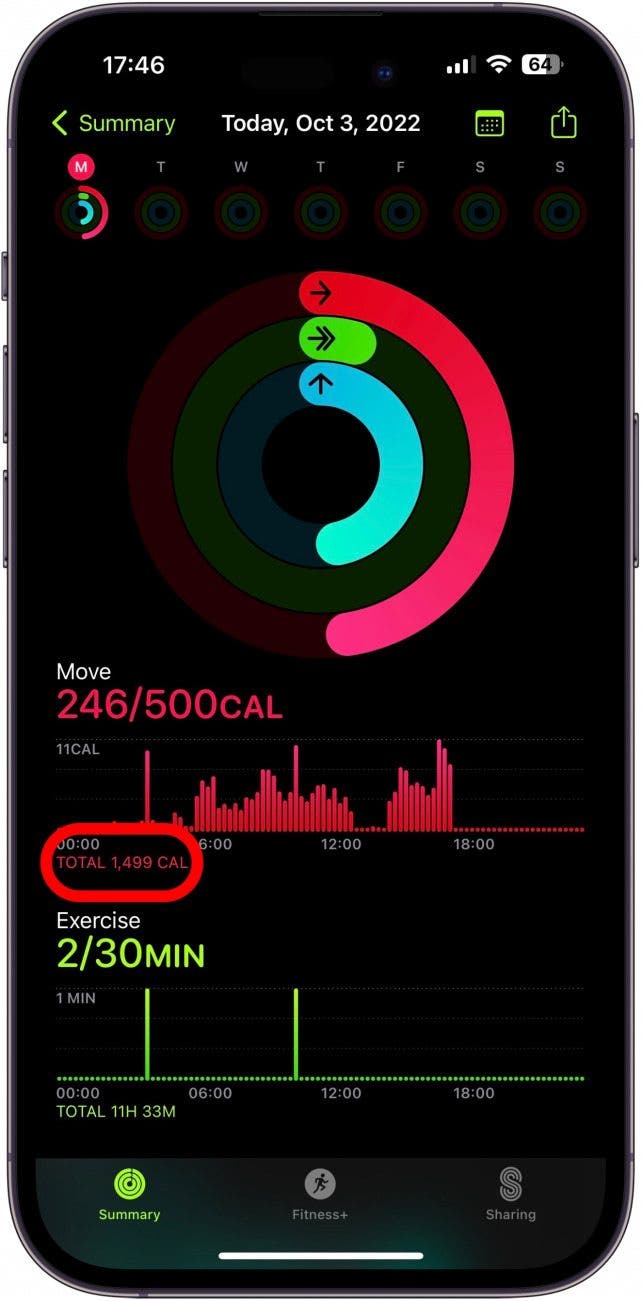
If you have an Apple Fitness+ subscription, the Fitness app offers the cleanest native display of total calories.
- Open the app and go to Summary.
- Scroll to “Energy Burned” — it shows total daily calories upfront.
- View trends over days, weeks, and months with intuitive graphs.
Unlike the Activity app, you don’t need to swipe — the total is front and center, making it ideal for users who want clarity without extra steps.
Why Apple Watch Doesn’t Show Total Calories (And What You Can Do)
No Native Watch Face Option
Despite tracking all the necessary data, Apple Watch has no built-in complication for total calories. The only energy-related option available is active calories (Move ring). This means you cannot see your full daily burn at a glance on your wrist unless you use third-party apps.
It’s one of the most requested features in Apple Watch forums — and still missing after years of user feedback.
Workaround: Manual Estimation
If you prefer not to install third-party apps, you can estimate your total daily burn:
- Calculate your BMR using an online calculator (input age, sex, height, weight).
– Example: 1,600 kcal/day - Check your Move ring for active calories.
– Example: 700 kcal - Add them: 1,600 + 700 = 2,300 total calories
⚠️ Limitation: This assumes your BMR is constant, but it can vary slightly due to sleep quality, stress, and illness. For accuracy, rely on Apple’s real-time passive burn data when possible.
Best Apps to Show Total Calories on Apple Watch
Fitness View: The Top Choice
Fitness View is the most popular app for displaying total calories directly on your watch face.
Key Features:
- Pulls total calories from Apple Health.
- Offers customizable complications showing total, active, steps, heart rate, and VO₂ max.
- Updates every few minutes — no lag.
Setup:
- Download Fitness View on iPhone and Apple Watch.
- Open the app and allow Health data access.
- Long-press your watch face > Edit > Add complication > Select Fitness View.
- Choose “Total Calories” as the display metric.
💡 Pro Tip: Use the “Detailed” layout to show both total and active calories together — perfect for seeing your full burn and progress toward your Move goal.
Pricing:
- Free trial available.
- Subscription: $4.99/month or $29.99/year.
Gentler Streak: Minimalist & Motivational
Perfect for users who want simplicity and habit-building.
Features:
- Displays total calories in a clean dashboard.
- Tracks activity streaks (e.g., 7-day consistency).
- Syncs with HealthKit for accurate totals.
Setup:
- Install the app on iPhone and watch.
- Grant Health permissions.
- Add the “Energy Total” complication to your watch face.
✅ Best For: Long-term motivation and visual clarity.
Other Compatible Apps
| App | Shows Total Calories? | Watch Complication? | Notes |
|---|---|---|---|
| Carrot Fit | Yes | Yes | Fun, snarky tone; supports custom metrics |
| WatchStats | Yes | Yes | Free version available; detailed stats |
| Strava | Imports data | No | Best for athletes, no total burn on watch |
| MyFitnessPal | Syncs total | No | Ideal for diet tracking, not real-time burn |
🔐 Security Note: Only install apps from trusted developers. Review permissions — avoid apps requesting contacts, location, or other unnecessary data.
How Accurate Is Apple Watch Calorie Data?
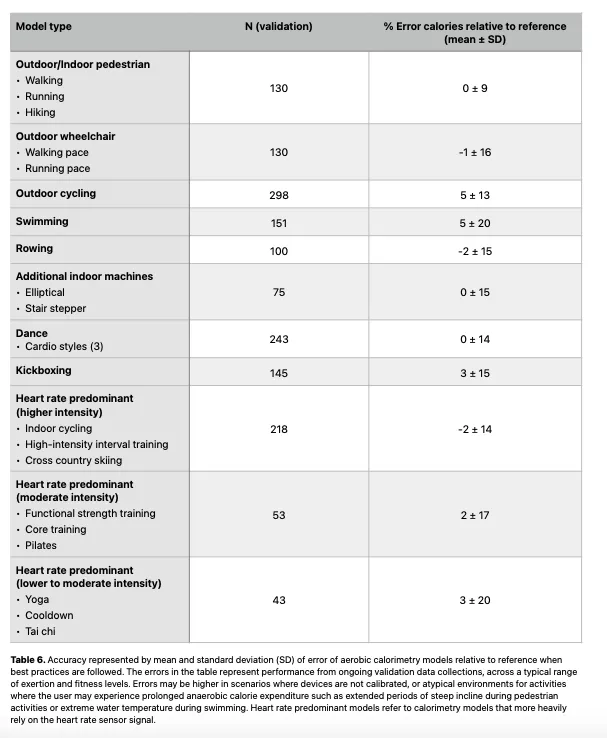
Active Burn Accuracy: 75–85%
Studies show Apple Watch ranks among the most accurate consumer wearables for calorie tracking.
- Most accurate for: Walking, running, HIIT, elliptical.
- Less accurate for: Cycling, weightlifting (due to limited arm motion).
- Heart rate integration significantly improves precision during intense efforts.
🧪 Research Insight: Independent testing by Android Authority found Apple Watch outperforms Fitbit and Garmin in moderate-to-vigorous cardio.
Passive Burn: Smart Estimation, Not Lab Measurement
Resting calories are calculated using a modified Mifflin-St Jeor equation, adjusted with real-time heart rate and movement.
- Factors: Age, sex, height, weight, HR variability.
- Learns over time — accuracy improves with consistent wear.
⚠️ Not medical-grade, but highly reliable for trend tracking and planning.
Maximize Accuracy: 5 Key Steps
- Update Your Health Profile: Open Health app > Profile > Medical ID — verify age, sex, height, and weight monthly.
- Wear Your Watch 24/7: Missing sleep data underestimates passive burn — sometimes by hundreds of calories.
- Enable Heart Rate Monitoring: Go to Watch app > Privacy > Heart Rate — ensure it’s on.
- Avoid Power-Saving Modes: Disable “Reduce Motion” during workouts.
- Calibrate Outdoor Workouts: Run or walk for 20 minutes on flat terrain to improve GPS and pace accuracy.
📍 Result: More accurate distance, speed, and calorie estimates over time.
Use Total Calories for Weight Management
Sync With Cronometer for Precision
For serious weight loss or muscle gain, link Apple Watch to Cronometer:
- Open Cronometer > Settings > Energy Settings.
- Set Activity Level = None.
- Turn on “Replace with Imported Activity.”
- Link Apple Health.
✅ Outcome: Cronometer uses your actual active burn — not an estimate — to calculate net calories. Now you see real deficits or surpluses.
Plan Meals Based on Daily Burn
- Post-workout day (800+ active calories): Eat more carbs to replenish glycogen.
- Low-activity day: Slightly reduce intake if total burn is below average.
- Muscle gain phase: Eat 250–500 calories above your total burn.
🥗 Example: On a 2,600-calorie burn day, aim for 2,850 kcal with 150g+ protein.
Track Fitness Progress Over Time
- Rising active burn at the same pace = improved endurance.
- Increasing VO₂ max and decreasing resting heart rate = better cardiovascular fitness.
- Sudden drops in passive burn? Could signal overtraining, illness, or metabolic slowdown.
🩺 Share long-term trends with your doctor if managing thyroid, diabetes, or hormonal conditions.
Final Tips for Better Tracking
- Check total calories each evening to adjust meals or plan tomorrow’s activity.
- Use a Shortcuts automation to calculate (Active + Resting) daily.
- Compare weekend vs. weekday totals to spot lifestyle imbalances.
- Reassess goals monthly — if your burn increases, you may need more fuel.
- Be patient — Apple Watch gets smarter the longer you wear it.
🔄 Future Outlook: Apple may finally add native total calorie support in a future watchOS update. Until then, third-party apps like Fitness View give you even richer insights — right on your wrist.
With the right setup, your Apple Watch becomes a powerful tool for understanding not just how active you are, but how much energy your body truly uses every day.





