Your Apple Watch nudges you toward a more active lifestyle with its vibrant Activity rings—but what happens when the default goals don’t match your real-world routine? Whether you’re recovering from injury, training for a marathon, or just want smarter fitness tracking, you can now fully customize your Move, Exercise, and Stand goals to fit your life. With watchOS 11 and iOS 18, Apple finally gives users complete control—right from the wrist—allowing per-day scheduling, temporary adjustments, and even pausing tracking without losing streaks.
This guide walks you through every way to change activity goals on Apple Watch, whether using your watch or iPhone. You’ll learn how to set personalized weekly schedules, adjust goals for rest days, pause tracking when needed, and avoid common pitfalls. Plus, we’ll cover expert-backed goal recommendations and how to use Apple’s automatic suggestions wisely. Let’s make your Apple Watch work for you—not against you.
Access Activity Goal Settings
Open the Activity App on Apple Watch
To begin adjusting your goals, open the Activity app directly on your Apple Watch. Look for the app with the three colorful concentric rings—this is where all your daily progress lives.
Once inside, swipe up or turn the Digital Crown to scroll through your stats. At the top, you’ll see your Move (red), Exercise (green), and Stand (blue) rings filling as you meet your targets.
Tap Summary to Reveal Options
In the top-left corner of the screen, tap the three-line menu icon (≡) labeled “Summary.” This screen serves as your control hub for goal customization and tracking management.
Here, you’ll find two key options: Change Goals and Pause Rings. If you don’t see both, ensure your Apple Watch is running watchOS 11 or later—earlier versions only allowed Move goal changes on the watch, limiting full customization.
Change Daily Activity Goals

Adjust All Three Goals by Day
With watchOS 11+, you can now set custom values for:
– Move goal: Active calories burned (above BMR)
– Exercise goal: Minutes of moderate-intensity movement
– Stand goal: Hours with at least 1 minute of standing motion
Even better—you can assign different goals for each day of the week, perfect for aligning with your workout schedule or rest days.
Step-by-Step: Set a Weekly Goal Schedule
- In the Activity app, tap Summary.
- Scroll down and select Change Goals.
- Tap the Calendar icon in the top-right corner.
- Choose Schedule.
- Pick a day (e.g., Monday).
- Adjust each goal:
– Use + or – to set Move (calories)
– Set Exercise (minutes)
– Set Stand (hours) - Tap Set after each adjustment.
- Repeat for other days.
- Finish by tapping Set Schedule.
Your Apple Watch will now automatically apply the correct goals based on the day.
Pro Tip: Set higher Move and Exercise goals on workout days (like Tuesday and Saturday), and lower them on rest days (e.g., Sunday) to support recovery while preserving streaks.
Use iPhone for Full Goal Control
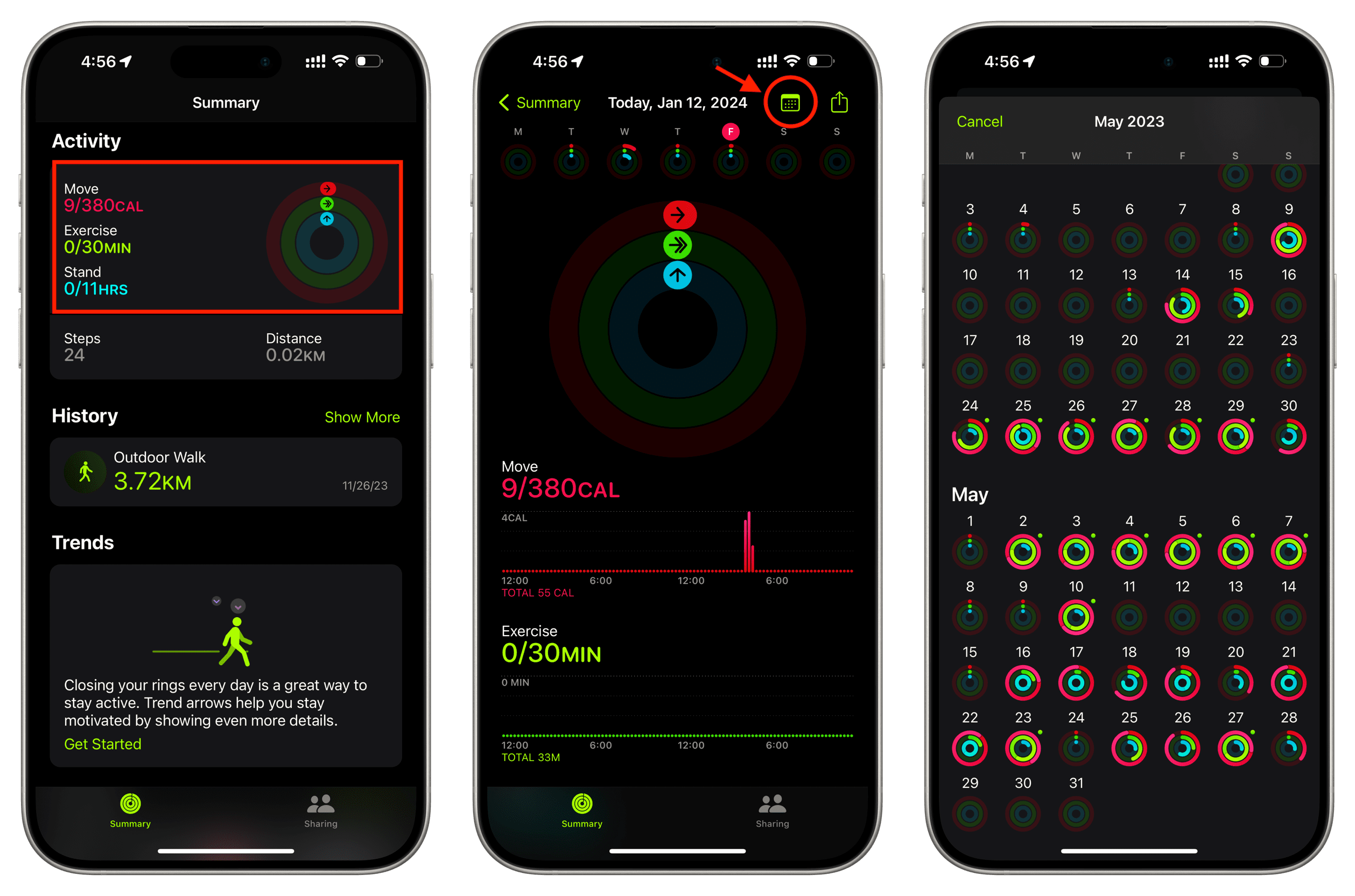
Open Fitness App on iPhone
While newer Apple Watches support full customization, many users prefer managing goals on the Fitness app on iPhone for easier navigation and visibility.
Open the Fitness app, tap Activity Rings at the top, then scroll down to Change Goals. The interface mirrors the watch but offers more space to view your weekly plan clearly.
Customize Goals by Day of Week
- Tap Change Goals.
- Tap Schedule in the top-right.
- For each goal:
– Select a day
– Adjust value using + or –
– Tap Set Move Goal Schedule, Set Exercise Goal Schedule, or Set Stand Goal Schedule to confirm - Repeat for all days and goal types.
All changes sync instantly to your Apple Watch via iCloud.
Note: Even if you’re using an older Apple Watch (pre-watchOS 11), you can still adjust Exercise and Stand goals using the iPhone app—something not possible directly on the watch before.
Make Temporary Goal Adjustments
Lower Goals for Rest Days
Sometimes you need a break. Instead of pushing through fatigue, lower your Move goal for today only—without affecting your regular schedule or losing motivation.
On iPhone:
- In the Fitness app, tap next to any ring.
- Choose Adjust Goal for Today.
- Reduce the calorie target (e.g., from 800 to 400).
- Tap Change Move Goal for Today.
The ring resets instantly with the new target.
On Apple Watch (watchOS 11+):
- Open Activity app → Summary → Change Goals.
- Tap Adjust for Today.
- Modify the goal.
- Tap Set.
This change applies only to the current day. Tomorrow, your scheduled or default goals return automatically.
Common Use Case: After an intense gym session or long hike, reduce your Move goal the next day to encourage active recovery while still staying on track.
Set Realistic and Effective Goals

Recommended Move Goals by Fitness Level
Your Move goal should challenge you—but not overwhelm. Here’s what experts and experienced users suggest:
| User Type | Move Goal (Calories) |
|---|---|
| Beginner | 400–600 |
| Intermediate | 700–900 |
| Advanced | 1000–1500+ |
For example, a man in his late 20s, 5’10”, aiming for fat loss (~4 kg), might set a 1000-calorie Move goal to boost daily energy expenditure.
Avoid “Ring Chasing”: Don’t set low goals just to close rings. Focus on meaningful movement—real workouts, walks, and strength training that improve health.
Exercise and Stand Goal Tips
- Exercise Goal: Default is 30 minutes. Many users increase to 45–90 minutes for fitness gains.
- Stand Goal: Default is 12 hours. To encourage hourly movement, try 16 hours/day, especially if working from home.
Set goals that are “reasonably aspirational”—hard enough to push you, but achievable with effort.
Pause Activity Tracking When Needed
Stop Rings Without Losing Streaks
Taking time off? You can pause Activity rings for up to 90 consecutive days without losing award streaks.
When paused:
– Rings stop tracking progress
– No notifications for closing goals
– Streaks remain preserved
How to Pause
On iPhone:
1. Open Fitness app → Activity Rings → Pause Rings
2. Choose duration: Today, Next Week, Next Month, or Custom
3. Pick end date (up to 90 days)
4. Tap Set
On Apple Watch:
1. Activity app → Summary → Pause Rings
2. Select duration or use Custom
3. Tap Set
You’ll see a banner saying “Rings Paused” in the Activity app.
Resume Tracking Early
Need to restart early? No problem.
- Open Activity app (watch or iPhone)
- Tap Resume Rings
- Tracking resumes immediately
All historical data and streaks are intact.
Edit Pause Duration: While paused, tap Edit Pause, adjust the end date, then tap Done.
Understand Automatic Goal Suggestions
Weekly Move Goal Recommendations
Every Monday, your Apple Watch analyzes last week’s performance and may suggest increasing your Move goal.
The system considers:
– Average Move goal completion
– Consistency in closing rings
– Trends in active calorie burn
If you regularly exceed your goal, it might recommend a higher target.
You can:
– Accept the suggestion
– Decline it
– Manually override with a custom value
Expert Note: Use these prompts as motivation—not mandates. If the suggested goal feels too aggressive, keep your current one or increase gradually.
Know What Goals Actually Track
Move: Active Calories Explained
- Measures calories burned above your BMR
- Based on movement intensity, heart rate, and personal health data
- Adjustable from 200 to 1500+ calories
- Increments of 1 calorie
Your Health profile (age, weight, height, sex) affects how many calories you burn per activity.
Exercise: Minutes of Moderate Effort
- Tracks time spent in activities ≥ brisk walking (~100 BPM)
- Includes walks, runs, workouts, and gym sessions
- Prior to watchOS 11: fixed at 30 minutes/day
- Now customizable: 1–180+ minutes/day
Closing this ring requires sustained effort—not just steps.
Stand: Hours with Movement
- Counts hours where you stand and move for at least 1 minute
- Default: 12 hours/day
- Adjustable: 1–24 hours/day
- Encourages breaking sedentary time
Some users set 16–18 hours to promote frequent standing, especially if working from home.
No Decimals Allowed: All goals must be whole numbers—no half-minutes or partial calories.
Fix Common Goal Setting Issues
Missing Exercise or Stand Options?
If you can’t change Exercise or Stand goals on your Apple Watch, check:
- watchOS version: Must be 11 or later
- iPhone OS: Should run iOS 18 or later
- Sync status: Ensure Fitness data is syncing via iCloud
Older versions only allowed Move goal changes on the watch.
Goals Not Syncing Between Devices?
Wait a few moments—changes usually sync instantly. If not:
- Open Watch app on iPhone
- Go to My Watch > Activity
- Toggle off and on Share Activity Data
- Restart both devices
Ensure Wi-Fi and Bluetooth are active.
Optimize Long-Term Goal Management
Review Goals Weekly
Make it a habit to review your goals every Monday, especially after receiving the automatic suggestion.
Ask:
– Did I consistently close all rings?
– Was my Move goal too easy or too hard?
– Do I need higher Exercise time for fitness progress?
Adjust based on real-life performance—not guesswork.
Align Goals With Life Changes
Update goals seasonally or during life shifts:
– Vacation? Lower goals temporarily
– Training for a race? Increase Exercise and Move
– Injury recovery? Pause rings or reduce targets
Your Apple Watch should support your life—not dictate it.
Summary: Key Steps to Change Activity Goals
On Apple Watch (watchOS 11+)
- Open Activity app
- Tap Summary (≡)
- Tap Change Goals
- Tap Calendar → Schedule
- Set Move, Exercise, Stand per day
- Tap Set Schedule
On iPhone (All watchOS Versions)
- Open Fitness app
- Tap Activity Rings
- Tap Change Goals → Schedule
- Customize goals by day
- Save each schedule
For One-Day Adjustments
- Use Adjust Goal for Today in Fitness app or Apple Watch menu
To Pause Tracking
- Tap Pause Rings
- Choose duration (up to 90 days)
- Tap Set
- Resume anytime with Resume Rings
With watchOS 11, Apple finally gave users full control over Activity goals. You’re no longer stuck with rigid defaults. Use scheduling to match your real routine, adjust temporarily when needed, and pause guilt-free when life gets busy. The key is balance—set goals that challenge you, reflect real effort, and support long-term health.
Leave a Reply