

Is your Apple Watch dead, unresponsive, or failing to charge despite hours on the charger? You’re not alone. Millions of users face Apple Watch troubleshooting challenges—ranging from frozen screens and battery drain to inaccurate heart rate tracking and Apple Pay failures. The good news is that most of these issues aren’t permanent hardware faults. In fact, 90% of problems can be resolved with simple software resets, cleaning, or settings adjustments—no trip to the Apple Store required.
Whether your watch won’t turn on, keeps disconnecting from your iPhone, or the touchscreen has gone completely unresponsive, this guide delivers fast, step-by-step fixes based on Apple’s official recommendations and real-world user experiences. From diagnosing a dead battery to recovering a bricked device, we’ll walk you through proven solutions that actually work—so you can get your smartwatch back up and running in minutes, not days.
Charging Not Working? Start Here
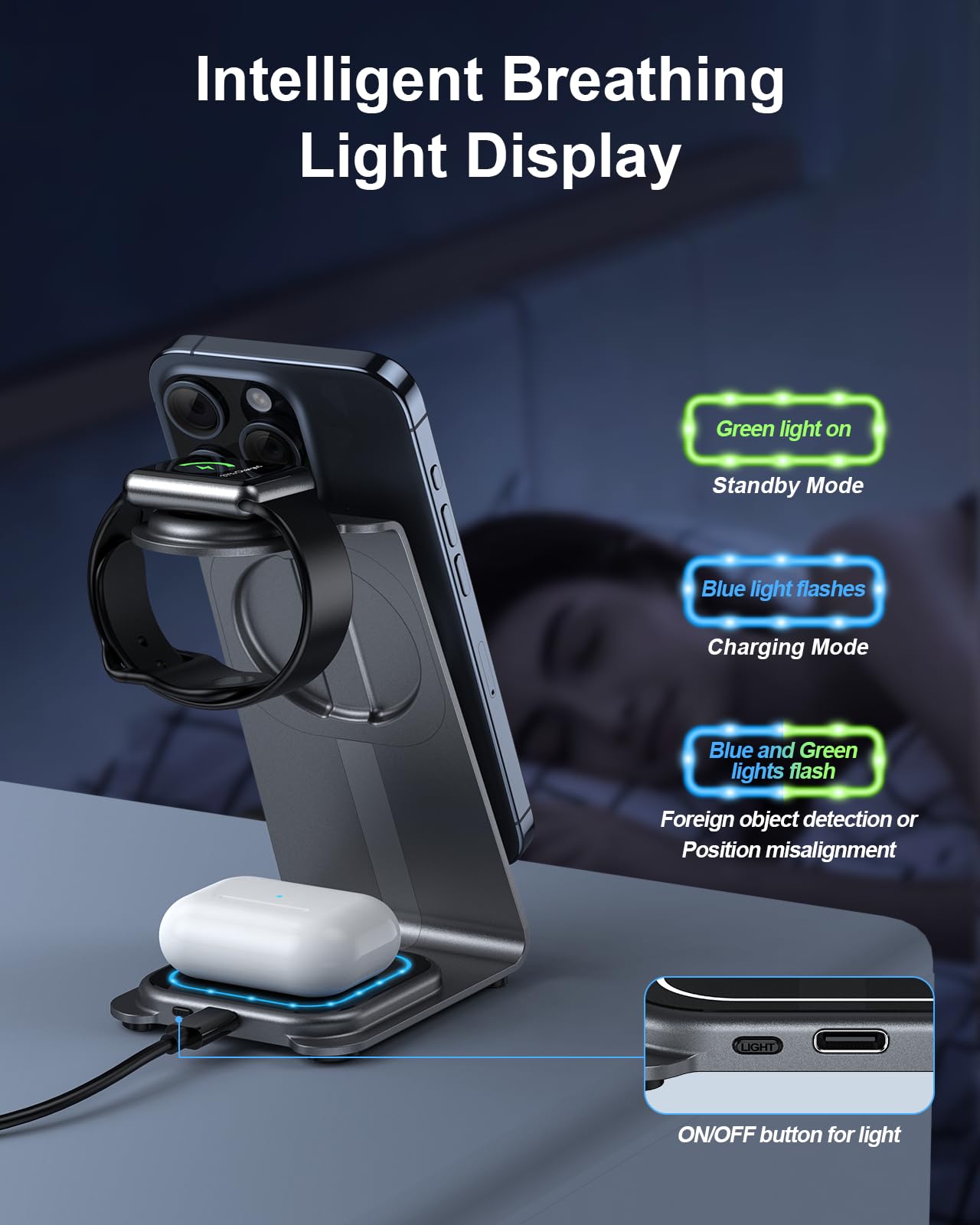
If your Apple Watch isn’t responding when placed on the charger, the first step is to rule out simple causes before jumping to worst-case scenarios.
Use Genuine Apple Charging Accessories Only
One of the most common reasons for charging failure is using third-party cables or power adapters. Apple’s Magnetic Charging Cable, USB-C Fast Charger, Magnetic Charging Dock, and MagSafe Duo are specifically engineered for consistent power delivery. Generic chargers may not provide enough current or trigger error messages like:
“Unable to charge. This is a country-specific charger.”
This warning often appears in regions like China or Indonesia due to regional charging standards (WPT compliance). Stick to Apple-branded gear to avoid compatibility issues.
Clean the Charging Contacts Regularly
Lint, dust, or corrosion on the back of the watch or charger can block the magnetic connection. Wipe both surfaces with a dry, lint-free microfiber cloth. Never use water, alcohol, or abrasive cleaners—they can damage the finish or seep into internal components.
Align the Charger Properly
For larger models—especially Apple Watch Series 7, 8, 9, and Ultra (44mm, 45mm, 49mm)—misalignment is a frequent culprit. Lay the charger flat and adjust the angle to ensure full magnetic contact. Remove the band when using a Magnetic Charging Dock or MagSafe Duo; this reduces interference and improves connection stability.
Wait 30 Minutes Before Giving Up
A deeply drained battery may take up to 30 minutes to show any sign of life. Don’t unplug too soon. Look for:
– Red lightning bolt on black screen → battery is critically low
– Red lightning inside a ring → charging has started
– Green charging indicator → normal charging in progress
If nothing appears after 30 minutes, proceed to advanced troubleshooting.
Watch Won’t Turn On? Try These Fixes
A blank screen doesn’t mean your Apple Watch is dead. It could be stuck in a software loop or suffering from a display malfunction.
Force-Restart Your Apple Watch
This is the single most effective fix for a frozen or unresponsive device.
Steps:
1. Press and hold the side button and Digital Crown at the same time.
2. Keep holding for 10 seconds.
3. Release when the Apple logo appears.
Wait 30–60 seconds for the reboot to complete. If the logo shows, the logic board is functional—meaning the issue is likely software-related.
Check for Signs of Residual Power
Even with a black screen, your watch might still have power:
– Press the side button. If a microphone icon appears, there’s residual charge.
– Use Find My on your iPhone to ping the watch. If it vibrates or beeps, the display may be faulty—but the device is alive.
In this case, a software recovery via forced restart or full battery drain may restore functionality.
Try the Complete Battery Drain Method
Used when the watch shows time with a red lightning bolt but refuses to charge properly.
How to do it:
1. Let the battery drain completely—this may take 3–7 days.
2. To speed it up: Perform force-restarts 3–5 times per day.
3. Once fully drained, connect to the charger.
Many users report success:
– FakeFred, a former Apple QA engineer, recovered a Series 5 after leaving it in a glove compartment for a week.
– tonyfromstalbans saw his Series 6 reboot with 13% charge after five days off.
If no response after full drain, hardware failure is likely.
Frozen or Unresponsive Screen?
When taps, swipes, or buttons do nothing, your Apple Watch is likely frozen due to app crashes or memory overload.
Restart the Device Immediately
A soft restart clears temporary glitches.
Steps:
1. Press and hold the side button until the power slider appears.
2. Swipe to power off.
3. Wait 10 seconds, then press the side button to turn it back on.
Close Problematic Apps
Glitchy apps can freeze the system.
Steps:
1. Double-press the Digital Crown to open App Switcher.
2. Swipe left to find the misbehaving app.
3. Tap the red “X” to close it.
Reopen the app to test. If it crashes again, delete and reinstall it from the App Store.
Reset from iPhone if Watch Is Unreachable
If the screen is frozen and you can’t interact:
- Open the Apple Watch app on your iPhone.
- Go to My Watch > General > Reset.
- Choose:
– Restart (soft reset)
– Erase All Content and Settings (factory reset)
Warning: Erasing removes all data. Only use this if other methods fail.
Battery Draining Too Fast?

If your Apple Watch dies before bedtime, rogue apps or settings are likely to blame.
Monitor App Battery Usage
See what’s eating power:
- Open Apple Watch app on iPhone.
- Tap Battery under “My Watch.”
- Review usage by app.
An app using 30%+ in a few hours needs attention.
Stop Background App Refresh
Many apps run in the background unnecessarily.
Steps:
1. Open Apple Watch app > My Watch > General.
2. Tap Background App Refresh.
3. Turn it off for non-essential apps (e.g., weather, news).
Adjust Power-Hungry Settings
Reduce drain with these tweaks:
- Disable Always-On Display (Series 5 and later)
- Turn off Wake on Wrist Raise when not needed
- Use Power Saving Mode during workouts (pauses heart rate monitoring periodically)
- Limit notifications from chatty apps
Update WatchOS and iOS
Software bugs often cause battery drain. Install the latest:
- WatchOS (on Apple Watch: Settings > General > Software Update)
- iOS (on iPhone: Settings > General > Software Update)
Update while charging to avoid interruptions.
Bluetooth Keeps Dropping?
Losing connection to your iPhone or headphones? It’s usually a software hiccup.
Reset Bluetooth on Both Devices
On Apple Watch:
1. Open Settings > Bluetooth.
2. Toggle off, wait 10 seconds, turn back on.
On iPhone:
1. Open Control Center.
2. Tap the Bluetooth icon to disable.
3. Wait 10 seconds, re-enable.
Re-Pair Your Apple Watch
If connections keep failing:
- On iPhone, open Apple Watch app.
- Tap My Watch > All Watches.
- Select your watch > Unpair Apple Watch.
- Set up again as new.
Tip: Back up first if possible—unpairing erases the watch.
Touchscreen or Buttons Not Responding?
A sticky Digital Crown or unresponsive screen can stem from software or physical damage.
Clean and Restart
Moisture, dirt, or pressure can interfere with touch sensitivity.
- Wipe the screen with a dry, soft cloth.
- Restart or force-restart the watch.
Avoid Forcing Stuck Buttons
If the side button is stiff:
– Don’t pry or press hard.
– Try a restart—sometimes software locks the input.
– If physically damaged, seek professional repair.
Screen Cracked? Full Replacement Needed
The display and cover glass are fused. Even minor cracks require full front assembly replacement. Continued use risks further damage or touch failure.
Inaccurate Step or Heart Rate Tracking?
Your Apple Watch relies on clean sensors and proper fit to deliver accurate health data.
Recalibrate Motion and GPS Sensors
Improve step and distance accuracy:
- Walk at least 100 meters (300–400 steps) outdoors.
- Carry your iPhone and Apple Watch together.
- Keep pace steady—don’t pause or jog intermittently.
This recalibrates your stride length and motion algorithm.
Clean Back Sensors Weekly
Dirt, sweat, or lotions block optical heart rate sensors.
- Wipe the back of the watch with a dry microfiber cloth.
- Ensure no residue remains.
Wear Watch Snugly, Not Tightly
Loose fit causes erratic heart rate readings.
- Position watch on top of wrist, not too high or low.
- Use a fresh band—fluoroelastomer stretches, nylon frays.
- Ensure the magnetic clasp closes fully for consistent skin contact.
Avoid extreme temperatures—they affect sensor performance.
Apple Pay or NFC Not Working?
After a screen replacement, Apple Pay may fail—even if the watch functions.
Why This Happens
Starting with Series 2, the NFC chip is tied to the original display for security. A third-party screen replacement breaks the link.
Fix Apple Pay After Screen Swap
Before replacement:
1. On iPhone, go to Wallet & Apple Pay.
2. Remove all Apple Pay cards.
3. Turn off Apple Pay in Watch settings.
After replacement:
1. Re-pair the watch.
2. Re-add cards to Apple Pay.
If already replaced and Apple Pay fails:
– Temporarily reinstall the original screen.
– Remove Apple Pay settings.
– Install new screen and reconfigure.
Prevent Problems Before They Start
Most Apple Watch issues are preventable with routine care.
Restart Weekly
Clear memory leaks and prevent freezes.
- Once a week, restart your watch.
- Takes 30 seconds—keeps performance smooth.
Update Software Automatically
Enable automatic updates:
- On iPhone: Apple Watch app > My Watch > General > Software Update > Automatic Updates
- Ensures you get bug fixes and security patches.
Charge Every 3–6 Months If Stored
Never store your Apple Watch at 0% battery.
- If unused, charge to 50% before storing.
- Top up every 3–6 months to prevent lithium-ion degradation.
Avoid temperatures above 35°C (95°F) or below 0°C (32°F).
Final Note: Most Apple Watch problems are software-related and fixable. Always try force-restarts, clean contacts, and reset settings before assuming hardware failure. Use genuine Apple accessories, keep software updated, and monitor battery health. With these steps, your Apple Watch can deliver years of reliable performance.





