

If your Apple Watch Ultra screen is not working, you’re not alone. Many users report a completely black or unresponsive display—yet the watch continues to function underneath. You might feel haptic alerts, hear music, or even answer calls, but the screen remains dark or frozen. This frustrating behavior affects Apple Watch Ultra 1, Ultra 2, and Ultra 3 models, often occurring after software updates like watchOS 11.4 or during high-demand activities such as GPS workouts or Bluetooth car pairing.
The good news? In most cases, this is not a dead device—it’s a software or display driver glitch, not total hardware failure. And that means it’s fixable. This guide delivers proven, step-by-step solutions based on real user experiences, technical diagnostics, and Apple’s own troubleshooting protocols. You’ll learn how to quickly restore your screen, identify whether the issue is software-based, and know when it’s time to escalate with Apple Support.
Immediate Fixes to Try First
When your Apple Watch Ultra screen goes dark or unresponsive, start with these fast, non-invasive solutions. Most users regain functionality within minutes.
Force Restart the Watch
A force restart clears temporary software glitches that can freeze the screen or prevent it from turning on.
Steps:
1. Press and hold the Side Button and Digital Crown simultaneously.
2. Keep holding for 10–15 seconds.
3. Release when you see the Apple logo appear.
⚠️ Pro Tip: Even if the screen stays black, you may feel a haptic pulse during the restart. Don’t stop too soon—wait at least 20 seconds before concluding it’s not working.
This is the most effective first step for black or unresponsive screens. It resets the system without erasing data and often brings the display back instantly.
Remove and Re-Wear the Watch
One of the most surprisingly effective fixes involves simply taking the watch off your wrist.
Steps:
1. Take the Apple Watch off your wrist.
2. Wait 3–5 seconds.
3. Put it back on.
✅ “I just take it off for a few seconds, then wear it again — screen comes back.” – User report
This resets the wrist detection sensor, which may falsely believe the watch is upside down or not being worn—especially during workouts or when using certain watch faces.
Check for Power Reserve or Low Power Mode
A black screen could mean your watch is in Power Reserve or Low Power Mode, both of which disable screen illumination.
To check Power Reserve:
– Press and hold the Side Button.
– If only a red time appears, the watch is in Power Reserve.
– Charge for at least 2.5 hours to restore normal operation.
To disable Low Power Mode:
– On your iPhone: Open the Apple Watch app > Settings > Battery > Low Power Mode > Turn it OFF.
These modes conserve battery but can make the screen appear dead—even when the device is active.
Diagnose the Real Problem
Before attempting complex fixes, confirm whether the issue is software-related or a deeper hardware failure.
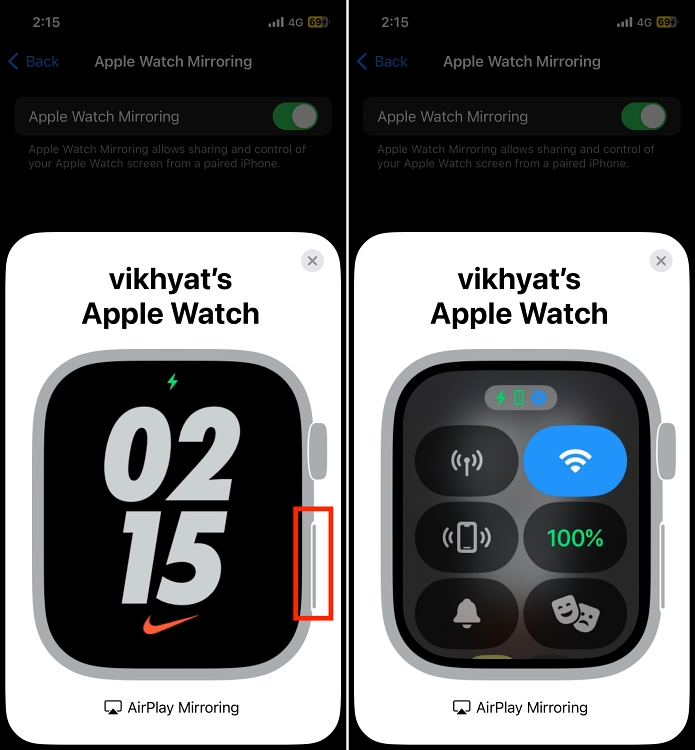
Use Screen Mirroring on iPhone
Watch Mirroring lets you view your Apple Watch interface directly on your iPhone—even if the watch screen is black.
Steps:
1. On your iPhone, open the Control Center.
2. Tap the Watch Mirroring icon (two overlapping circles).
3. Tap Connect.
If you can interact with the mirrored screen, the Apple Watch is working fine—just the display isn’t responding or lighting up.
✅ This confirms the issue is display-specific, not a system crash.
Verify Accessibility Settings Remotely
Accidentally enabling VoiceOver or Screen Curtain can make the screen appear completely black—even though everything else runs normally.
Check via iPhone:
1. Open the Apple Watch app.
2. Go to My Watch > General > Accessibility.
3. Ensure both are turned OFF:
– VoiceOver
– Screen Curtain
These settings can be toggled remotely—no need to see the watch screen. A single misconfigured accessibility setting can mimic a hardware failure.
Software & Settings Fixes
Many screen issues stem from bugs in watchOS, especially related to the Always On Display feature.
Toggle Always On Display
A widespread bug linked to Always On Display causes the screen to stay black while the watch runs normally.
Fix:
1. On iPhone: Open Apple Watch app > Display & Brightness.
2. Toggle Always On off, wait 5 seconds, then toggle back on.
✅ “I created a shortcut to toggle ‘Always On’ — I run it by Siri or double clench.” – User ajundi
Pro Tip: Create a Shortcut on your watch to toggle this setting instantly using Siri or AssistiveTouch gestures (e.g., double clench). This gives you a quick recovery tool when the screen blacks out.
Change the Watch Face
Corrupted watch face data can freeze the UI or prevent the screen from waking.
Steps:
1. On iPhone: Open Apple Watch app > Watch Faces.
2. Choose a new face from the Face Gallery.
3. Tap Add, then Set as Current.
This forces a UI refresh and often resolves rendering issues—especially after software updates.
Advanced Troubleshooting Methods

If basic fixes fail, try these deeper interventions—especially if the problem keeps returning.
Charge Then Force Restart
Use this when the watch has been off for hours or the battery is critically low.
Steps:
1. Connect to charger for 30 seconds to 1 minute.
2. While still connected (or immediately after), perform a force restart.
A very low battery may prevent a full boot—even if haptics are working.
Unpair and Re-pair as New
Eliminates corrupted settings, firmware conflicts, or hidden software bugs.
Steps:
1. On iPhone: Open Apple Watch app > tap your watch > Unpair Apple Watch.
2. Set up as a new device (don’t restore backup).
3. Reinstall apps one by one.
⚠️ Some users report the issue returns even on fresh setup—suggesting a systemic software flaw.
Still worth trying to rule out configuration issues.
Perform a Physical Tap Reset
A firm tap can jolt frozen display components or reset internal connections.
Steps:
1. Remove from charger.
2. Gently but firmly tap the front, edges, and back of the watch.
3. Press Side Button and Digital Crown several times.
4. Try waking the screen.
✅ Works occasionally—suggests possible loose internal connection or driver hang.
Not a permanent fix, but useful in emergencies.
When Hardware Might Be the Cause
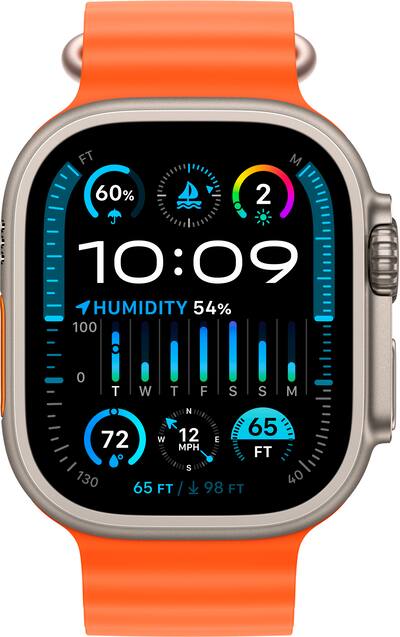
While most cases point to software, hardware defects can’t be ruled out—especially if fixes don’t last.
Watch Shows Orange & Blue Rectangles
During a forced restart, colored blocks (orange/blue) appear as part of Apple’s internal diagnostics.
- ✅ Normal: Blocks appear briefly, then Apple logo shows.
- ❌ Problem: Blocks stay on screen and device won’t boot.
If this persists, contact Apple—possible logic board or display module failure.
Replacement Units Fail Too
Multiple users report the same screen issue on replacement watches:
“Apple replaced it once, but the problem reappeared on the new watch.” – User reports
This suggests either:
– A firmware-level bug not resolved by hardware swap.
– Or a batch defect in display components.
Either way, escalate with Apple if replacements fail.
Prevention & Best Practices
Avoid recurring screen failures with these simple habits.
Keep watchOS Updated
Install the latest watchOS and iOS updates.
- Apple may patch the Always On bug in future releases.
- Avoid beta versions unless necessary.
Avoid Trigger Scenarios
Certain actions increase risk of screen blackout:
- Using white torchlight app and covering the screen.
- Pairing with Bluetooth in cars during workouts.
- Letting battery drop below 50% during GPS use.
⚠️ Red torchlight doesn’t cause issues—only bright white light.
Clean Screen and Charging Contacts
Dirt or moisture can interfere with sensors and charging.
- Wipe screen with a lint-free cloth.
- Dry charging pins with a soft brush.
- Avoid third-party chargers.
When to Contact Apple Support
Don’t wait if the issue is persistent or worsening.
Contact Apple If:
- Force restart fails (no Apple logo after 20 seconds).
- Orange/blue blocks stay on screen.
- Charging for 2+ hours does nothing.
- Problem returns after multiple replacements.
- Battery drains abnormally fast.
How to Escalate:
- Visit an Apple Store or Authorized Service Provider.
- Request in-person diagnostics (remote tests often miss intermittent issues).
- Ask for replacement under AppleCare+.
- If denied, request a senior advisor—cite recurring user reports.
“They reset the device and sent it back. One month later — same issue.” – User vyzrod
Document every incident with timestamps and conditions to strengthen your case.
Final Tips & Summary
The Apple Watch Ultra screen not working issue is frustrating but often fixable.
Quick Recap:
- Black screen + working haptics? Likely a software bug—try force restart or wrist removal.
- Touch unresponsive? Toggle Always On Display or change watch face.
- No display at all? Check Power Reserve, Low Power Mode, or Accessibility settings.
- Issue returns after fix? May require replacement or Apple escalation.
Best Long-Term Moves:
- Create a Shortcut to toggle Always On or Low Power Mode.
- Use Screen Mirroring to confirm functionality.
- Keep battery above 50% during intense use.
- Update watchOS regularly.
- Escalate with Apple if replacements fail.
Apple has yet to fully resolve this—so stay persistent. Your Ultra should work flawlessly. If it doesn’t, keep pushing until it does.





