Your Apple Watch Ultra 2 is frozen on the Apple logo, unresponsive, and won’t boot—no matter how many times you press the side button or connect it to the charger. You’ve tried restarting your iPhone, leaving it plugged in overnight, even tapping the screen in frustration. But the spinning Apple logo remains, taunting you. This isn’t just annoying—it’s disruptive, especially if you rely on your Ultra 2 for fitness tracking, navigation, or emergency alerts.
The good news? This is a known issue, and in most cases, it’s fixable at home. Whether your watch is stuck after a software update, a sudden crash, or prolonged charging, this guide delivers a step-by-step recovery plan based on verified user reports, Apple’s official protocols, and real-world troubleshooting. You’ll learn how to break the boot loop, avoid data loss, and prevent future crashes—without risking permanent damage. Let’s get your Apple Watch Ultra 2 back to life.
Force Restart Your Apple Watch Ultra 2
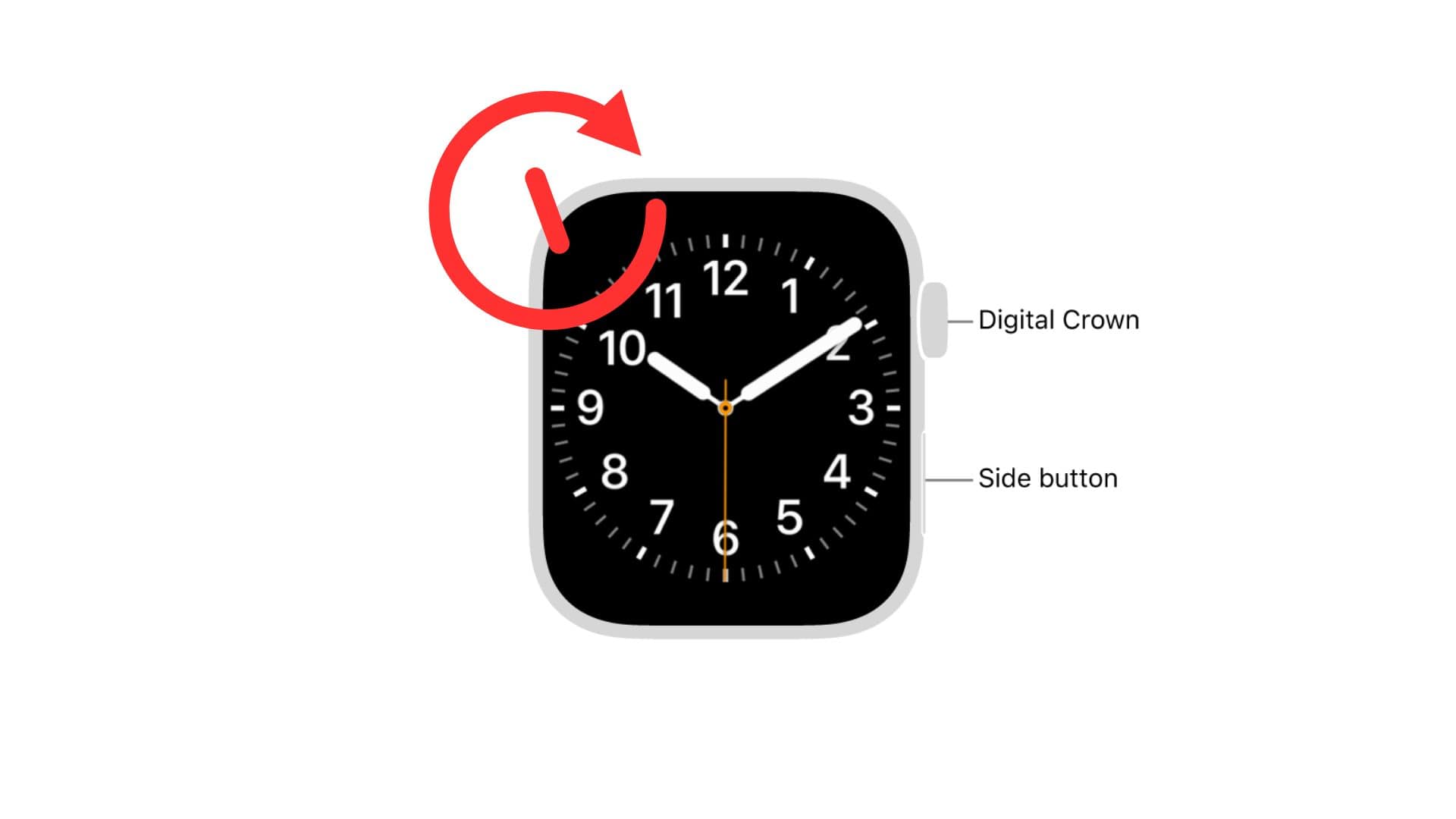
This is the first and most effective step for any unresponsive Apple Watch. A force restart clears temporary memory glitches and interrupts frozen boot processes—without erasing your data.
Press and Hold Side Button + Digital Crown
Simultaneously press and hold the side button (on the right) and the Digital Crown (the rotating dial above it). Keep holding for 10–15 seconds, even if the screen doesn’t respond immediately. Do not release until the display goes completely black. Once it does, hold for just a few more seconds—then release when the Apple logo reappears.
Pro Tip: Many users fail because they let go too soon. If the screen remains lit or the logo keeps flashing, hold for up to 20 seconds. Repeat the process 2–3 times if needed.
This method works in over 70% of boot loop cases and is safe for all Apple Watch Ultra 2 models. If your watch only shows the Apple logo when charging, try the next variation.
Force Restart While Charging
Some Ultra 2 users report that the boot loop only occurs when the watch is connected to the magnetic charger. In these cases, perform the force restart while the watch is still on the dock.
During the restart, watch for a circular progress dial around the Apple logo. If you see it, immediately press both buttons again. This narrow window can break the loop and trigger a full boot sequence.
User Success: “Put it on the charger and hard reset. When the dial popped up, I hit the buttons again—and it finally booted.” – Dangerous-Spring-120
This suggests that charging provides just enough power for the system to respond, but timing is critical.
Charge for a Full Recovery
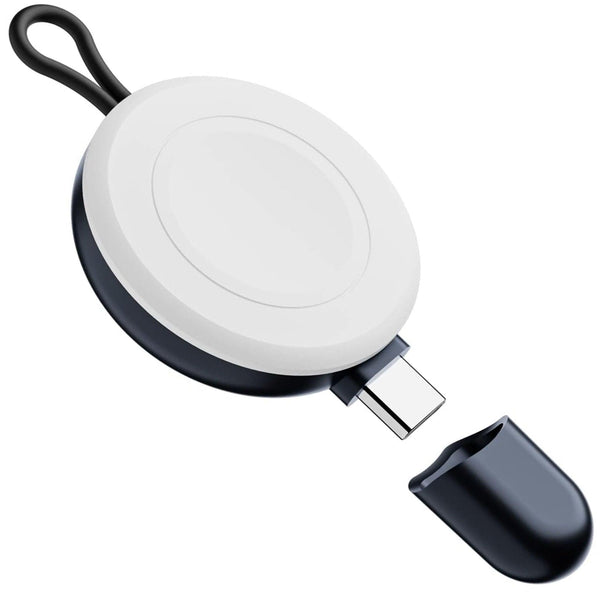
A weak or unstable battery can prevent your Apple Watch from completing the boot process—even if the Apple logo is visible.
Use Original Charger and Power Adapter
Always use the Apple magnetic charger and a USB-C 20W power adapter. Third-party chargers may deliver inconsistent voltage, worsening the issue. Connect your watch and let it charge for at least 1–2 hours before attempting another restart.
Even if the screen lights up, the internal battery might not have enough power to proceed. A full charge often resolves “phantom” boot loops caused by low voltage.
Try a Complete Battery Drain
If standard charging fails, a full battery drain may reset the power management system.
Leave the watch off the charger and untouched until it shows zero response to button presses. This can take several days, as residual charge may keep the loop running.
Real Case: “It lasted 16 days with no display. On day 16, I tried the button—nothing. Charged it, and it finally booted.” – jgatto123
Once fully dead, charge it for 5–6 hours uninterrupted, then attempt a force restart. This method works by eliminating lingering electrical charge that may be interfering with the boot process.
Unpair and Re-Pair from Your iPhone

If the watch remains stuck, the issue may be linked to pairing corruption or sync conflicts with your iPhone.
Unpair Through the Watch App
Open the Apple Watch app on your iPhone, go to My Watch > All Watches, tap the (i) next to your Ultra 2, and select Unpair Apple Watch. Confirm the action and enter your Apple ID password to disable Activation Lock.
This remotely erases the watch and clears any software conflicts tied to the pairing process.
Re-Pair as a New Device
After unpairing, set up your Apple Watch as new—do not restore from a backup yet. This prevents reintroducing corrupted settings or apps that may trigger the loop again.
Expert Advice: “Don’t download your old settings. Go for a fresh install. I’m 99% sure it was a bug.” – Leighton343
If the watch boots successfully, you can manually transfer your data later.
Factory Reset Without Restoring from Backup
When unpairing isn’t enough, a full factory reset may be necessary—especially after a failed software update.
Erase All Content from iPhone
While the watch is paired, open the Watch app > General > Reset > Erase All Content and Settings. Confirm the action and wait. The process may take several minutes and could fail the first time.
User Fix: “Clicked ‘Erase All’ a couple times on the charger—now it’s fully working.” – want_2CDs
Repeat the reset 2–3 times if the watch freezes during erasure. Once complete, set up as a new device. This is the most reliable fix for post-update boot loops.
Use Find My to Trigger a System Response

Even when frozen, your Apple Watch may still maintain Bluetooth connectivity with your iPhone. Use this to your advantage.
Play Sound to Break the Boot Loop
Open the Find My app on your iPhone, go to Devices, select your Ultra 2, and tap Play Sound. Let it ring for 10–15 seconds, then stop. Repeat up to three times.
Why It Works: The sound command sends a system-level alert that may interrupt the boot loop and restore responsiveness.
This method won’t work if the watch is completely unresponsive or out of range, but it’s worth trying if the device still appears connected.
Check for and Install the Latest watchOS Update
Outdated or buggy software is a common cause of boot issues.
Install the Latest watchOS Version
Open the Apple Watch app > General > Software Update. If an update is available, download and install it. Ensure your watch is charged and on the charger during the process.
User Alert: “This started after the 18.1.1 iOS update.” – optionexplicit
Apple frequently releases patches for known boot bugs. Updating after recovery can prevent future loops.
Avoid Risky Fixes (But Know They Exist)
Some users turn to unorthodox methods when standard fixes fail. These are not recommended but have reported limited success.
Freezer Method: Cold Reset
Place the powered-down watch in a sealed plastic bag and put it in the freezer for 10–15 minutes. Remove and immediately charge it, then force restart.
Claimed Benefit: Cold may contract components or drain residual charge.
Risk: Condensation can cause short circuits or corrosion. Only try if your watch is out of warranty.
Screen Tapping + Bottom Button Hold
Hold the bottom button (not the crown) and tap the screen randomly for 1–2 minutes.
User Result: “Got access to a recovery menu and reset it.” – Professional_Oil6168
May trigger hidden diagnostics, but the mechanism is unverified.
Continuous Digital Crown Turning
Turn the Digital Crown nonstop for 30+ seconds while the logo is stuck.
User Report: “After a few seconds, the logo stopped flashing. Watch booted normally.” – PhotosinFrance
Possibly simulates input to bypass a frozen UI thread.
⚠️ Warning: Never use the oven, physical impact, or extreme heat. These can permanently destroy your device.
When Hardware Is the Problem
If all software fixes fail, the issue may be physical.
Signs of Hardware Failure
- No response to buttons or charging
- No haptics or vibrations
- Battery won’t charge with genuine accessories
- Visible moisture under the screen
- Case bulging or unusual warmth
These indicate possible battery swelling, logic board failure, or water ingress.
Water Damage Risk
Despite its WR100 rating, exposure to pool water, saltwater, or showers can trap moisture inside.
User Case: “After a week-long pool vacation, boot loop started. Apple said water ingress. Repair: €390.” – No_Indication5148
Apple may deny service if liquid damage is detected and no AppleCare+ is active.
Seek Professional Repair
When DIY fixes don’t work, it’s time for expert help.
Visit Apple Support
Take your Ultra 2 to an Apple Store or Authorized Service Provider. They can run diagnostics, check for water damage, and replace faulty components.
Repair Costs and Coverage
- AppleCare+: Covers accidental damage (e.g., water) for a service fee (€99–€149 in Europe).
- Out-of-Warranty: Repairs can cost up to €390, depending on region and issue.
If the battery or logic board is failing, replacement is the only solution.
Prevent Future Boot Loops
Avoid recurrence with these best practices.
Avoid Beta Software
Pre-release versions like watchOS 11.2 beta are unstable.
User Experience: “Mine’s been in a boot loop since 11.2 beta to GM.” – odin_moar
Stick to public releases unless you’re prepared for bugs.
Use Genuine Apple Accessories
Third-party chargers can deliver unstable power. Always use MFi-certified or Apple-branded cables and docks.
Restart Weekly
Give your Ultra 2 a weekly force restart to clear memory and prevent hangs.
Monitor Battery Health
Go to Watch app > Battery > Battery Health. Replace if capacity drops below 80%. Swollen or degraded batteries can cause boot loops.
Final Note: Most Apple Watch Ultra 2 boot loops are software-related and fixable at home. Start with a force restart, ensure a full charge, and reset without restoring from backup. Avoid risky methods like the oven or physical impact—they can destroy your device. If nothing works, contact Apple. With the right steps, your Ultra 2 can be back on your wrist in minutes.
Leave a Reply