

You’re not alone if your Apple Watch volume is low—it’s one of the most widespread and frustrating issues affecting users across multiple generations, especially the Apple Watch Series 10 and Series 11. Whether you can barely hear incoming calls, struggle to catch Siri responses, or find alerts nearly silent, the problem is real and increasingly common. Some users report normal sound for weeks, only to experience a sudden drop in volume that no settings adjustment can fix.
While Apple hasn’t launched an official repair program as of August 2025, support teams are quietly replacing units, and technicians are performing simple cleanings that restore full audio. This suggests Apple recognizes the issue internally—even if it hasn’t acknowledged it publicly. From software bugs to design flaws and environmental damage, the causes vary. But so do the solutions.
This guide gives you a step-by-step action plan to diagnose, fix, and prevent low speaker volume on your Apple Watch. You’ll learn how to rule out user error, clean the speaker safely, bypass volume-limiting features, reset corrupted software, and know when to demand a warranty replacement. Whether your watch is brand new or a few years old, these proven methods can bring your audio back to life.
Maximize Volume and Disable Auto-Adjustment
Set Volume to Maximum in Settings and Control Center
Start with the basics: confirm your Apple Watch speaker isn’t just set too low. Open Settings > Sounds & Haptics and slide the Volume bar all the way to 100%. You can also access the volume slider instantly via Control Center—press the side button, tap the speaker icon, and drag up.
During a phone call, rotate the Digital Crown to boost volume in real time. This temporarily overrides system limits and may make a noticeable difference. If the audio is still faint even at maximum, the issue likely goes beyond simple settings.
Turn Off Automatically Adjust Volume
A feature introduced in watchOS 9 and available on Series 9, Ultra 2, SE 3, and later, Automatically Adjust Volume uses ambient noise sensors to reduce speaker output in loud environments. While designed to protect hearing, it often overcompensates—even in quiet rooms.
Go to Settings > Sounds & Haptics > Automatically Adjust Volume and toggle it OFF (gray). After disabling, manually set the volume slider to max and test with a Siri command or phone call. Many users report an immediate improvement in clarity and loudness.
✅ Pro Tip: This setting resets after major watchOS updates. Recheck it periodically if you’ve recently updated your device.
Optimize Audio with Ringtone and Accessibility Settings
Choose Louder Ringtones and Alerts
Not all Apple Watch sounds are equally loud. The default Globe ringtone is subtle and lacks punch. Switch to higher-amplitude tones like:
- Brilliant
- Cheer
- Jingle
- Night Walks
These tones have sharper transients and higher frequency peaks, making them easier to hear through the small speaker. To change: Settings > Sounds & Haptics > Ringtone, then preview and select a louder option.
Disable Reduce Loud Sounds and Mono Audio
Even with no headphones connected, Headphone Safety settings can cap speaker output. Go to Settings > Sounds & Haptics > Headphone Safety > Reduce Loud Sounds and turn it OFF. Alternatively, set Volume Limit to 90–100 dB if you want some protection without sacrificing clarity.
Also check Accessibility settings:
– Settings > Accessibility > Audio/Visual > Mono Audio → OFF
– Ensure Balance is centered—not skewed left or right
Mono audio merges stereo channels and can reduce perceived loudness. A misaligned balance may mute one side of the audio, making the speaker seem quieter.
Clean the Speaker Grill to Remove Blockages
Locate and Inspect the Speaker Holes
The Apple Watch speaker is located on the back of the device, near the heart rate sensors, opposite the Digital Crown. It consists of a narrow row of tiny holes—prone to clogging from dust, lint, sweat, soap, or salt residue. Even minor buildup can severely muffle sound.
Remove the band and inspect the area with a flashlight. If the holes appear dark or clogged, cleaning is essential.
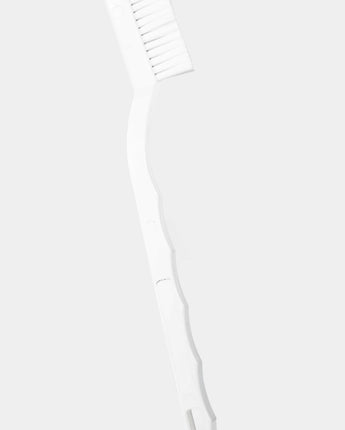
Use a Soft Toothbrush for Gentle Cleaning
Grab a clean, dry soft-bristled toothbrush and gently brush the speaker area in circular motions. Avoid pressing hard. For stubborn grime:
- Enable Water Lock (tap the teardrop icon in Control Center)
- Dampen the brush with lukewarm water
- Lightly scrub around the holes
- Rinse the watch under running water
- Dry completely before disabling Water Lock
This method safely removes residue without risking internal damage.
Activate Water Ejection to Clear Moisture
Apple’s built-in Water Ejection feature vibrates the speaker to expel trapped moisture. After swimming, showering, or handwashing:
- Turn on Water Lock
- Press and hold the Digital Crown until “Unlocked, Ejecting Water” appears and a tone plays
- Repeat 2–5 times, rotating the watch to different angles
Some users (jbucholtz, NefariousStitcher) report success after 20–30 cycles, especially after saltwater exposure. The vibration helps dislodge mineral deposits that harden over time.
✅ Pro Tip: Make water ejection part of your routine after water contact to prevent long-term damage.
Use Compressed Air with Caution
For deep debris, use electronic-safe compressed air. Hold the can 2–3 inches from the speaker and give short bursts. Never insert the nozzle—it can force particles deeper or damage the speaker cone. Avoid household dusters, which may contain harmful propellants.
Remove Cases and Test Audio Without Accessories
Many third-party cases cover or dampen the speaker holes, especially bulky or full-coverage models. Remove your case, screen protector, and band, then test the volume directly.
If sound improves, replace the case with an Apple-certified or acoustically transparent model. Avoid designs that enclose the back of the watch unless specifically tested for audio clarity.
Restart, Update, and Reset Your Apple Watch
Restart Both Devices to Clear Glitches
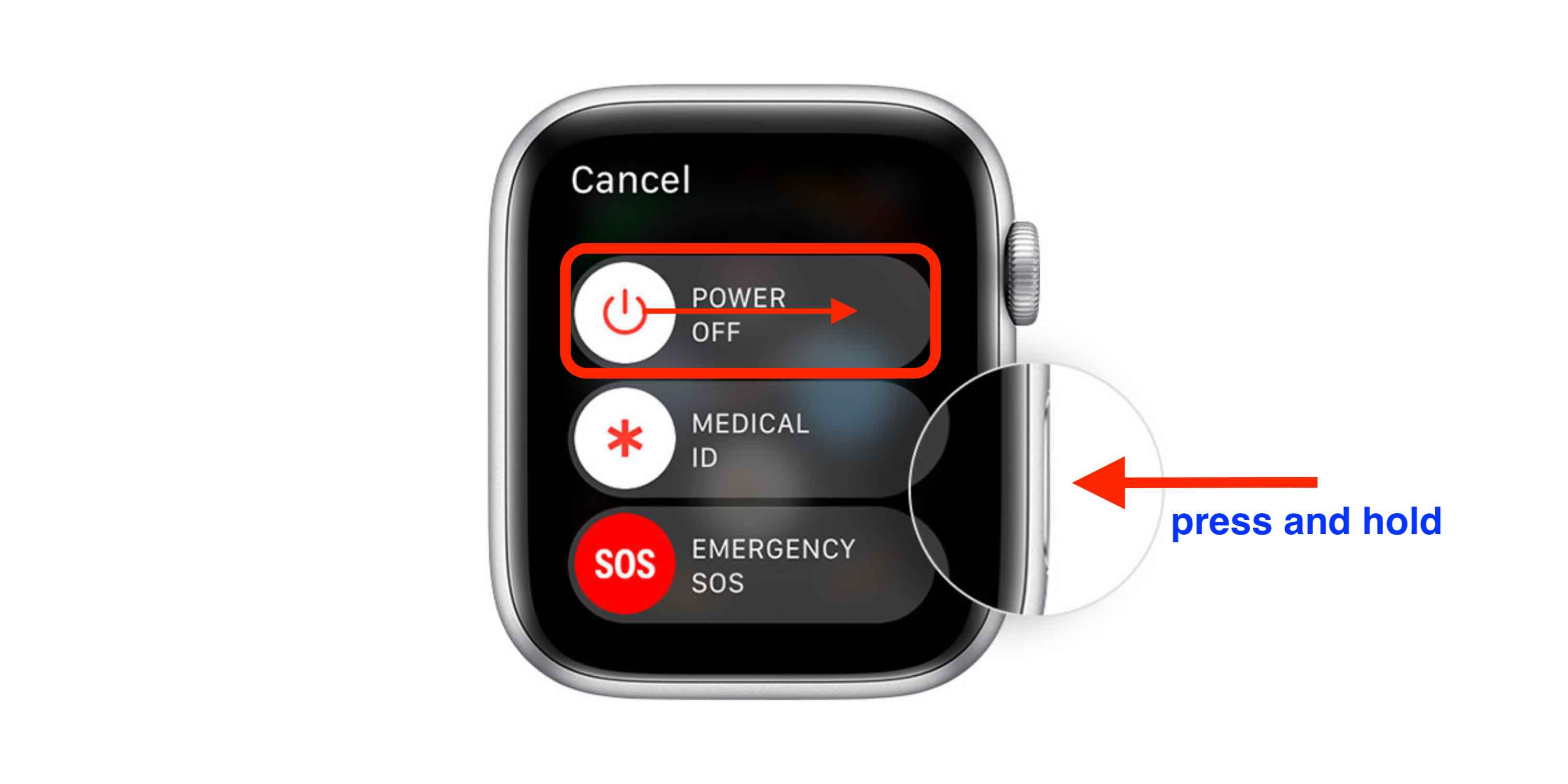
A soft reset can fix temporary software issues. On your Apple Watch:
– Press and hold the side button → slide to power off
– Wait 10 seconds → press and hold to restart
Also restart your iPhone. Since audio routing depends on both devices, syncing issues can mute alerts or reduce call volume.
Update to the Latest watchOS and iOS
Bugs in watchOS 11.3 have been linked to low-volume calls and distorted audio. Ensure both devices are updated:
– iPhone: Settings > General > Software Update
– Apple Watch: Open Watch app > General > Software Update
If the problem began after an update, check Apple’s support forums—others may report similar issues.
Reset All Settings or Erase the Watch
If software corruption is suspected:
– Reset All Settings: Settings > General > Transfer or Reset Apple Watch > Reset > Reset All Settings
– Preserves data but clears preferences
– Erase All Content and Settings: Full factory reset
– Set up as new—do not restore from backup
– Prevents corrupted audio profiles from returning
Many users (pr00dle, Shaka5464) report restored volume after a clean setup.
Recognize and Address Hardware Failure
Identify Signs of Physical Damage
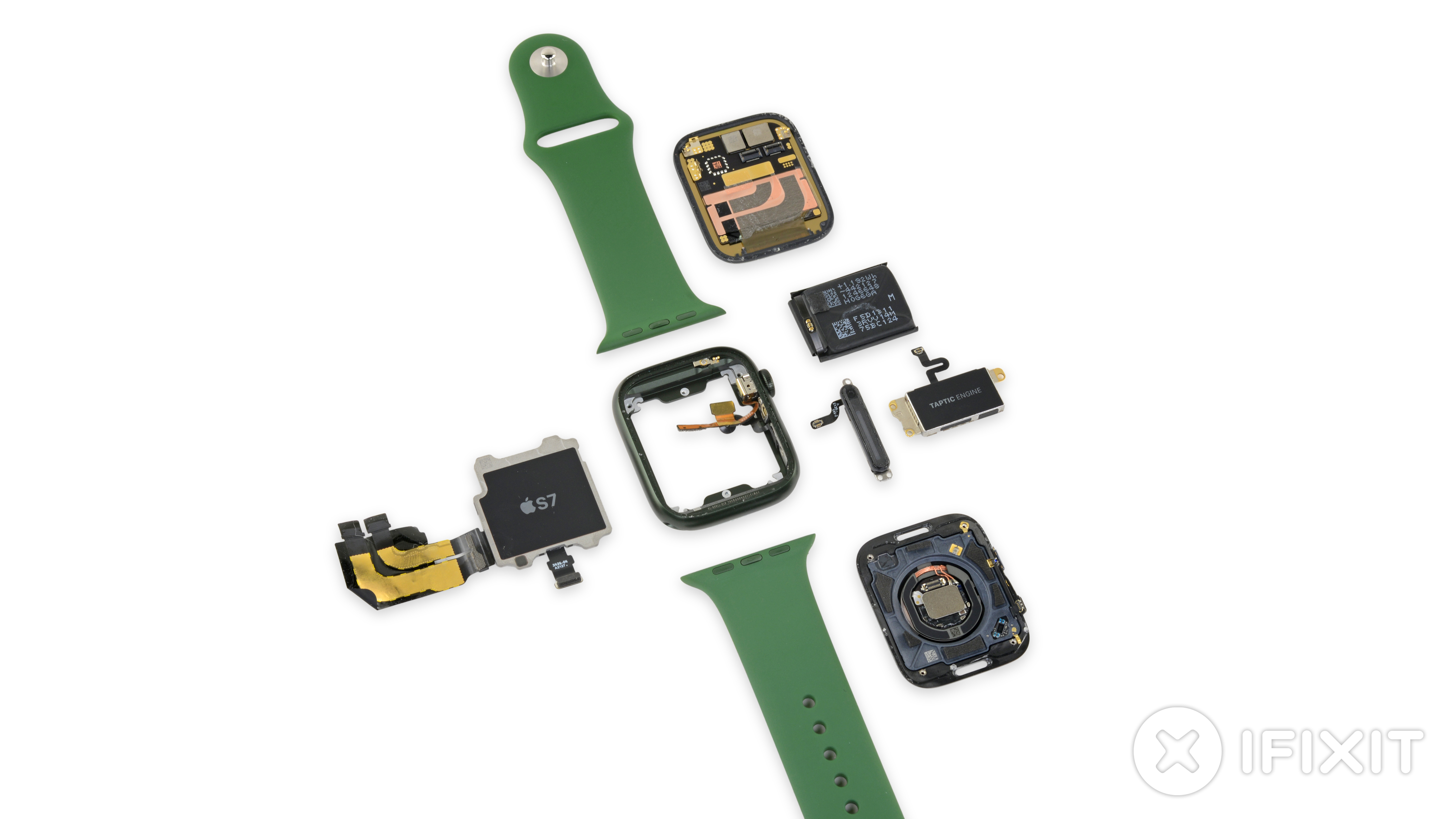
If cleaning and software fixes fail, the speaker may be damaged or defective. Warning signs include:
- No sound at all during calls or alerts
- Crackling, distorted, or muffled audio
- Sudden volume drop after normal use
These indicate internal blockage, speaker cone damage, or a manufacturing flaw.
Recurring Failures Suggest a Systemic Defect
Users like ALRICH1128 have received four Series 10 units, each failing after about six weeks. This pattern points to a widespread hardware issue, not user error. Document every failure—dates, serial numbers, repair tickets—to strengthen your case for a goodwill replacement.
Design Flaws in Newer Models
The thinner profile of Series 10 and 11 may reduce speaker cavity size, limiting volume and increasing clog risk. A larger grill improves sound but lets in more debris. Combined with exposure to soap, sweat, and salt, this design may accelerate wear.
Until Apple redesigns the speaker enclosure, preventive cleaning is essential.
Visit Apple Support for Diagnosis and Replacement
Request Cleaning or Diagnostic Testing
Visit an Apple Store or contact Apple Support. Technicians can:
– Perform deep cleaning with professional tools
– Run internal audio diagnostics
– Test speaker output with proprietary software
Some users (m1xed0s) had volume restored after a simple brush by a Genius.
Get a Warranty Replacement
If under warranty or AppleCare+, request a replacement:
1. Open Apple Support app or visit getsupport.apple.com
2. Select Apple Watch > Sound > Speaker
3. Choose Visit Apple Store or Chat with Support
4. Say: “Speaker volume dropped suddenly, and cleaning didn’t help”
Apple often replaces units without repair, especially for newer models with known issues.
Prevent Future Volume Problems
Clean Weekly and Avoid Exposure
- After water exposure: Rinse and eject water
- Weekly: Brush speaker holes with a soft toothbrush
- Monthly: Deep clean with lukewarm water
Avoid wearing your watch while:
– Using soap, lotion, or detergent
– Swimming in saltwater or chlorinated pools
– Exercising heavily without post-workout cleaning
Use AirPods for Critical Audio
For calls, music, or navigation, pair AirPods. They deliver clearer sound and reduce strain on the watch speaker. Enable Automatic AirPods Switching for seamless audio routing.
Final Note
Low volume on Apple Watch—especially Series 10 and 11—is a real, growing issue. While cleaning and settings tweaks fix many cases, recurring hardware failures suggest a deeper design or manufacturing flaw. Apple hasn’t launched an official service program, but replacements are happening quietly.
Take action:
– Clean the speaker regularly
– Disable volume-limiting features
– Reset software if needed
– Demand support if hardware fails
Until Apple improves the speaker design, maintenance is your best defense. A few minutes of care can keep your Apple Watch loud, clear, and reliable.





