
Forgetting to start a workout on your Apple Watch doesn’t mean your effort disappears. Whether you left it charging, forgot it at home, or simply didn’t track a spontaneous yoga session, you can manually add a workout through the iPhone’s Health app and still get credit. This simple fix preserves your Activity ring progress, keeps your fitness streaks intact, and maintains accurate long-term data—no matter how active you were. While it won’t capture heart rate, GPS routes, or real-time metrics, manual entry ensures your hard work still counts toward your daily Move and Exercise goals. Here’s the complete guide to doing it right, avoiding common mistakes, and keeping your fitness tracking consistent.
Access the Health App Using Verified Paths
Open Health App on iPhone (Not Apple Watch)
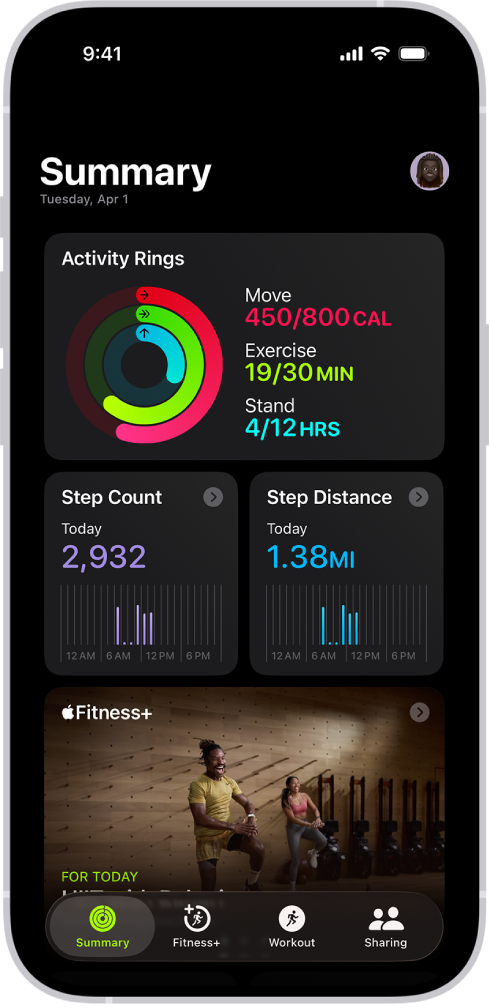
You cannot manually add a workout directly on the Apple Watch. The only way to do this is through the Health app on your iPhone. Launch the green Health app, tap the Summary tab at the bottom, then scroll down to the Workouts section—usually pinned under “Highlights.” If you don’t see it, tap Edit at the top, search for “Workouts,” and pin it for faster access in the future.
⚠️ Important: There is no “Add Workout” option on the Apple Watch. Always use your iPhone.
Navigate Safely in iOS 16–18.5 (Avoid Search Bugs)
Apple has changed the Health app interface over recent iOS updates, and search functionality often fails, especially in iOS 18.5, where typing “workout” may not show the correct path. Stick to these reliable navigation methods:
- Primary Path: Health → Summary → Workouts → Add Data (+)
- Alternate Path: Health → Browse → Activity → Workouts → Add Data
✅ Pro Tip: Use the Summary tab method—it’s the most consistent across iOS versions. Avoid relying on Search due to known bugs.
Enter Workout Details Correctly (No Edits Allowed)
Choose the Right Workout Type
Tap Add Data, then select the closest match from the list:
– Running, Walking, Indoor Walk
– Outdoor/Indoor Cycle
– Elliptical, Rowing, HIIT
– Swimming (Pool or Open Water)
– Yoga, Functional Training, Dance
– Stair Stepping, Wheelchair Push
– “Other” for unmatched activities like rock climbing or martial arts
🔄 Why it matters: Choosing the wrong type (e.g., “Other” instead of “HIIT”) skews pace estimates and trend data in the Fitness app.
Fill in Time, Duration, and Calories Accurately
You must enter:
– Start Date and Time – Critical for Exercise ring credit
– End Time or Duration
– Distance – Optional; use if you want average pace
– Calories Burned – Active calories only (this cannot be edited later)
⚠️ Warning: Once you tap Add, you cannot edit the entry—especially calories. Double-check everything before saving.
✅ Example: A 45-minute run at 6:00 PM with 400 calories burned will:
– Add 400 to your Move ring
– Count 45 minutes toward your Exercise ring
– Appear in your workout history with an icon and duration
Make Sure Activity Rings Update Properly

Credit Your Move Ring with Calorie Entry
The Move ring only updates if you enter calories burned. These should reflect active energy, not total or resting calories. Use tools like MyFitnessPal, Strava, or treadmill readouts to estimate based on your weight, duration, and intensity.
🔄 If you skip calories, your Move ring won’t budge—even with perfect time and type.
Activate the Exercise Ring with Valid Timing
The Exercise ring requires at least one minute of recorded activity with correct start and end times. A 10-minute HIIT session counts as 10 minutes of exercise, regardless of calorie burn.
❗ Watch for midnight crossings: Workouts that span past midnight may credit the wrong day. Ensure your start time matches the intended calendar date.
Stand Ring Is Unaffected
The Stand ring is not boosted by manual workouts. You still need to stand and move for at least one minute in 12 different hours to close it. Manual entries don’t change this.
Fix Missing or Grayed-Out Options
Can’t See the “Add Data” Button?
If the + button is missing:
– Confirm you’re in the Workouts section under Summary, not just browsing
– Tap Edit → Add “Workouts” to your pinned items
– Try Browse > Activity > Workouts if Summary view is glitchy
🔄 In iOS 18.5, search often fails. Navigate manually—don’t rely on Search.
“Add” Button Grayed Out? Check Required Fields
The Add button stays disabled until:
– A workout type is selected
– Start time is set
– Duration or end time is entered
– Calories are input (sometimes required)
✅ Once all fields are complete, the button will turn blue and become active.
Delete and Re-Add If You Make a Mistake
No Editing—Only Delete and Re-Enter
Apple Health does not allow editing of saved manual workouts. To fix an error:
1. Go to Health → Summary → Workouts
2. Tap Edit (top right)
3. Tap the red minus icon next to the entry
4. Confirm deletion
5. Tap Add Data and re-enter with correct details
💡 Always verify before saving—especially calories and duration. No second chances.
Confirm Deletion Syncs Across Devices
Deleted workouts may linger in the Fitness app due to caching. Force sync by:
– Opening the Activity app on Apple Watch
– Restarting both iPhone and Watch
– Waiting up to an hour for iCloud to fully sync
🔄 Health data is permanently stored unless deleted via Settings > Privacy > Health > Delete Health Data.
Know the Limitations of Manual Entries

No Biometrics or Real-Time Metrics
Manual workouts lack:
– Heart rate or zones
– GPS route or elevation
– Cadence, stride length, or lap splits
– VO₂ max impact or recovery time
📉 These entries appear in history but offer minimal insight—ideal for credit, not analysis.
What Still Shows Up in Your Apps
After entry, your workout will appear in:
– iPhone Fitness app (Workouts tab)
– Apple Watch Activity app
– iPad (if Health is enabled)
It displays:
– Workout type icon
– Duration and distance
– Calories burned
– Average pace (if distance and time are entered)
🔁 Sync happens automatically over iCloud when devices are connected.
Log Workouts Accurately with Best Practices
Estimate Calories Without Overinflating
Overestimating calories distorts your Move ring and long-term trends. Use:
– MyFitnessPal or Nike Run Club for runs/walks
– Strava for cycling and swimming
– Treadmill or gym equipment readouts for indoor sessions
✅ Base estimates on your current weight, effort level, and duration.
Verify Time and Distance
- Use Google Maps or Apple Maps to measure outdoor routes
- For treadmills, use the machine’s distance display
- Record start/end times via voice memo or Notes app immediately after
🔄 Avoid rounding up—accuracy keeps your data trustworthy.
Use Manual Entry in Real-World Scenarios
When Should You Manually Add a Workout?
Best used when:
– Forgot your Watch: Ran, lifted, or took a class without it
– Dead battery: Watch died before an evening workout
– Swimming laps: Didn’t track due to setup issues
– Home workouts: 15-minute yoga or HIIT without gear
– Non-trackable activities: Rock climbing, martial arts, Pilates
– Streak protection: Maintaining a 30-day challenge after a missed day
✅ Pro Tip: Take a quick voice note post-workout with time, type, and effort level for accurate later entry.
Troubleshoot Common Problems
Workout Not Showing in Activity Rings?
Wait 2–5 minutes for sync. If still missing:
– Open the Activity app on Apple Watch
– Restart both devices
– Check iCloud sign-in and Wi-Fi
❗ Ensure the workout’s start time falls within the correct day.
Entry Shows in Health But Not Fitness App?
This usually resolves within an hour. Speed it up by:
– Confirming both devices use the same Apple ID
– Enabling Health sync in iCloud settings
– Force-closing and reopening the Fitness app
🔄 If stuck, delete and re-add the workout.
Follow Best Practices for Reliable Tracking
Pin Workouts for Faster Access
Tap Edit in Health Summary, search “Workouts,” and pin it. This places the tile at the top, saving time and avoiding navigation confusion.
✅ Especially helpful in iOS 18.5+ with buggy search.
Log Immediately After Your Workout
Memory fades fast. Record details right after via:
– Voice memo
– Notes app
– Third-party fitness app (even without Watch)
🔄 The sooner you log, the more accurate your data.
Combine with Other Fitness Apps
Use Strava, Fitbit, or MapMyRun to track distance and calories during untracked sessions, then transfer key metrics to Apple Health.
✅ Ensures consistency and leverages better estimation tools.
Avoid Overuse
Manual entry is a backup, not a habit. Overuse leads to:
– Inflated calorie counts
– Skewed fitness trends
– Reduced motivation from inaccurate feedback
🔄 Prioritize wearing your Watch and starting workouts live whenever possible.
Final Note: You can add a workout to Apple Watch by manually entering it in the iPhone’s Health app. While it won’t capture biometrics, it preserves Activity ring progress and historical accuracy. Always double-check time, calories, and type before saving—edits aren’t allowed. Use this feature wisely to maintain streaks, recover missed sessions, and keep your fitness data complete. With careful input, manual logging becomes a powerful tool for long-term health tracking.





