

You press and hold the side button on your Apple Watch, expecting the familiar “Slide to Power Off” slider—but nothing happens. No response. No shutdown. Or worse, the watch powers down only to reboot seconds later on its own. If your Apple Watch won’t turn off, you’re not imagining things. This is a growing issue, especially among users who updated to watchOS 9 or later. The frustration is real: your device ignores shutdown commands, restarts unexpectedly, or drains battery at alarming rates—even when powered down. But before you assume it’s broken, know this: most cases are fixable with the right steps. Whether it’s a misunderstood software change, a hidden Bluetooth trigger, or a deeper hardware flaw, this guide gives you every solution—from simple resets to knowing when it’s time to replace your watch.
No Power-Off Slider? Tap the Power Icon First
If holding the side button doesn’t bring up the power-off slider, don’t panic—your Apple Watch likely isn’t broken. Starting with watchOS 9, Apple changed how shutdown works, and many users miss a critical step.
The New Two-Step Shutdown Process
- Press and hold the side button until the Power Off screen appears.
- Look for the small power icon in the top-right corner.
- Tap that icon—only then will the “Slide to Power Off” slider appear.
❗ Common mistake: Users hold the side button, see no slider, and assume the watch is frozen. But if you skip tapping the power icon, the slider won’t appear. This is by design.
Apple made this change to prevent accidental shutdowns during workouts or emergency SOS activation. Now, you must intentionally tap the power icon before turning off—adding a layer of protection, but also confusion for long-time users.
✅ Pro Tip: If the screen is completely unresponsive, skip this step and proceed to a force restart.
Power Slider Shows Up But Won’t Respond? Force Restart It
You see the “Slide to Power Off” option, but dragging it does nothing. The screen stays lit. The watch ignores your input. This usually means the system is frozen.
How to Force Restart Your Apple Watch
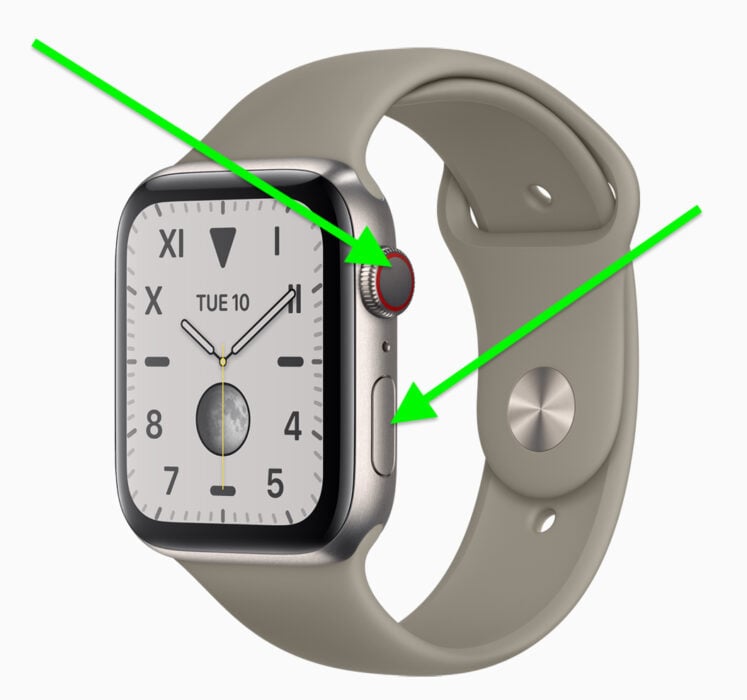
- Press and hold both the side button and the Digital Crown at the same time.
- Keep holding for at least 10 seconds.
- Release when you see the Apple logo appear.
On Series 7 and newer, the screen may go black first—don’t let go. Wait for the logo.
This force restart clears temporary glitches, frozen apps, or unresponsive processes. It’s non-destructive—your data stays intact—and it’s the most effective fix for a watch that won’t respond to shutdown commands.
✅ Success Rate: High. Most users regain full functionality after this step.
Watch Shuts Down But Turns Back On Automatically? Break the Bluetooth Link
One of the most baffling issues: your Apple Watch powers off—but seconds later, it turns itself back on. No user input. Not on the charger. Just a spontaneous reboot. This points to a hidden wake signal—and the culprit is often your iPhone’s Bluetooth.
Disable iPhone Bluetooth to Stop Auto-Wake
- On your iPhone, open Settings.
- Go to Bluetooth.
- Turn it off completely.
This breaks the persistent connection that may be sending wake-up commands to your watch. Even when powered down, an Apple Watch can be triggered to restart by its paired iPhone.
✅ Alternative: Unpair the watch entirely via Watch app > All Watches > (i) > Unpair Apple Watch.
This ensures no background processes or sync attempts are forcing the device back on.
Corrupted Pairing Data? Unpair and Re-pair the Watch
Sometimes, the connection between your iPhone and Apple Watch becomes corrupted, leading to erratic behavior like auto-restarts.
How to Re-pair Your Apple Watch
- Open the Watch app on your iPhone.
- Tap My Watch > All Watches.
- Select the info button (i) next to your watch.
- Tap Unpair Apple Watch.
- Confirm and wait for the erase process to complete.
After unpairing:
– Re-pair as a new device.
– Do not restore from backup yet.
This eliminates app conflicts, sync errors, and corrupted settings that could be interfering with power management.
✅ Outcome: Many users report that after re-pairing, the auto-restart issue stops—even before restoring data.
Still Restarting? Set Up as New (No Backup)
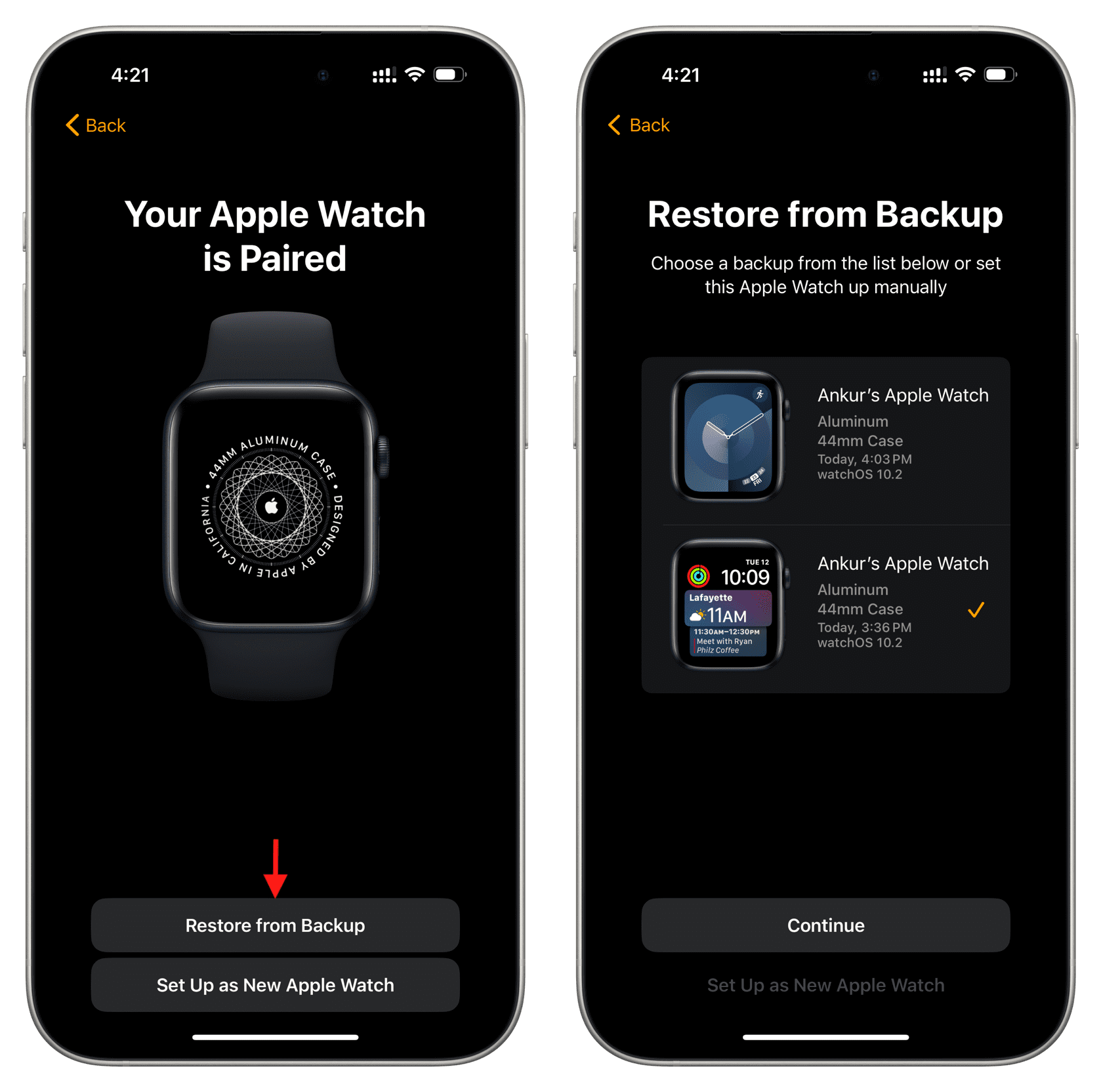
If re-pairing doesn’t help, the next step is a clean setup—no apps, no settings, no backup.
Steps for a Fresh Start
- After unpairing, follow the on-screen setup.
- Choose “Set Up as New Apple Watch”.
- Skip iCloud or backup restoration.
- Use the watch normally for 24–48 hours and test shutdown behavior.
❗ Critical: If the watch still restarts or drains battery rapidly during this period, the problem isn’t caused by your apps or settings.
📉 Real-World Result: One user found their battery was still draining at 6–9% per hour on a fresh setup—clearly pointing to a deeper software or hardware issue.
Last Software Fix: Factory Reset the Watch
When all else fails, erase everything.
How to Erase All Content and Settings
- On your Apple Watch, go to Settings > General > Reset.
- Tap Erase All Content and Settings.
- Enter your passcode if prompted.
- Confirm the erase.
⚠️ Warning: This removes all data, including health records, apps, messages, and preferences.
After the reset, test the shutdown process again. If the watch still restarts automatically, software is no longer the cause.
✅ Bottom Line: If the problem persists post-reset, hardware replacement is likely needed.
Check for Abnormal Battery Drain
An Apple Watch that won’t stay off often shows excessive battery drain—a key clue to the underlying issue.
Normal vs. Problematic Battery Usage
| Scenario | Expected Drain | Observed Drain (Affected Devices) |
|---|---|---|
| Normal use | 2–3% per hour | Series 8, watchOS 9.5 |
| Problematic | 6–9% per hour | Series 6, watchOS 9.3.1 |
Even with 86–87% battery health, users report rapid drain—indicating the issue isn’t battery wear, but system-level activity that won’t stop.
🧪 Verified: One user replaced a Series 6 with a Series 8—drain dropped to 2–3% per hour, and shutdown worked perfectly.
Can’t Turn Off? Use Theater Mode as a Workaround
If you need silence and darkness but can’t power off, Theater Mode is your best alternative.
How to Activate Theater Mode
- Swipe up from the watch face to open Control Center.
- Tap the theater mask icon.
What It Does:
- Disables raise-to-wake
- Turns off sound and haptics
- Keeps the screen dark until tapped
⚠️ Limitation: The watch still runs in the background. Won’t stop auto-restarts.
✅ Best for: Meetings, movies, or overnight use when you want minimal disruption.
Reduce Power Use: Turn Off Always On Display
Another way to reduce screen activity and save battery.
How to Disable Always On
- Open Settings on your Apple Watch.
- Go to Display & Brightness.
- Toggle off Always On.
Now, the screen turns off completely when your wrist is down—no dimmed face, no background glow.
✅ Combine with Theater Mode for maximum power savings.
Is It a watchOS 9 Bug?
Yes. Many users report that the “won’t turn off” issue started after updating to watchOS 9.
Known watchOS 9 Issues
- New shutdown flow confuses users.
- Increased background activity on older models (Series 6 and earlier).
- Bluetooth wake signals not properly managed.
- No downgrade option—you can’t revert to earlier versions.
🔄 Solution: Wait for updates. Apple often fixes bugs in minor releases like watchOS 9.4 or 9.5.
Signs of Hardware Failure
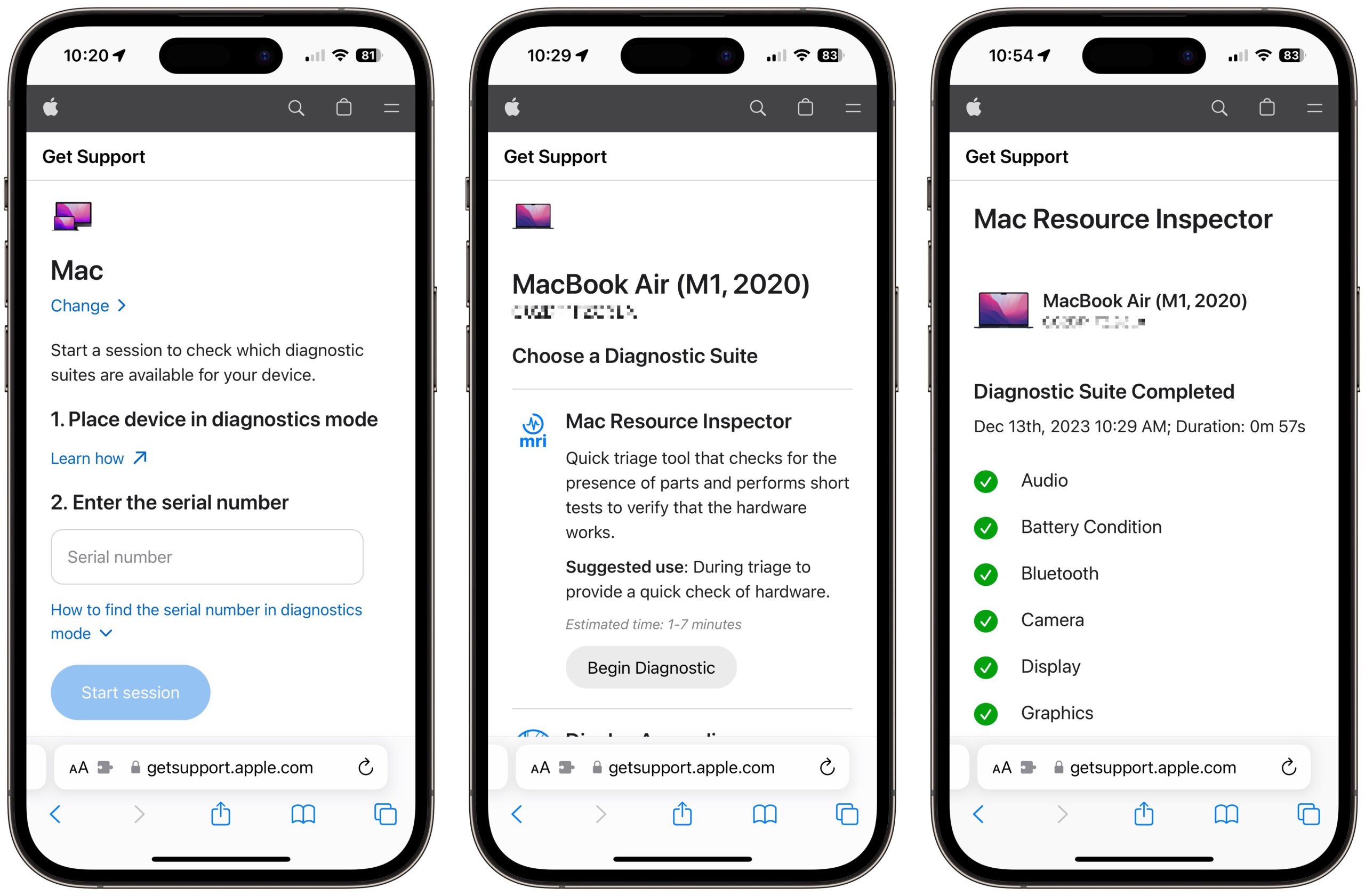
When software fixes fail, the problem may be hardware—even if Apple Diagnostics says “no issues.”
Red Flags of Hardware Problems
- Watch restarts after shutdown—even when unpaired and not worn
- Battery drains at 6–9% per hour despite healthy reported condition
- Issue persists after factory reset and fresh setup
- Only fixed by replacing the device
🔧 Verified Case: A Series 6 user visited Apple Support. Diagnostics found nothing—but the watch kept rebooting. After upgrading to a Series 8, the issue vanished.
✅ Conclusion: Some hardware defects are not detected by standard tests but resolved by replacement.
When to Replace Your Apple Watch
If you’ve tried:
– Force restart
– Unpair and fresh setup
– Factory reset
– Bluetooth disabled
—and your watch still won’t stay off, it’s time to consider hardware replacement.
What to Do Next
- Back up your data (if possible).
- Contact Apple Support or visit an Apple Store.
- Explain: “My watch shuts down but restarts automatically. I’ve tried all software fixes.”
- Request a hardware evaluation—push for replacement if issue is confirmed.
💡 Pro Tip: Mention battery drain (6–9% per hour) and auto-restart after unpairing—these are strong indicators of hardware fault.
🔄 Real Outcome: Multiple users report that only getting a new watch fully resolved the problem.
Prevent Future Power Issues
Stay ahead of problems with these habits:
- Keep watchOS updated (Settings > General > Software Update)
- Avoid risky third-party apps that run in the background
- Restart weekly with a force restart to clear memory
- Monitor battery usage in the Watch app on iPhone
✅ Early detection helps catch issues before they escalate.
Summary: Fix Apple Watch Won’t Turn Off
| Problem | Solution |
|---|---|
| No power-off slider | Tap power icon after holding side button |
| Slider won’t respond | Force restart: side button + Digital Crown (10+ sec) |
| Shuts down but restarts | Disable iPhone Bluetooth or unpair watch |
| Keeps restarting | Unpair, fresh setup, no backup restore |
| Still not fixed | Factory reset: Erase All Content and Settings |
| All software fails | Hardware replacement likely required |
🔋 Key Insight: Abnormal battery drain (6–9% per hour) + auto-restart = probable hardware issue.
🛠 Final Advice: If diagnostics pass but behavior persists, insist on replacement—especially for Series 6 or earlier.
Final Note: The “Apple Watch won’t turn off” issue is often solvable with the correct watchOS 9 shutdown steps or a force restart. But when automatic reboots and battery drain persist across clean setups, the root cause is likely undetected hardware failure. In such cases, replacing the device is the only reliable fix. Stay updated, monitor battery use, and don’t hesitate to contact Apple Support when software solutions fall short.





