
You’ve just unboxed your new iPhone, excited to sync everything—including your Apple Watch. But when you open the Apple Watch app, nothing happens. No pairing prompt. No animation. Or worse: your watch is stuck on the Apple logo, spinning endlessly. You’re not imagining it—your Apple Watch won’t pair with your new phone. And if you traded in, lost, or sold your old iPhone without unpairing first, you’ve hit a common but frustrating roadblock.
The root cause? Your Apple Watch is still linked to your old iPhone, even if the device is gone. Apple’s Activation Lock and iCloud syncing are designed to protect your data from theft—but they also block pairing attempts until that old connection is severed. The good news: you can fix this, even without the old phone. Whether your previous iPhone is in a landfill or someone else’s pocket, the solution starts with resetting your watch and reclaiming control.
In this guide, you’ll learn exactly how to pair your Apple Watch with a new phone, step by step. From force resets and iCloud cleanups to restoring health data and avoiding future hiccups, we’ll cover every scenario—so you can get your smartwatch back up and running fast.
Erase Apple Watch Without Old iPhone
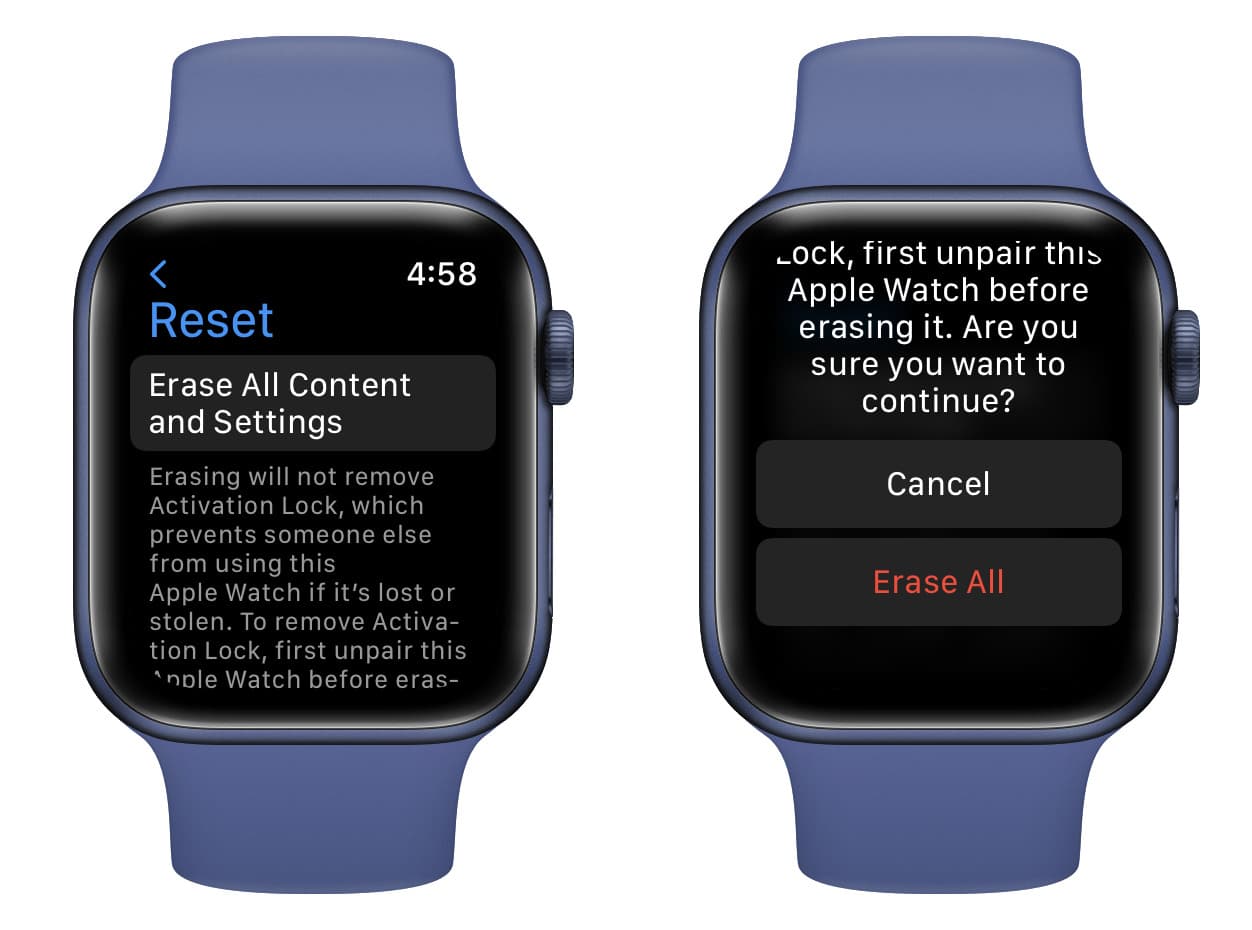
If you no longer have access to your old iPhone, the first and most critical step is to erase your Apple Watch directly. As long as it’s tied to a missing device, it can’t pair with a new one.
Wipe Watch Using Passcode
If you remember your passcode, follow these steps:
- On your Apple Watch, go to Settings (the gear icon).
- Tap General > Reset.
- Select Erase All Content and Settings.
- Enter your passcode.
- Confirm by tapping Erase All.
✅ After erasing, the watch restarts and displays a pairing animation—either swirling particles or the Apple logo. This means it’s ready to connect.
❗ This process deletes all apps, settings, and data. But it’s necessary to break the link to your old iPhone.
Force Reset If You Forgot the Passcode
No passcode? No problem. You can bypass it with a force reset:
- Place the Apple Watch on its charger.
- Press and hold the Side button until the power slider appears.
- Keep holding the Side button, then press and hold the Digital Crown.
- After a few seconds, a Reset option will appear on screen.
- Tap Reset and confirm.
🔄 The watch reboots into setup mode. You’ll see the pairing animation, signaling it’s ready to connect to your new iPhone.
Start Pairing on New iPhone
Now that your watch is clean and in pairing mode, it’s time to connect it to your new iPhone.
Open Apple Watch App and Begin Pairing
- On your new iPhone, open the Apple Watch app.
- Tap Start Pairing.
- Hold your iPhone about 6 inches from the Apple Watch screen.
- Align the camera so it captures the animated pairing circle.
💡 For best results:
– Ensure Bluetooth and Wi-Fi are turned on.
– Make sure both devices are charged above 50%.
– Keep them close together and free from interference.✅ When successful, your iPhone will display “Paired Successfully.”
No Prompt? Try These Quick Fixes
If nothing happens when you hold your phone up:
- Restart both devices—sometimes a simple reboot clears glitches.
- Close and reopen the Apple Watch app.
- Delete the Apple Watch app, restart your iPhone, then reinstall it from the App Store.
💬 One user shared: “I deleted the Watch app, restarted, and reinstalled. Suddenly, my watch was recognized.”
Handle Activation Lock
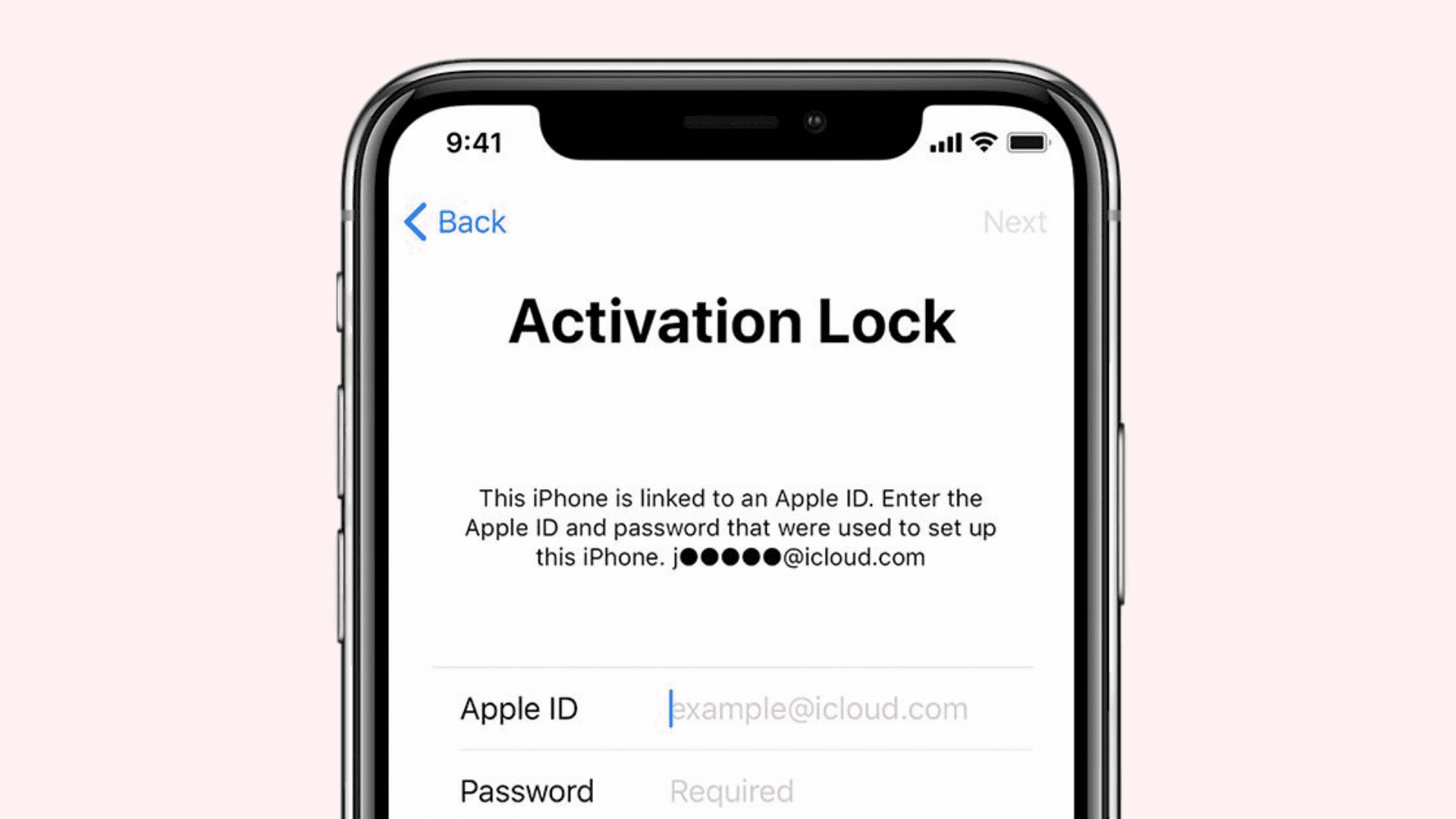
After pairing, you’ll be prompted to sign in with your Apple ID. This is Activation Lock—a security feature that prevents stolen devices from being used.
Enter the Correct Apple ID
- Use the same Apple ID that was on your old iPhone.
- Enter the correct password associated with that account.
❌ If you enter the wrong ID or password, the watch will remain locked and unusable.
Forgot Your Apple ID or Password?
Visit iforgot.apple.com to recover:
- Enter your name and email address.
- Follow the prompts to reset your password or recover your account.
- Use the recovered credentials during setup.
🛑 Important: You cannot bypass Activation Lock. Without the correct Apple ID and password, your Apple Watch is essentially a paperweight.
Restore Data or Set Up Fresh
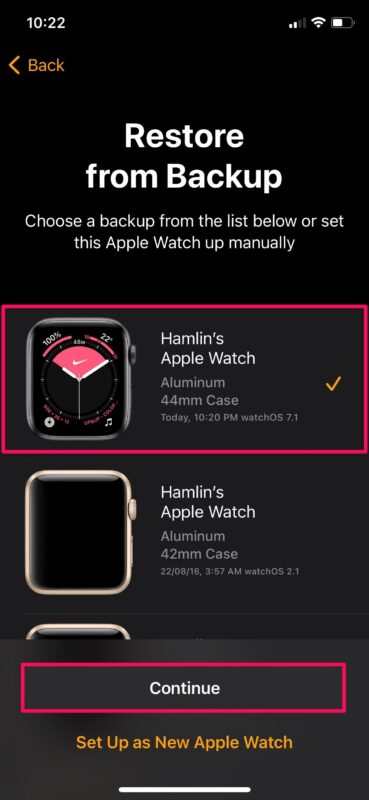
Once paired, you’ll choose how to configure your watch.
Restore from Backup (If Available)
- During setup, select Restore from Backup.
- Choose the most recent backup.
- Wait for apps, settings, and data to sync.
✅ This restores:
– App layout
– Watch faces and complications
– Health data (if iCloud backup was enabled)❗ If no backup appears:
– Your new iPhone must be on the same Apple ID.
– Both devices must run iOS 15+ and watchOS 9+.
– iCloud backup may not have been enabled on the old phone.
Set Up as New Apple Watch
No backup? Select Set Up as New.
✅ You keep:
– Activity and Health data (syncs via iCloud)
– Apple ID access and app downloads❌ You lose:
– Custom watch faces
– App arrangement
– Third-party app data
Fix Incomplete Pairing from Old iPhone
Did you start transferring data but the process failed halfway?
Check for “Pairing Not Complete”
- Open the Apple Watch app on your new iPhone.
- Tap All Watches at the top.
- Look for “Pairing Not Complete” under your watch.
Finish the Setup
- Keep the Apple Watch on your wrist and unlocked.
- Tap Finish Pairing.
- Follow prompts to complete the sync.
✅ This resumes the interrupted transfer and often recovers most apps and settings.
Delete Watch from iCloud
If the watch still won’t pair, it may still be registered to your old device in iCloud.
Remove from Account
- On the new iPhone, go to Settings > [Your Name] > Devices.
- Scroll down to find your Apple Watch.
- Tap it and select Remove from Account.
✅ This severs the old link and clears the way for pairing.
🔄 If the watch doesn’t appear here, erase it again and retry.
Fix Stuck Pairing Animation
Stuck on the Apple logo or spinning particles?
Restart the Watch
- Press and hold the Side button and Digital Crown together.
- Keep holding until the Apple logo flashes.
- Release and wait for it to reboot.
Reset During Pairing
- While the animation is visible, press and hold the Digital Crown.
- Tap Reset when it appears.
- Start pairing again from the Watch app.
✅ This clears temporary software glitches blocking the process.
Recover Health and Activity Data
Your fitness history isn’t lost—just delayed.
Enable iCloud Health Sync
- On the new iPhone: Settings > [Your Name] > iCloud.
- Tap Show All > Health.
- Toggle Health to ON.
🔄 It can take up to 48 hours for all data to appear.
Use Encrypted Computer Backup
If you backed up your old iPhone via Finder (Mac) or iTunes (PC):
- An encrypted backup includes Health and Activity data.
- To restore: Erase the new iPhone and restore from the encrypted backup.
- Then pair the Apple Watch again.
❌ Unencrypted backups do not include health data.
❗ No backup? Health and Activity history cannot be recovered.
Prevent Future Pairing Issues
Avoid this headache next time.
Unpair Before Selling Old iPhone
Always:
- Open Apple Watch app on old iPhone.
- Tap All Watches > select your watch.
- Tap the “i” icon > Unpair Apple Watch.
✅ This disables Activation Lock and preserves your backup.
💬 “Who the hell thinks to unpair their watch before selling their phone?” – Frustrated user
Best Practices
- Update both devices to latest iOS and watchOS.
- Enable iCloud Backup for both iPhone and Apple Watch.
- Encrypt computer backups.
- Store Apple ID securely.
- Test pairing immediately after setup.
✅ Allow 30+ minutes after pairing for full sync.
When to Contact Apple Support
If you’ve tried everything and still can’t pair:
Contact Apple If:
- Activation Lock won’t disable with correct Apple ID.
- Watch app crashes repeatedly.
- Pairing fails after multiple resets.
- Health data never appears.
Support Options
- Apple Support app (on iPhone)
- chat.apple.com (web chat)
- Genius Bar (in-store)
💬 “Apple Support walked me through a server-side fix. It worked after three failed attempts.” – Verified user
Quick Fix Checklist
✅ Charge both devices to 50%+
✅ Turn on Bluetooth and Wi-Fi
✅ Update iPhone to iOS 15 or later
✅ Update Apple Watch to watchOS 9 or later
✅ Restart both devices
✅ Erase Apple Watch: Settings > General > Reset > Erase All
✅ Or force reset: Hold Side + Crown → Reset
✅ Open Apple Watch app on new iPhone
✅ Tap Start Pairing and scan animation
✅ Enter Apple ID and password for Activation Lock
✅ Choose Restore from Backup or Set Up as New
✅ Enable Health sync in iCloud
✅ Wait 30+ minutes for full sync
✅ Reinstall apps and reconfigure watch faces
Final Tips
- Activation Lock is non-negotiable—you need the original Apple ID.
- Custom layouts are lost if not backed up.
- Activity Sharing history (challenges, competitions) is not recoverable.
- Resetting the watch is the most reliable fix when the old phone is gone.
- Apple assumes you’ll unpair first—skip it, and you’ll face hurdles.
🔁 The winning strategy: Erase the watch, pair with new iPhone, restore from backup if possible, or start fresh.
With the right steps, your Apple Watch will be back in action—no old phone required.





