
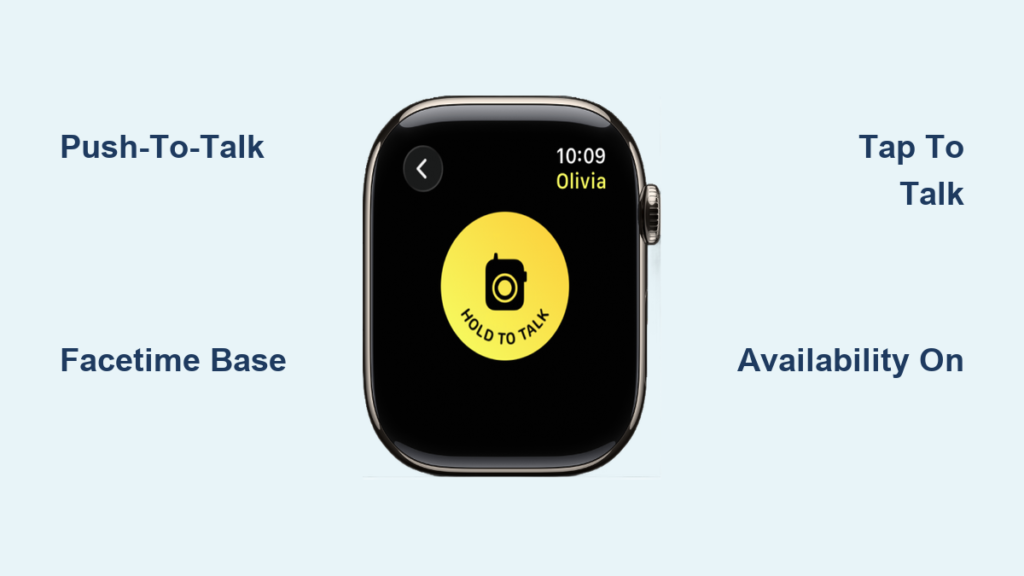
Imagine you’re at a busy airport, trying to find your travel partner in a sea of people. Instead of calling and waiting for them to answer, you tap your wrist, press and hold, and instantly say, “I’m at Gate B12—come now.” That’s the power of the Apple Watch Walkie-Talkie app—a fast, push-to-talk voice feature that turns your wrist into a real-time communication device. Designed for quick, hands-free check-ins, it mimics classic two-way radios but runs over Wi-Fi or cellular using Apple’s secure ecosystem. Unlike texting or calling, there’s no dialing, no ringtone, and no delay—just instant voice transmission between Apple Watch users.
But how does it actually work behind the scenes? The Apple Watch Walkie-Talkie isn’t a standalone app. It relies on FaceTime audio infrastructure, requires mutual invitations, and only functions when both users are set up correctly. While simple to use, it has specific requirements: compatible hardware, active FaceTime settings, and manual availability controls. Issues like missing apps, failed connections, or regional restrictions can block access. This guide breaks down exactly how Apple Watch walkie talkies work, from setup and real-time use to troubleshooting and privacy—so you can stay connected seamlessly.
Real-Time Push-to-Talk Voice Communication
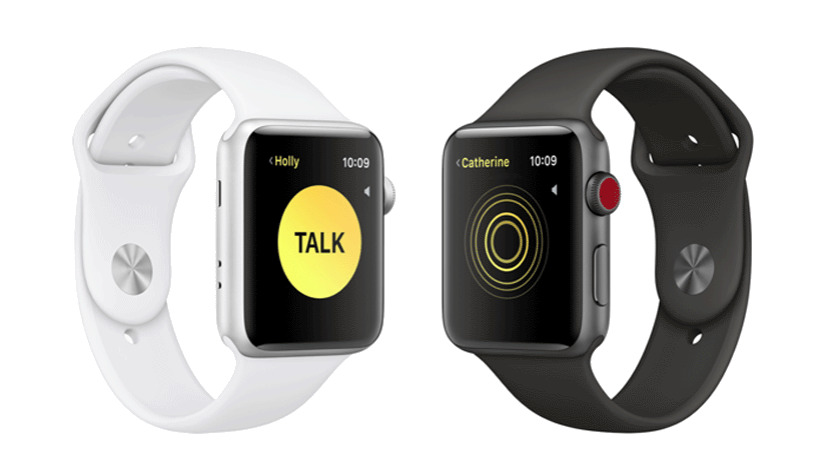
The core experience of the Apple Watch Walkie-Talkie is instant, live voice chat using a half-duplex system, meaning only one person can speak at a time—just like a traditional walkie-talkie. When you press and hold the Talk button, your voice begins transmitting almost immediately. Release it, and the other person can respond. There’s no call setup, no ringing—just direct audio when both parties are available.
How Conversations Begin and Flow
To start a conversation:
1. Open the Walkie-Talkie app on your Apple Watch
2. Tap a connected friend’s name
3. Hold the Talk button, speak clearly, then release
If the recipient is available (with Walkie-Talkie turned on), their watch chimes, the app opens automatically, and they hear your voice the moment you stop talking. A brief “connecting” message may appear if the link is establishing. Audio is optimized for short bursts—ideal for messages like “I’m outside” or “Head to the car.”
Conversations are live-only—there’s no message history or recording. If you miss a transmission, you’ll need to ask for a repeat. This ephemeral nature keeps interactions fast and private, but also means timing and attention matter.
Turn-Based Speaking Rules for Clarity
Because only one person can talk at a time, overlapping speech cuts off the incoming audio. To avoid confusion:
– Wait for the end-of-transmission chime
– Use verbal cues like “Over” or “Go ahead”
– Avoid speaking over the other person
This turn-based flow prevents garbled audio and keeps communication efficient—especially useful in loud or fast-paced environments like concerts, sports events, or outdoor adventures.
Device and Software Requirements

Before you can use Walkie-Talkie, both users must meet specific hardware and software conditions. If any requirement is missing, the app may not appear or function.
Minimum Compatibility Checklist
- Apple Watch Series 1 or later
- watchOS 5.3 or higher (watchOS 6.0+ recommended for full features)
- iPhone with iOS 12.4 or later
- FaceTime enabled on the paired iPhone
- Signed in to the same Apple ID on both devices
If the Walkie-Talkie app is missing, outdated software is often the cause. Updating both watchOS and iOS usually restores access. Note: The app won’t appear if FaceTime is disabled or deleted from the iPhone.
Connectivity Options for Offline Use
One of the biggest advantages of Walkie-Talkie is that it works without your iPhone nearby, as long as your Apple Watch has internet access:
– Wi-Fi: Connects to trusted networks
– Cellular: Available on GPS + Cellular models
– Bluetooth: Only works if the iPhone is nearby and online
This means you can use it during a run, at school, or while shopping—your watch handles the connection independently.
Setting Up Friends for Walkie-Talkie

You can’t just start talking—you must invite and accept connections first. The process is one-way: you send an invite, the other person accepts.
Sending and Managing Invitations
To add someone:
1. Open the Walkie-Talkie app on your Apple Watch
2. Scroll to a contact and tap their name
3. Confirm “Send Invitation”
The recipient gets a real-time alert. If they accept, their card turns yellow in your list. If not, it stays gray under “Friends You Invited.”
You can also manage contacts via:
– Apple Watch app on iPhone → Walkie-Talkie → Edit
– Tapping Add Friends in the app
To remove someone:
– On Apple Watch: Swipe left → Delete
– On iPhone: Apple Watch app → Walkie-Talkie → Edit → Remove
Removal is silent—no notification is sent.
Accepting or Declining Requests
When invited:
– A pop-up appears with Accept or Decline
– Tap Always Allow to auto-accept future invites from that person
If missed, check:
– Notification Center
– The Walkie-Talkie app for pending invites
Once accepted, the connection remains active until removed.
Controlling Your Availability Status
Your availability determines whether others can reach you directly. By default, Walkie-Talkie is off—you must turn it on manually.
Toggle Availability On or Off
- In the Walkie-Talkie app: Tap the switch at the top
-
From Control Center: Press side button → Tap Walkie-Talkie icon
-
On (yellow): You’re reachable and hear chimes instantly
- Off (gray): Others see “Do you want to join?” and must wait for approval
How Modes Affect Connectivity
- Theater Mode: Automatically sets you as unavailable
- Silent Mode: Does not disable Walkie-Talkie—you’ll still hear audio
- Do Not Disturb: Follows iPhone settings; can be customized to allow or block alerts
Pro Tip: Turn off availability during meetings or sleep to avoid surprise pings.
Use Tap to Talk for Easier Access
Holding the Talk button isn’t always practical—especially with gloves or limited dexterity. Tap to Talk solves this with one-tap operation.
Enable Tap to Talk
-
On Apple Watch:
Settings → Accessibility → Walkie-Talkie → Turn on Tap to Talk -
On iPhone:
Apple Watch app → My Watch → Accessibility → Tap to Talk → Enable
Once active:
– Tap once to start speaking
– Tap again to stop and send
Ideal for cold weather, motor challenges, or quick responses.
Troubleshooting Missing App or Connection Issues
Can’t find the app or add friends? Most issues stem from software, settings, or FaceTime misconfiguration.
Restore a Missing Walkie-Talkie App
If the app is gone:
– Open the App Store on Apple Watch
– Search for Walkie-Talkie
– Reinstall it
Ensure watchOS 5.3+ is installed. Older versions won’t support the app.
Fix Friend Addition Failures
If invites fail:
1. Check FaceTime is enabled on iPhone
2. Go to Settings > FaceTime and verify:
– FaceTime is on
– Your phone number or email is selected under “You Can Be Reached By”
3. Restart both iPhone and Apple Watch
4. Remove and re-invite the contact
FaceTime must be active—even if you don’t use it—because Walkie-Talkie runs on its backend.
Connection Troubleshooting Checklist
- ✅ Both users have compatible hardware and software
- ✅ FaceTime is signed in and enabled
- ✅ Apple ID is consistent across devices
- ✅ Wi-Fi or cellular is active on the watch
- ✅ Availability is turned on
Still stuck? Reset network settings on iPhone or contact Apple Support.
Understand Data and Privacy Practices
Apple collects data to run the app, but separates what’s linked to you from anonymous usage.
Data Linked to Your Identity
Collected with your Apple ID:
– Contact info (email, phone)
– Device identifiers
– Usage patterns (frequency, search behavior)
Used for:
– Establishing connections
– Personalizing friend suggestions
– Improving app performance
Anonymous or Non-Linked Data
Collected without identity:
– Coarse location (general area)
– Diagnostics (crash reports, performance)
Apple uses this to improve reliability. Full details are in Apple’s Privacy Policy, which varies by region and age.
Know Regional Limitations
The app is not available worldwide. Some countries block it due to telecom laws.
Where It’s Restricted
- Mainland China: Not supported
- Other regions may restrict based on FaceTime availability
In blocked areas, the app may be:
– Hidden from the App Store
– Missing from your watch
– Non-functional even if installed
Travelers should note that functionality may change across borders.
Best Use Cases and Scenarios
Walkie-Talkie excels in fast, hands-free coordination.
Shopping or Events
Coordinate with a partner:
“Found the jackets—second floor, near escalator.”
No phone needed—just tap and talk.
Outdoor Activities
Hikers, cyclists, or runners can:
– Signal route changes
– Check in on safety
– Share updates without stopping
Parent-Teen Coordination
Parents can check in:
“Leaving now—meet you at pickup.”
Teens stay reachable without constant phone use.
Workplace Teams
Useful in:
– Warehouses
– Retail stores
– Event staffing
Managers relay updates instantly—no loud announcements.
Compare to Other Communication Methods
| Feature | Walkie-Talkie | Texting | FaceTime Audio | Phone Call |
|---|---|---|---|---|
| Speed | Instant | Moderate | Fast | Slow |
| Real-Time | Yes | No | Yes | Yes |
| Hands-Free | Yes | No | Yes | Yes |
| History | No | Yes | No | No |
| Group Chat | ❌ | ✅ | ❌ | ❌ |
Best for: Quick, live, one-on-one bursts
Not for: Long chats, group messages, or logs
Key Limitations to Remember
- One-on-one only – No group chats
- No playback – Messages vanish after delivery
- Manual availability – Must turn on to be reachable
- FaceTime-dependent – If FaceTime fails, so does Walkie-Talkie
- No offline mode – Requires internet (Wi-Fi/cellular)
Final Note: The Apple Watch Walkie-Talkie app delivers fast, intuitive voice communication by combining push-to-talk simplicity with Apple’s secure ecosystem. It works over Wi-Fi or cellular, requires mutual invitations, and depends on FaceTime settings. With accessibility features like Tap to Talk and real-time availability controls, it’s ideal for quick, hands-free check-ins. While limited to one-on-one, live-only chats, its speed and ease make it a powerful tool for everyday coordination—when both users are set up and online.




