
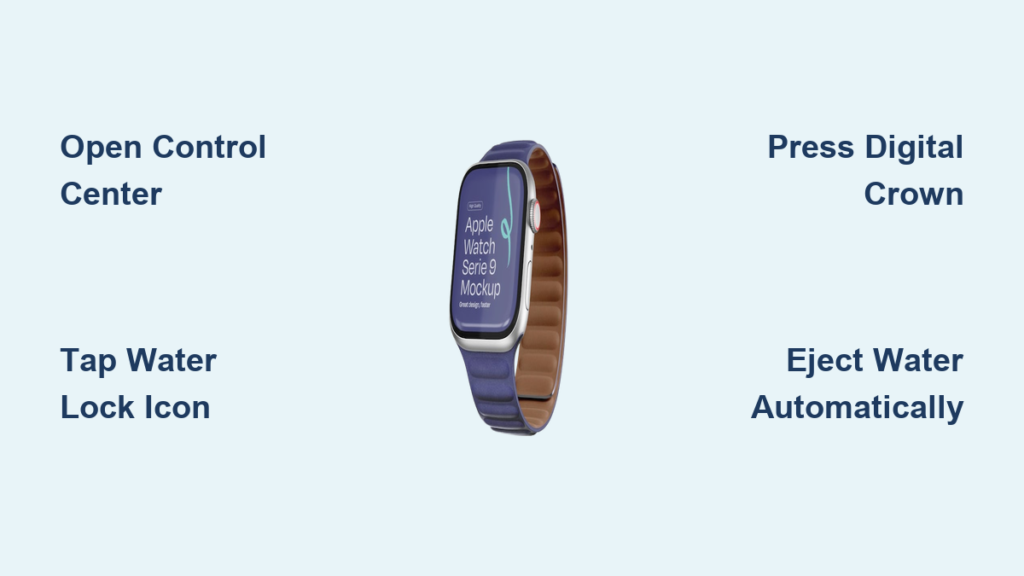
If your Apple Watch screen starts acting up during a swim—pausing your workout or launching apps with just a splash—you’re not alone. Water droplets and wet fingers can easily trigger false touches, ruining your swim tracking and disrupting your focus. That’s exactly what Water Lock is designed to prevent. This essential feature disables the touchscreen to stop accidental inputs when you’re in the water, whether you’re swimming laps, catching waves, or caught in a downpour.
Activating Water Lock on Apple Watch ensures your device stays protected and your data stays accurate. And when you’re done, it doesn’t just unlock—it uses sound waves to eject water from the speaker, restoring clear audio. While it turns on automatically during swim and surf workouts, knowing how to manually enable it gives you full control, especially in high-sweat or rainy conditions. In this guide, you’ll learn the step-by-step process to activate Water Lock, what changed in watchOS 10, how to safely unlock and dry your watch, and smart workarounds power users swear by.
Access Water Lock in Control Center
Open Control Center First
As of watchOS 10, Apple moved Water Lock exclusively to the Control Center, replacing the old swipe-up method from workouts. To access it:
- Press and hold the side button (the one below the Digital Crown)
- The Control Center will appear with icons for brightness, connectivity, and more
This physical button press is more reliable than swiping on a wet screen, making it easier to use with damp or gloved hands. Even if your watch is already wet, this method works consistently across all supported models.
Pro Tip: Get into the habit of opening Control Center before jumping in the pool. It only takes a second and prevents accidental taps mid-swim.
Tap the Water Lock Icon
Once the Control Center is open:
- Look for the Water Lock icon—a blue water droplet with a lock
- Tap it once to enable protection
- You’ll feel a light haptic buzz confirming activation
After tapping:
– The Water Lock icon appears at the top of the screen
– Touchscreen is disabled
– Only physical controls (Digital Crown and side button) respond
This means no more accidental pauses, music skips, or app launches—just uninterrupted tracking. Use this method before swimming, intense workouts, or any time your watch might get wet.
Automatic Activation During Water-Based Workouts
Starts With Swim and Surf Workouts
You don’t always need to activate Water Lock manually. Apple Watch automatically turns it on when you start specific water-focused workouts:
- Pool Swim
- Open Water Swim
- Surfing
- Scuba Dive (on Apple Watch Ultra with the Dive app)
As soon as you tap “Start” in the Workout app:
– The screen locks instantly
– Touch gestures are suspended
– The Water Lock icon appears in the status bar
No extra steps required—your watch protects itself the moment you dive in.
Why Automatic Activation Matters
For swimmers and surfers, this feature is a game-changer. It ensures:
– Accurate lap counting without accidental resets
– No unintended app switches from water taps
– Continuous GPS and heart rate tracking
Even if you forget to lock your screen, starting the correct workout type triggers Water Lock automatically—so long as you select Swim or Surf, not “Other.”
Unlock and Eject Water Properly
Press and Hold Digital Crown
After your swim, turning off Water Lock also clears water from the speaker. Here’s how:
- Press and hold the Digital Crown
- Keep holding until:
– A series of chirping tones play
– The screen displays “Unlocked”
– Water is visibly pushed out of the speaker mesh
This process uses acoustic pulses—rapid sound waves that vibrate moisture out through the speaker grille. It’s a clever, hardware-safe way to dry your watch without tools or disassembly.
watchOS Version Differences
| watchOS Version | Unlock Method |
|---|---|
| watchOS 9 and later | Press and hold Digital Crown |
| watchOS 8 and earlier | Rotate Digital Crown back and forth |
If you recently updated, remember: it’s now a press, not a twist. This change improves reliability and reduces wear on the Crown mechanism.
Changes in watchOS 10: What’s Different?

Water Lock Moved to Control Center
Prior to watchOS 10, you could activate Water Lock by swiping up during a workout. Now:
– The bottom-up workout control panel is gone
– Water Lock is only in Control Center
– You must press the side button first, then tap the icon
Apple says this improves wet-hand usability, but many users report:
– Extra steps slow them down
– Harder to return to the workout screen after activation
– Loss of muscle memory from the old swipe gesture
While the change aims for consistency, it’s sparked frustration among triathletes and frequent swimmers who valued speed and simplicity.
Workarounds for Faster Access

Use Siri to Activate Hands-Free
Skip the screen entirely with voice:
- Say: “Hey Siri, open Control Center”
- Then tap the Water Lock icon
Or create a custom shortcut:
1. Open the Shortcuts app on your iPhone
2. Create a new shortcut: “Open URL” → watchapp://?name=Control%20Center
3. Assign a voice command like: “Lock my watch”
4. When spoken, it opens Control Center ready for one-tap activation
Perfect for triathletes or open-water swimmers who can’t fumble with buttons mid-race.
Try WorkoutDoors for Custom Gestures
The third-party app WorkoutDoors lets you:
– Assign triple-click of the side button to activate Water Lock
– Add shortcuts directly to the workout screen
– Bypass Control Center entirely
This restores the convenience lost in watchOS 10 and gives power users back their speed.
Troubleshoot Common Issues
Workout Pauses When Enabling Water Lock
Problem: Tapping to activate Water Lock accidentally pauses your workout
Cause: Screen interaction during a swim can register as a pause gesture
Fix:
– Pause workout first, enable Water Lock, then resume
– Use Siri or WorkoutDoors to reduce screen touches
– Press side button + Digital Crown together to pause/unpause without unlocking
Keeps your swim data accurate and avoids frustrating interruptions.
No Sound After Ejection?
If audio still sounds muffled:
1. Repeat the ejection process
2. Gently tap the watch face-down on a soft towel
3. Let it air dry for 10–15 minutes
4. Avoid heat, hairdryers, or compressed air
Some moisture may linger—give it time. Newer models use adaptive tones to gradually clear deep water.
Water Lock Won’t Activate Automatically?
Check these:
– ❌ You selected “Other” instead of “Swim” workout
– ❌ watchOS is outdated
– ❌ Low Power Mode is on
Solutions:
– Always pick the correct workout
– Update to the latest watchOS
– Restart your watch or reset settings if needed
Alternative Uses Beyond Swimming
Prevent Sweat Triggers During Workouts
Runners, cyclists, and gym-goers use Water Lock to:
– Stop sweat from pausing workouts
– Avoid accidental music or volume changes
– Block glove touches during boxing or spin class
Simply activate it via Control Center before high-sweat sessions.
Protect During Rainy Outdoor Activities
Hikers, motorcyclists, and cyclists enable Water Lock in heavy rain to:
– Keep GPS tracking running
– Prevent unintended app launches
– Maintain focus without screen errors
Manual activation works perfectly—even in storms.
Supported Models and Water Resistance
Which Watches Have Water Lock?
Available on:
– Apple Watch Series 2 and later
– All Apple Watch SE models
– Apple Watch Ultra and Ultra 2
Not available on Series 1 or earlier (lack water resistance).
Water Resistance Ratings
| Model | Rating | Suitable For |
|---|---|---|
| Series 2–8, SE | WR50 (50m) | Swimming, showers, rain |
| Ultra, Ultra 2 | 100m (ISO 22810) | Scuba diving (with Dive app), deep water sports |
All are swim-proof but not dive-proof unless using Ultra with the Dive app.
How Water Ejection Actually Works
When you unlock:
– The watch plays a rapid sequence of high and low tones
– These create pressure waves in the speaker chamber
– Waves push water out through the mesh grill
Newer models (Series 6+, Ultra) use adaptive algorithms that adjust tone patterns based on detected moisture—making ejection more efficient.
It’s science—not magic—keeping your speaker clear and sound crisp.
Best Practices for Longevity
Always Dry After Use
Even with Water Lock:
– Rinse with fresh water after saltwater or chlorinated pools
– Wipe with a soft, lint-free cloth
– Air dry completely before charging
Prevents mineral buildup and corrosion.
Avoid These Mistakes
🚫 Don’t use compressed air
🚫 Don’t blow into the speaker
🚫 Don’t place on heaters
🚫 Don’t charge while wet
Heat and pressure can damage internal components.
Quick Summary: Key Steps
How to Activate Water Lock
- Press and hold side button to open Control Center
- Tap the Water Lock icon (droplet + lock)
- Confirm icon appears in status bar
How to Turn It Off
- Press and hold Digital Crown
- Wait for tones and “Unlocked” message
- Resume normal use
When It Turns On Automatically
- Start Pool Swim, Open Water Swim, Surfing, or (Ultra) Scuba Dive
Final Tips for Power Users
- Use Siri shortcuts to speed up activation
- Install WorkoutDoors for gesture-based control
- Pause before enabling to avoid workout interruptions
- Update regularly to ensure smooth Water Lock performance
Water Lock remains one of Apple Watch’s most practical safety features—even after the watchOS 10 changes. With smart workarounds, you can regain speed and convenience. Now that you know how to activate Water Lock on Apple Watch—and use it smarter—you can swim, sweat, and surf with confidence. Your watch stays protected, your data stays accurate, and your focus stays on the activity, not the screen.




