
You wake up late—again. Your phone is silent, your Apple Watch didn’t buzz, and you missed your morning meeting. It’s frustrating, especially when you thought you set an alarm. Here’s the catch: Apple Watch alarms must be set directly on the watch, not from your iPhone. Unlike the iPhone’s Clock app, the Apple Watch uses a standalone Alarms app—and there’s no built-in way to control it remotely. But once you know how, setting an alarm is fast, intuitive, and fully customizable with sound, vibration, labels, and repeat schedules. In this guide, you’ll learn how to add, edit, disable, and troubleshoot alarms on your Apple Watch, plus discover powerful workarounds for hourly alerts and silent wake-ups using built-in tools and third-party apps.
Open the Alarms App on Your Apple Watch
The first step to setting any alarm is opening the right app—the Alarms app, which is often overlooked or mistaken for the iPhone’s Clock app.
To access it:
– Press the Digital Crown to go to your home screen.
– Look for the bell-shaped icon labeled “Alarms.”
– Tap to open.
If you don’t see it, swipe across your apps or open the App Library by swiping left from the home screen. The Alarms app comes preinstalled on all Apple Watch models running watchOS 7 or later.
Once open, you’ll see a list of your current alarms or a “+” button to create a new one. This is your central hub for managing all alarms—no syncing needed.
Create a New Alarm Using the Digital Crown
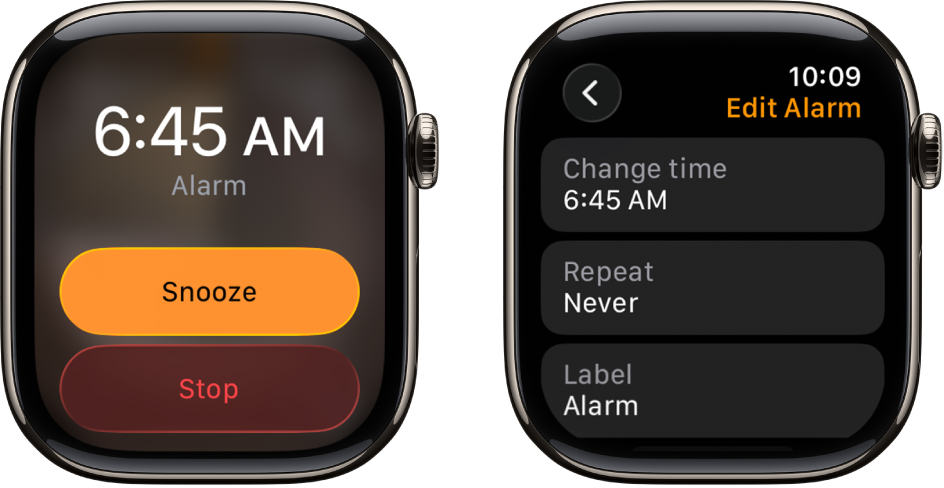
Adding an alarm takes just seconds and uses the Digital Crown for precise time selection.
Step-by-Step Setup:
- Tap the “+” button.
- Tap AM or PM to set the correct period.
- Tap the hour field, then turn the Digital Crown to adjust.
- Tap the minute field and turn the Crown again.
- Tap Set (checkmark) to confirm.
Your new alarm appears immediately in the list with a green toggle, meaning it’s active and will sound at the scheduled time.
✅ Pro Tip: Turn the Digital Crown slowly. It defaults to 5-minute jumps but switches to 1-minute increments as you near your target time for precision.
Customize Your Alarm Settings
After setting the time, personalize your alarm to suit your routine. Each alarm supports individual settings for repeats, labels, sound, and snooze.
Set Repeat Days and Add a Label
- Tap the alarm you just created.
- Scroll to Repeat and select specific days—perfect for “Weekdays” or “Mondays only.”
- Tap Label and enter a custom name like “Workout,” “Medication,” or “Call Mom.”
– Use Scribble, dictation, or the on-screen keyboard. - Changes save automatically.
Labels help you identify alarms at a glance—especially useful if you have multiple alerts throughout the day.
Choose a Sound and Disable Snooze
You can also pick a tone and decide whether the alarm allows snoozing.
- Sound: Tap to choose from options like Beep, Birdsong, Rooster, or Gentle.
- Snooze: Toggle Snooze off to force immediate dismissal.
🔔 Why disable snooze? Ideal for critical wake-ups—like catching a flight or starting a workout—where hitting snooze could derail your day.
Use Siri on Apple Watch to Set Alarms Instantly
Skip tapping and use your voice. Siri on Apple Watch lets you set alarms hands-free.
Effective Voice Commands:
- “Set an alarm for 7 a.m.”
- “Wake me up at 6:30 every weekday.”
- “Create an alarm in 15 minutes.”
- “Turn off my 8 a.m. alarm.”
Siri processes the request instantly and adds it to the Alarms app.
🎙️ Important: You must speak to Siri on the Apple Watch, not the iPhone. Saying “Set an alarm on my Apple Watch” from your iPhone won’t work—Apple doesn’t support cross-device alarm creation.
Skip a Sleep Schedule Alarm Without Canceling It
If you use the Sleep app, your wake-up time appears as a special alarm. But what if you want to sleep in just once?
How to Skip for One Night:
- Open the Alarms app.
- Tap your sleep wake-up alarm.
- Tap Skip for Tonight.
Your regular schedule stays intact—only the next alarm is skipped.
🛌 Perfect for weekends or late nights. No need to edit your entire sleep routine.
Create a Silent (Haptic-Only) Alarm

Need to wake up without disturbing a partner or during a meeting? Use a vibration-only alarm.
Steps to Set a Silent Alarm:
- Press the side button until the mute icon (bell with slash) appears.
- Open the Alarms app and create a new alarm.
- The alarm will trigger haptics only—no sound.
✅ The tap is strong enough to wake most people, even in deep sleep. Great for discreet reminders or shared sleeping spaces.
To restore sound, press the side button again to unmute.
Delete or Temporarily Turn Off Alarms
Got outdated alarms? Remove or disable them easily.
How to Delete:
- In the Alarms app, swipe left on the alarm.
- Tap the red Delete button.
Deleted alarms are gone permanently unless recreated.
Turn Off Without Deleting:
Tap the green toggle to turn it gray. The alarm stays in your list but won’t trigger.
💡 Useful for seasonal routines—like a summer wake-up time you’ll reuse next year.
Use Nightstand Mode as a Bedside Clock
Keep your Apple Watch charging overnight? Turn it into a digital bedside clock.
Enable Nightstand Mode:
- Open Settings on Apple Watch.
- Tap General > Nightstand Mode.
- Toggle On.
When charging:
– The screen shows large time, date, and charging status.
– Any active alarm displays its time below.
To wake the display: tap the screen or nudge the table.
🌙 When the alarm sounds, press the side button to stop it or the Digital Crown to snooze. Uses a soft, wake-friendly chime.
Sync iPhone Alarms to Apple Watch
While you can’t set Apple Watch alarms from your iPhone, you can get iPhone alarms to alert on your wrist.
How to Enable:
- Open the Watch app on iPhone.
- Tap My Watch > Clock.
- Enable Push Alerts from iPhone.
Now, when an iPhone alarm goes off:
– Your Apple Watch will vibrate and display the alert.
– You can snooze or dismiss it from your wrist.
⚠️ Reverse is not true: Apple Watch alarms do not notify your iPhone. Always double-check that your watch alarm is enabled.
Set Hourly or Interval Alarms (Workarounds)
The native Alarms app doesn’t support hourly repeats or interval-based alerts. But you have options.
Best Option: Use Alarmed by Yoctoville
Alarmed (free, $5 upgrade) is the top third-party app for advanced alerts.
Features:
- DayMinder: Set alarms every hour (e.g., “Stand up every hour”).
- Nag-Me: Repeats every 5 minutes until dismissed—perfect for critical tasks.
- Geofencing: Trigger alarms when near a location.
- Syncs directly with Apple Watch.
✅ Install from the App Store on iPhone, then open on watch. Ideal for medication, hydration, or focus timers.
Alternative: Use Reminders for Hourly Alerts
Can’t install apps? Use Apple’s Reminders.
Steps:
- On iPhone, open Reminders.
- Create a new reminder (e.g., “Drink Water”).
- Tap i > Repeat > Hourly.
- Save.
Result: A notification appears every hour on both devices.
⚠️ Not a full alarm—no persistent ring or snooze. Best for non-critical alerts.
Use Apple Watch Chimes for Gentle Hourly Alerts
Available in watchOS 7+, Chimes play a soft sound at the top of each hour.
Enable Chimes:
- Open Watch app on iPhone.
- Go to My Watch > Clock > Chimes.
- Choose On and select style: Simple, Soft, or Classic.
Includes a haptic tap—but no snooze or dismissal needed.
🎵 Great for subtle time checks, but not a replacement for task alarms.
Avoid Common Alarm Mistakes
Even small errors can cause alarms to fail.
Don’t Rely on iPhone to Set Watch Alarms
You cannot create an Apple Watch-only alarm from the iPhone. The Clock app on iPhone controls only iPhone alarms.
❌ “Set an alarm on my Apple Watch” via iPhone Siri = doesn’t work.
Always set alarms in the Alarms app on the watch or via Siri on the watch.
Check Mute and Volume Settings
An alarm may not sound if:
– The watch is muted.
– Silent Mode is on.
– Volume is too low.
Fix:
- Open Settings > Sounds & Haptics.
- Increase Ringer and Alerts volume.
- Ensure Haptic Strength is high.
Test by setting a test alarm 2 minutes ahead.
Troubleshoot Failed Alarms
Is your alarm not going off? Diagnose with these checks.
| Cause | Fix |
|---|---|
| Watch was off or in Airplane Mode | Charge and disable Airplane Mode |
| Alarm toggle is gray (off) | Tap to turn green |
| Mute enabled | Press side button to unmute |
| Software glitch | Restart watch (hold side button > slide Power Off) |
✅ Pro Tip: Reboot your watch weekly to prevent background issues.
Maintain Alarm Reliability Long-Term
Keep your alarms working smoothly.
Label Alarms Clearly
Use names like:
– “Pill Time – 10 a.m.”
– “Work Call – 2 p.m.”
– “Evening Walk”
Avoid confusion with multiple alarms.
Review Weekly
Every Sunday:
– Open Alarms app.
– Delete outdated entries.
– Confirm active alarms are still needed.
Prevents clutter and accidental wake-ups.
Charge Every Night
Alarms require power. If the watch dies, the alarm won’t trigger.
🔋 Plug in nightly. Use Nightstand Mode to double as a clock.
Test Alarm Behavior
After updates or new setups:
– Set a test alarm 5 minutes ahead.
– Confirm sound, haptics, and snooze work.
Ensures reliability when it matters most.
Summary: Key Tips for Apple Watch Alarms
- ✅ Set alarms in the Alarms app on Apple Watch—not iPhone.
- ✅ Use Siri on the watch for fast, hands-free setup.
- ✅ Label and repeat alarms to match your schedule.
- ✅ Disable snooze for non-negotiable wake-ups.
- ✅ Skip a sleep alarm temporarily without changing your routine.
- ✅ Use Nightstand Mode to turn your watch into a bedside clock.
- ✅ Sync iPhone alarms to Apple Watch via Watch app settings.
- ✅ For hourly alerts, use Alarmed app, Reminders, or Chimes.
- ✅ Avoid common pitfalls: mute mode, incorrect setup, or relying on iPhone.
With the right setup, your Apple Watch becomes a powerful, silent, and reliable wake-up tool—right on your wrist. Whether you’re rising for work, tracking medication, or staying productive, mastering alarms ensures you never miss a beat.





