
You check your Apple Watch, hoping to see your green Exercise ring steadily filling—but it’s barely moved. You’ve been on your feet all day, walking between meetings, climbing stairs, even rushing to catch a train. So why aren’t those minutes adding up?
The Exercise ring on Apple Watch tracks minutes of moderate-to-vigorous physical activity—specifically, movement that matches or exceeds the intensity of a brisk walk (about 3.3 mph). Unlike the Move ring, which counts active calories, or the Stand ring, which logs standing hours, the Exercise ring only fills when your body is working hard enough to benefit your cardiovascular health.
The good news? You don’t need to start a workout every time. Apple Watch automatically detects qualifying activity using motion sensors, heart rate data, and machine learning. But to make sure it works correctly—and to avoid frustration when minutes don’t add up—you need to understand how it activates, what counts, and how to troubleshoot common issues.
In this guide, you’ll learn exactly how to activate the Exercise ring on Apple Watch, whether through manual workouts or everyday brisk movement, plus tips to ensure accuracy and maximize daily credit.
How the Exercise Ring Works
The green Exercise ring measures minutes of moderate or vigorous activity per day, with a default goal of 30 minutes. Every minute you spend moving at the level of a brisk walk or higher counts toward closing it.
This includes:
– Brisk walking
– Running or jogging
– Cycling
– Strength training with elevated heart rate
– Fast-paced household chores
You can earn Exercise minutes in multiple sessions—five minutes here, ten there—and they’ll accumulate throughout the day. The key requirement: your effort must raise your heart rate and involve continuous movement.
💡 Pro Tip: Even if you don’t open the Workout app, your Apple Watch may still credit you for exercise if it detects sustained brisk activity.
Why Brisk Intensity Matters
Apple Watch uses three main signals to determine if movement qualifies:
– Heart rate elevation above resting levels
– Arm swing and stride pattern consistent with walking or running
– Pace (measured via GPS or motion sensors)
If all three align for at least one minute, that time is added to your Exercise ring.
✅ Example: Walking quickly across a large airport terminal may count.
❌ Example: Pacing while on the phone slowly won’t—unless your heart rate spikes.
Start a Workout to Guarantee Credit
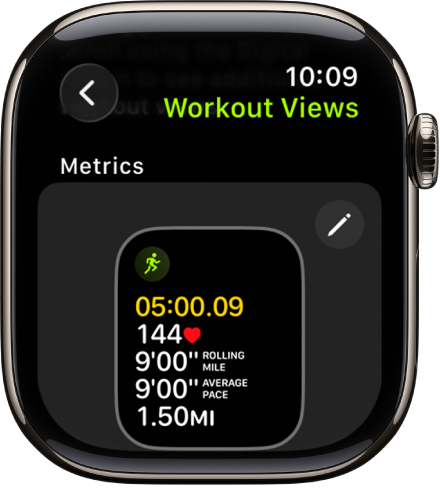
Open the Workout App
The most reliable way to activate the Exercise ring is by starting a workout manually. This ensures every minute of your session counts—even if your heart rate dips momentarily.
Steps to begin:
1. Press the Digital Crown to return to the watch face.
2. Tap the Workout app (figure-runner icon).
3. Scroll and select an activity:
– Outdoor Walk
– Run
– HIIT
– Elliptical
– Pool Swim
– Or any other that matches your effort
4. Tap Start.
5. Wait for the three-second countdown.
Once running, the watch will display elapsed time, calories, heart rate, and more—based on your preferences.
⏱️ Time Saver: Use a complication on your watch face to start workouts with a single tap.
Let It Run During Your Activity
While exercising:
– Keep the watch on your wrist snugly.
– Avoid covering the back sensor.
– Let the workout run—even during short breaks.
Every full minute logged in the app adds to your Exercise ring, regardless of intensity dips, as long as the workout isn’t paused.
When finished:
1. Tap End.
2. Confirm Save to add it to your Fitness data.
🔄 Auto-Pause Tip: For outdoor runs or walks, enable Auto-Pause (in iPhone Watch app > Workout > Pauses) so stops at lights don’t waste time.
Get Credit Without Starting a Workout
Automatic Exercise Detection
You don’t need to open the Workout app to earn Exercise minutes. Apple Watch automatically credits brisk activity detected in the background.
What Counts Automatically?
- Power walking to catch a bus
- Carrying heavy groceries upstairs
- Mowing the lawn
- Moving furniture
- Fast-paced cleaning
As long as your heart rate, pace, and motion indicate moderate effort for at least one continuous minute, it counts.
🧠 How It Learns: Over time, your watch adapts to your personal fitness level. If you’re less active, even small efforts may qualify—this is normal.
Why Some Movements Don’t Count
Not all movement earns Exercise credit. Here’s why:
| Activity | Counts? | Reason |
|---|---|---|
| Walking around home | ❌ | Too slow, no sustained effort |
| Standing and stretching | ❌ | No heart rate elevation |
| Lifting light objects | ❌ | Insufficient intensity |
| Pushing a stroller briskly | ✅ | Meets pace and heart rate criteria |
⚠️ Myth Busting: Steps alone don’t fill the Exercise ring. A 10,000-step day may include only 20 minutes of actual brisk movement.
Fix Exercise Ring Not Tracking
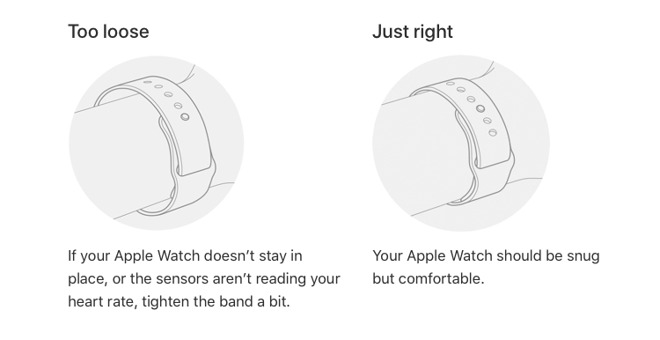
Check Watch Fit and Sensor Cleanliness
A loose band or dirty sensor can prevent accurate readings.
Do this:
– Wear the watch one finger width above the wrist bone.
– Make sure it’s snug but comfortable—you should not be able to rotate it easily.
– Wipe the back sensors with a soft, dry cloth weekly.
Dirty sensors = inaccurate heart rate = missed Exercise minutes.
Enable Fitness Tracking Permissions
If background detection isn’t working, check iPhone settings.
Steps:
1. On iPhone, go to Settings > Privacy & Security > Motion & Fitness.
2. Ensure Fitness Tracking and Health are ON.
3. Also verify:
– Background App Refresh is enabled for Activity and Workout apps
– Location Services are allowed for Apple Watch (for outdoor accuracy)
🔁 Restart both devices if changes don’t take effect.
Update watchOS
Outdated software can cause glitches.
To check:
1. Open the Watch app on iPhone.
2. Tap General > Software Update.
3. Install any available updates.
Always keep your Apple Watch on a charger during update installation.
Calibrate for Better Accuracy
Why Calibration Helps
Calibrating improves how your Apple Watch estimates distance, pace, and effort—which directly affects Exercise minute detection, especially for indoor activities like treadmill walking.
Without calibration, your watch may underreport your intensity and fail to credit valid exercise.
How to Calibrate Your Watch
You only need to do this once, but repeat annually or after major fitness changes.
Steps:
1. Go outside to an open area with good GPS.
2. Open the Workout app.
3. Select Outdoor Walk or Outdoor Run.
4. Walk or run continuously for at least 20 minutes.
5. Maintain a steady pace and swing your arm naturally.
6. Save the workout when done.
After calibration, your watch will better recognize when indoor or GPS-free activities (like using a treadmill) meet the brisk threshold.
🎯 Best Practice: Do this on a flat route, not hilly terrain, for consistent data.
Troubleshoot Phantom Exercise Minutes
Why Exercise Ring Fills When Not Exercising
Some users report Exercise minutes appearing without obvious cause, like after going to the bathroom or making coffee.
Possible reasons:
1. Low Baseline Fitness
If you’re very sedentary, small increases in movement (e.g., walking quickly down a hallway) may register as moderate exercise.
This is intentional—Apple wants to encourage progress from any starting point.
2. Elevated Heart Rate from Non-Exercise Causes
Caffeine, stress, illness, or anxiety can spike your heart rate. Combined with arm movement, this might trigger false credit.
Example: Nervous pacing before a meeting could count as 2 minutes of exercise.
3. Algorithm Learning Phase
New Apple Watch users often see irregular credits during the first 1–2 weeks. The system is learning your resting heart rate, gait, and daily patterns.
After a few days, it stabilizes and becomes more accurate.
✅ Don’t panic: Occasional over-credit is rare and usually balances out over time.
For Wheelchair Users: Roll Ring & Exercise

Apple Watch supports wheelchair users with adaptive metrics.
Roll Ring Replaces Stand Ring
- Tracks 1-minute rolling sessions in at least 12 different hours of the day.
- Encourages regular movement to maintain circulation and joint health.
Exercise Minutes Still Apply
- Pushing with intensity earns Exercise credit.
- Two specialized workouts:
- Wheelchair Walk Pace
- Wheelchair Run Pace
- Uses push frequency, stroke type, and heart rate to measure effort.
🛠️ Enable these in the Workout app by customizing your workout list via the iPhone Watch app.
Your Apple Watch detects rolling motion just like walking—so brisk rolls count automatically, even without starting a workout.
View and Track Exercise Progress
On Apple Watch
- Open the Activity app (three colored rings).
- Swipe up or turn the Digital Crown to scroll.
- See:
– Daily Exercise minutes
– Total active calories
– Stand hours
– Weekly summary
Tap the green Exercise ring to view a breakdown of credited minutes by activity type.
👆 Quick Peek: Swipe right on the Activity app to see awards, trends, and competition status.
On iPhone (Fitness App)
- Open the Fitness app.
- Tap Summary.
- Scroll to Trends to compare:
– 90-day vs. 365-day averages
– Exercise minutes per week
– Cardio fitness (VO₂ max)
– Walking pace and symmetry
Tap any trend for personalized coaching, like:
“Walk an extra 0.3 miles per day to maintain your cardio fitness.”
📈 Use trends to spot drops in activity and adjust habits early.
Earn Awards and Stay Motivated
Close the Exercise Ring Weekly
Consistency unlocks rewards.
Available Awards:
- Perfect Week: Close Exercise ring for 7 days straight
- 7-Workout Week: Complete 7+ workouts in 7 days
- Monthly Move Challenge: Hit 20 workouts/month
- Personal Best: Set a new record for longest workout or highest Move goal
To see them:
– On Apple Watch: Activity > Awards
– On iPhone: Fitness > Awards
🏆 Motivation Hack: Share an award with a friend to celebrate progress.
Compete With Friends
Invite someone to a 7-day Activity competition.
- Points are based on percentage of rings closed each day.
- The Exercise ring carries significant weight in scoring.
- Get daily nudges: “You’re 8 minutes behind!”
💬 Real-time updates keep you pushing harder to win.
Common Myths Debunked
“Only Workouts Count”
❌ False.
Apple Watch credits any brisk activity, whether tracked or not.
Starting a workout guarantees credit, but automatic detection fills gaps during real-life movement.
“All Walking Counts”
❌ False.
Only brisk walking qualifies. A leisurely stroll won’t cut it unless your pace and heart rate rise.
Test it: Walk faster and check if minutes increase.
“GPS Is Required”
❌ False.
Indoor activities (treadmill, elliptical) can earn Exercise credit using heart rate and motion alone.
Calibration helps improve indoor accuracy.
“Steps Fill the Exercise Ring”
❌ False.
Steps contribute to Move and Distance, not Exercise.
You can take 8,000 steps and earn only 15 Exercise minutes if most were slow.
Maximize Daily Exercise Minutes
Combine Manual and Automatic Tracking
Use this strategy to close the ring reliably:
1. Start a 10-minute brisk walk in the Workout app → guaranteed 10 minutes.
2. Walk fast to your next meeting → may auto-credit 5–8 more.
3. Take the stairs and carry items → adds 2–3 minutes.
4. Do a quick home workout (jumping jacks, squats) → track it or let it detect.
🔢 Total: 20–30+ minutes without a gym session.
Optimize for Busy Days
Can’t exercise long? Try:
– Three 10-minute walks (morning, lunch, evening)
– Park farther away and walk briskly to your destination
– Walk during calls (stand and move)
– Set a reminder at 4 PM to “Move Now”
⏲️ Even 5 minutes of fast walking counts.
Final Tips to Activate Exercise Ring Successfully
To ensure your Exercise ring activates every day and reflects real effort:
✅ Wear your watch snugly and consistently.
✅ Start workouts for guaranteed credit.
✅ Walk briskly—even without tracking.
✅ Calibrate your watch for accurate detection.
✅ Keep software updated and sensors clean.
✅ Review trends and awards to stay motivated.
The Apple Watch Exercise ring isn’t just about formal workouts—it’s designed to reward real-world movement that benefits your health. By understanding how it activates, you can make small changes that add up to a closed ring every single day.
Now go move—and watch that green circle fill.




